

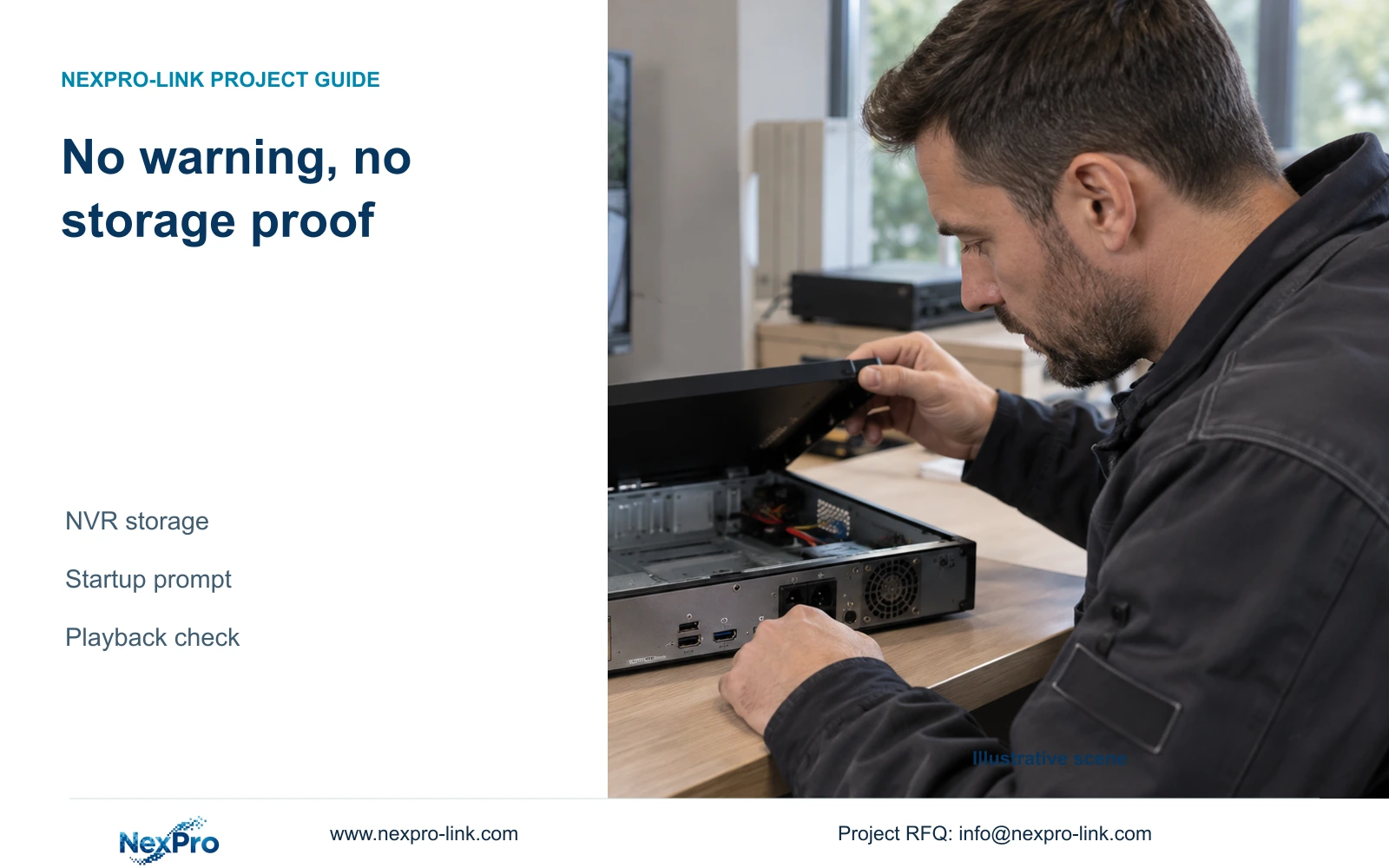
A suppressed startup warning can hide an unfinished recording setup. Check the recorder's actual disk, recording plan and retrievable footage before accepting it.
Section 01
Separate the startup prompt from recording readiness
Disabling the no-HDD startup warning changes the message shown to the operator; it does not install a disk, restore disk recognition or provide recording capacity. Before accepting a recorder with no warning, inspect its actual storage state and check that the intended channel can produce retrievable footage. A working live picture can coexist with an incomplete recording setup. Keep the prompt setting separate from the recording schedule and full-disk policy. If no usable recording disk is established, resolve that condition first. Acceptance should finish with playback of a known period and a verified export, rather than a quiet startup screen or a recording icon observed once.
Section 4.12.21 distinguishes the no-disk prompt from overwrite and stop-recording behavior. Overwrite permits cyclic use of storage to retain newer footage. Stop-recording mode makes reaching capacity a condition that can halt further recording. Neither choice creates missing storage. Agree the full-disk consequence with the owner according to the required history and incident-export process; do not treat either option as universally safer.
Section 02
Establish whether the recorder recognizes a disk
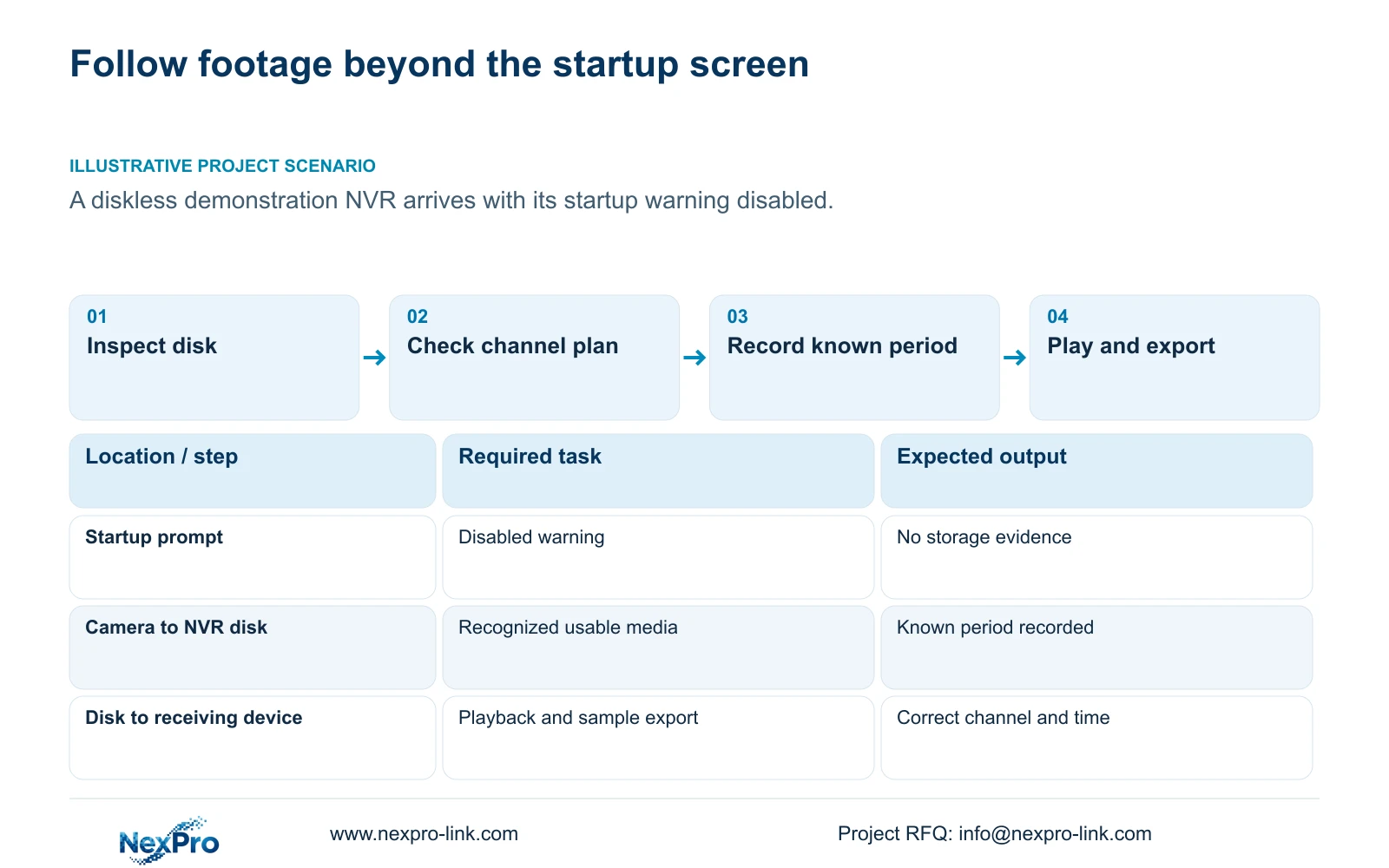
Open the applicable disk-information view and record what it shows before changing anything. Establish whether media is absent, whether an installed disk is missing from the interface, or whether recognized media needs further preparation. These observations lead to different actions. A suppressed warning gives no evidence about any of them.
For an installed but undetected disk, the manual identifies the disk itself, specified power-supply adequacy, SATA data connection and disk-power connection as the relevant checks. On a unit with several disks, record whether one entry or the intended disk set is missing. Note whether the condition began after relocation or disk work.
Internal inspection requires an authorized shutdown, an arranged recording interruption and preservation of any required accessible footage. Remove power before checking internal connections, then replace the enclosure cover before restarting. Compare the recognition result after the change. Formatting existing media is not a suitable recognition test and must not be used to investigate a missing disk.
Section 03
Read the storage menu by its actual functions
The manual's External Storage Devices section describes attached-disk information, selected formatting, full-disk behavior and the startup no-disk prompt. Its heading does not establish NAS, NFS, iSCSI, RAID or shared-storage recording. If a purchasing proposal omits the documented recording media and substitutes another architecture, request model-specific evidence for that write path.
When recognized media requires formatting, identify the selected disk, determine whether it contains footage to retain and obtain authority for the data change. Export required accessible recordings first. Keep this decision separate from disabling a prompt, particularly when a demonstration unit arrives with disks whose previous use is unclear.
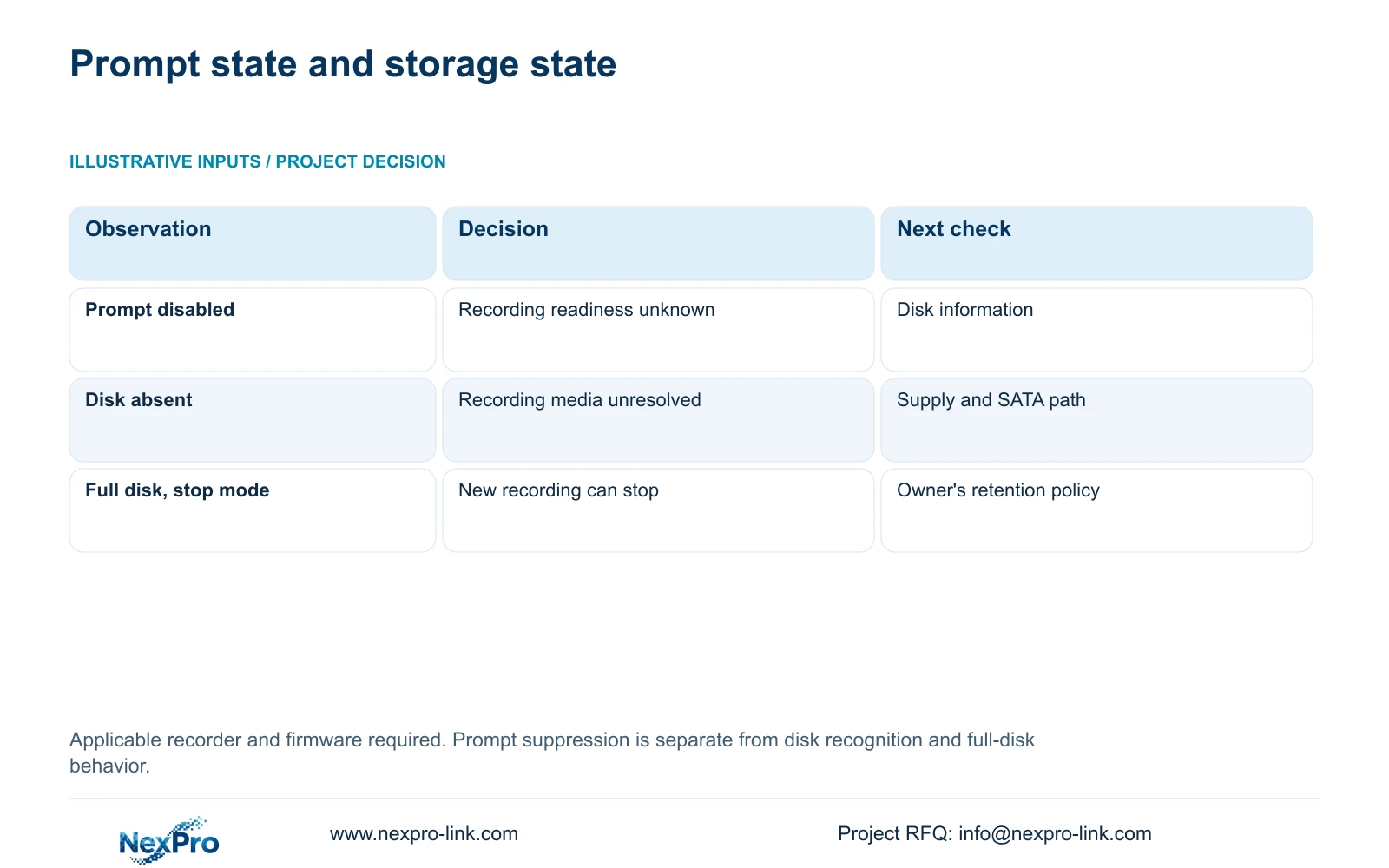
| Observation | Meaning | Next action |
|---|---|---|
| No warning appears | The startup prompt may be disabled | Inspect disk information independently |
| Installed disk is not recognized | The recording-media path remains unresolved | Check disk, specified supply and powered-down connections |
| Recognized media needs preparation | Recognition has succeeded; data handling still needs a decision | Confirm disk identity and preservation before authorized formatting |
| Disk is full with stop-recording selected | Capacity can prevent new recording | Review available history and the owner's full-disk policy |
Section 04
Connect the recording plan to usable media
Once storage is established, inspect the affected channel's plan for the required period. Section 4.11.1 lists timed recording, no recording, motion recording and motion-plus-timed recording. The documented plan grid has a 30-minute minimum scale. A valid disk cannot compensate for a period deliberately assigned no recording.
Motion-only recording depends on a motion trigger. A quiet interval without footage may therefore match the configured plan. Motion-plus-timed recording continues ordinary timed recording without a trigger and records motion-type footage when triggered. It must not be evaluated as event-only recording. Choose the verification interval to match the intended mode: use a known active scheduled period, and include a relevant trigger when checking motion-only behavior.
If the result is unexpected, keep the disk observation and original plan recorded. Correct the identified condition and repeat the same recording task. Changing several unrelated settings at once makes it harder to explain why footage became available or remained missing.
Section 05
Use status icons to choose the next check
Sections 2.3.3 and 2.4.4 distinguish recording, remote preview, motion events, I/O events and light-intelligence status. Read the relevant symbol as a current observation. A remote-preview indicator concerns a viewing session; an alarm indicator concerns an event. Neither establishes the historical period available on disk.
Even a recording indication cannot prove that an entire shift or day is retrievable. Record the channel and observation time, then inspect the corresponding playback period. If an event icon disappears, check the event's recording interval instead of assuming its footage has disappeared too. The absence of a startup popup is still a separate observation.
Section 06
Retrieve the period used in the recording check
Follow one identifiable channel from live view into a known recording interval. Record its start and end, inspect the recording state during that period, then retrieve the same interval through playback. Confirm that the footage belongs to the intended camera and time. Export a sample and open it on the receiving device, checking any required audio.
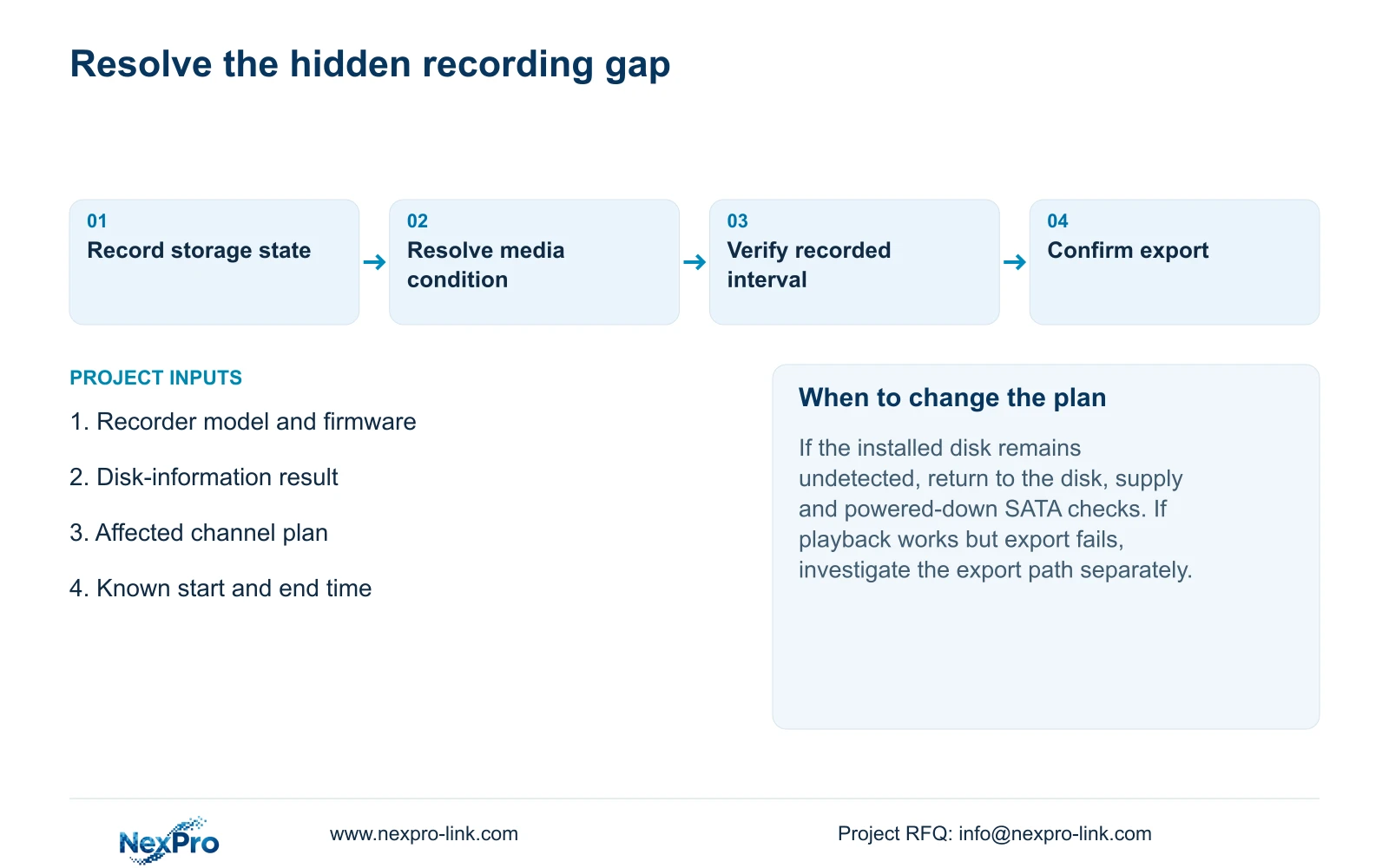
This is an engineering acceptance workflow based on the manual's live-view, recording and storage operations, not a built-in diagnostic feature. Document each expected result alongside what actually happened. If playback fails, retain the disk and schedule observations for investigation. If playback works but the exported file does not, investigate the export or viewing path without declaring the original recording absent.
A successful short check establishes that particular task and configuration. It does not prove the full retention duration. Keep the demonstrated storage configuration in the acceptance record so procurement does not confuse a live-view sample with a complete recording package.
Section 07
Check a demonstration recorder before site acceptance
Illustrative project scenario: A diskless demonstration recorder is moved to site after its startup warning has been disabled. The receiving team should record that the sample has no established recording media, then resolve the disk requirement before checking the channel plan. Site acceptance remains open until a known interval can be played back and exported. No successful outcome is assumed from the suppressed prompt.
The operating source is the private supplied NVR4.0 user manual CH_V2.4.doc, whose body identifies V2.2. Relevant sections are 4.12.21, 5.3 question 4, 3.2, 4.11.1, 2.3.3, 2.4.4 and 4.3. Apply them to the actual recorder and firmware. Seetong PC local storage is a separate object and cannot establish that the recorder's disk is ready.
Section 08
Can a diskless sample still be useful?
It can demonstrate the available live-view task, provided its diskless scope is stated. It cannot demonstrate recorder-disk retention until the required media and recording path are established.
Section 09
Resolve the remaining storage condition
Send NexPro-Link the recorder model, firmware and redacted disk-information result at info@nexpro-link.com to discuss the unresolved recording-storage condition.
Engineering references
These sources support the general planning principles. Always use the selected product's current datasheet and applicable project standards for final design.


