

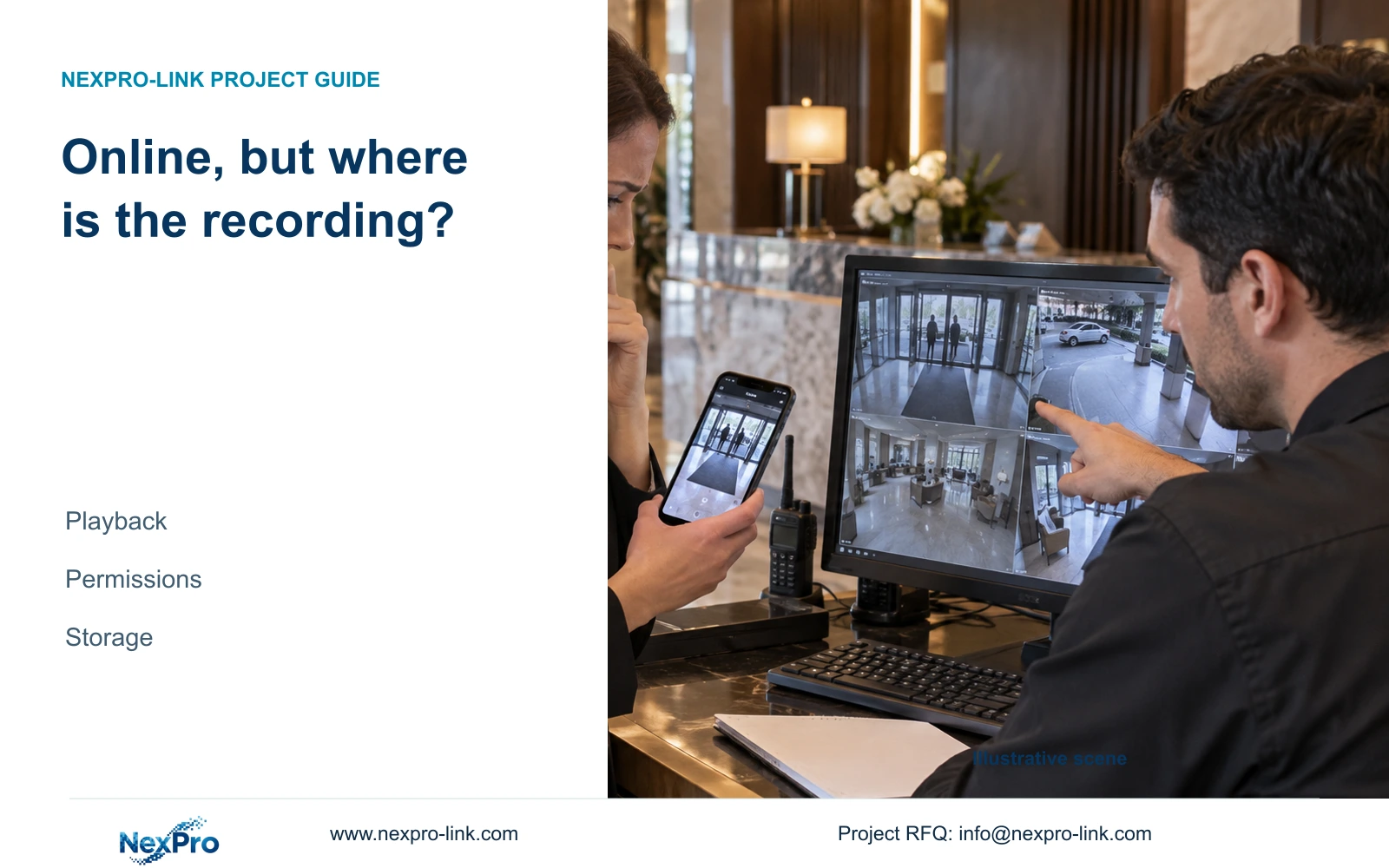
Live phone viewing does not prove yesterday's footage exists. Check the recording owner, account rights, search selection, plan and disk behavior in order.
Section 01
Locate the footage behind the remote view
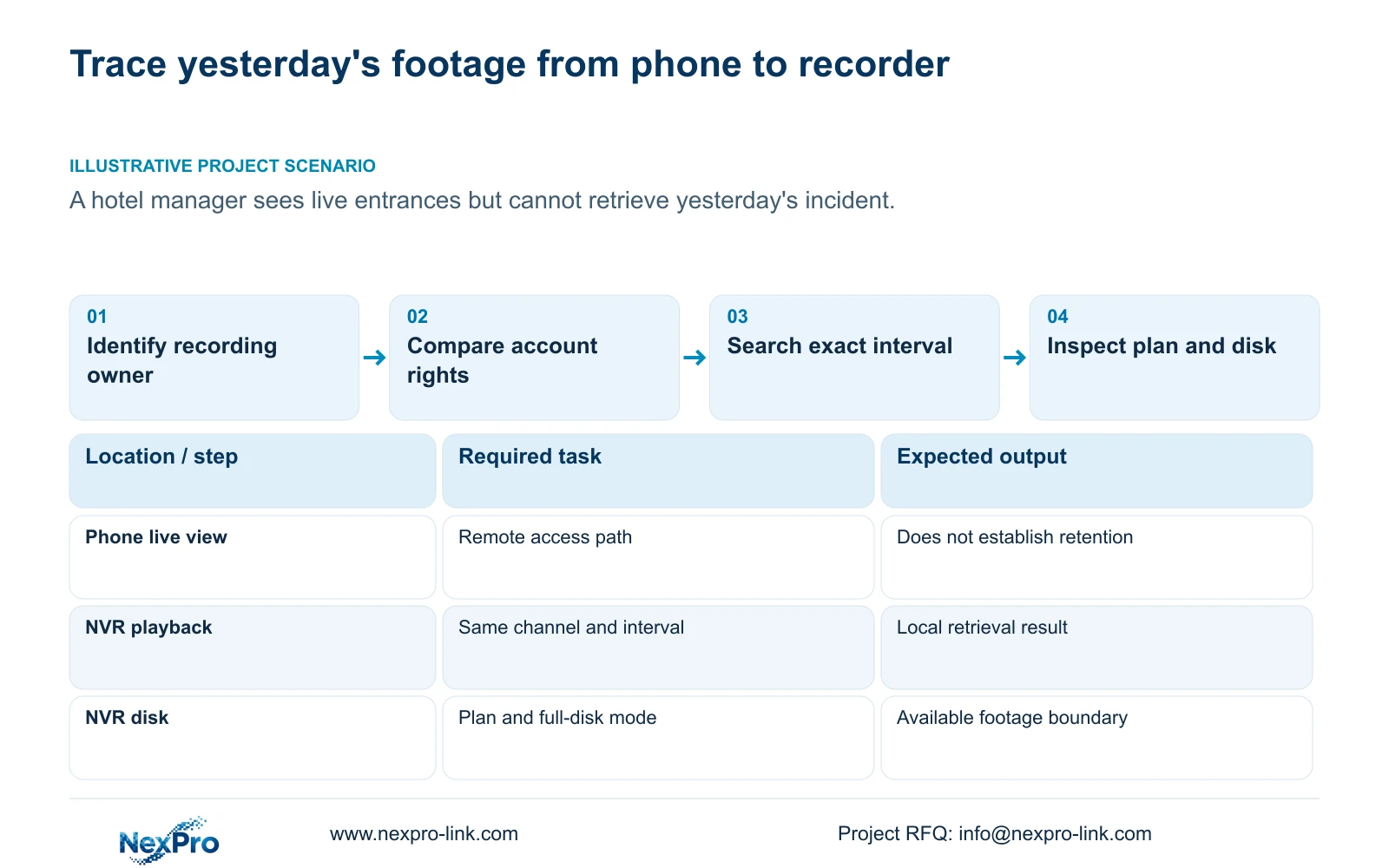
An online recorder and a working live phone view do not establish that the requested recording exists or that the account can retrieve it. First identify where the footage should be stored, then compare local and remote playback for the same recorder, channel and interval. If the recording plays locally, investigate remote rights and selection. If it cannot be found locally, inspect the search filters, applicable recording plan and disk behavior before declaring data loss. The supplied manual documents recorder storage and cloud access separately, so remote viewing alone cannot be treated as evidence of a cloud archive.
The source is NVR4.0 user manual CH_V2.4.doc, whose body identifies V2.2. Sections 1.2, 4.11 and 4.12.8 establish the relevant distinction between access and recorder storage. Confirm that the actual device and firmware match the described workflow; a Seetong Windows local-recording menu operates on a different storage object.
Write down the intended recording owner. NVR disk recordings, PC local recordings and exported copies can contain the same camera name while remaining different stores. The manual does not establish a cloud retention subscription or automatic off-site backup. Query the owner expected to hold the incident.
Section 02
Confirm the device and account being used
Compare the device selected on the phone with the recorder that should hold the entrance footage. Then identify the account and access path used for playback. A familiar live image can conceal a mismatch in the intended recording source or account.
Sections 4.1, 4.3.1 and 4.12.3 distinguish recorder users, camera connection credentials and the relevant remote account path. An IPC password authenticates a camera connection; it is not a universal recorder or cloud password. Keep account ownership in the support record without copying plaintext passwords into it.
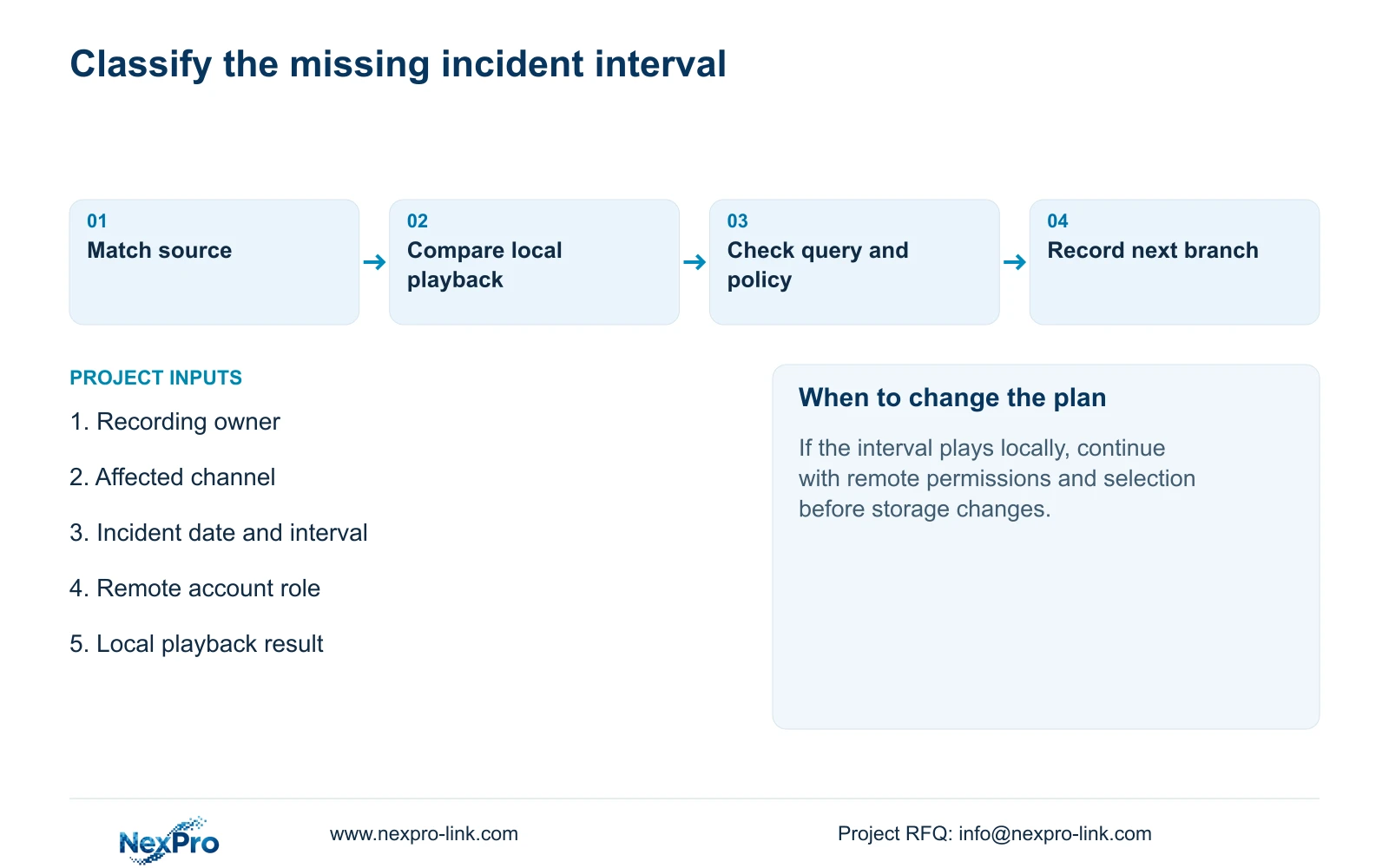
Where authorized local access is available, use the same channel and incident interval as a comparison. Record whether local playback succeeds, fails or remains untested. That observation determines whether the investigation stays with remote access or moves toward the recorder's recording and storage task.
Section 03
Compare playback rights with preview rights
Section 4.12.3 separates preview and playback permissions, as well as local and network permissions. Local backup is another task. Seeing a camera from a phone therefore does not prove that the same account has the required remote playback rights.
Test the intended user on the intended path. Confirm an allowed task and a prohibited task, then record both outcomes. If footage exists locally but the remote playback action is denied, have the authorized administrator review the relevant permission. Expanding all permissions is unnecessary when a defined playback task is the only approved requirement.
Keep a permission denial separate from an empty search result. Both can prevent retrieval, but they lead to different next checks. After an authorized rights adjustment, repeat the original channel-and-time query rather than accepting login success as the result.
Section 04
Search the exact channel, date and recording type
Section 4.11.2 states that playback entry defaults to the channel selected in preview. Confirm the entrance channel explicitly before choosing the date and incident time. A correct date on the wrong camera is still the wrong search.
In this documented workflow, orange indicates a date with recordings and grey indicates a date without recordings. Orange does not prove complete coverage of every channel throughout that day. Check the actual interval and the ordinary, alarm and motion filters.
If a motion-only filter returns nothing, inspect the other relevant recording types before concluding that the interval is missing. Record each selection and outcome. The local manual's calendar behavior should not be assumed to describe every phone-client interface; use its channel, date and type distinctions to make equivalent comparisons.
| Observation | Next branch | Required check |
|---|---|---|
| Local footage plays; remote playback is denied | Remote authorization | Account's network playback permission |
| Live view works; search is empty | Search selection | Recorder, channel, date, interval and type |
| Motion filter is empty on an orange date | Recording type | Ordinary and alarm results where applicable |
| Correct local search finds no interval | Recording plan | Applicable channel and day settings |
| Disk is full and stop mode is selected | Capacity and policy | Recording status and owner-approved next action |
Section 05
Read the plan that applied to the incident period
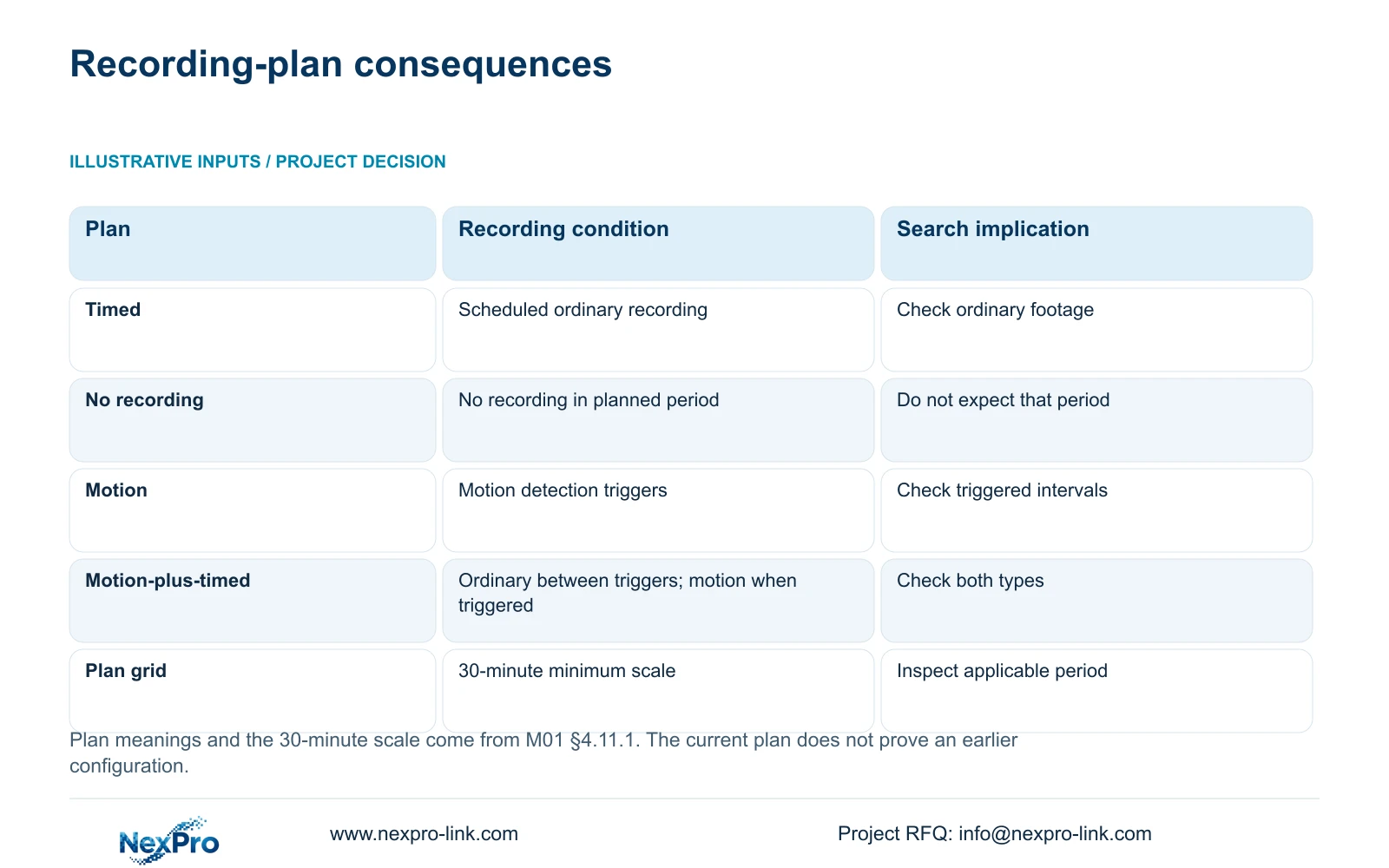
Section 4.11.1 describes timed recording, no recording, motion recording and motion-plus-timed recording, with a 30-minute minimum plan-grid scale. Inspect the affected channel's relevant day and period. If the plan has changed since the incident, the current screen alone cannot establish yesterday's configuration.
Timed recording provides the scheduled ordinary recording task. No recording leaves that planned period without recording. Motion-only recording depends on a motion trigger, so the absence of a continuous interval can follow from the selected policy.
Motion-plus-timed continues ordinary timed recording between triggers and records motion-type footage when triggered. It must not be interpreted as event-only storage saving. When reviewing a mixed plan, search the ordinary footage as well as the motion footage. Any corrective plan change should be followed by a newly generated sample; it cannot create footage for a past unrecorded period.
Section 06
Check capacity and the consequence of a full disk
Section 4.12.21 describes overwrite and stop-recording behavior. Overwrite permits cyclic use that retains newer footage as storage is reused. Stop-recording mode makes a full disk an operational stopping condition. Inspect the selected policy and observed recording state together.
Choose the future policy around the owner's retention and incident-export process. Stop mode is not automatically safer, and overwrite does not automatically satisfy every retention requirement. Disabling a startup no-disk prompt changes an indication; it does not create storage or recover missing footage.
Preserve any required available incident material before changing storage behavior. Formatting is not a retrieval repair and requires authorization, correct disk identification and preservation of relevant data. If the requested interval remains unavailable after the correct checks, report its status as unresolved or absent in the tested store, without inventing a recovery guarantee.
Section 07
A hotel incident visible only as a live entrance view
Illustrative project scenario: A hotel manager can see live entrances from a phone but cannot find yesterday's incident. The team first checks the same entrance and interval locally. A successful local result directs the next test toward remote rights or filters. An empty correct local result directs it toward the plan and disk, with no assumption that cloud access stored the incident.
Section 08
Does an orange date prove the whole day was recorded?
No. It indicates recordings exist for the date in the documented query. Verify the selected channel, time interval and recording type.
Section 09
Provide the missing interval and local result
Send NexPro-Link the affected channel and incident interval, with whether that same footage plays locally, at info@nexpro-link.com.
Engineering references
These sources support the general planning principles. Always use the selected product's current datasheet and applicable project standards for final design.


