


Follow the recorder's MP4 backup sequence from incident selection to recipient playback, with permission checks, capacity estimates and a usable handover record.
Section 01
Locate the incident before building the export
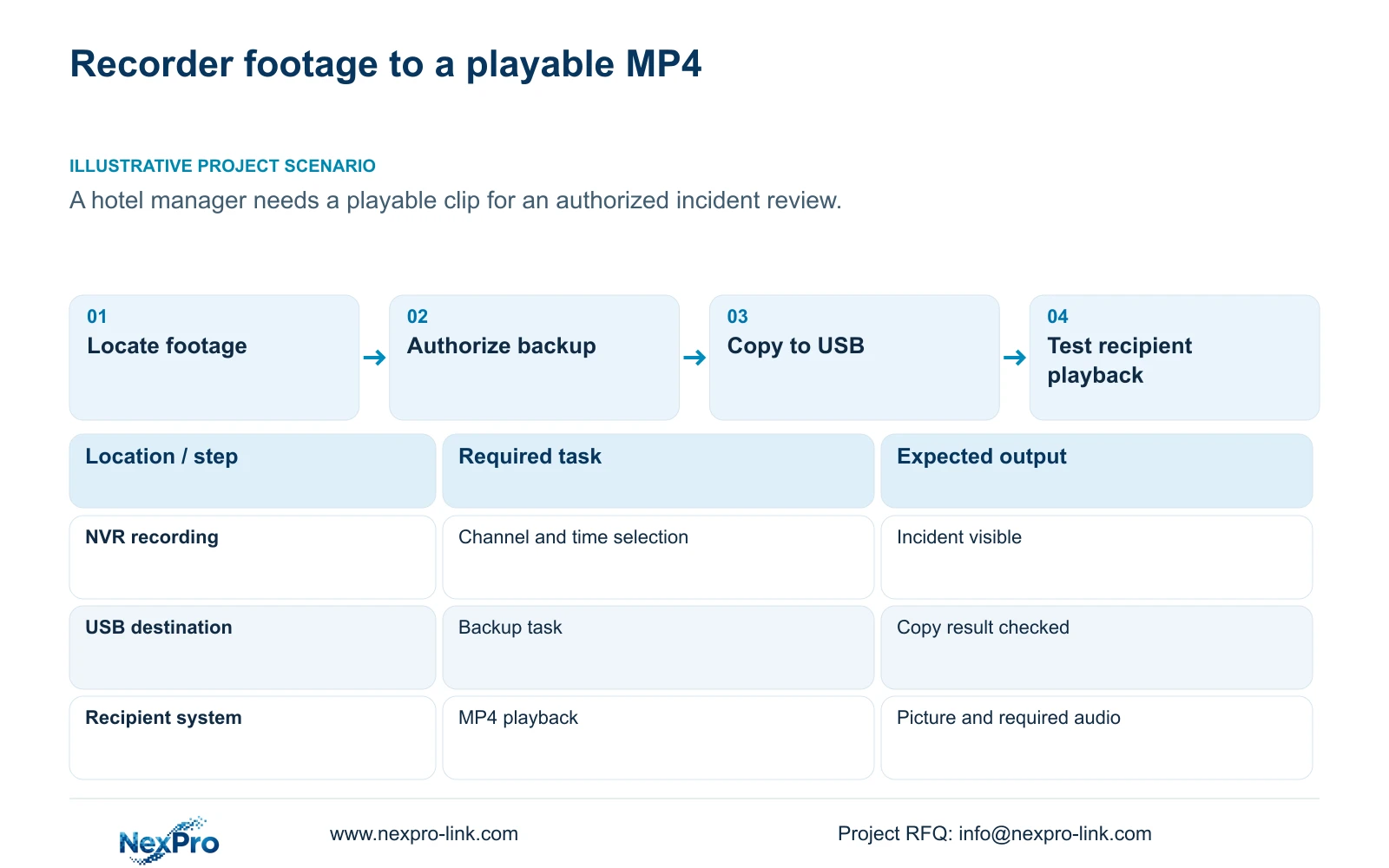
To export a usable MP4 recording, confirm the required channel and incident period, check the operator's backup permission, select the recording types and time range, and update the required capacity. Detect the inserted USB storage device before starting the copy. Keep it connected until the task has ended, then open the exported file on the recipient's intended viewing system. The handover is complete when that system can play the correct footage and any required audio. USB detection and a completed progress display establish different stages of the process; neither alone confirms that the recipient has received the requested incident.
Begin in playback with the camera location and reported event time. Section 4.11.3 provides thirty-second jumps, time positioning and timeline zoom. Use coarse navigation to find the likely period, then inspect a finer interval before choosing the export boundaries. A twenty-second teaching event can fall between thirty-second navigation steps. Passing over it does not establish a recording gap.
Timeline zoom changes how precisely you inspect time. Electronic image enlargement changes the viewed picture. Enlarging the image cannot resolve an incorrectly selected period. Confirm enough surrounding footage to understand the incident, then record the actual start and end times for the backup selection.
Section 02
Test the account that will perform the backup
A user who can view live video may still lack the permission needed to export it. Section 4.12.3 separates local and network permissions, with local recording backup listed independently from other tasks. Test the intended operator through the actual access path before an incident handover depends on that account.
Use an allowed backup task and a task that the role should prohibit to check the permission boundary. Local preview success does not establish remote playback rights, and an administrator's successful export does not establish the guard's rights. If backup is unavailable, refer the account change to the authorized administrator instead of sharing a more powerful account. The source's remote-upgrade description is inconsistent, so it provides no reliable shortcut for interpreting unrelated permissions.
Section 03
Set the selection and estimate the copy
Section 4.11.4 describes selecting file format, recording types, channels and start/end time, followed by Update to display the required capacity. MP4 is the documented default, and multiple channels can be selected. Check the selections together before detecting the destination media and starting backup. A correctly named format cannot compensate for a missing channel or an excluded recording type.
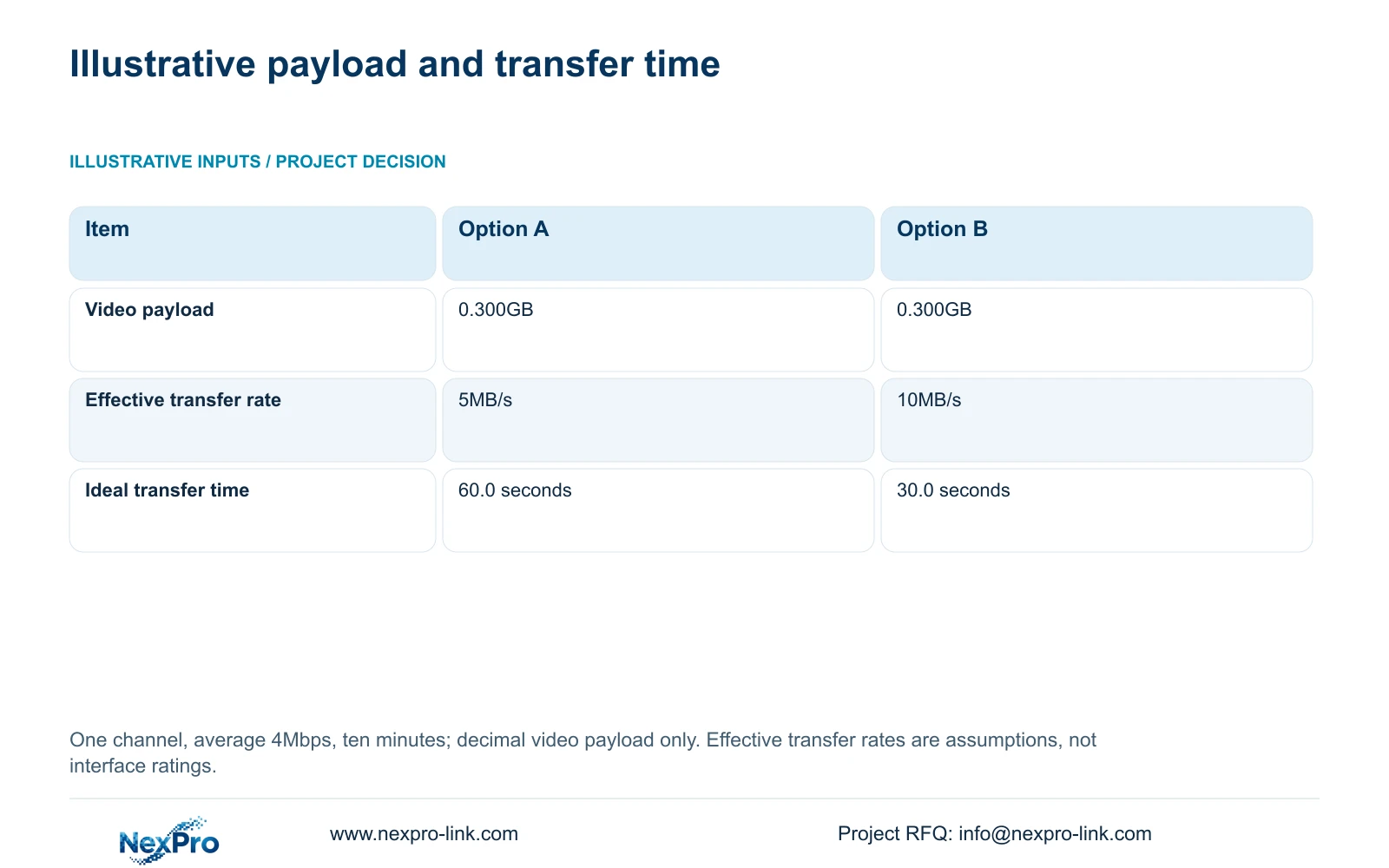
For the supplied calculation, use one channel at an average recorded video rate of 4Mbps for ten minutes. With decimal units, video payload in GB = channels × Mbps × minutes × 60 ÷ 8 ÷ 1000. Substitution gives 1 × 4 × 10 × 60 ÷ 8 ÷ 1000 = 0.300GB, or 300MB.
Ideal transfer time in seconds = GB × 1000 ÷ effective MB/s. Option A assumes 5MB/s, giving 0.300 × 1000 ÷ 5 = 60.0 seconds. Option B assumes 10MB/s, giving 0.300 × 1000 ÷ 10 = 30.0 seconds. These are hypothetical effective file-transfer rates, not USB interface ratings. Packaging, disk activity and competing work can change the actual result. Use the recorder's updated capacity and task state to manage the real export.
| Observation | Meaning | Next action |
|---|---|---|
| Correct clip found, backup unavailable | Viewing permission has not established backup permission | Check the intended role with the authorized administrator |
| Selection changed after capacity was read | The previous estimate belongs to the earlier selection | Run Update and compare the new requirement with free space |
| USB detected | The destination is recognized | Start the selected backup and monitor its result |
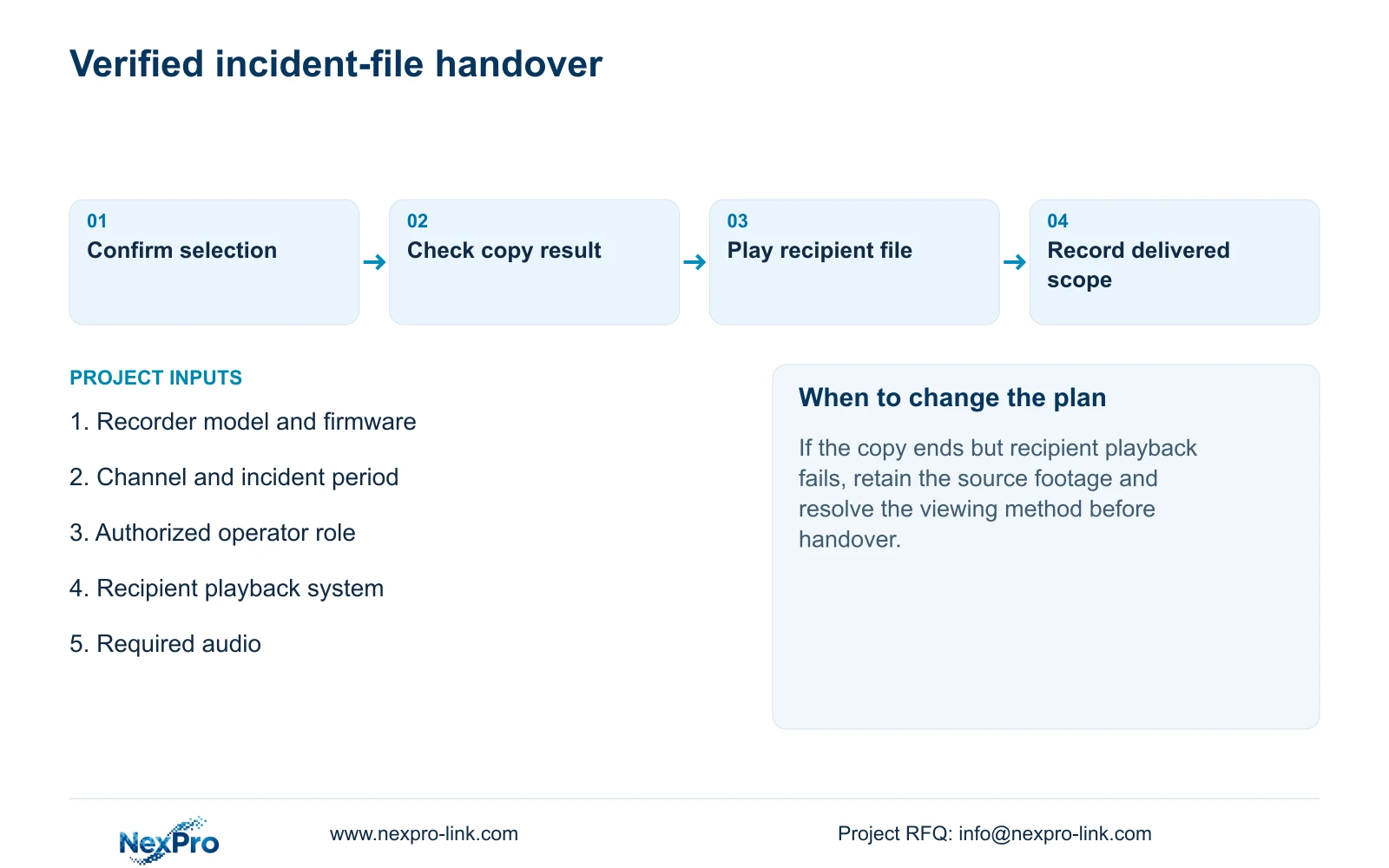
| Copy ended, recipient cannot play it | File usability remains unresolved | Check the viewing method and exported content before handover |
Section 04
Follow the task after returning to live view
Section 2.4.4 describes a backup-status icon when the backup window is hidden during an active copy. Selecting the icon reopens the backup page. The indicator exits when the task ends. Returning to live preview therefore does not establish completion.
Reopen the task page to inspect the result before removing the USB storage. If the task remains active, leave its destination connected. If it ends unexpectedly or reports a problem, preserve the observed state and inspect the resulting files before deciding whether to repeat the copy. Avoid creating several uncertain copies because the control window disappeared.
Section 05
Verify the file through the recipient's viewing path
Open the export on the system intended for incident review. Confirm the camera location, requested period and visible incident, then check any required audio. MP4 identifies the selected file format; the practical playback conditions still need a test. The manual mentions players such as VLC without guaranteeing every operating-system and codec combination.
If playback fails, record whether the file cannot open, shows the wrong period or lacks required sound. These observations lead to different checks. Keep the original recorder footage protected while the required copy remains unverified. A playable sample establishes the tested file and viewing method, not every future export or platform.
Section 06
Deliver enough context to repeat the retrieval
Accompany the file with its channel-to-location description, selected date and time range, recording-type scope and tested viewing method. Identify the authorized recipient and responsible support route. For system handover, retain the applicable software and hardware versions, configuration-backup location and maintenance responsibilities together.
Have the intended operator demonstrate retrieval and export rather than accepting a folder of documents as proof of competence. Transfer credentials through a controlled route, separate from public instructions and clip descriptions. NexPro-Link's project-support scope can be discussed around this operating requirement without assuming that equipment supply includes every local support task.
Section 07
Apply the workflow to an authorized hotel review
Illustrative project scenario: A hotel manager needs a playable clip for an authorized incident review. The operator confirms the relevant camera and period, tests backup access and checks the exported file on the manager's intended viewing system. If the copy completes but cannot be played there, the handover remains open. This is a teaching scenario, not a delivered-project report.
The operating source is the private file NVR4.0 user manual CH_V2.4.doc, whose body identifies V2.2. Relevant sections are 4.11.3, 4.11.4, 2.4.4, 4.12.3 and 4.12.17 through 4.12.19. Section references take priority over page numbers. Apply the instructions to the actual recorder and firmware; Seetong PC local recordings are a separate storage object.
Section 08
Buyer questions about usable MP4 exports
Can several channels be included? The manual permits multiple-channel selection. Confirm each requested channel and verify its exported coverage.
Does an MP4 extension guarantee playback? No. Test the exported file on the recipient's intended system, including required audio.
Can the USB device be removed once live view returns? Only after the backup task has ended and its result has been checked. Live view can appear while copying continues.
Section 09
Define the recipient's playback requirement
Send NexPro-Link the recorder model and firmware plus the recipient's intended playback system at info@nexpro-link.com to discuss the applicable MP4 handover workflow.
Engineering references
These sources support the general planning principles. Always use the selected product's current datasheet and applicable project standards for final design.


