

For the TS recorder family in the supplied NVR4.0 manual, confirm model and firmware, then verify one camera's recording, playback and export. These instructions are not a universal NVR interface guide.
Section 01
Define the recording result before setup
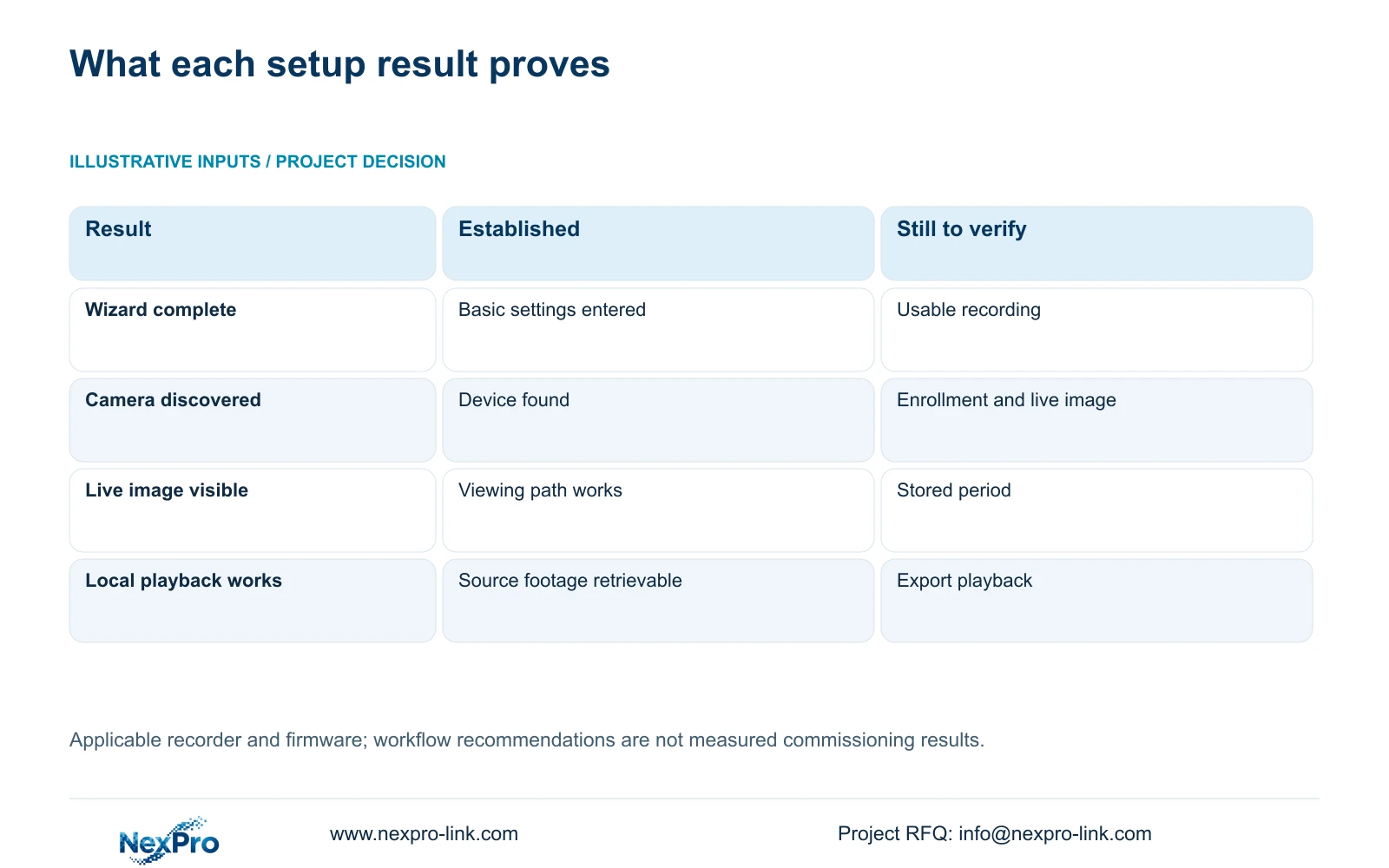
For the TS recorder family covered by the supplied manual, confirm the actual model and firmware before following these instructions. Commercial handover requires the intended user to identify a camera, retrieve a known recording period and play the export on the destination device. Live pictures or a completed wizard do not prove stored, usable footage. For the office entrance example, establish a ten-minute recording window, check recorder playback and check the exported copy separately. Resolve the first failed stage before repeating the workflow across the remaining channels.
Section 02
Match the instructions to the recorder
This guide follows the supplied private file NVR4.0 user manual CH_V2.4.doc, whose body identifies V2.2. Sections 1.2 and 5.2 define the family and model boundaries; section references take priority over page numbers. The manual includes TS8104A3, TS8108A3, TS8216A3, TS8232C4, TS8108D7, TS8116D7, TS8836M and TS8436M. It does not establish a mapping from these codes to NexPro-Link commercial SKUs.
Before executing menu-specific steps, match the installed model and firmware to applicable instructions. If they cannot be matched, use this guide only to define the record, retrieve and export acceptance task, and obtain the matching procedure before configuration. The supplied family overview does not make every decoding, playback or audio function common to every unit. Keep Seetong PC local recording outside the acceptance check: a Windows-client file does not prove footage exists on the NVR disk.
Section 03
Turn wizard settings into a working record
Section 4.2 covers language, the administration password, time, network, cloud access, disks and IPC information. Capture the task-relevant settings in a small commissioning record: recorder identity, entrance channel assignment, recorder time, network arrangement and selected disk. Keep credentials out of that record's public or shared presentation.
Compare the recorder time with the time used to describe the demonstration. A successful recording can still be difficult to retrieve if the owner searches a different period. Review disk information before proceeding. If setup presents a formatting action, obtain authority and preserve any required existing data before using it. Formatting is a separate data decision, not a routine confirmation that must be accepted to finish the wizard.
Section 04
Follow one camera through enrollment
Use section 4.3.1 to distinguish the search list from the added-channel list. The documented search mechanism covers the private protocol and ONVIF devices on the same subnet. A discovered device still needs the correct channel assignment, protocol and authorized credentials before its connection can be evaluated.
Choose the entrance camera first. Confirm that the live image corresponds to the physical entrance, then check the channel's recording state. If discovery succeeds but connection fails, review enrollment and authentication before changing the recording plan. If live view works but footage cannot be retrieved, move to the disk and schedule checks. Finding an ONVIF device does not establish support for every event, audio or maintenance function.
| Observation | What it establishes | Next action |
|---|---|---|
| Camera appears in search | Supported discovery found the device | Check added channel, protocol and authentication |
| Correct entrance image is live | The selected viewing path works | Check disk and recording state |
| Known period plays on the NVR | Recorder footage is retrievable | Select that channel and period for backup |
| Export plays on the destination device | The copied footage is usable there | Record the result and repeat for other channels |
Section 05
Create a known recording window
Section 4.11.1 describes timed recording, no recording, motion recording and motion-plus-timed recording. Timed recording suits a demonstration that must contain the entire selected period. No recording provides no footage for that scheduled interval. Motion-only recording depends on a motion trigger, so an uneventful interval cannot demonstrate continuous coverage.
Motion-plus-timed continues ordinary timed recording without a motion trigger and records motion-type footage when motion occurs. Do not treat it as an event-only space-saving setting. The plan grid has a thirty-minute minimum scale. Place the ten-minute demonstration within an enabled scheduled interval; the demonstration duration does not change the grid's minimum scale.
Note the start and end of the intended window and allow that period to be recorded. Retrieve the same channel and period afterward. If coverage is incomplete, check the selected plan, recording type and disk state individually. Changing several unrelated settings together makes the eventual result harder to explain.
Section 06
Build and verify the export
Follow section 4.11.4 by selecting the file format, recording types, channel and start/end time. Update the selection to display its capacity estimate. Insert the external USB storage device, detect it and then start backup. The manual lists MP4 as the default and permits multiple-channel selection.
For the first demonstration, keeping the entrance channel separate makes an incorrect selection easier to notice. Once copying finishes, open the exported file on the intended destination device. Check that it shows the entrance and covers the requested period. Successful USB detection proves that the medium was recognized; it does not prove that the chosen footage was copied correctly.
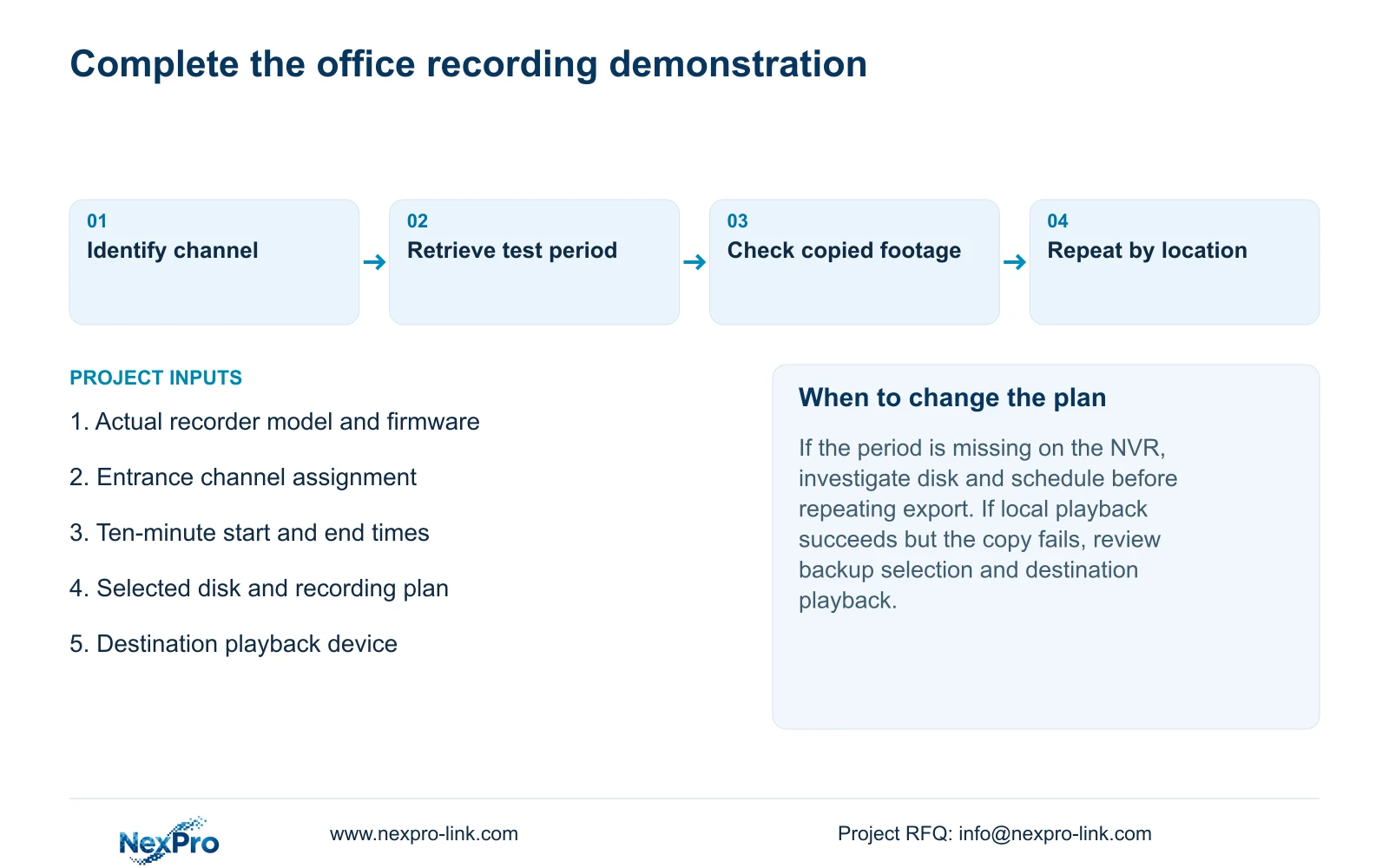
If the export fails its playback check, compare the backup selection with the period already confirmed on the recorder. A missing source recording requires a recording investigation. A source period that plays correctly but produces an unusable copy requires attention to the export and destination playback path.
Section 07
Apply the entrance task to the office
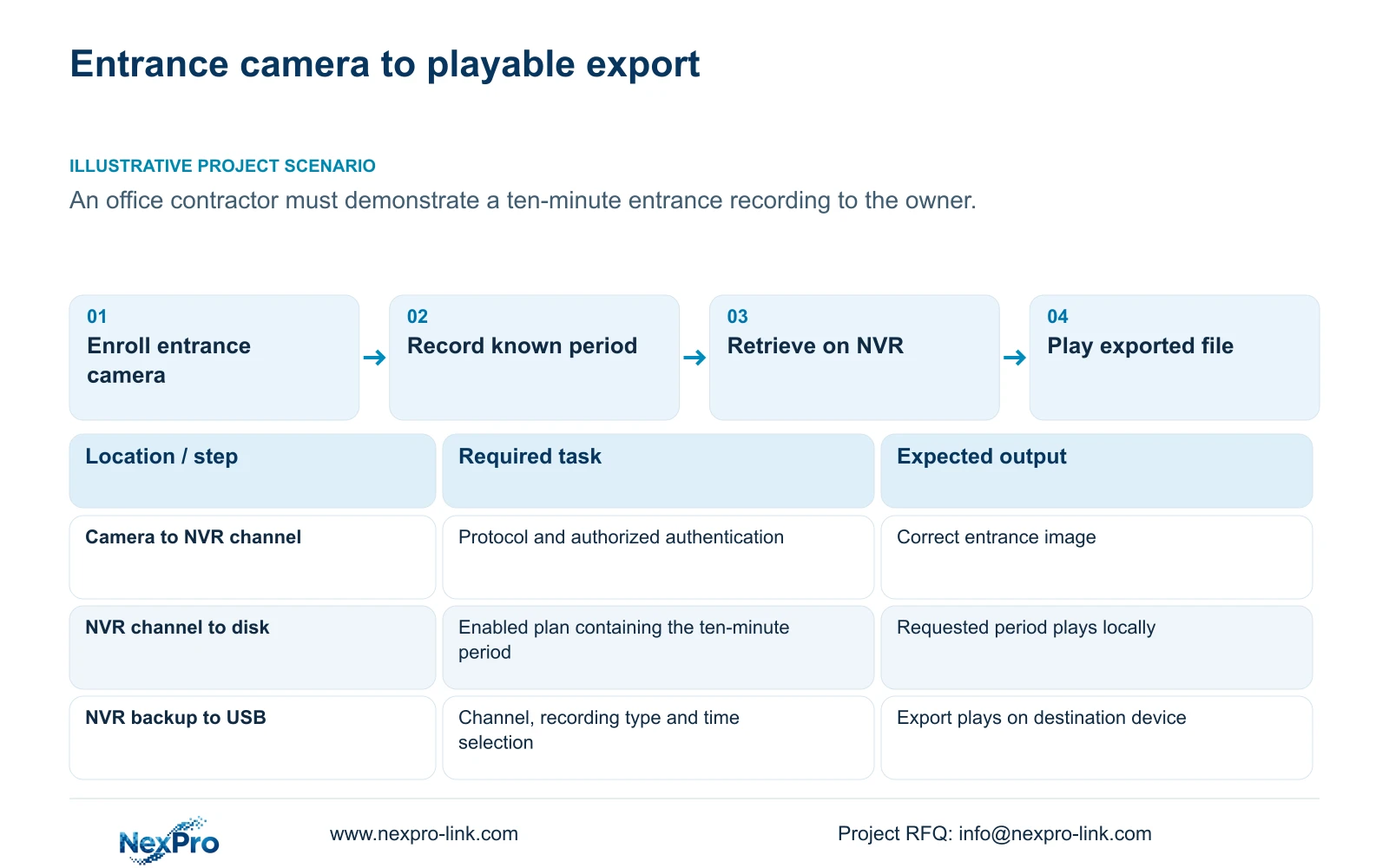
Illustrative project scenario: A contractor prepares one recorder for a new office and must demonstrate a ten-minute entrance recording to the owner. The contractor identifies the entrance channel, reviews the wizard settings and selects a recording interval containing the demonstration. The owner then retrieves that period and plays the exported file on the intended device.
Use the same task for the remaining channels, preserving each location-to-channel relationship. Record expected and observed results rather than marking every channel complete from a multi-camera live screen. Include the intended user's retrieval and export task in acceptance. This is an engineering workflow built around sections 4.3, 4.11 and 4.12.21, not a built-in certification function.
Section 08
Can the owner approve installation after the wizard?
The wizard alone is insufficient. Approval should include the known recording, retrieval and destination-file checks, performed through the intended user's operating path.
Section 09
Does a ten-minute test require a ten-minute schedule block?
No. The documented schedule grid has a thirty-minute minimum scale. Select an enabled interval containing the ten-minute test, then retrieve and export the requested period.
Section 10
Prepare the commissioning brief
Send NexPro-Link the channel-to-location schedule and the recording-and-export task the owner must complete at info@nexpro-link.com.
Engineering references
These sources support the general planning principles. Always use the selected product's current datasheet and applicable project standards for final design.


