

Identify why a recorder control differs from the manual by checking document identity, model scope, the camera operating path and local or remote permissions.
Section 01
Identify the missing control before changing settings
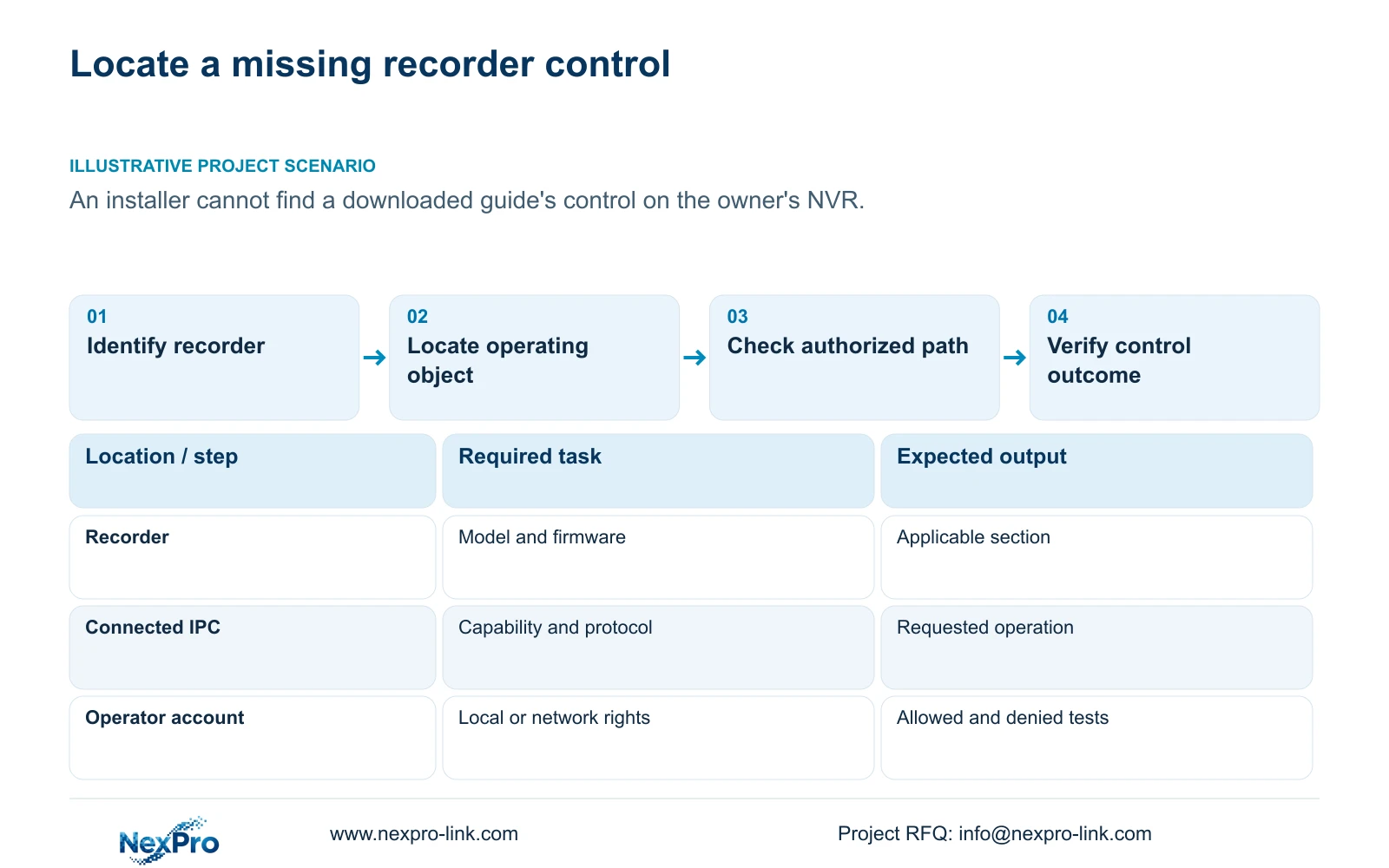
A missing NVR menu calls for an identification check before a repair decision. Compare the guide with the recorder's actual model and firmware, then establish whether the control belongs to the recorder, a connected camera or a PC client. Check the intended account's permissions on that same operating path. These checks distinguish an inapplicable instruction from an unavailable camera operation or restricted access. Keep the current configuration while investigating. A screenshot of a control in a family manual does not establish that the owner's unit supports it, and successful live video does not prove that every camera setting is available through the recorder.
Begin by writing down the desired operation. 'Change the entrance camera's image setting' is more useful than 'the menu is wrong.' Record whether the control is absent, greyed out or selectable without an observed effect. Each observation leads to a different check.
Section 02
Separate the document label from installed firmware
The operating source is the private supplied file NVR4.0 user manual CH_V2.4.doc. Its filename says V2.4, while the document headers say V2.2. Preserve both identifiers. Neither establishes the firmware installed on a particular recorder, and neither proves that the document is the latest instruction set for that unit.
Locate the requested feature by section heading. The supplied reading view has 155 pages, but its order differs from old directory page references and can change with document layout. Section 4.12.19 covers recorder information; sections 1.2 and 5.2 define family and model scope. Camera settings appear in section 4.4, with PTZ dependencies in section 4.10.
If the downloaded guide describes Seetong Windows controls, establish whether it addresses PC activity or recorder activity before proceeding. PC local recording and NVR disk recording are separate storage objects. A matching-looking client control cannot be substituted for a missing local recorder setting.
Section 03
Capture the identity of the unit being checked
Use the recorder's system basic-information view, described in section 4.12.19, to record product model, hardware version, software version and software date or release information. Attach the affected channel and the time of the observation. This connects the complaint to an identifiable configuration instead of a general 'NVR4.0' label.
Keep serial numbers in the appropriate private service record if needed. Public screenshots should conceal cloud identifiers, QR codes and identifiable site content. The useful public evidence is the relevant control and its context, not information that exposes the owner's installation.
Compare the captured identity with the guide's stated scope. If the model is outside that scope, obtain applicable instructions before interpreting an absent menu as a defect. If it falls within scope but the firmware differs, record that discrepancy as a question requiring confirmation. A version label alone does not explain the cause.
Section 04
Check the model restriction behind the menu
The manual covers a family that includes TS8104A3, TS8108A3, TS8216A3, TS8232C4, TS8108D7, TS8116D7, TS8836M and TS8436M. Its overview describes family functions, while the specification appendix distinguishes preview decoding, local playback, buzzer support and talkback. Read the applicable model row alongside the feature description.
For example, TS8108D7 is listed without buzzer or talkback support. A visible audio-related control cannot establish missing hardware. TS8232C4 has alternative local-playback modes of 1×4K OR 4×2MP OR 2×5MP. Those alternatives cannot be added together to describe concurrent capability.
No mapping from these TS codes to NexPro-Link commercial SKUs is established in the manual. When the owner's recorder carries a commercial model designation, use its separate specification evidence. A similar enclosure or shared interface is insufficient to transfer a TS model limit.
Section 05
Trace the operation through the connected camera
An IPC control concerns the connected camera, even when the operator reaches it through the recorder. Sections 4.4 and 4.10 make camera capability relevant, with PTZ dependencies stated explicitly. Identify the camera model, firmware and connection protocol, then check whether that combination exposes and accepts the requested operation.
Test one affected camera on the intended path. If basic video works but the requested control does not, record both results separately. Video reception establishes a narrower outcome than camera-setting control. For third-party equipment, check the specific operation against the device and protocol scope; ONVIF profile information does not establish universal interoperability.
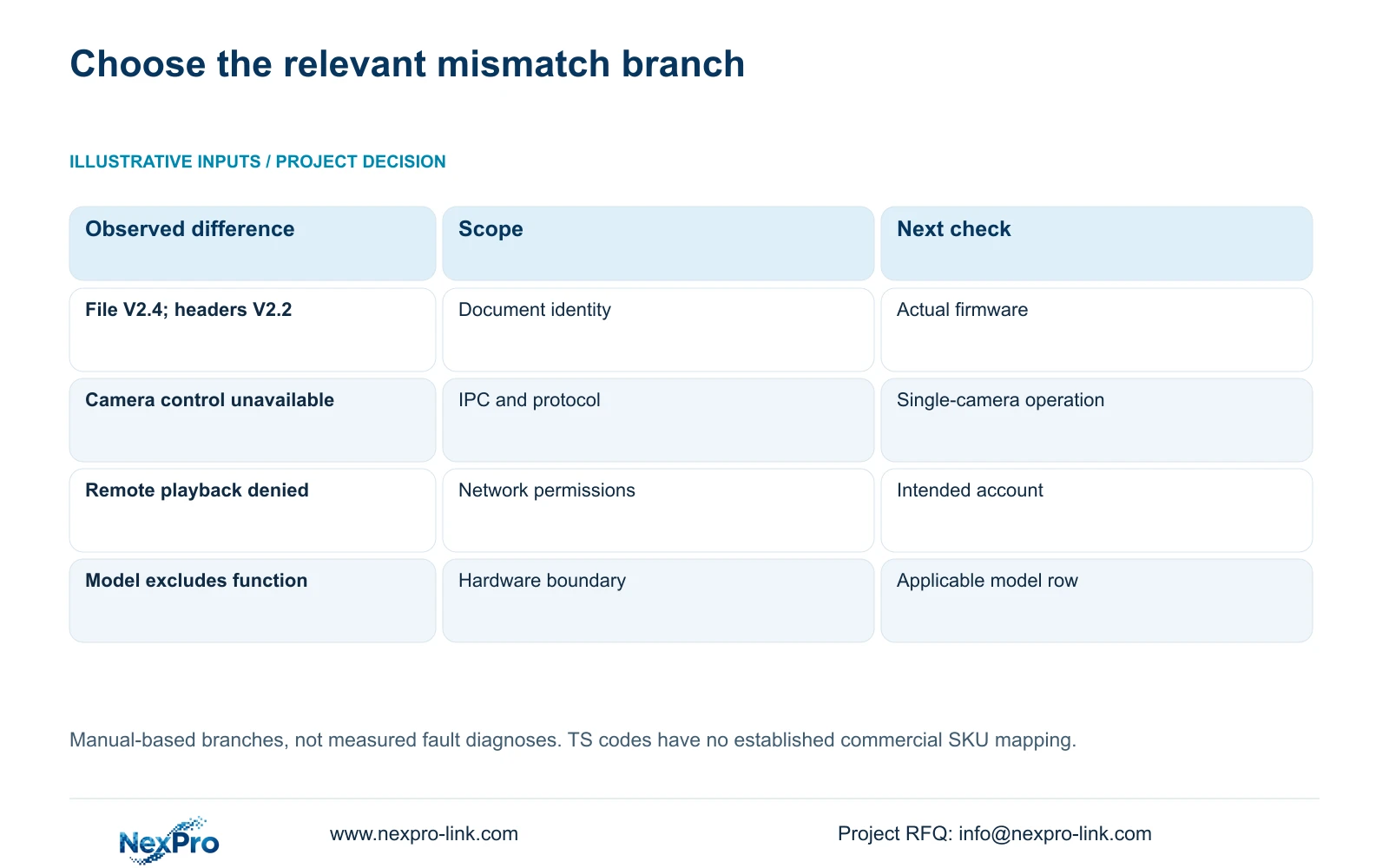
The following branches help keep the investigation focused. Select the row matching the observation, complete its check and reassess before changing another variable.
| Observation | Relevant check | Next action |
|---|---|---|
| Control appears only in a PC guide | Operating object and access path | Locate the applicable recorder instruction. |
| Feature excluded by the actual model row | Model-specific hardware or mode limit | Record the limitation; do not diagnose menu absence as failure. |
| Camera control greyed out | IPC capability, protocol and permissions | Test the requested operation on one identified camera. |
| Local preview works; remote playback fails | Separate network playback rights | Review the intended account on the remote path. |
| Applicable control remains unexplained | Model, firmware and reproducible observation | Preserve configuration and request a specific clarification. |
Section 06
Check rights on the intended access path
Section 4.12.3 separates local and network permissions for tasks including preview, playback, system settings and PTZ. Local recording backup has its own permission. An account that can view locally therefore cannot be assumed to have remote playback or export rights.
Have the authorized administrator review the intended role, then test an allowed operation and a prohibited operation on the relevant path. This checks whether the role behaves as intended without granting unnecessary access. The manual's remote-upgrade permission row contains inconsistent descriptive text, so that row alone cannot establish actual upgrade behavior.
Keep the account role in the test record without recording its password. If the control becomes available with the properly authorized role, identify permission scope as the resolved branch. If it remains unavailable, continue with the documented model and camera checks.
Section 07
Apply the checks to an owner's recorder
Illustrative project scenario: An installer is looking for a control shown in a downloaded guide but not on the owner's recorder. The installer identifies the document, captures the recorder information and checks whether the requested setting belongs to the entrance camera. The next check uses the intended authorized account on the same path.
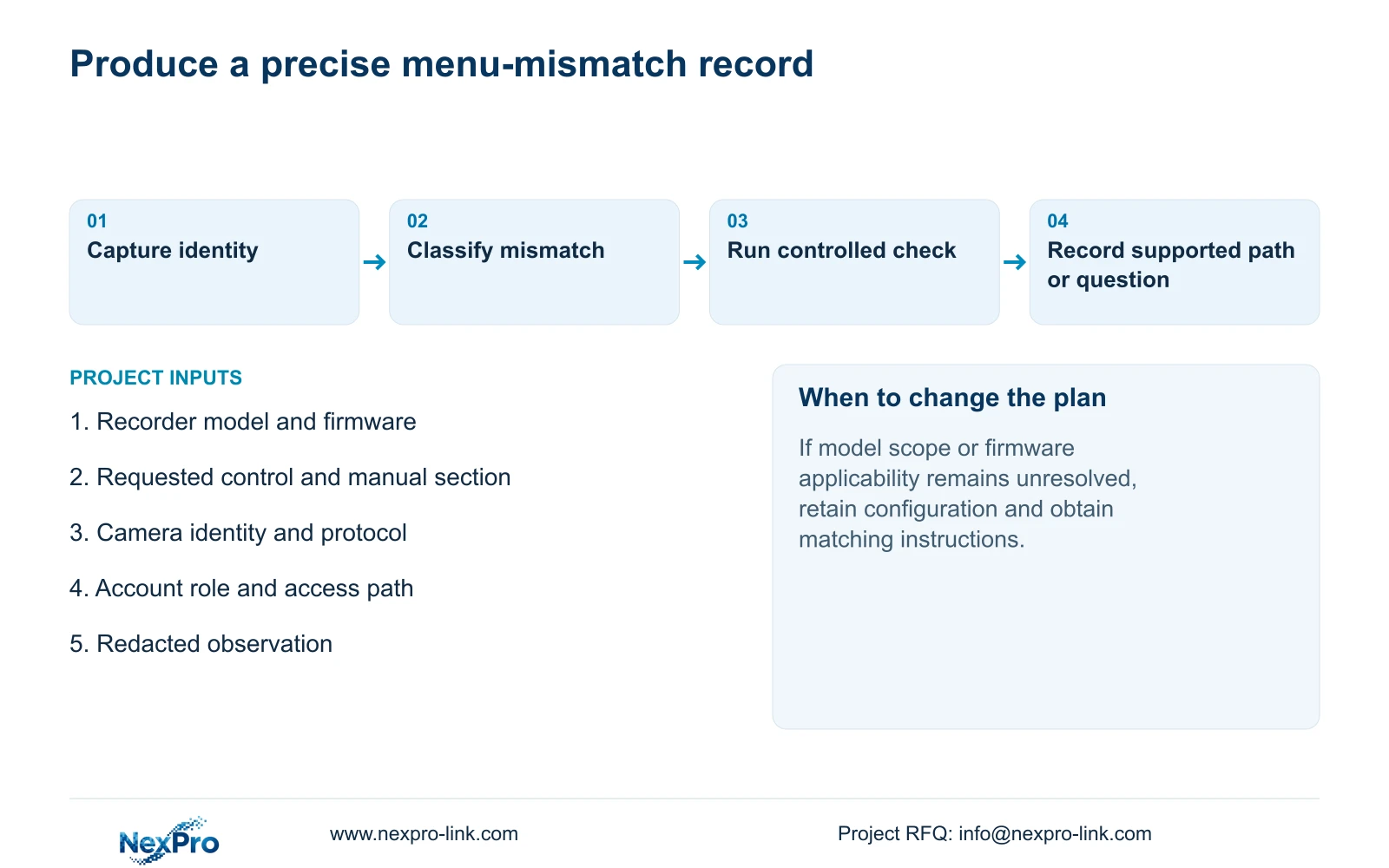
If those checks cannot explain the difference, the installer retains the existing configuration and reports the exact observation with its relevant manual section. 'Control absent on this model and firmware' remains an observation until applicable evidence establishes a cause. Completion means either locating a supported operating path or documenting the unresolved mismatch precisely enough for a useful answer.
Section 08
Should a missing menu trigger recorder replacement?
Menu absence alone is insufficient. First resolve document scope, model support, camera dependency and account permissions. Replacement becomes a procurement question if the identified unit cannot perform a required task.
Section 09
Does a greyed-out camera control mean hardware failure?
No. The camera, selected protocol or permissions may prevent that operation. Check one identified camera and separate the control result from successful live video.
Section 10
Request clarification for the exact mismatch
Send NexPro-Link the recorder model and firmware, the missing control's manual section and a redacted description of the access path at info@nexpro-link.com.
Engineering references
These sources support the general planning principles. Always use the selected product's current datasheet and applicable project standards for final design.


