

A return to live preview can leave an NVR backup running. Reopen the task, protect the connected destination and carry its actual status into the next shift.
Section 02
Separate preview indicators from backup status
Sections 2.3.3 and 2.4.4 describe distinct symbols for recording, remote preview, motion, I/O events and light-intelligence status, as well as the backup task indicator. Each observation concerns its own state. A recording symbol cannot answer whether an earlier incident has finished copying to USB.
An alarm indicator disappearing does not establish that the selected export ended. Likewise, a current recording symbol does not prove complete historical coverage. Use the relevant indicator to identify the next check, then inspect the required recording period or backup task.
When explaining the interface to an operator, connect each symbol to its question. For this task, the question is whether copying remains active and whether the requested files were produced. Current camera activity should remain separate from that decision.
| Visible observation | What it establishes | Next action |
|---|---|---|
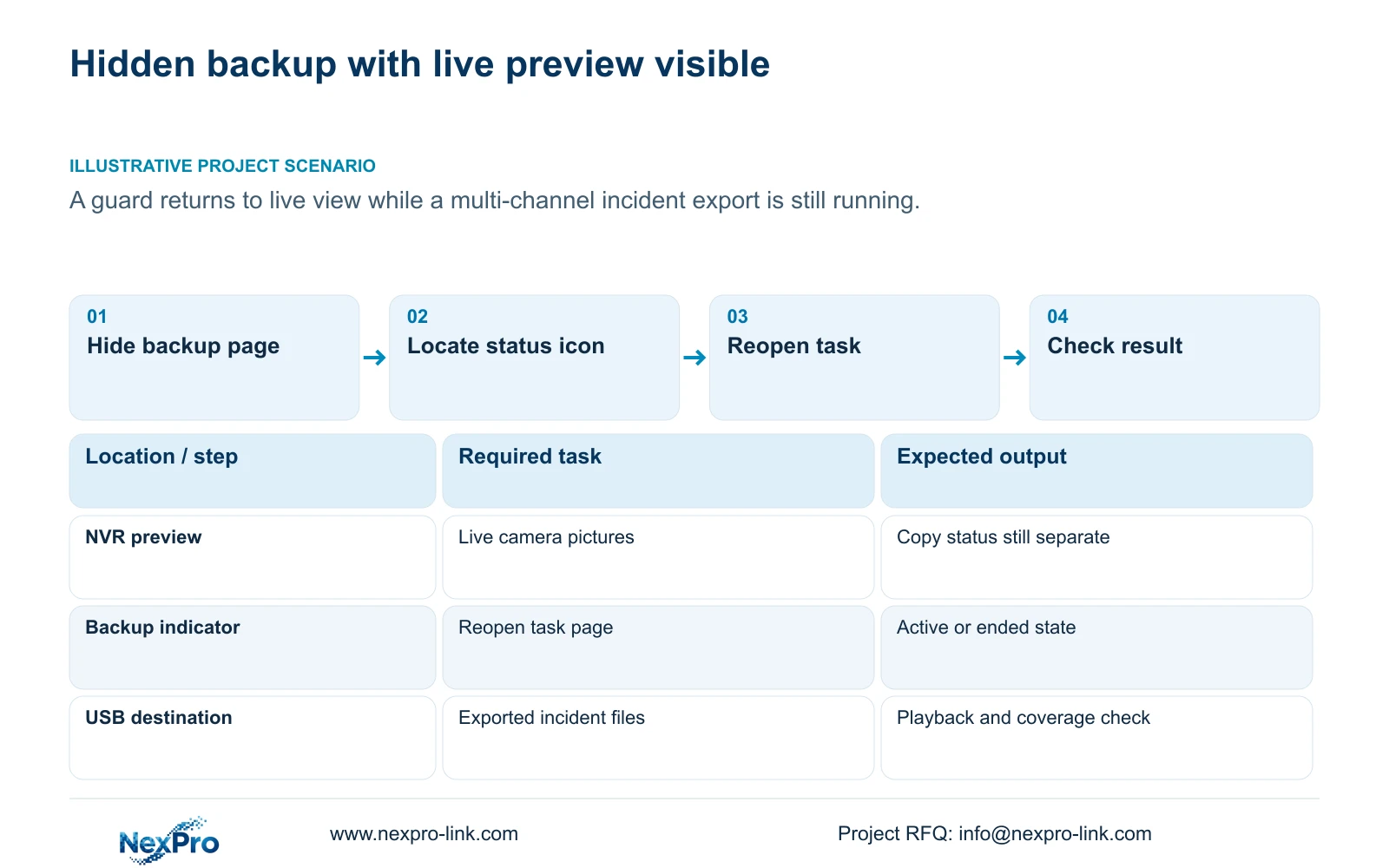
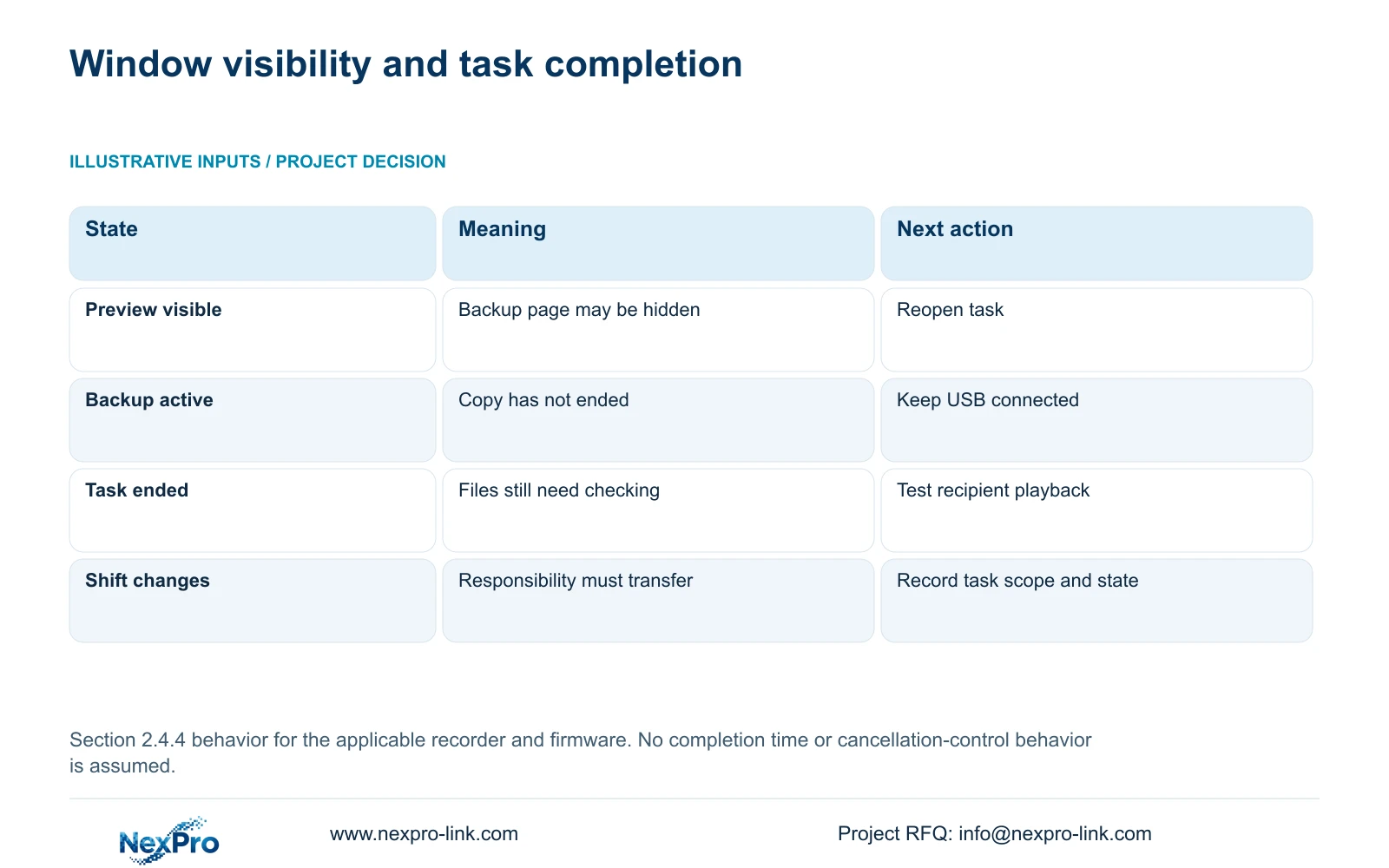
| Live preview after hiding backup | The viewing page is visible | Reopen the backup through its status icon |
| Recording indicator | A current recording-state observation | Inspect backup status separately |
| Backup remains active | The copy has not ended | Keep destination media connected |
| Backup task ended | The task is no longer active | Check its result and play the required files |
| File plays with correct coverage | That export works through the tested viewing path | Record the result for the receiving operator |
Section 03
Inspect the task against its original selection
Reopen the backup page and check the actual progress or result. Keep the channel and period selection available so the operator knows which work is underway. An active task without a recorded scope can be difficult for the next shift to evaluate.
Section 4.11.4 builds backup from file format, recording types, channels and start/end time. Update displays the required capacity; the inserted USB storage is detected before copying begins. MP4 is the default, and multiple channels can be selected.
If the task has ended unexpectedly, record what the page shows and check the files before starting another export. Repeated copies can create uncertainty about which files cover the intended incident. If the task remains active, returning to preview again is a visibility choice, not a new completion check.
Section 04
Keep peripheral testing outside the active copy
Do not unplug backup media or remove recorder power while the task is active. A mouse problem or missing display introduces a separate troubleshooting question. Section 5.3, question 3, starts no-display checks with power and monitor resolution before considering a minimal setup without external devices.
Preserve the active task before attempting that isolation. A lit mouse or Ethernet activity is only a limited clue, and USB input devices have a different role from storage carrying an export. Record the original connections so they can be restored, then change one condition at a time when testing is permitted.
If recorder interruption is needed, obtain authority, preserve required data and arrange the maintenance window after active backup and upgrade conditions are resolved. An upgrade must not be interrupted. A window that appears unresponsive does not justify treating every connected USB device as idle.
Section 05
Check the files after the task ends
The backup indicator exits when the task ends, but the exported deliverable still needs inspection. Open the requested files on the receiving system and confirm camera location, date and time coverage. Include required audio in the check. Section 4.11.4 mentions players such as VLC without guaranteeing every operating-system and codec combination.
If a file opens but contains the wrong period, return to the recorded selection. If it cannot play through the receiving path, retain the source footage and record the failed viewing method. These results should remain distinct from a copy that is still active.
Verify each required channel in a multi-channel export. A successful file from one view does not establish that every requested view was delivered. Record the test result without extending it into a general claim about future tasks or other players.
Section 06
Carry the active task into shift handover
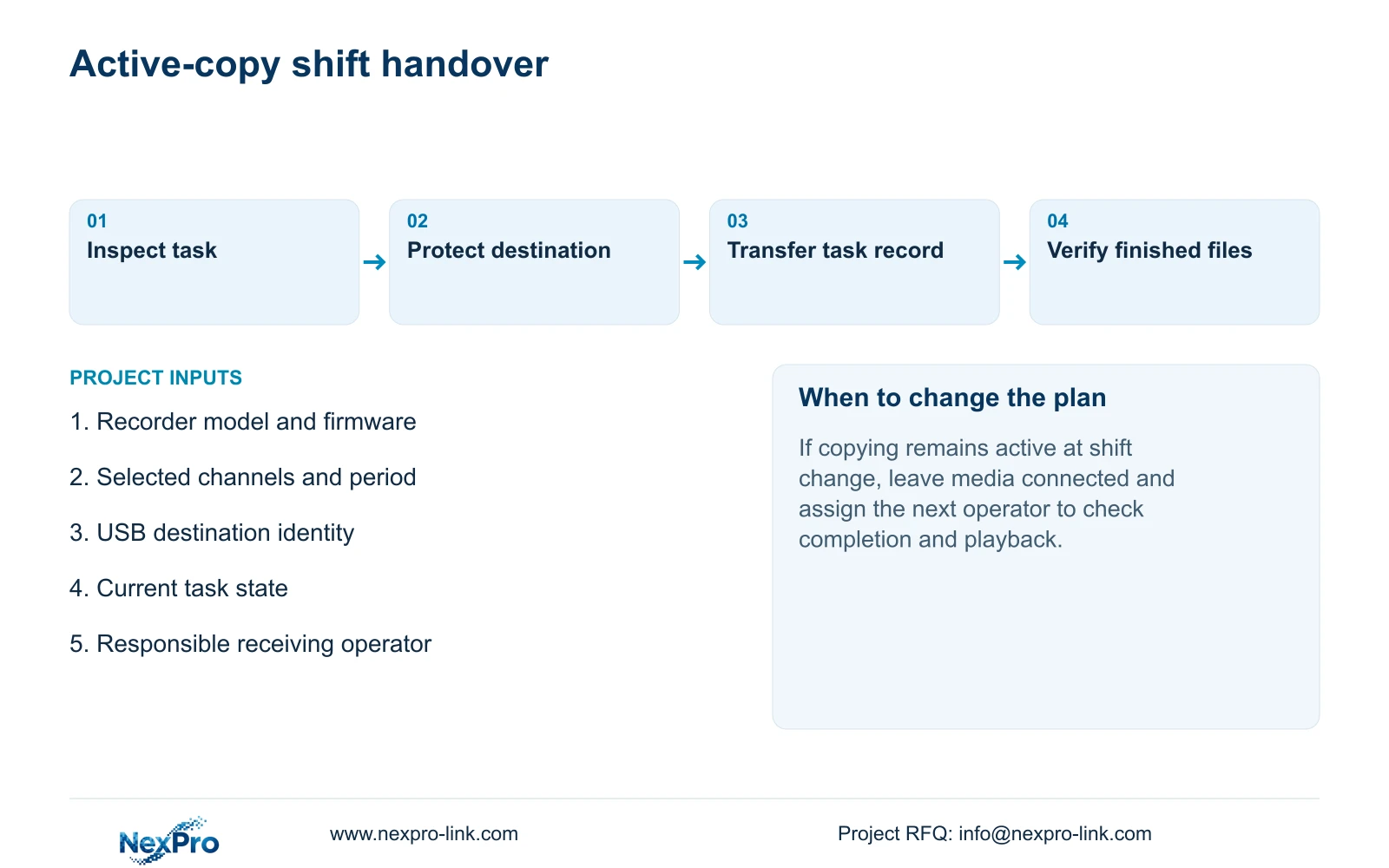
The outgoing guard should identify the recorder, destination device, selected channels and period, current task state and the person responsible for final verification. State whether files have been tested or remain unchecked. This gives the incoming guard a concrete next action.
Keep credentials outside the ordinary task log and transfer them through the approved controlled route where needed. A wider system handover should also retain applicable versions, configuration-backup location and maintenance responsibilities. Sections 4.11, 4.12.3 and 4.12.17 through 4.12.19 provide the relevant operating and identity context.
Demonstrate reopening the backup page with the intended operator. A written instruction is useful only if the next guard can apply it on the actual recorder. If the installed interface differs, document the difference instead of teaching a presumed control.
Section 07
Keep an incident export visible to the next guard
Illustrative project scenario: A guard returns to live view while a multi-channel incident export is still running. The guard reopens its task page, leaves the destination connected and records the active state for shift handover. After the task ends, the receiving operator checks the files. This is an illustrative sequence, not a record of a completed installation.
The source is the private NVR4.0 user manual CH_V2.4.doc, with V2.2 in its body. Relevant sections are 2.4.4, 2.3.3, 4.11.4, 3.3 and 5.3 question 3, with handover context in 4.12.3 and 4.12.17 through 4.12.19. Section references take priority over page numbers. These recorder instructions do not establish Seetong PC task behavior.
Section 08
Operator questions about hidden backups
Is hiding equivalent to cancelling? No. The documented hidden task remains accessible through its backup-status icon. Check its actual state.
Does the icon disappearing prove the files are usable? It indicates that the task has ended. Playback and coverage still require verification.
Can a restart be used to check whether copying finished? No. Inspect the task first. Any necessary interruption requires authority and preservation of required data.
Section 09
Provide the observed task state
Send NexPro-Link the recorder model and firmware plus the task state observed after hiding the backup window at info@nexpro-link.com.
Engineering references
These sources support the general planning principles. Always use the selected product's current datasheet and applicable project standards for final design.


