

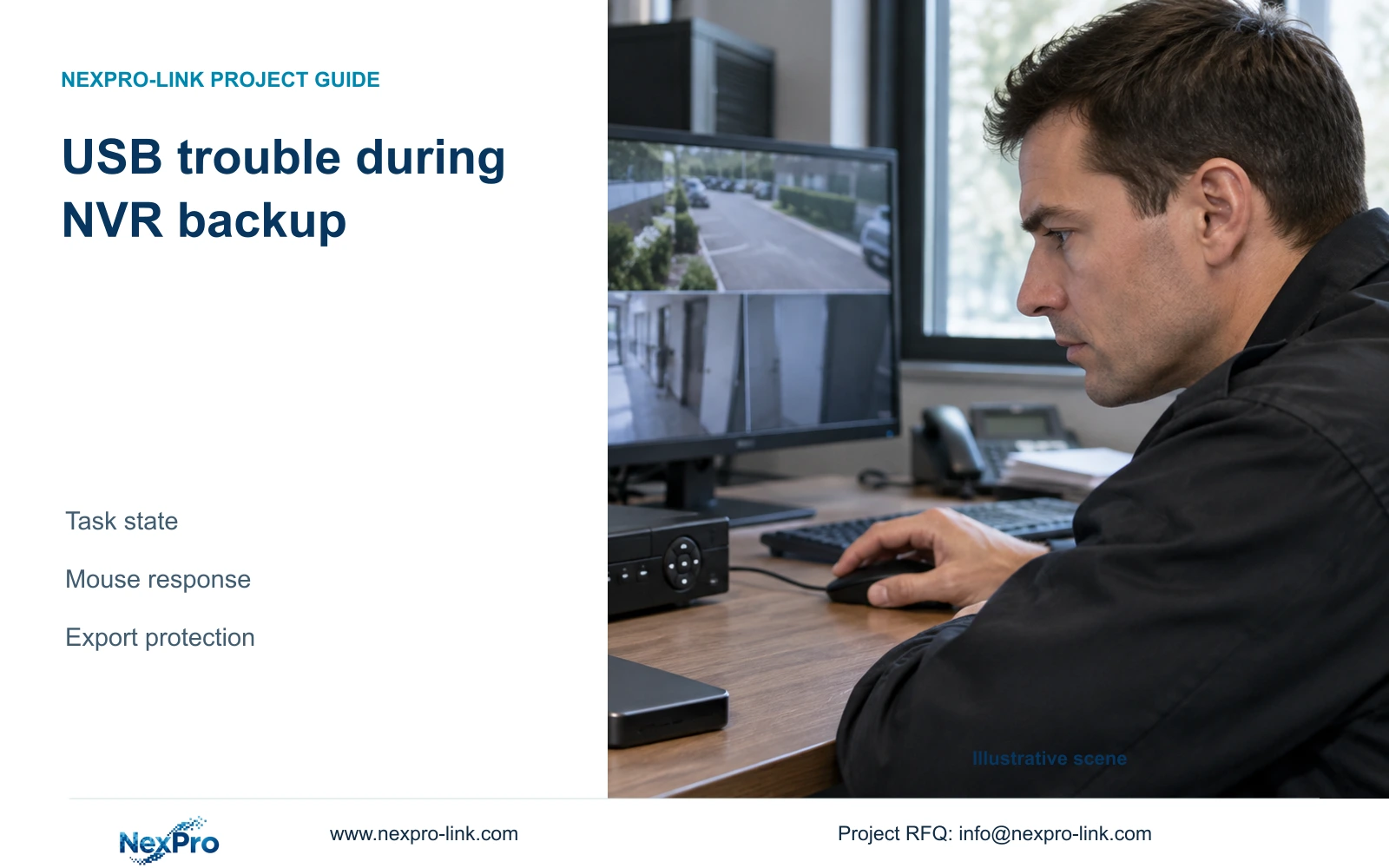
When mouse response changes during an NVR export, confirm the USB task first. Preserve the backup result before testing peripherals or planning a restart.
Section 01
Check the active USB task before disconnecting anything
If mouse response changes while an NVR exports video, first establish whether the connected USB device is carrying an active backup or firmware operation. Keep that task intact before trying a minimal peripheral setup. Returning to live preview does not establish that copying has finished: the supplied manual describes a backup-status icon that reopens a hidden backup window. Confirm the task result and preserve a usable export before removing destination media. Also exclude an active upgrade, which must not lose power. Once those conditions are resolved, use an authorized maintenance window to isolate one connection at a time and record exactly when mouse behavior changes.
The source is the private supplied NVR4.0 user manual CH_V2.4.doc, whose body states V2.2. Relevant sections are 2.4.4, 3.3, 4.11.4, 4.12.18 and 5.3, question 3. Peripheral isolation here is a controlled diagnostic application of the manual, not proof of a specific USB hardware fault.
Section 02
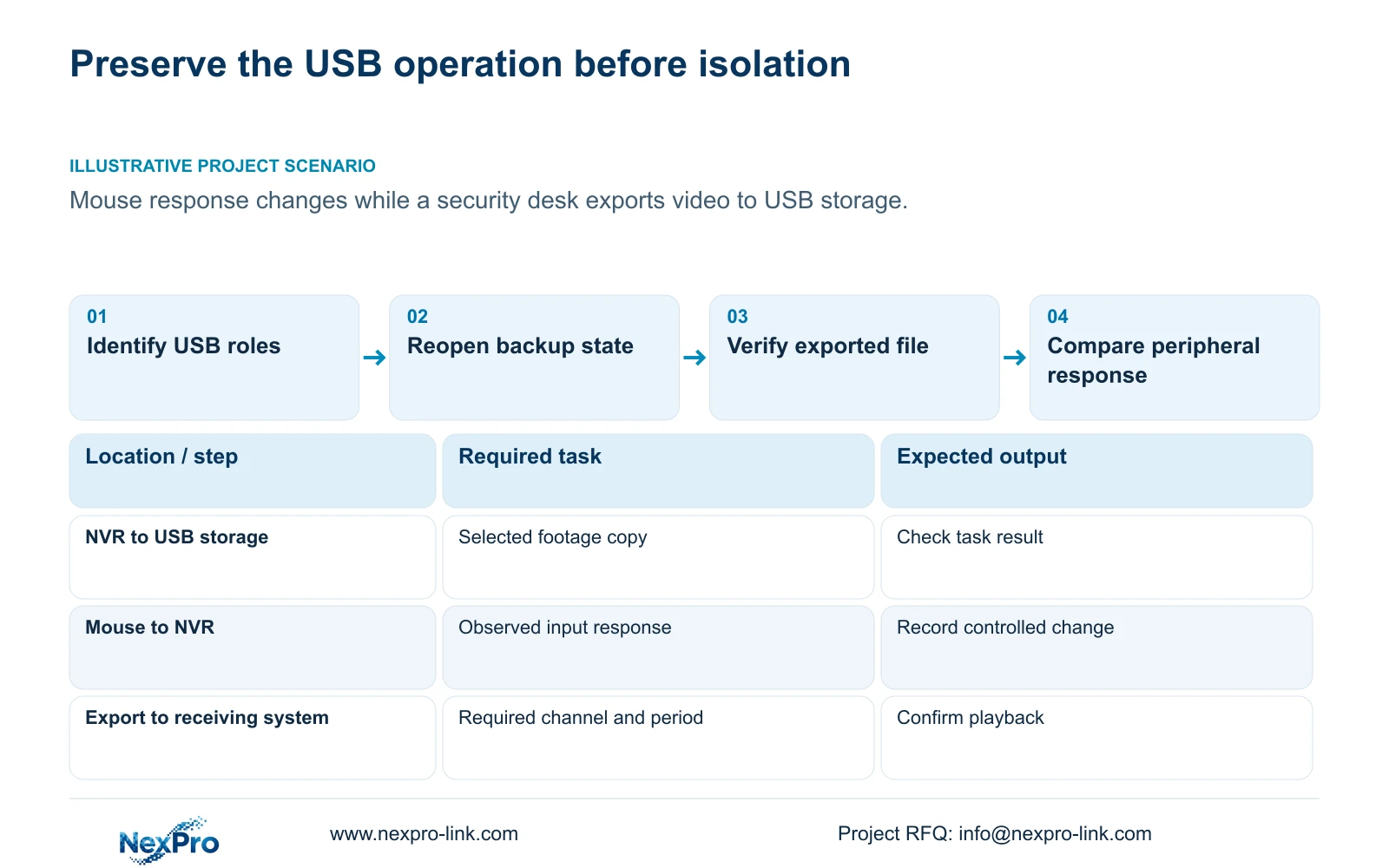
Identify each connection and the symptom it affects
List the mouse, backup storage and any media involved in maintenance. Record the connection arrangement and whether the symptom is delayed movement, unavailable input or a missing display. These observations need different checks. A lit mouse only shows a limited peripheral observation; Ethernet activity likewise does not establish recorder health. Preserve enough detail to restore the original setup after testing.
The manual's no-display branch checks power and monitor resolution before considering a minimal arrangement without external devices. Do not treat a slow pointer during copying as the same symptom as a recorder that produces no display at startup. Begin with the task state and observable behavior. If the screen is unavailable and task status cannot be established, stop blind disconnection and obtain a supported way to assess the running operation.
Section 03
Reopen the backup window and inspect its state
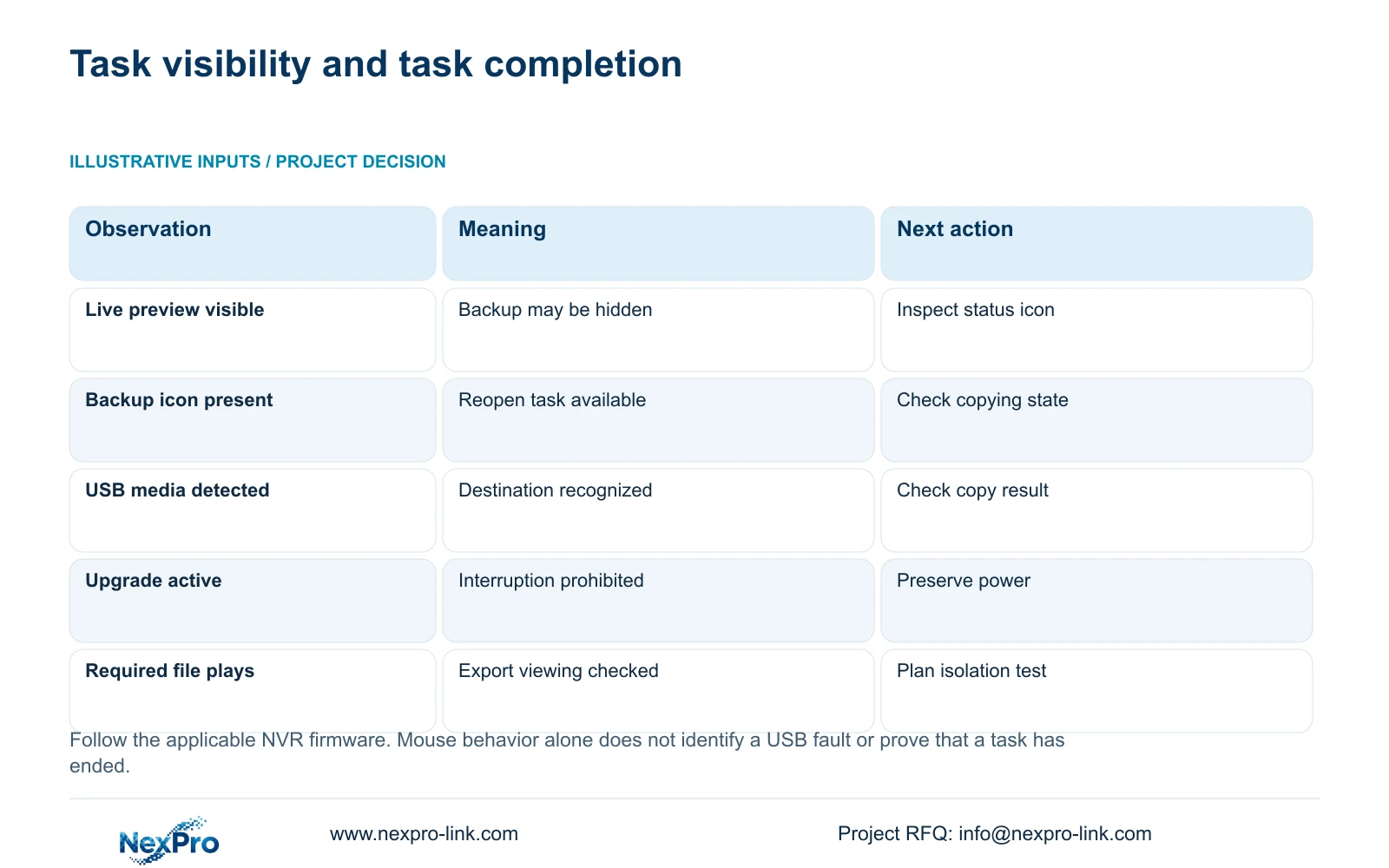
Section 2.4.4 describes a backup-status icon appearing when an active backup window is hidden and the interface returns to preview. Selecting the icon reopens the backup page. The icon exits when the task ends. This distinction matters at a security desk, where a familiar live screen can make the operator assume the export is already complete.
Use the task state and result to decide whether destination media may be removed. A hidden window is not a cancellation instruction, and successful media detection is not completed copying. If the operator cannot establish completion, keep the destination connected and record what is visible. Do not use a power interruption to force a definitive state. That would alter both the diagnostic conditions and the footage-copy task being protected.
Section 04
Preserve the selected export before testing the mouse
Section 4.11.4 starts the backup workflow with file format, recording types, channels and start and end times. Update the selection to view the required capacity, detect the inserted USB storage and start copying. The manual lists MP4 as the default and permits multiple channels. Record the actual selection so a later file check can establish whether the intended footage was exported.
After the task reports its result, open the required copy through the intended receiving system and check the channel and period. Include audio if the request requires it. The manual mentions playback software such as VLC, without guaranteeing every platform and codec combination. If the copy is incomplete or cannot be played, preserve the recorder's source footage and resolve the export problem before treating peripheral isolation as the only remaining task.
| Current state | Operational meaning | Next action |
|---|---|---|
| Backup window hidden; status icon present | Copying may still be active. | Reopen the backup page and inspect the task. |
| USB media detected | The destination is recognized. | Confirm selection and copying result. |
| Backup ended; required file plays | The copy has a checked viewing path. | Proceed to approved peripheral isolation. |
| Firmware upgrade active | Power continuity is required. | Keep power and the maintenance operation intact. |
| Task state cannot be established | Safe disconnection is unresolved. | Retain connections and obtain a supported status check. |
Section 05
Exclude an upgrade before scheduling an interruption
Check whether the USB device is associated with a firmware upgrade. Section 4.12.18 warns against power loss during upgrade and says the recorder restarts afterward. Mouse behavior is not a reason to interrupt that process. If an upgrade is underway, preserve power and follow the applicable instructions for its completion.
A planned upgrade requires an identified recorder, matching firmware, preserved settings and required footage, and an authorized maintenance period with protected power. The manual does not promise a universal downgrade path. After the automatic restart, verify the required recording, playback and access tasks. Keep that work separate from a mouse-isolation test so an improvement or failure can be attributed to the correct change. Do not introduce a firmware change merely because a peripheral symptom is inconvenient.
Section 06
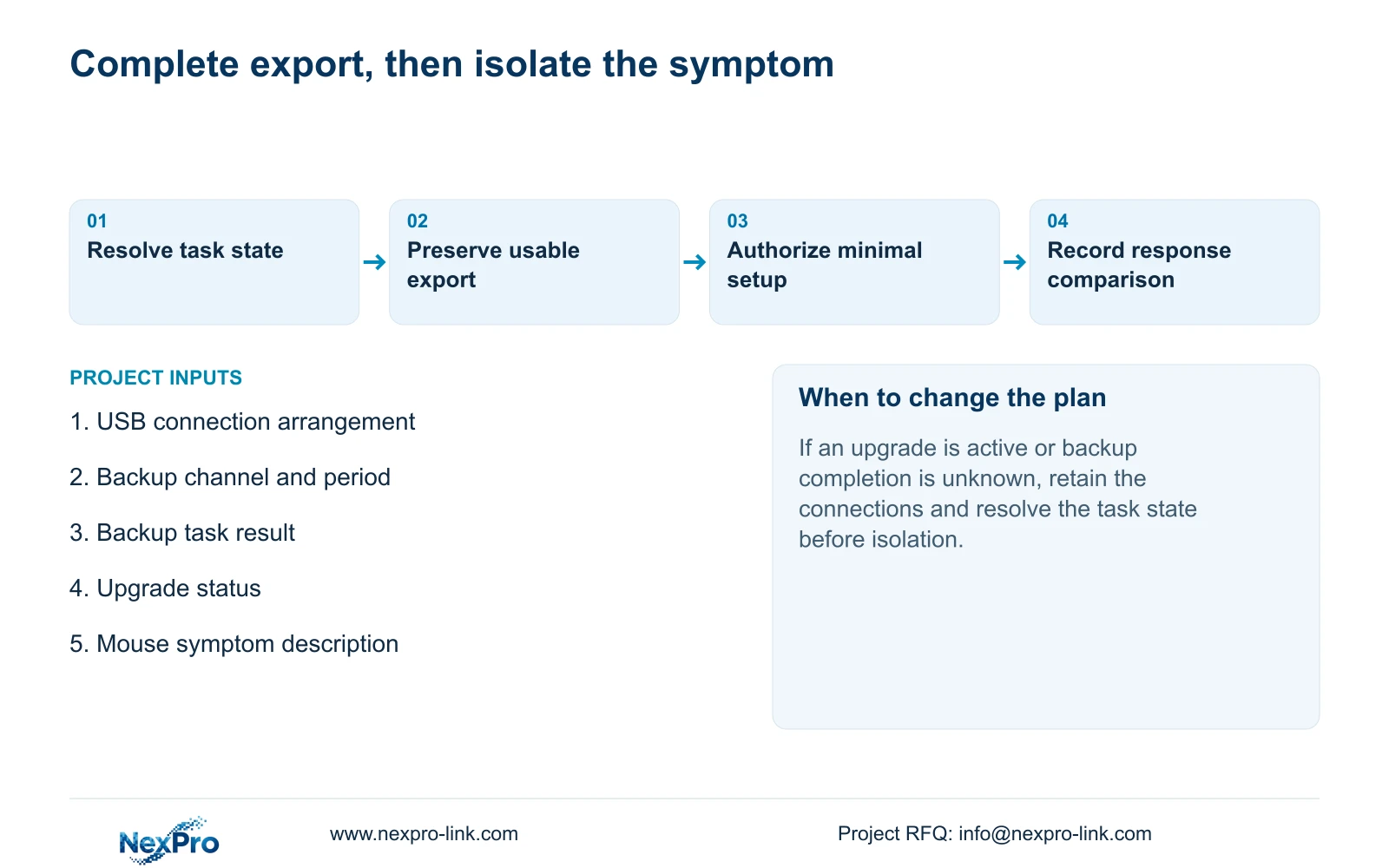
Use a minimal connection test only when interruption is allowed
Once active copying and upgrade conditions are resolved, obtain authority for any recorder interruption and preserve needed data. For a test requiring power removal, use software shutdown first. Logout ends the user session and does not substitute for shutdown. Document which connections will be removed and how the original arrangement will be restored.
Apply the applicable minimal-setup branch without changing several conditions together. If removing completed-backup media is the chosen test, retain the same recorder settings and note the resulting mouse response. If a supported mouse substitution is later selected, record it as another test. Restore the intended configuration and verify both normal operation and the required export workflow. A responsive mouse in a reduced setup does not establish that the full working arrangement is acceptable.
Section 07
Record the change that affects response
Keep the observation separate from its explanation. 'Pointer response changed after backup media was connected' describes timing. It does not establish a defective drive, a failed USB port or a particular internal resource limit. A useful record names the connected devices, active task, visible symptom and single change made before the next observation.
Illustrative project scenario: A security desk connects a backup drive and finds the mouse response has changed during export. The operator checks the backup-status icon, reopens the task and preserves the completed copy. After excluding an upgrade, an authorized test compares response with the finished-backup media disconnected. The outcome remains to be observed; this scenario supplies a safe order of work, not a reported repair.
If a hardware remedy is eventually requested, separate the recorded fault conditions from the requested service. NexPro-Link's return and warranty policy addresses commercial hardware scope; it does not turn a peripheral observation into a diagnosis or an automatic promise of local maintenance.
Section 09
Does mouse illumination prove the recorder is healthy?
No. It is a limited observation. Confirm display, task state and the required recorder operation separately.
Section 10
Provide the USB task record
Send NexPro-Link the connected USB-device roles, active task state and the single change that altered mouse response at info@nexpro-link.com.
Engineering references
These sources support the general planning principles. Always use the selected product's current datasheet and applicable project standards for final design.


