

Build an owner-facing NVR demonstration around one known event, from channel identification and recording to destination-file playback and account-level verification.
Section 01
Define the event the owner must retrieve
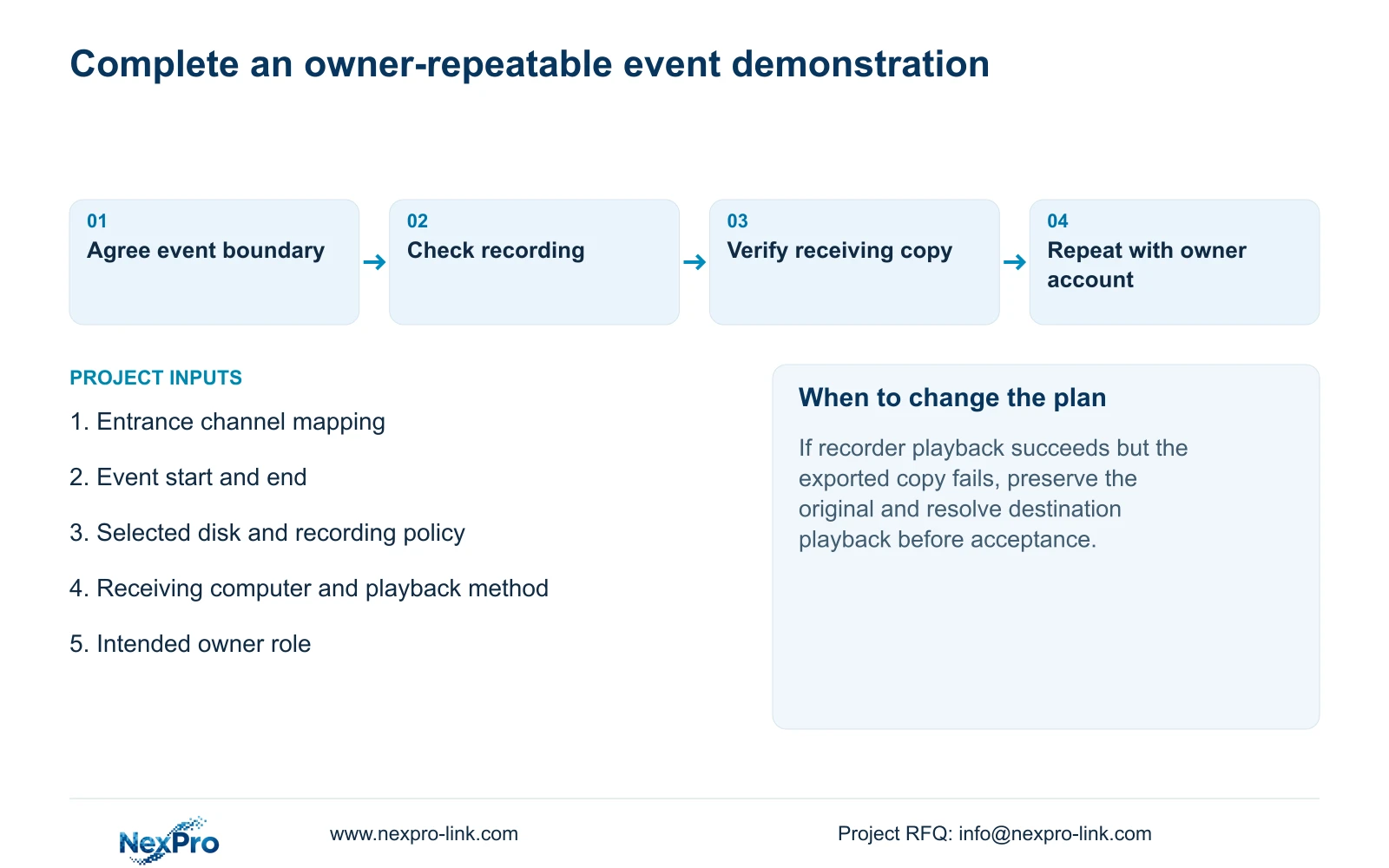
Demonstrate an NVR by following a known event from the identified camera to recorder playback and a usable exported file. Agree the event's start and end before showing the live screen, inspect the selected disk and recording policy, and use the owner's intended account for the final repetition. A successful live connection proves that video reaches that viewing path; it does not establish stored footage or usable delivery. The demonstration should finish when the owner can locate the correct event and play its copy on the receiving computer, with any required audio checked. Record a failed stage explicitly instead of accepting the whole sequence.
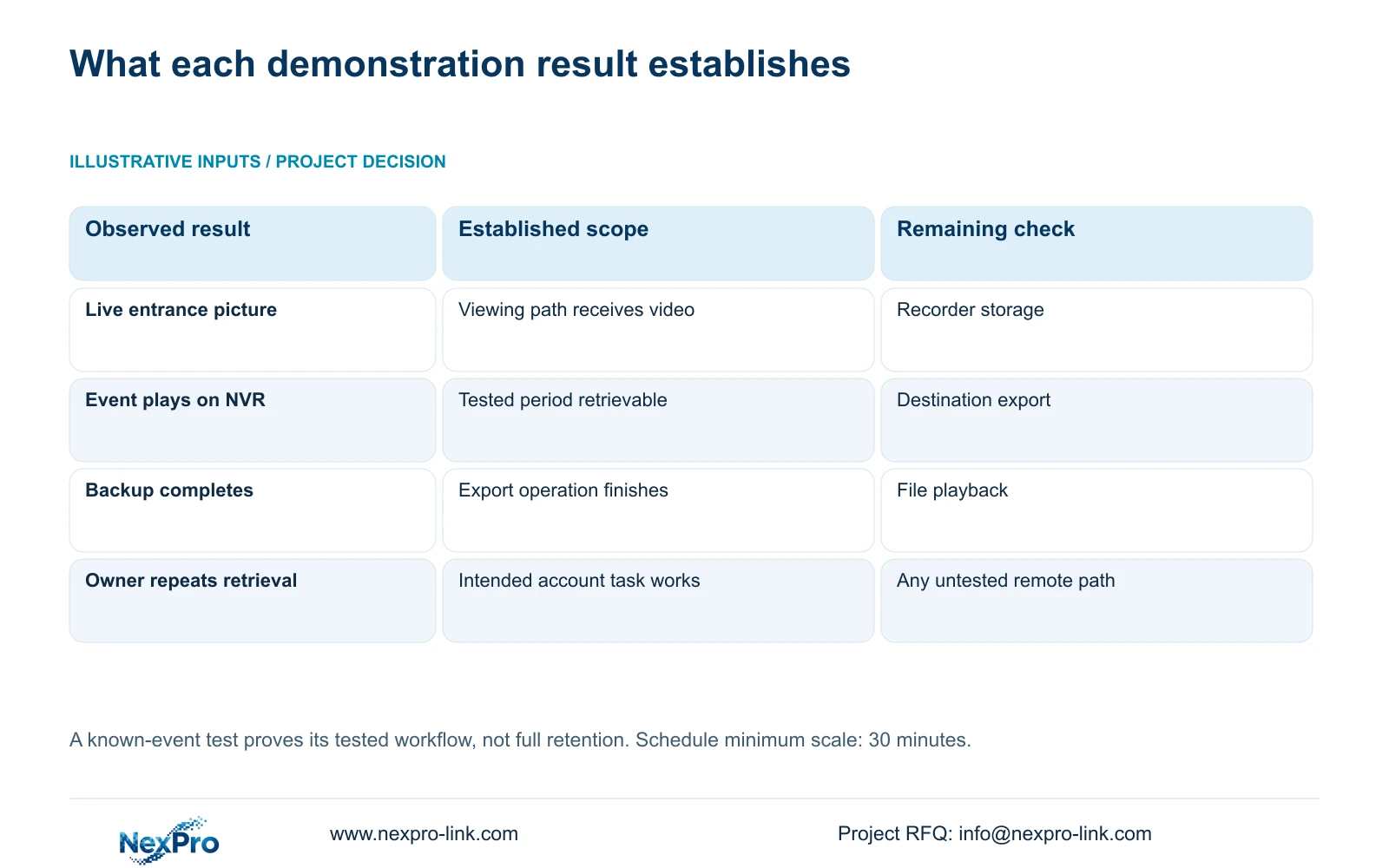
Choose an entrance activity that can be recognized without ambiguity, with an agreed beginning and end. Write down the expected channel, period and receiving device. The test duration belongs to this demonstration; it should not be treated as proof of the project's full retention period.
This workflow uses the private supplied NVR4.0 user manual CH_V2.4.doc, whose headers say V2.2. Sections 4.3, 4.11 and 4.12.21 support the viewing, recording and disk checks. Section references take priority over old page numbers. The acceptance sequence is an engineering workflow, not a built-in recorder test.
Section 02
Connect the entrance location to its recorded channel
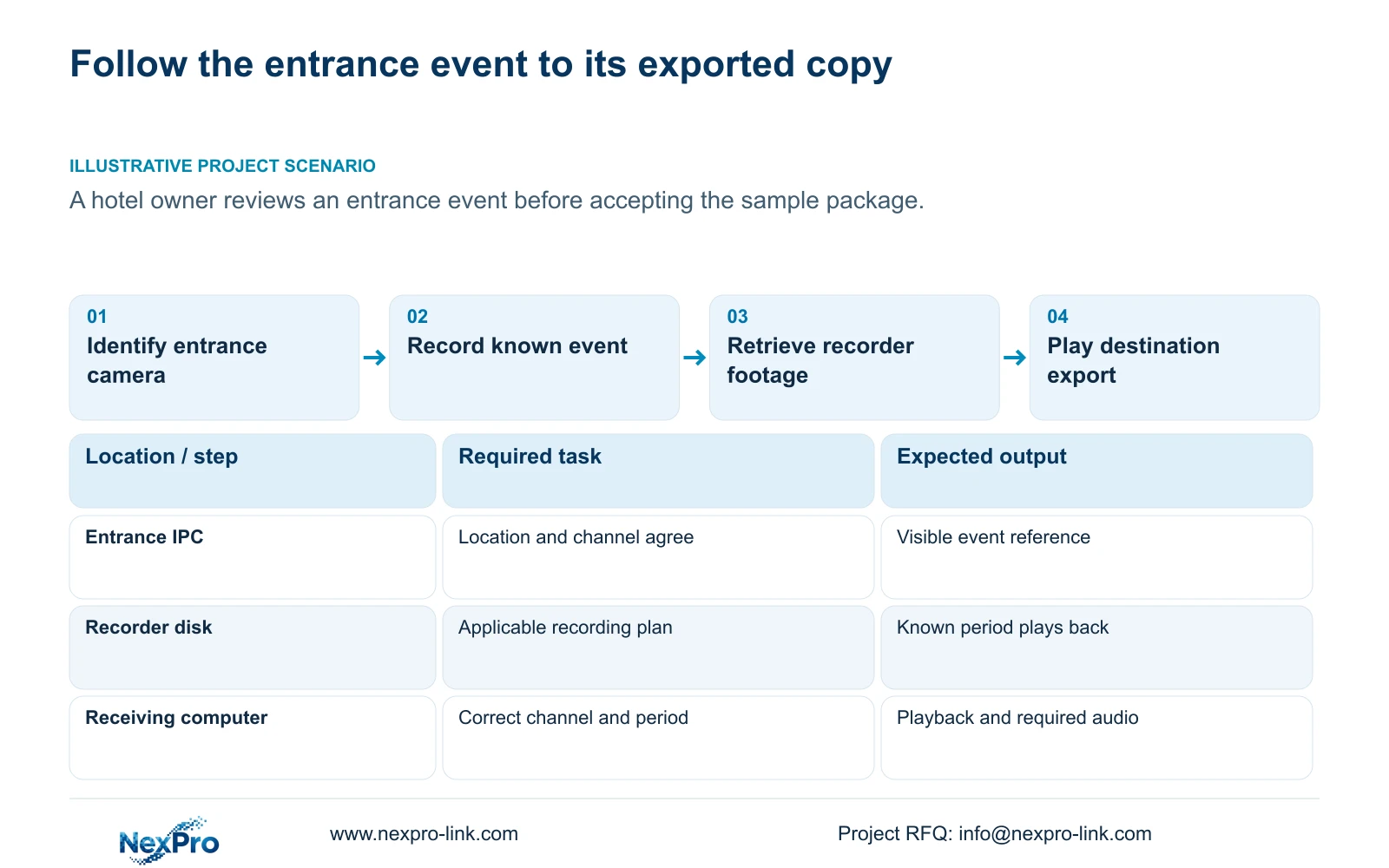
Before creating the event, check the drawing location against the physical camera identity, IP address and recorder channel. Keep the displayed channel name and camera OSD name as separate fields. Sections 4.3.1, 4.4.4 and 4.12.6 provide relevant channel and name controls, but the project record must maintain the location mapping.
A familiar window position is weak evidence of camera identity. After reordering or replacement, it may contain a different camera. Confirm the current mapping through the identifiable entrance view, then carry that identity into the playback and export selection.
If the name disagrees with the location record, resolve the discrepancy before the owner performs retrieval. Record an alias correction separately from a physical camera replacement. Otherwise the demonstration can produce a playable file attributed to the wrong entrance.
Section 03
Give the event an independent time reference
Place a visible time reference in the demonstration and record when the activity begins and ends. Compare that observation with the recorder search time and camera OSD. This gives the operator a practical search window and reveals disagreement between clocks before it becomes a retrieval problem.
Sections 4.4.2 and 4.12.2 describe separate IPC and NVR time controls. The IPC controls include manual time, network synchronization, timezone and daylight saving. The recorder has network-time settings and an IPC synchronization interval measured in hours. Document which device is intended to set another device's time before enabling several mechanisms.
If the reference and recorded timestamp disagree, identify the source of each displayed clock and review the applicable settings before repeating the event. Matching screen clocks at one moment do not establish long-term synchronization. The documented network-time controls also do not prove support for every proposed local NTP arrangement.
Section 04
Confirm the event reached recorder storage
Inspect the selected disk and the recording plan for the identified channel before running the event. Section 4.11.1 describes timed recording, no recording, motion recording and motion-plus-timed recording. Its schedule grid has a 30-minute minimum scale. An event can occupy part of an enabled schedule interval without requiring a separate schedule block of the same duration.
Choose the policy according to what the owner must see. Timed recording supports checking the whole selected interval. Motion-only recording depends on a motion trigger. Motion-plus-timed retains ordinary timed recording without motion and records motion-type footage when triggered, so the mixed mode cannot be described as event-only storage saving.
Observe recording status during the agreed period, then retrieve that same period from recorder playback. If live view succeeds but footage is absent, stop the demonstration at the recording stage. Review the selected channel, plan, disk and time window before changing unrelated settings.
| Selected plan | Expected behavior | Demonstration decision |
|---|---|---|
| Timed recording | Records during the enabled interval | Use when the complete event period must be retrieved. |
| No recording | Provides no scheduled footage for that interval | Resolve the policy mismatch before testing retrieval. |
| Motion recording | Records when motion detection triggers | Confirm the trigger and retrieve the resulting event. |
| Motion-plus-timed recording | Ordinary timed footage without motion; motion-type footage on trigger | Check background coverage and the triggered event separately. |
Section 05
Open the exported file on the receiving computer
Once recorder playback contains the event, export the intended channel and start/end period using the applicable backup workflow in section 4.11.4. Check the selection against the demonstration record before starting. A completed progress indicator establishes completion of that operation, but the receiving computer still needs to open the result.
Play the exported copy on the intended destination system. Confirm the entrance identity, event beginning and end, and any required audio. The manual mentions players such as VLC for backup video and audio; it does not guarantee every operating-system and codec combination. Record the viewing method that was actually tested.
If the file does not play, preserve the original footage while investigating the export selection and receiving playback method. If it plays but contains the wrong period or channel, correct the selection and verify the replacement copy. Keep recipient authorization separate from technical playability.
Do not substitute Seetong PC local recordings for recorder footage during this check. They are different storage objects. The export must come from the recording path the owner is being asked to accept.
Section 06
Repeat retrieval through the owner's intended account
Have the owner repeat the agreed retrieval and delivery task with the intended operating account. Section 4.12.3 distinguishes local and network permissions, including preview, playback and system settings, while local recording backup is separately authorized. A demonstration performed only through an installer's privileged account leaves the owner's workflow untested.
If the owner can preview but cannot retrieve or back up, review the task-specific permission on the intended path. Test an allowed task and a prohibited task after the authorized administrator confirms the role. Remote playback requires its own network-rights check when remote operation forms part of acceptance.
The final record should identify the configuration, channel mapping, event period, selected recording policy, receiving playback method and owner-account result. Mark an untested remote path as untested. The manual's inconsistent remote-upgrade permission description should not be used to infer upgrade behavior or expanded owner rights.
Section 07
Use the entrance event for sample acceptance
Illustrative project scenario: A hotel owner asks an integrator to demonstrate an entrance event before accepting the sample package. The integrator identifies the entrance channel, agrees the event window and checks its recording plan. After the event, the owner retrieves it and opens the export on the receiving computer.
If recorder playback works but destination playback fails, acceptance remains incomplete at the delivery stage. If the export works only for the installer, the owner-account stage remains unresolved. This scenario describes a proposed test, with no claimed delivered project or measured outcome.
Section 08
Does a successful event demonstration prove retention?
It proves retrieval for the tested event and configuration. Full retention needs a separate review of bitrate, recording hours and usable storage against the required duration.
Section 09
Can motion-plus-timed be tested as motion-only?
No. The documented mixed mode continues ordinary timed recording without a motion trigger. Check background footage as well as the event if that mode is selected.
Section 10
Prepare the owner demonstration brief
Send NexPro-Link the entrance channel reference, event to be demonstrated and intended receiving playback device at info@nexpro-link.com.
Engineering references
These sources support the general planning principles. Always use the selected product's current datasheet and applicable project standards for final design.


