

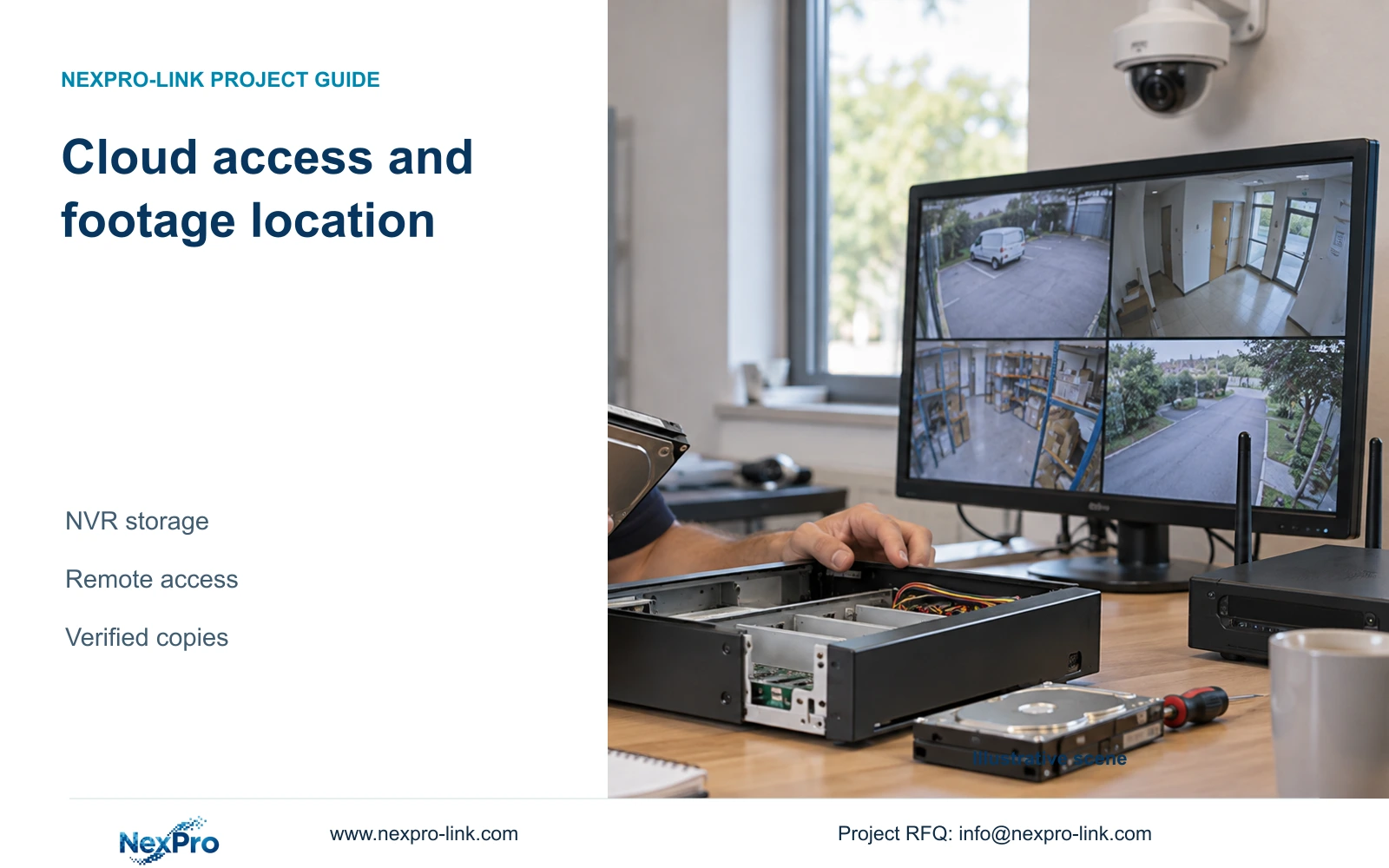
A cloud connection does not establish an off-site archive. Identify the device that writes the recording, verify its disks and playback, then specify any separate preservation copy.
Section 01
Find the device that retains the footage
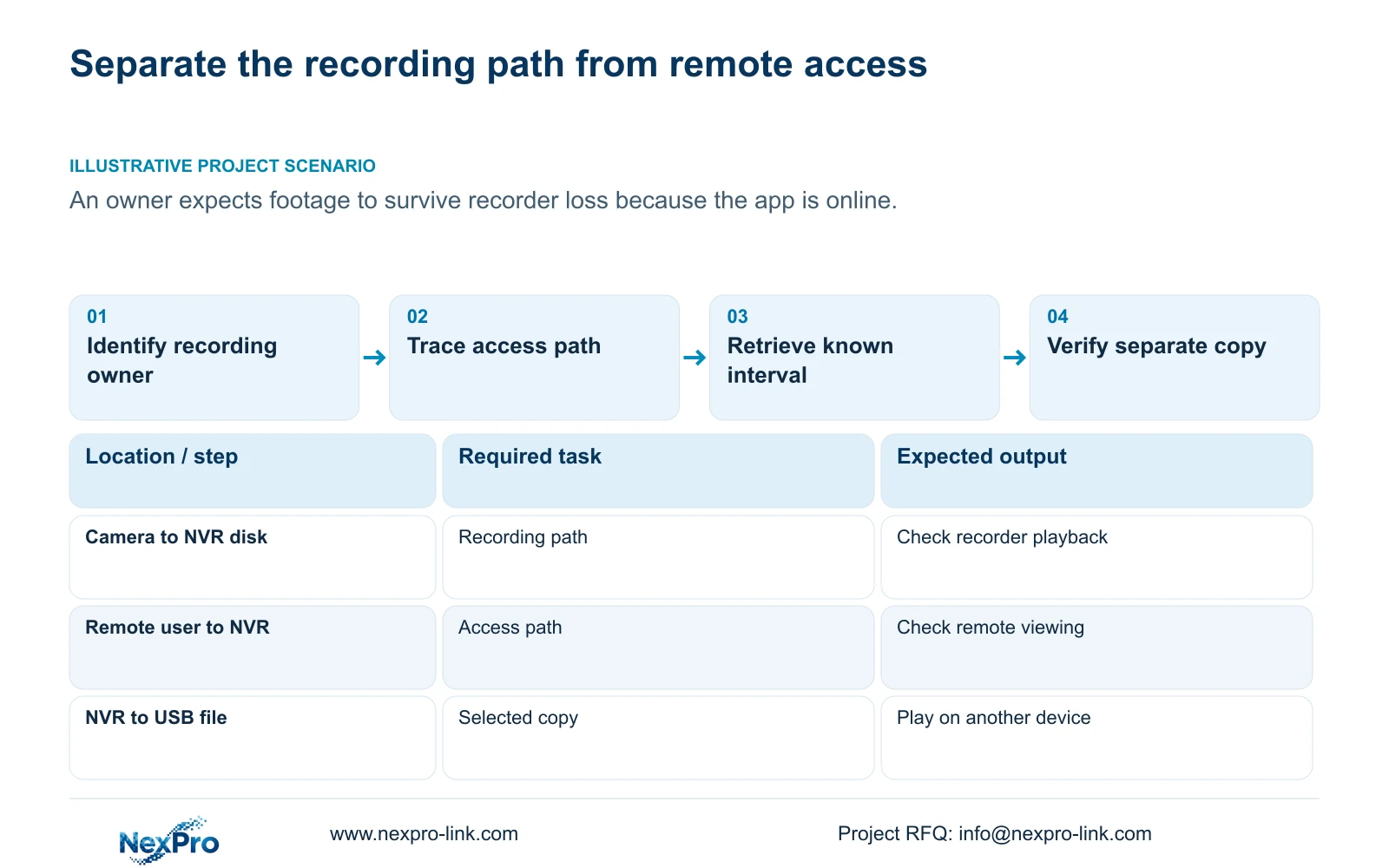
No. Seeing NVR video through a cloud-connected app does not establish that the recording archive is stored in the cloud. The supplied manual describes recorder disk storage and remote access as separate functions. For an owner who wants footage to survive the loss of the recorder, the useful question is whether an independently stored copy exists and can be retrieved. Start by identifying which device writes the recording, then check that device's playback and retention arrangement. A cloud connection can provide an access path to footage held on the NVR without providing a cloud recording subscription or automatic off-site backup.
Draw the storage path from camera to recorder disk separately from the access path between the remote user and recorder. Label any PC recording destination or exported file independently. If nobody can name the destination of a claimed backup, keep that backup requirement unresolved until its storage owner and retrieval method are documented.
Section 02
Explain what cloud activation establishes
The manual's activation workflow enables the recorder's cloud-service connection after the documented password setup and network conditions are met. It distinguishes this workflow from local login. The version-specific cloud-password rule requires uppercase and lowercase letters and numbers, with neither an empty nor a default password accepted. That rule does not establish a shared password for local users and app accounts.
An online indication therefore answers an access question. It does not demonstrate disk initialization, the intended recording schedule or a retained archive. After confirming activation, retrieve a known channel and time interval from the recorder. If remote viewing works but the interval is missing, investigate the recording owner and its configuration instead of treating the online indication as storage evidence.
Section 03
Check the local disk and retention behavior
Section 4.12.21, titled External Storage Devices, describes attached-disk information, selected-disk formatting, behavior when the disk is full and a startup no-disk prompt. Inspect the disk information and full-disk policy alongside the recording plan. Then search an earlier interval that matters to the owner. Current live video cannot establish how much historical footage remains available.
Do not infer NAS, NFS, iSCSI, RAID or shared-storage support from the section heading. Those architectures require separate evidence for the proposed model. Formatting is also not a diagnostic shortcut: it requires authorization and preservation of relevant recordings before proceeding. If the disk state is unclear, record the observation and obtain the applicable instructions before making a destructive change.
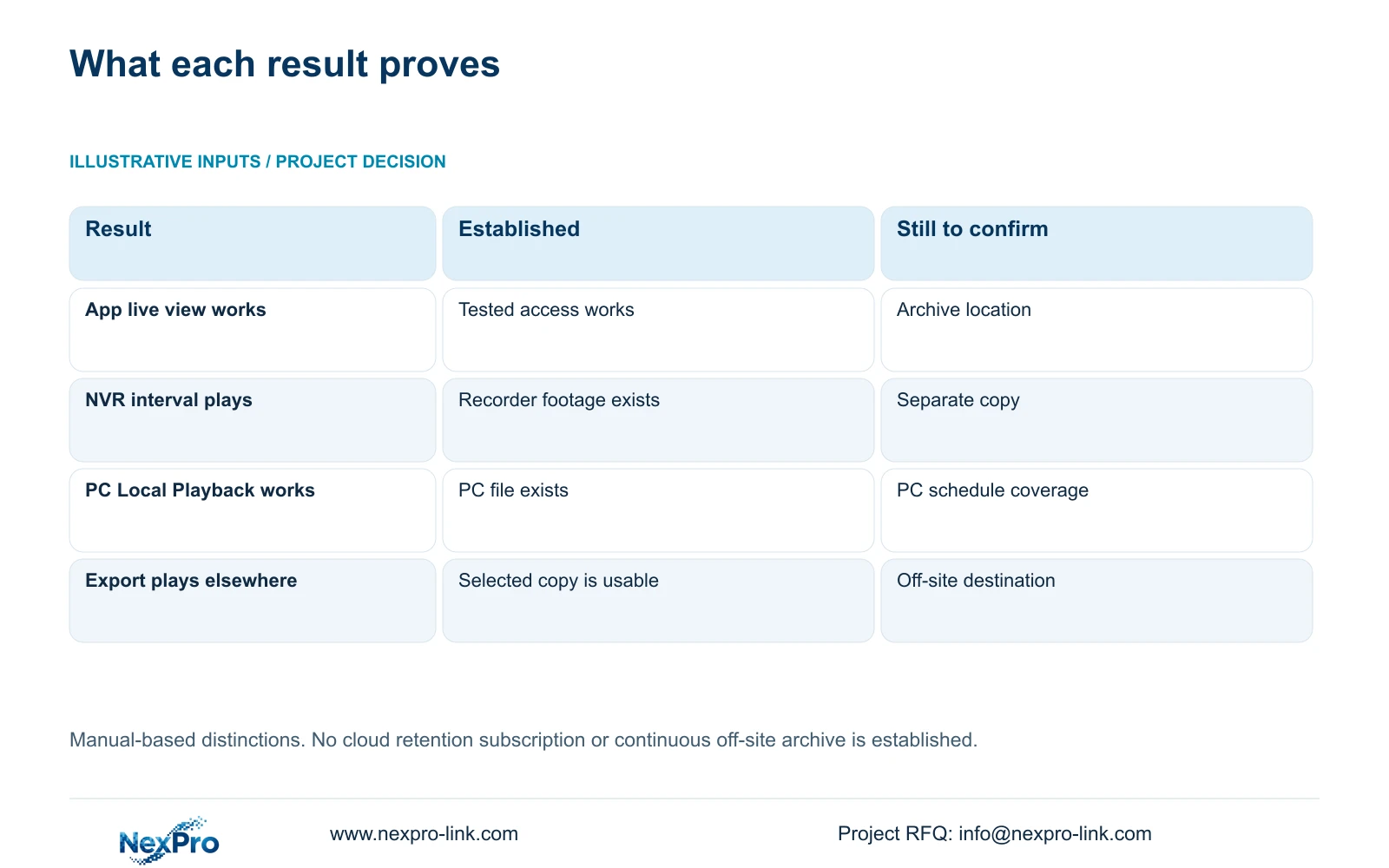
| Observation | What it establishes | Next action |
|---|---|---|
| Remote live video works | The tested viewing path works | Retrieve a known recorder interval |
| NVR playback finds the interval | Footage is available from the recorder | Check retention and separate-copy needs |
| PC Local Playback finds a file | A PC recording exists | Identify its schedule and destination |
| An exported clip plays elsewhere | The selected copied interval is usable | Store it at the agreed separate location |
| External Storage Devices is visible | The manual describes attached-disk operations | Confirm any requested network-storage interface |
Section 04
Keep PC recordings separate from NVR recordings
The supplied Seetong Windows client manual directs users to Remote Playback for NVR recordings and Local Playback for PC schedule recordings. A familiar camera name can appear in both workflows while the files belong to different storage devices. Record which playback function was used and where its files reside before describing the result to the owner.
Closing a PC window does not establish whether an independently configured NVR stopped recording. Likewise, a PC schedule does not establish the recorder's schedule. If the required interval appears in one store but not the other, check the missing store's recording arrangement. An exported clip is a third object: a selected copy, not proof that either source now has continuous off-site retention.
Section 05
Define and verify the required separate copy
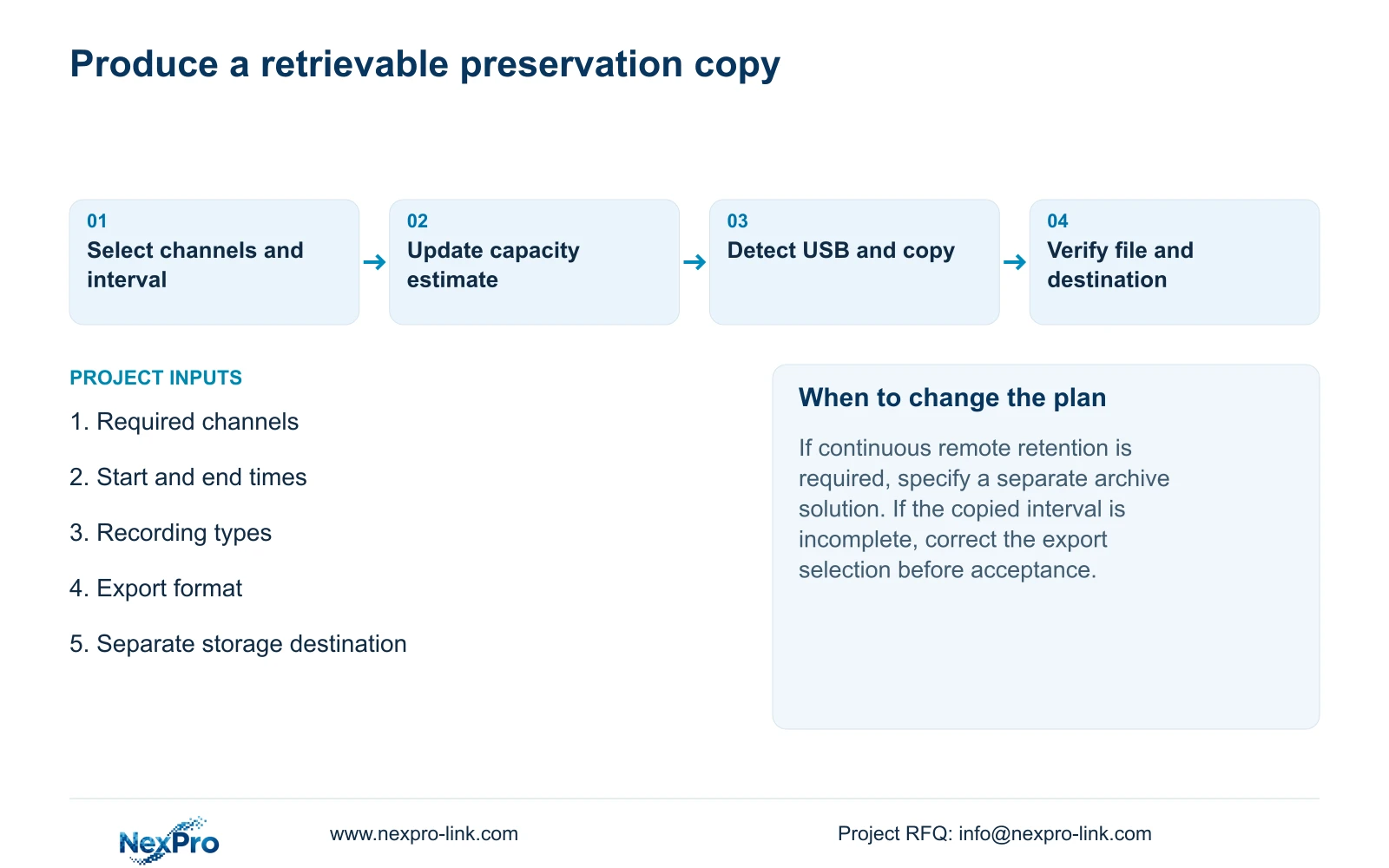
For selected incident footage, section 4.11.4 provides a backup workflow. Choose the file format, recording types, channels and start and end times. Use Update to obtain the capacity estimate for that selection. Insert the USB storage device, detect it and start the copy. The manual lists MP4 as the default and permits selection of multiple channels.
Open the resulting files on another device and check the requested channel and period. If a file is missing, incomplete or unusable, return to the selection and export result before calling the task complete. USB detection alone verifies none of those outcomes.
An off-site preservation task also needs an agreed destination and a person responsible for placing the verified copy there. If the owner requires continuous remote retention, selected USB exports may not satisfy that requirement. Specify the separate service or architecture, its coverage and retrieval method before procurement; this manual provides no cloud retention package to fill that gap.
Section 06
Test access and storage as separate outcomes
During an authorized assessment of internet-outage behavior, check local recording and remote viewing separately. Local recording depends on the camera path, recorder, disks and recording configuration remaining operational. A failed remote session does not establish that those conditions failed. Conversely, successful local playback does not establish that any footage reached an off-site destination.
Record the observed result, relevant manual branch and next controlled check. Stop when the proposed action depends on an undocumented interface or service. The project record should distinguish footage retrieved from the recorder, footage copied elsewhere and a cloud-storage requirement still awaiting confirmation.
Section 07
Review the owner's recorder-loss requirement
Illustrative project scenario: An owner expects recordings to survive the loss of the recorder because the app shows a cloud ID. The engineer identifies the NVR as the recording owner and checks a known playback interval. The next decision is whether selected exports meet the preservation task or whether a separately specified continuous archive is required. These are proposed checks, not a delivered project result.
Section 08
Can an online recorder still lack the footage I need?
Yes. Cloud activation does not prove the recording plan, disk state or retention outcome. Search the required channel and interval on the identified recording device.
Section 09
Does a USB export protect the whole archive?
The documented export covers the selected channels, recording types and time interval. Verify those files and their separate destination; do not describe that selection as continuous archive protection.
Section 10
Operating source and project scope
This guide uses the private supplied NVR4.0 user manual CH_V2.4.doc, whose body identifies V2.2, especially sections 1.2, 4.1.1, 4.11, 4.12.8 and 4.12.21. The supplied Seetong Windows client manual V1.0.0, section 7.1, supports the PC distinction. Section references take priority over page numbers. Actual model and firmware applicability must be confirmed.
Section 11
Specify the preservation requirement
Send NexPro-Link your required footage coverage after recorder loss, stating whether you need selected incident copies or continuous remote retention, at info@nexpro-link.com.
Engineering references
These sources support the general planning principles. Always use the selected product's current datasheet and applicable project standards for final design.


