

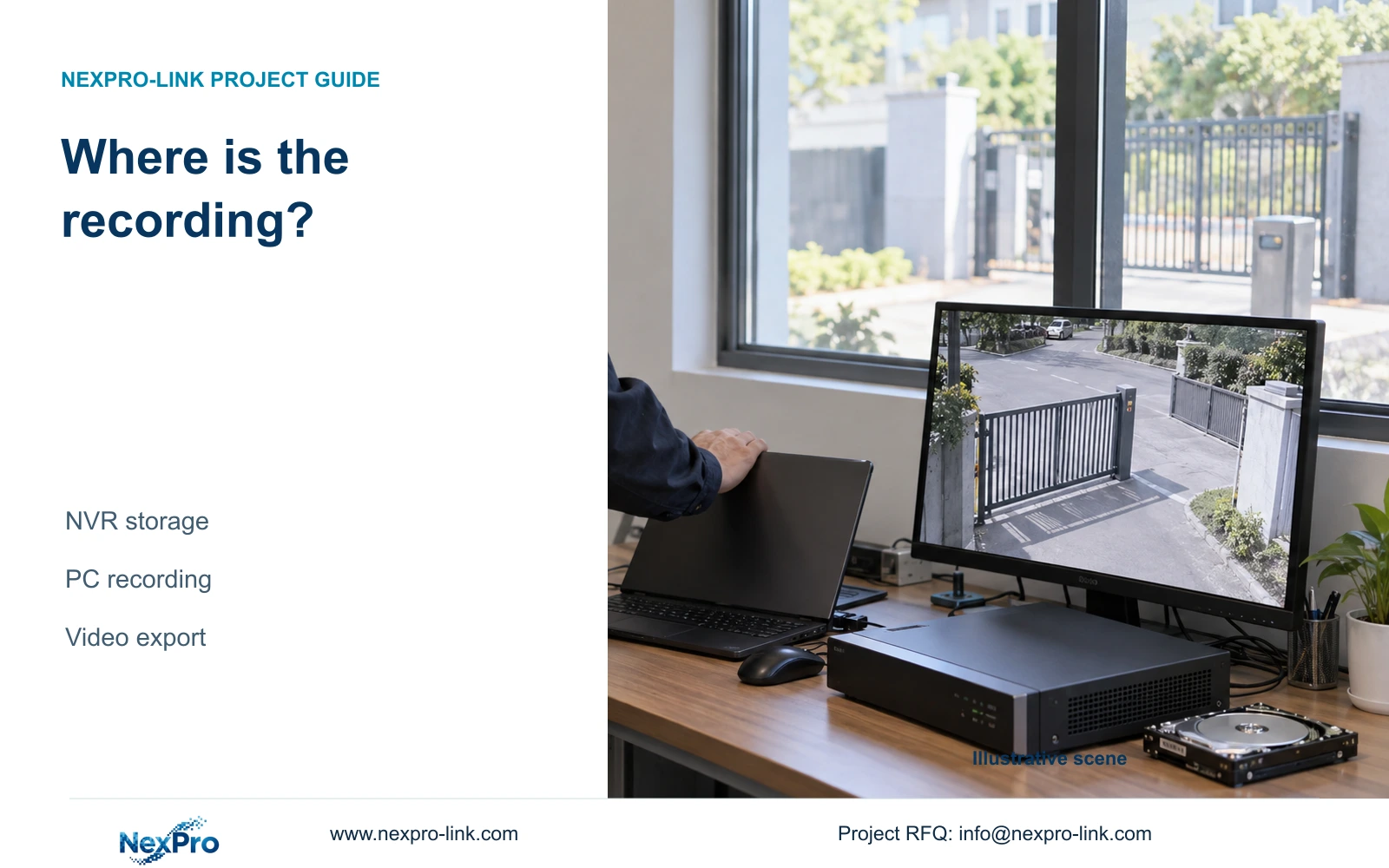
Closing a monitoring PC does not establish whether an independently configured NVR has stopped recording. Locate the storage owner, check its recording plan and retrieve the same channel and period from the recorder.
Section 01
Identify the device that produces the recording
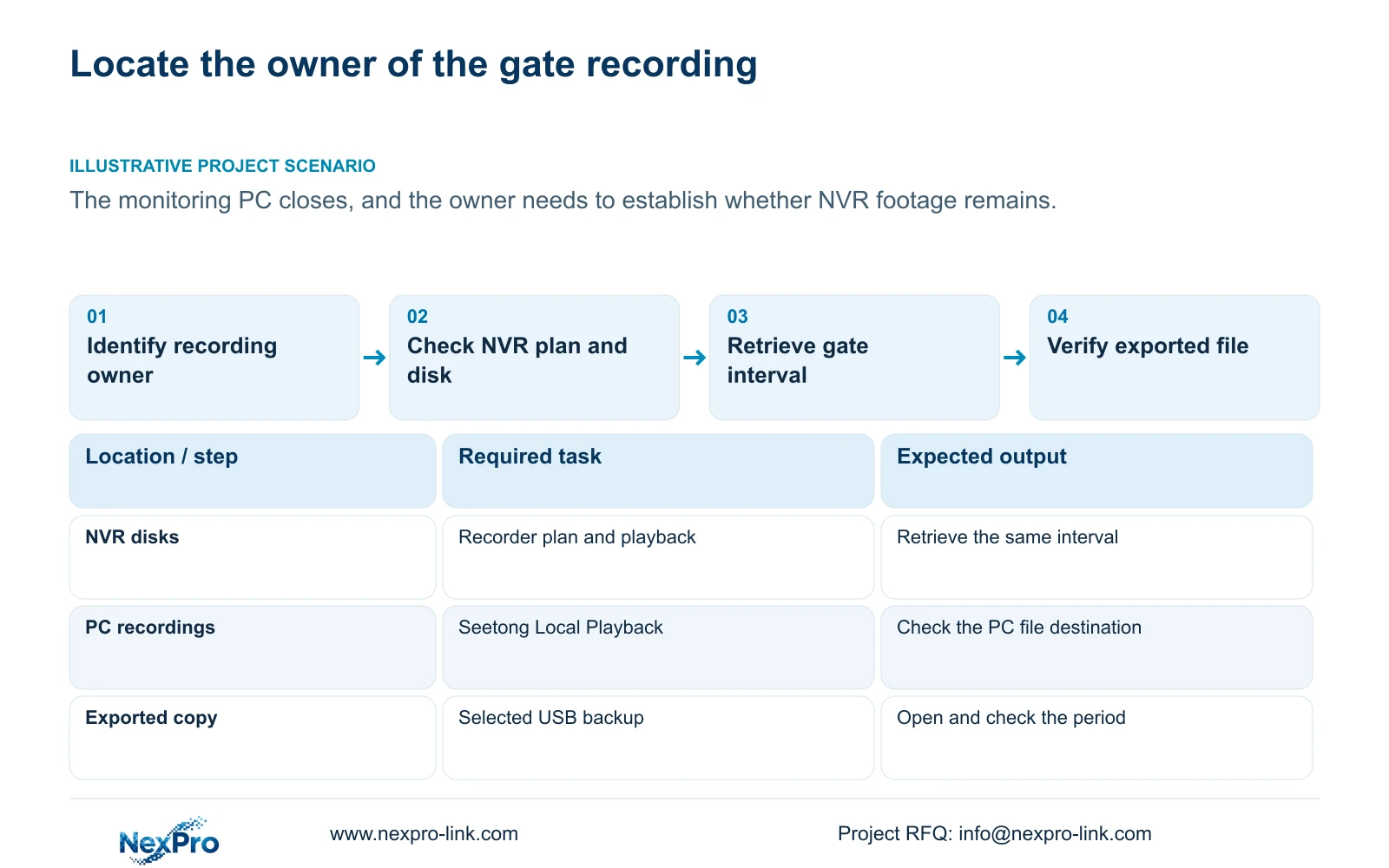
NVR recording and Seetong PC recording have different control points and storage destinations. An independently configured recorder can retain footage while the monitoring PC is closed, provided its camera path, recording plan and disks remain operational. The PC's local recording workflow depends on the client arrangement instead. To answer whether gate footage exists, identify the storage owner and retrieve the same camera and time interval from that owner. Keep exported clips separate from both recording stores. A live picture or remote connection does not establish where footage is retained, and changing a PC schedule does not establish that the recorder's plan has changed.
Section 02
Draw the recording stores and the copied file
Use separate boxes for the NVR's disk recordings, Seetong PC schedule recordings and exported video files. Name the device or destination beside each box. This prevents a familiar camera name from making different recording workflows appear interchangeable.
The supplied Seetong Windows client manual V1.0.0, section 7.1, directs users to Remote Playback for NVR recordings and Local Playback for PC schedule recordings. Those names describe the client's retrieval choices. A PC file search cannot establish the state of the recorder's disks.
Recorder instructions here come from NVR4.0 user manual CH_V2.4.doc, with V2.2 in its body, principally sections 4.11 and 4.12.21. Use section headings and the actual model and firmware. The client manual supports the storage distinction; it does not replace the NVR's local operating instructions.
| Object | Control or retrieval point | What to verify |
|---|---|---|
| NVR disk recordings | Recorder plan and local playback; client Remote Playback | Selected channel, stored interval and disk condition |
| Seetong PC schedule recordings | PC recording workflow and Local Playback | The PC destination and applicable client recording state |
| Exported clip | NVR backup selection and destination file | Playable content covering the requested period |
Section 03
Change the recorder's own recording plan
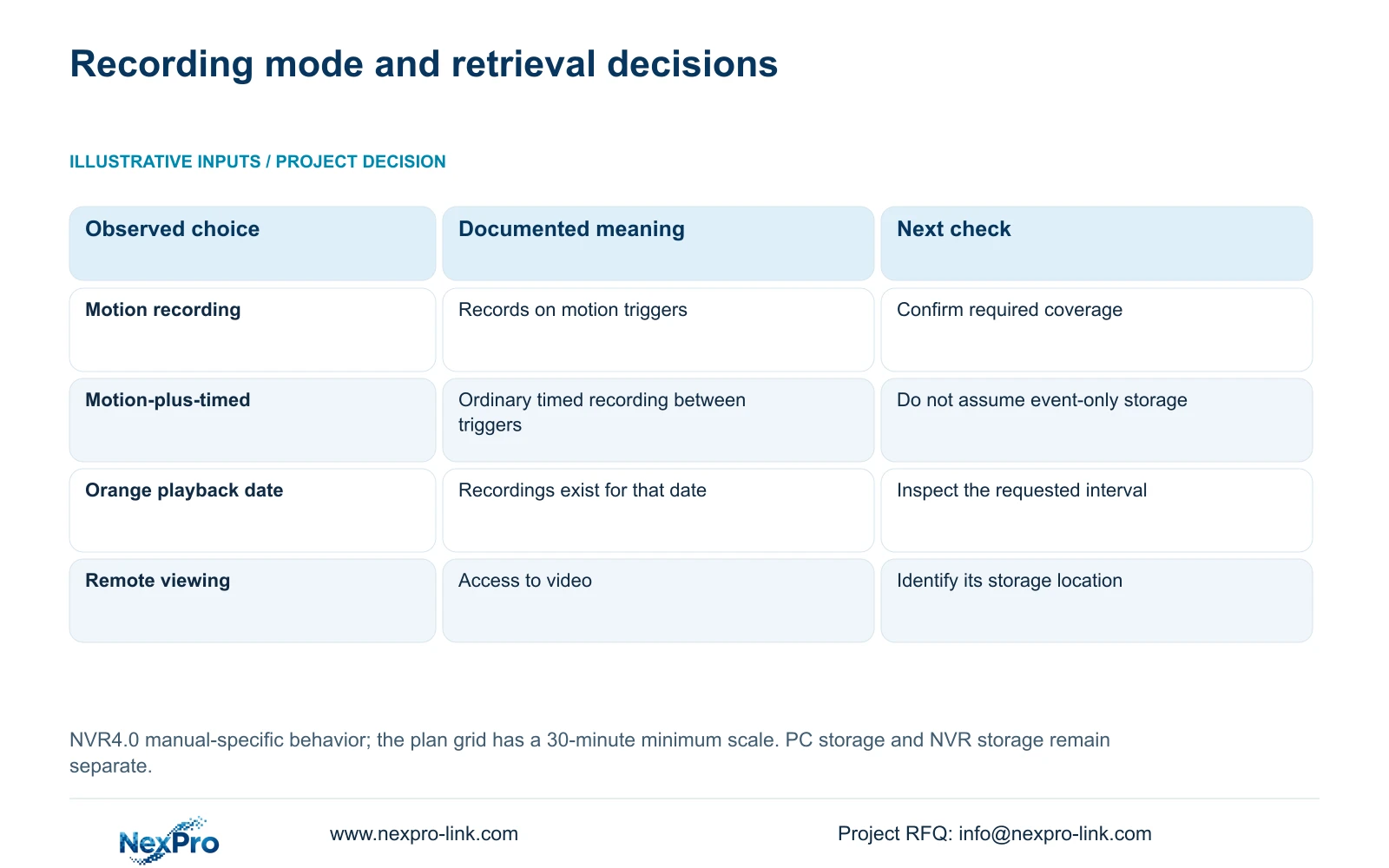
Once the NVR is confirmed as the required storage owner, inspect its plan in section 4.11.1. The documented choices are timed recording, no recording, motion recording and motion-plus-timed recording. The plan grid has a 30-minute minimum scale. Check the intended channel and schedule periods before making an authorized plan change.
Motion recording records when motion detection triggers. Motion-plus-timed continues ordinary timed recording when no motion trigger occurs and records motion-type footage when triggered. The mixed mode therefore cannot be treated as event-only recording or used to assume that quiet periods consume no storage.
Choose the plan according to the owner's required coverage. If uninterrupted ordinary coverage is needed during a defined period, an event-only assumption is inappropriate. After the change, retrieve a known interval from the recorder. A saved plan is configuration evidence; the retrieved footage shows what the recorder actually retained.
Section 04
Check the disk operations the manual actually describes
Section 4.12.21 is headed External Storage Devices, but its described operations concern disk information, selected-disk formatting, behavior when the disk is full and the startup no-disk prompt. Read those operations before interpreting the heading as an architecture specification.
Inspect the disk information and applicable full-disk mode. If the required disk is not available, a correct schedule alone cannot establish successful recording. Preserve the observed condition and resolve the storage issue using instructions for that device.
The heading does not establish NAS, NFS, iSCSI, RAID or shared-storage recording support. Formatting is also not a routine test for missing footage: it requires authority and preservation of the recordings that must be retained before proceeding. A project needing a different storage architecture must obtain model-level documentation for that requirement.
Section 05
Search the same channel, date and recording type
Section 4.11.2 says playback entry defaults to the channel selected in preview. Confirm that it is the gate camera before using the calendar. Select the incident date and time, then check the ordinary, alarm and motion type filters.
The documented calendar uses orange for a date with recordings and gray for a date without recordings. An orange date does not prove continuous coverage throughout that day or coverage of every channel. Inspect the requested interval itself.
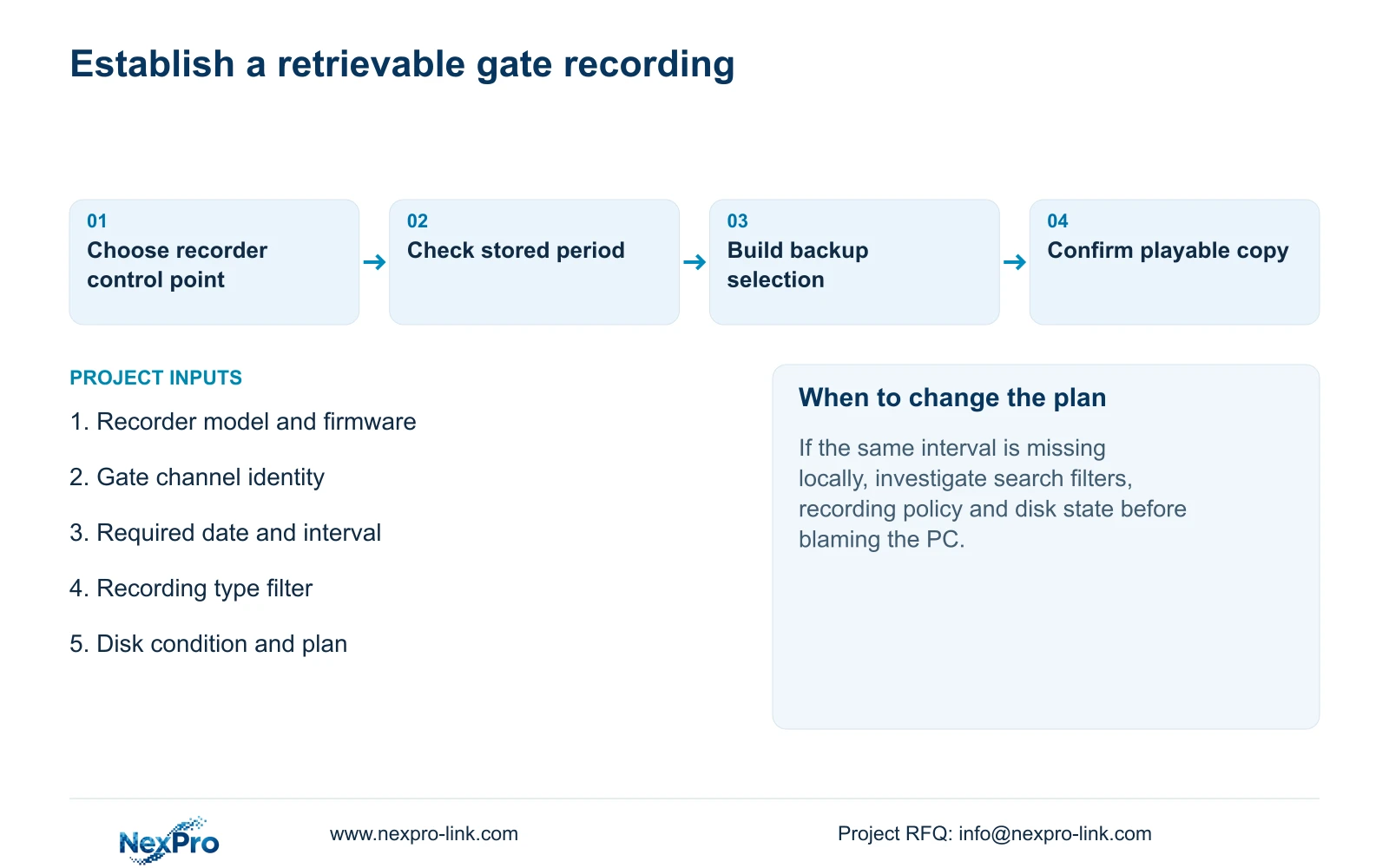
If the expected footage is absent, first correct the query's channel, date and type conditions. If it remains absent, compare the recorder plan and disk condition for the relevant period. Keep that investigation separate from whether the PC has its own files. A successful PC recording cannot fill an unexplained gap in the NVR recording history.
Section 06
Verify the copied file independently
After locating the required recording, build the backup selection described in section 4.11.4. Select the file format, recording types, channels and start and end times. Use Update to view the capacity estimate for that selection before starting the copy.
Insert the external USB storage device, detect it and start the backup. The manual lists MP4 as the default format and permits multiple channels. These source facts describe the workflow; they do not establish that every intended interval has been copied successfully.
Open the resulting files and check the channel content and requested period. Store the copy under a name that identifies its source and interval. Keep it distinct from the NVR's original recording and any PC schedule file. A usable exported clip proves that selected copy, not the completeness of the recorder's wider retention history.
Section 07
Separate remote access from retained footage
Sections 1.2 and 4.12.8 discuss remote access alongside the recorder-storage workflow. They do not provide a cloud retention subscription or an automatic off-site archive promise. Draw the user's access path separately from the location where the recordings are stored.
If remote access becomes unavailable, check local recording and local retrieval independently. Where an internet-outage check is required, use an authorized test arrangement that preserves the camera-to-recorder path. Losing the viewing connection and losing new recordings are different observations, so record both results.
For procurement, state the required recording owner explicitly. If an off-site copy is required, it needs a separately documented arrangement. NexPro-Link's project support can discuss the equipment and support scope once that storage requirement is clear.
Section 08
Check the gate footage after the PC closes
Illustrative project scenario: An owner closes the monitoring PC and asks whether the recorder still retains the gate footage. Record the interval in question, then query that gate channel on the NVR. If the footage plays, export the selected interval and check the file. If it does not, inspect the search conditions, recorder plan and disk state before attributing the problem to closing the PC.
Section 09
Buyer questions
Does motion-plus-timed mean only motion events occupy disk space? No. The manual describes ordinary timed recording between triggers.
Does an orange calendar date establish a full day of gate footage? No. Retrieve the specific channel and interval.
Does Seetong remote viewing include cloud retention? The documented access workflow establishes no such retention service.
Section 10
Provide the recording location and missing interval
Send NexPro-Link the recorder model and firmware, the intended recording location and the affected channel and time interval at info@nexpro-link.com.
Engineering references
These sources support the general planning principles. Always use the selected product's current datasheet and applicable project standards for final design.


