

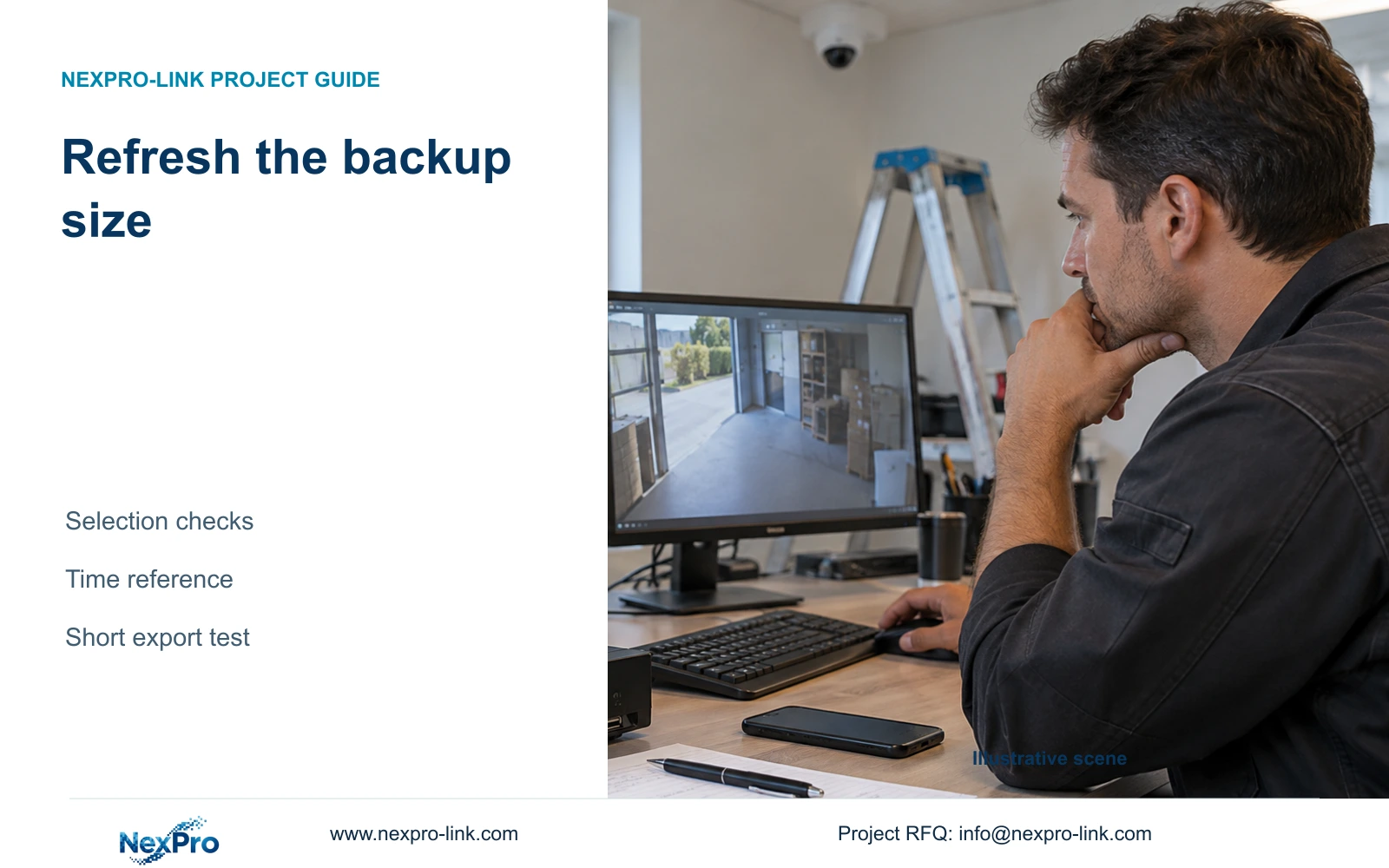
Trace an unexpected backup-size display to its current channel, recording-type and time selections, then refresh the estimate and test the resulting footage.
Section 01
Tie the displayed capacity to a recorded selection
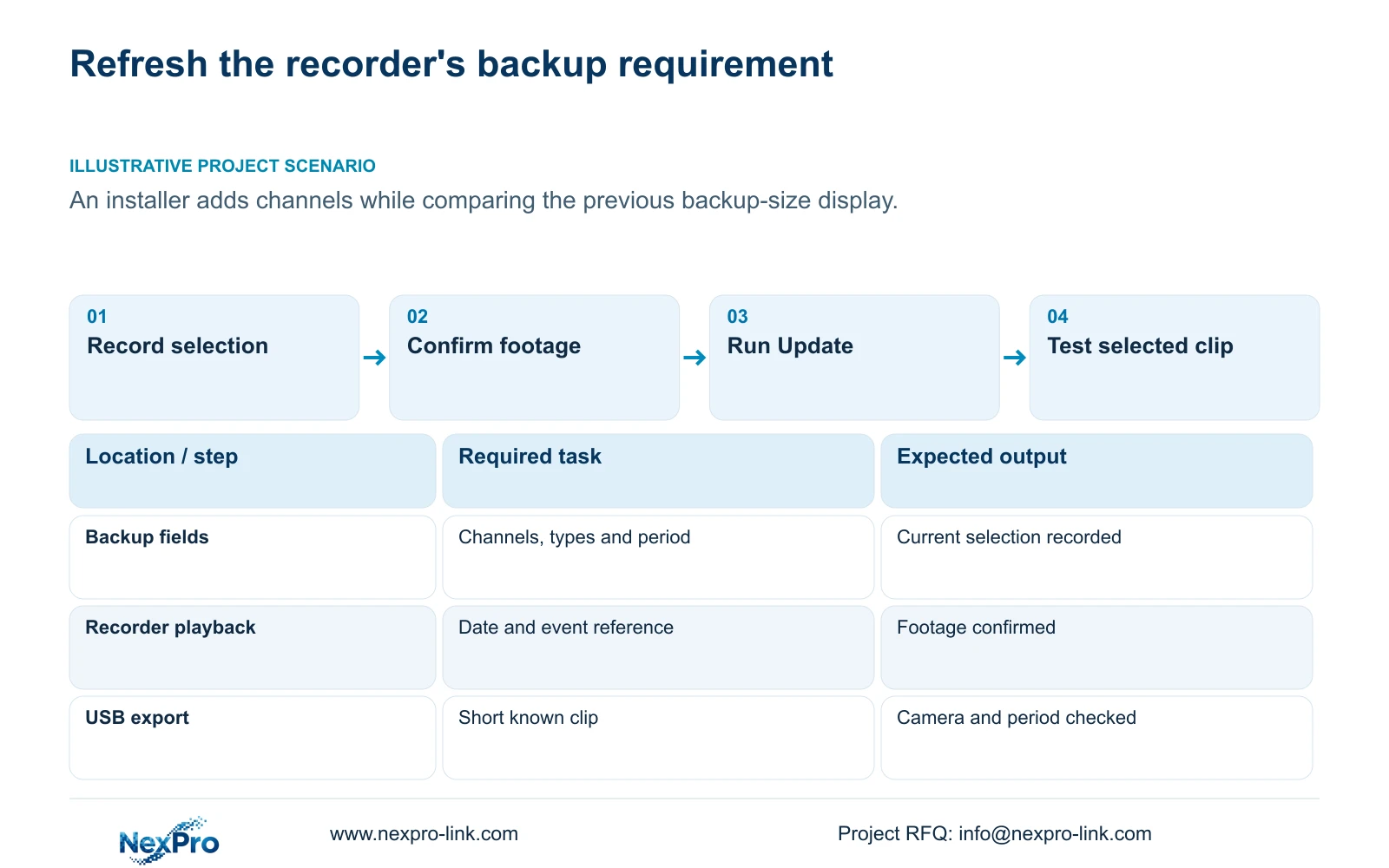
When an NVR backup shows an unexpected size, first record the selected channels, file format, recording types and start/end time, then run Update. The manual includes this action after the backup period is set, so a previous capacity reading should not be used to assess a changed selection. Confirm that the intended footage exists under the selected date and filters, and check whether the reported incident time matches the recorder's time. Compare the refreshed requirement with destination free space, then test a short known clip. An unusual estimate alone does not establish disk damage or justify formatting the recording storage.
Start by writing down what is currently selected, including channel-to-location assignments. This separates the intended request from the fields actually entered. If an installer adds several channels but continues comparing the earlier single-channel display, the comparison has lost its reference point.
Section 4.11.4 lists MP4 as the default and permits multiple-channel selection. Those options still need explicit checking. A size remembered from another format, period or recording-type selection is not a useful baseline for the current task.
Section 02
Confirm that the selected date contains the required footage
Section 4.11.2 describes orange dates as containing recordings and grey dates as having none in the documented playback workflow. An orange date establishes recording existence, not uninterrupted coverage of every channel throughout that day. Inspect the requested period on the requested camera before interpreting the backup requirement.
Playback entry defaults to the channel selected in preview. A familiar calendar can therefore be showing a different camera from the one needed for the export. Confirm the channel first, then inspect ordinary, alarm and motion recording filters as appropriate to the request.
If the expected clip is absent, check date and type selection before concluding that data has been lost. A recording excluded by the current filter cannot contribute to that selected export. Conversely, finding footage elsewhere on the same date does not establish that the requested incident period is available.
Section 03
Refine the boundaries and run Update again
Section 4.11.3 provides time positioning, timeline zoom and thirty-second jumps. Use broad navigation to locate the likely event, then inspect a finer interval before setting backup boundaries. A twenty-second teaching event can fall between coarse jumps. That viewing result cannot establish a storage failure.
Keep time navigation separate from electronic image enlargement. Enlarging a picture helps inspect detail; it does not locate a different period or refresh the backup estimate. Set the required start and end fields, confirm the recording types, then run Update.
For troubleshooting, change one selection condition at a time and record the refreshed result. If a type change exposes the expected footage, the filter explains the earlier mismatch. If a channel change produces a different requirement, retain both selections in the record so the difference remains interpretable. The manual does not establish a universal proportional increase for every added channel.
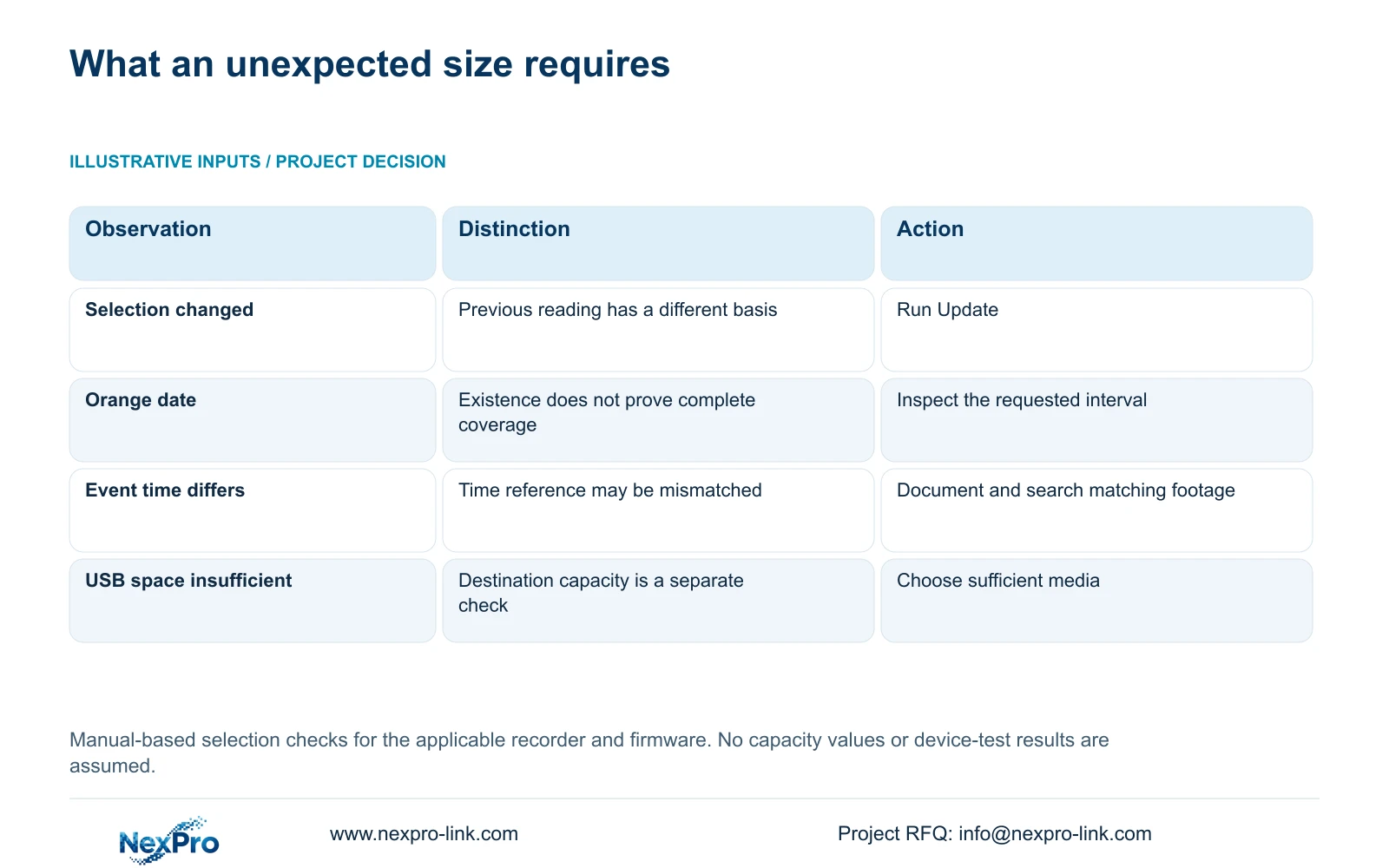
| Observation | Check | Next action |
|---|---|---|
| Channels changed after the last reading | Whether Update has been run for the new selection | Refresh and retain the current selection with its result |
| Orange date but incident absent | Channel, exact period and recording-type filter | Find the actual requested footage before exporting |
| Incident appears at a different time | Recorder time against the event reference | Document the discrepancy and search the matching period |
| Requirement exceeds USB free space | Destination identity and available capacity | Use a sufficient destination without altering recording disks |
| Short export contains the wrong view | Channel-to-location mapping | Correct the selection and repeat the controlled test |
Section 04
Check the event's time reference
If the calendar and filters look correct but the incident remains outside the selection, compare the event report with the recorder and camera time information. Sections 4.4.2 and 4.12.2 describe separate IPC and NVR time controls. IPC settings include manual time, network synchronization, time zone and daylight saving; NVR settings include network time and an IPC synchronization interval measured in hours.
Document which source is intended to set time and in which direction synchronization operates. Several independently enabled mechanisms can make the time relationship difficult to interpret. Search existing footage using its recorded reference before making a corrective configuration change, and preserve the observed discrepancy.
A network-time setting does not establish support for every proposed local NTP deployment. If time configuration needs correction, obtain the actual model and firmware instructions and test a known event across the required cameras afterward. Matching displayed clocks at one moment does not establish lasting synchronization.
Section 05
Compare refreshed capacity with the destination
Once the selection is confirmed, compare the updated requirement with the USB device's available space. Total labelled capacity and current free space answer different questions. Detection is a separate check in section 4.11.4, followed by starting the copy.
Do not use the External Storage Devices heading in section 4.12.21 to infer another recording path. The section describes attached-disk information, formatting, full-disk behavior and the startup no-disk prompt. It does not establish NAS, NFS, iSCSI or RAID support, and recording-disk information cannot substitute for checking the export destination.
If space is insufficient, resolve the destination requirement. Formatting a recording disk does not refresh the backup selection. Any proposed formatting needs target identification, authority and preservation of required files; it is a storage change, not a harmless response to a surprising number.
Section 06
Use a known clip to check the selection result
Choose a short period already confirmed in recorder playback. Set its channel, types and boundaries, run Update, detect the USB destination and start backup. This controlled selection makes the result easier to interpret than repeatedly copying an uncertain multi-channel period.
After copying ends, open the file on the intended receiving system. Check the camera, period and required audio. Section 4.11.4 mentions players such as VLC but does not guarantee every operating-system and codec combination. Record the viewing method and preserve original footage while the copy remains unverified.
If the short export is correct but the larger request remains wrong, return to the larger selection and recording availability. If the short export itself fails, retain the precise stage and result for support. A selection problem, destination-space problem and playback problem should not be reported as the same symptom.
Section 07
Resolve a stale comparison without changing storage
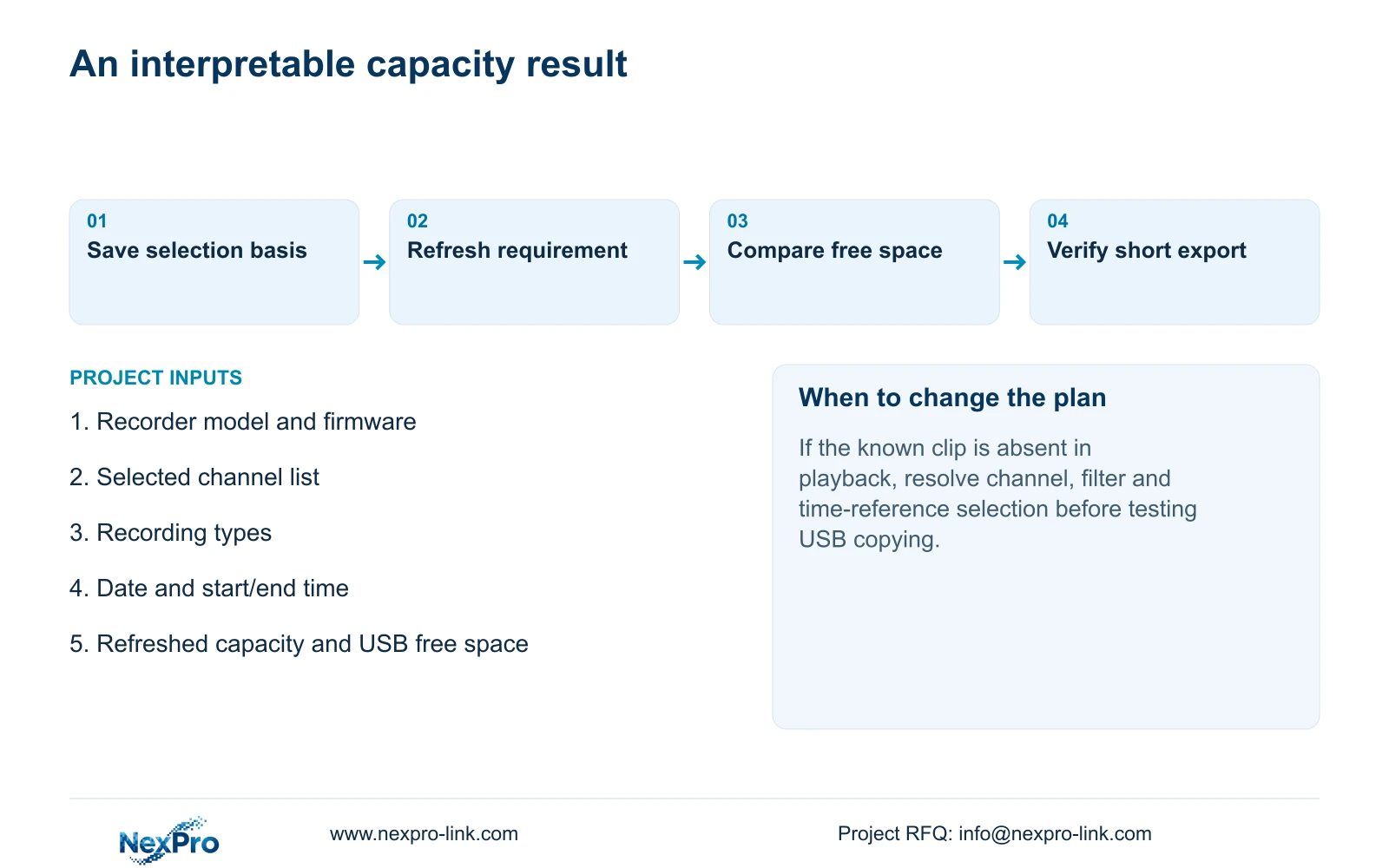
Illustrative project scenario: An installer changes from one channel to several but keeps comparing the previous backup-size display. The installer records the new selection, confirms footage for each channel and runs Update before evaluating the result. A short export then checks whether the selected camera and period are correct. No successful outcome is assumed.
This guide uses the private NVR4.0 user manual CH_V2.4.doc, whose body identifies V2.2, sections 4.11.2 through 4.11.4, 4.4.2, 4.12.2 and 4.12.21. Section references take priority over page numbers. The task concerns recorder recordings; Seetong PC local storage is separate.
Section 08
Buyer questions about unexpected export sizes
Does adding a camera guarantee a proportional size increase? No. The selected footage, duration and types can differ. Refresh and inspect the actual selection.
Does an orange date prove the whole requested period exists? No. Verify the specific channel and interval.
Should a surprising estimate trigger formatting? No. Check selection, time reference and destination space first; formatting changes storage and requires separate authority.
Section 09
Provide the refreshed selection record
Send NexPro-Link the recorder model and firmware plus a redacted record of the current backup selection and refreshed capacity at info@nexpro-link.com.
Engineering references
These sources support the general planning principles. Always use the selected product's current datasheet and applicable project standards for final design.


