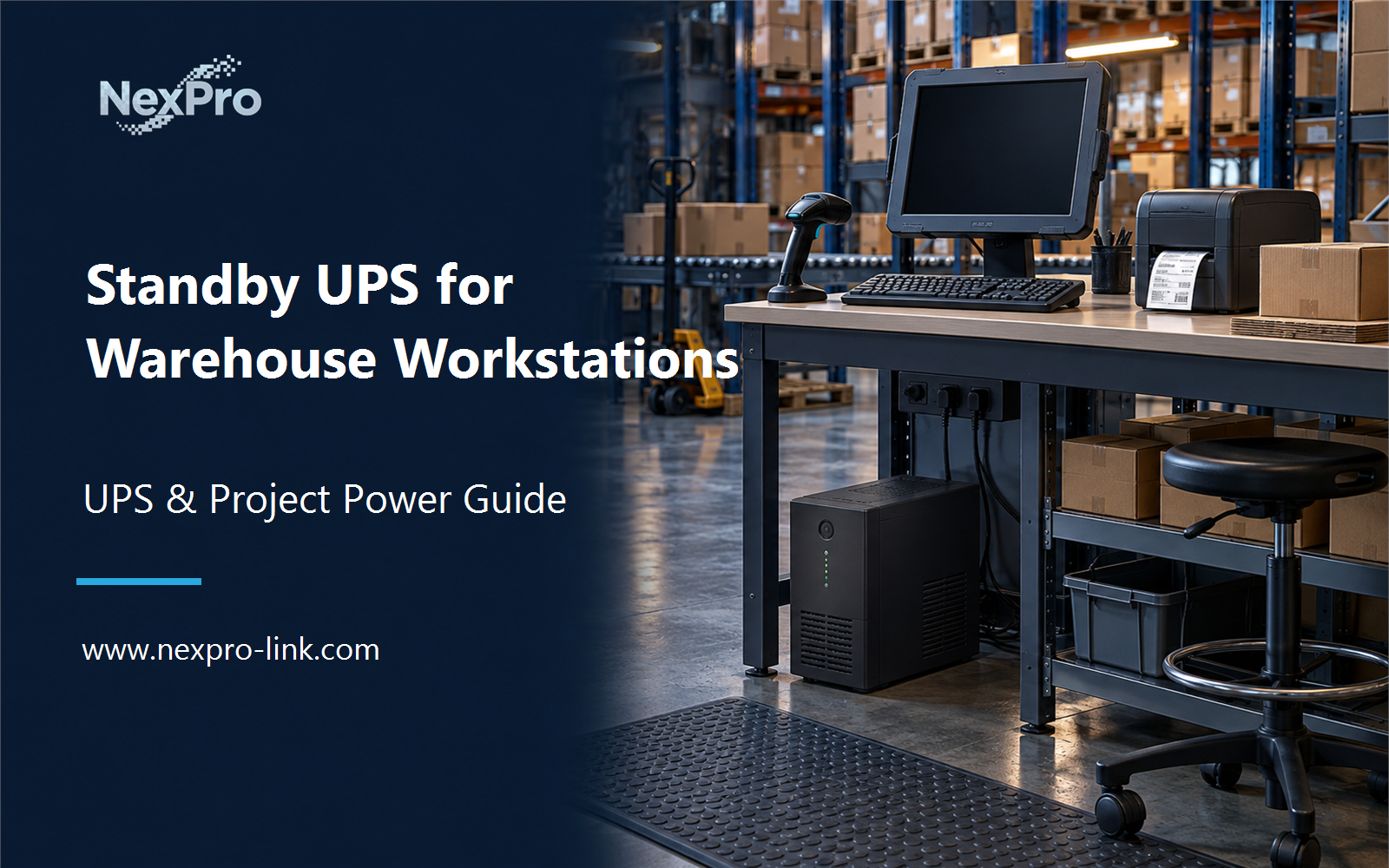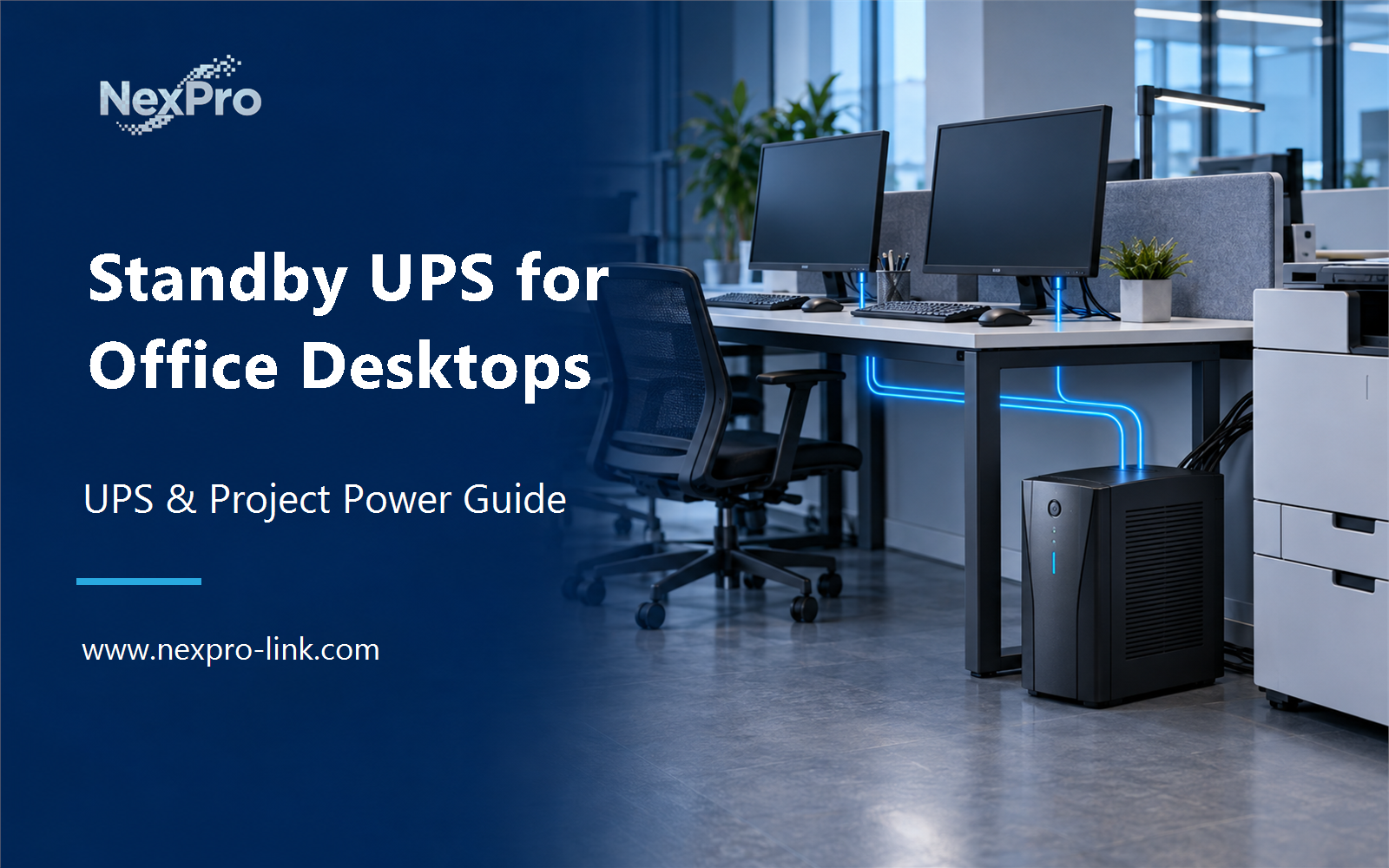
A standby UPS spends most of its life doing almost nothing. Utility power passes straight through to the desk, and the battery waits.
Section 01
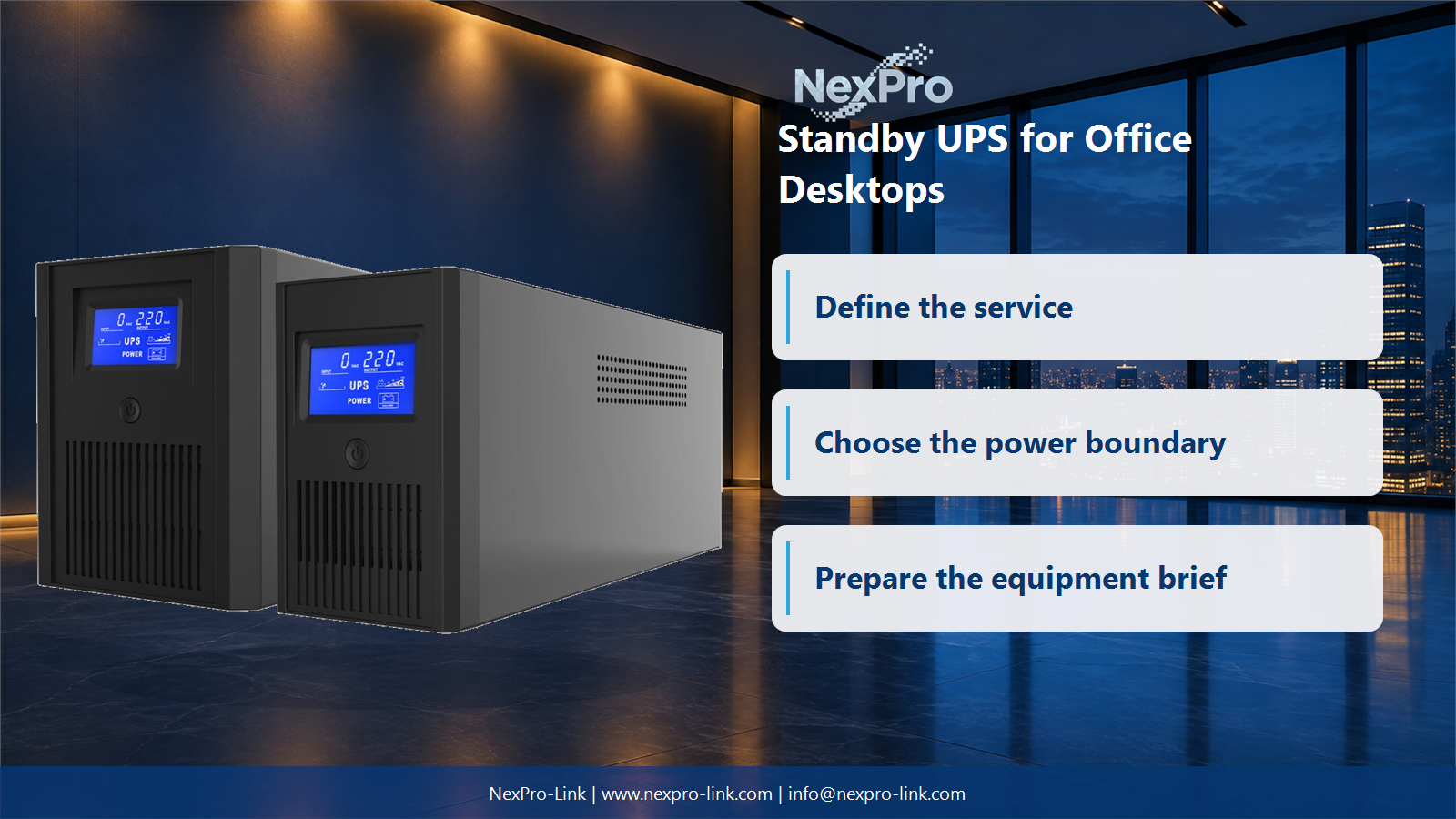
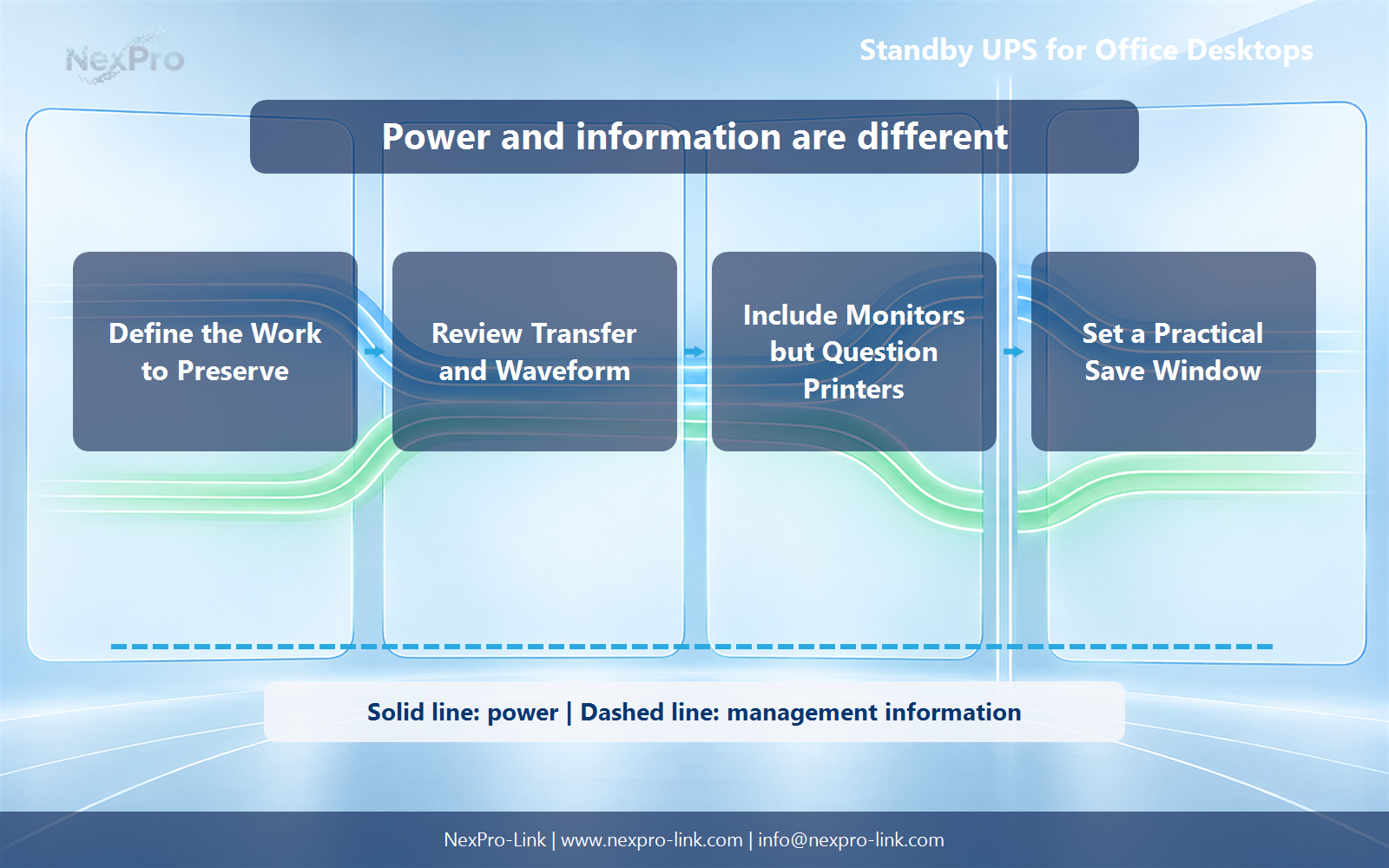
Define the work that needs to be preserved
A standby UPS spends most of its life doing almost nothing. Utility power passes straight through to the desk, and the battery waits. On a real outage the unit switches to inverter within a few milliseconds and holds the computer up long enough for the user to save and shut down. Whether that is enough for a given desk depends on what the desk is actually doing at the moment the power drops.
For most office desktops, the goal is enough time to save work and shut down, not to continue a full shift. Record the applications, local files and network tasks that must close. This creates a short, testable operating objective.
Shared files and browser-based systems may depend on switches, wireless access points or a local server. Protecting the desktop alone cannot preserve a service that has already disappeared elsewhere.
Share each desktop and peripheral power input, the required shutdown action and the target interval so essential and optional loads stay distinct.
| Device | Usually include? | Reason |
|---|---|---|
| Desktop PC | Yes | Needs time to save and stop |
| Primary monitor | Often | Lets the user complete the shutdown |
| Network switch or router | When required | Keeps active applications reachable |
| Laser printer | Usually no | High and variable heating demand |
Section 02
Review transfer and output waveform
A standby UPS normally passes input power to the load and transfers to its inverter when the source leaves the accepted range. Confirm that the desktop power supply tolerates the transfer and the battery-mode waveform of the selected model.
Modern power supplies vary. Do not assume that every computer reacts the same way because the wattage is similar. A short controlled test with the actual desktop is more useful than a generic compatibility statement.
- Test with the desktop under representative load.
- Verify restart behavior after a full shutdown.
- Keep surge-only outlets distinct from battery-backed outlets.
Section 03
Include monitors but question printers and heaters
The primary monitor is often part of the save window because the user needs to see the shutdown. A second display may be optional. Laser printers, heaters, shredders and other high-demand loads should normally be kept outside the battery-backed group unless the system is specifically designed for them.
Label outlets and document the intended load. An available socket is not an invitation to add equipment later. Unplanned peripherals can consume runtime or overload a small UPS at the moment it is needed.
Section 04
Set and test a practical save window
Choose a short delay that ignores momentary events, followed by enough time for the user or software to save and stop. A desktop without automatic shutdown depends on someone being present, which should be stated as an operating limitation.
Where unattended operation matters, verify the communication software, user-session behavior and permissions. Test the sequence with the network available and unavailable so the fallback is understood.
Section 05
Buyer questions for Standby UPS for Office Desktops: Compatibility and Limits
For Office IT buyers and desktop support teams, these six checks separate standby UPS desktop computer use decisions from assumptions that belong to the wider project.
| Buyer question | Practical answer | Project output |
|---|---|---|
| What should an office desktop UPS protect? | Identify the active work, required save time and essential peripherals. A short interruption may be acceptable for some desks but not others. State the operational objective before deciding whether standby protection is appropriate or a different topology is justified. | Desk profile: applications / save time / essential devices |
| Can all desktop power supplies use any standby UPS? | No universal compatibility can be assumed. Compare the actual UPS waveform, transfer limits and load behavior with the computer supply requirements. Treat workstation and server labels as prompts for closer assessment, not as a blanket technical prohibition based on this source. | Compatibility comparison: PSU / UPS mode / output / test basis |
| Should a laser printer share the desktop's battery outlets? | Its demand and compatibility need separate consideration. A printer may create a larger transient than the computer and reduce useful save time. Identify which peripherals truly require battery supply and use the product's supported outlet and load restrictions rather than assuming every desk device belongs together. | Outlet plan: computer / display / printer / battery requirement |
| How should the runtime target be chosen? | Budget the time to notify the user, save work and shut down, plus a stated reserve. Compare runtime at the actual protected load. Avoid promising a full working session from a small standby unit merely because the computer's nameplate fits its rating. | Time budget: notification / save / shutdown / reserve |
| What changes when dozens of desks receive UPS units? | Asset tracking, alarm awareness, battery-service access and standardized outlet use become important. A fleet plan should define who responds to alarms and replaces equipment. Otherwise units can remain installed but unavailable when their original battery or user configuration has changed. | Fleet register: desk / configuration / owner / service action |
| What should be sent for a batch supply proposal? | Provide representative load groups, power interfaces and the intended save-and-shutdown policy. NexPro-Link can discuss suitable small UPS configurations and quantities. Keep exceptions such as engineering workstations visible instead of using one standard desktop kit for every office role. | Batch schedule: desk type / load / quantity / exception |
Section 06
Work from the measured desktop group
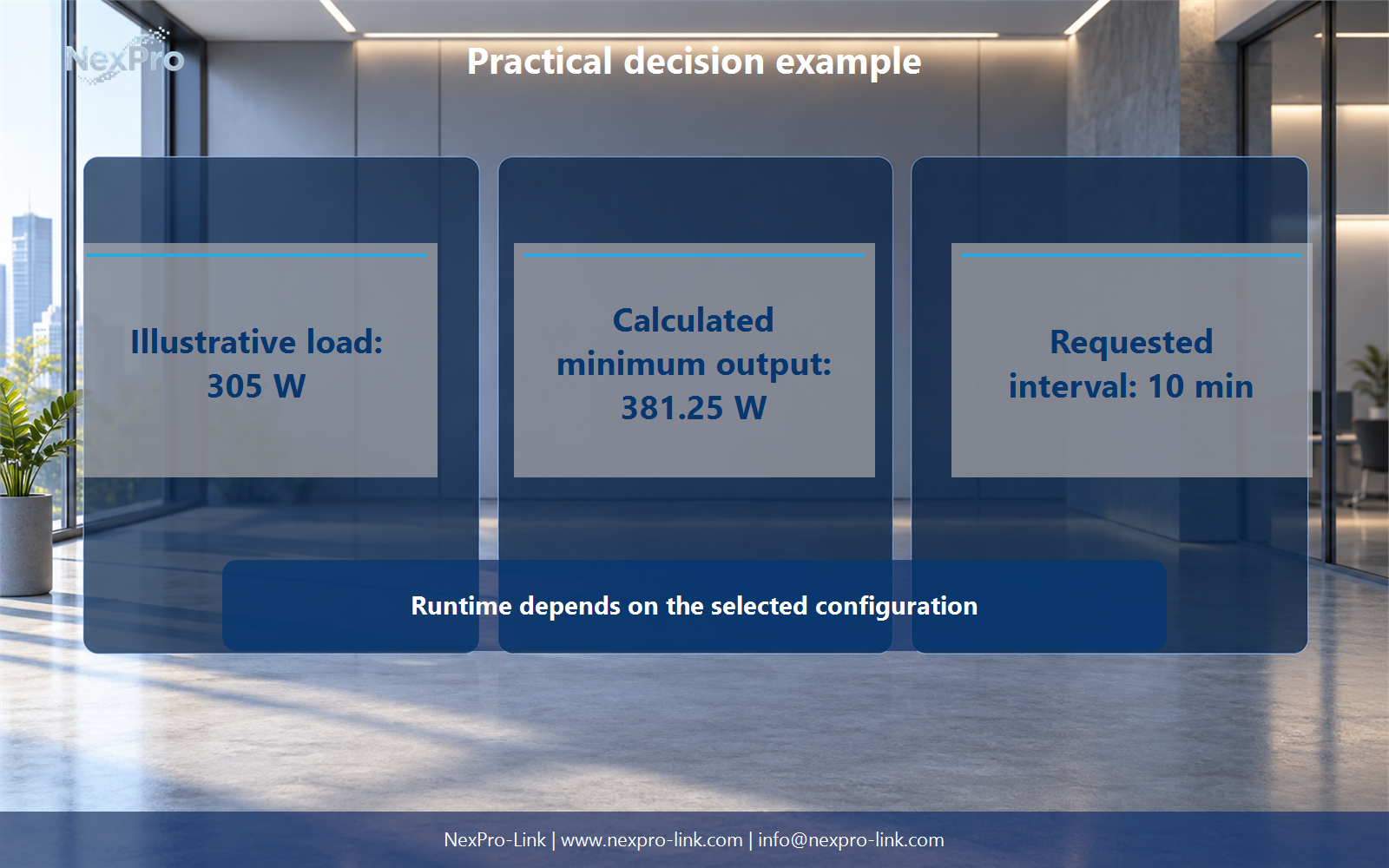
An illustrative desktop, monitor and small network device total 305 W. Applying a 25 percent capacity allowance gives a 381.25 W planning minimum, with a requested ten-minute save window. This screens output capacity but does not establish runtime.
Select a configuration only after checking the actual load, output waveform, transfer behavior and current runtime data. Repeat the test when monitors, graphics hardware or peripherals change.
Engineering references
These sources support the general planning principles. Always use the selected product's current datasheet and applicable project standards for final design.