

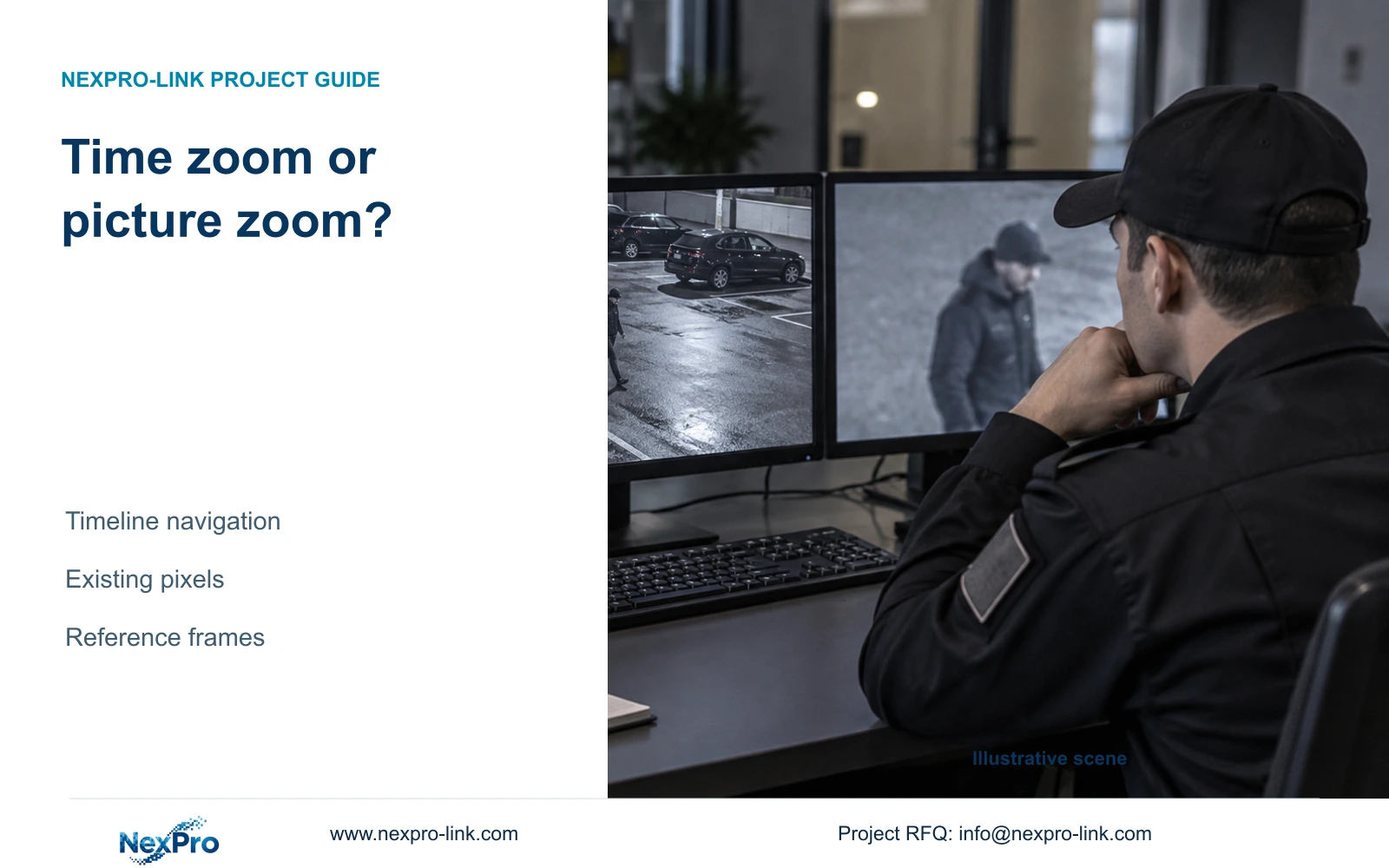
Timeline zoom helps locate the required moment. Picture zoom enlarges existing imagery. Choose the control that matches the problem, identify useful reference frames and preserve a playable incident clip.
Section 01
Choose the control that matches the review problem
Use timeline zoom when the problem is finding the right moment, and picture zoom when the relevant frame is already visible but needs closer inspection. Timeline scaling changes how you navigate time; electronic image enlargement presents pixels already captured. Neither an enlarged window nor a stretched picture establishes additional recorded detail. Confirm the channel, date and recording types, position playback at the incident, and review the sequence before selecting a useful reference frame. Keep that frame alongside a playable clip with sufficient context. If the moment remains unlocated, return to time selection instead of repeatedly enlarging unrelated imagery.
The guide follows the supplied private file NVR4.0 user manual CH_V2.4.doc, whose body identifies V2.2. Sections 4.11.2 and 4.11.3 cover retrieval and playback controls; sections 4.5 and 4.7 cover display choices. Section references take priority over page numbers.
Section 02
Narrow the timeline before inspecting image detail
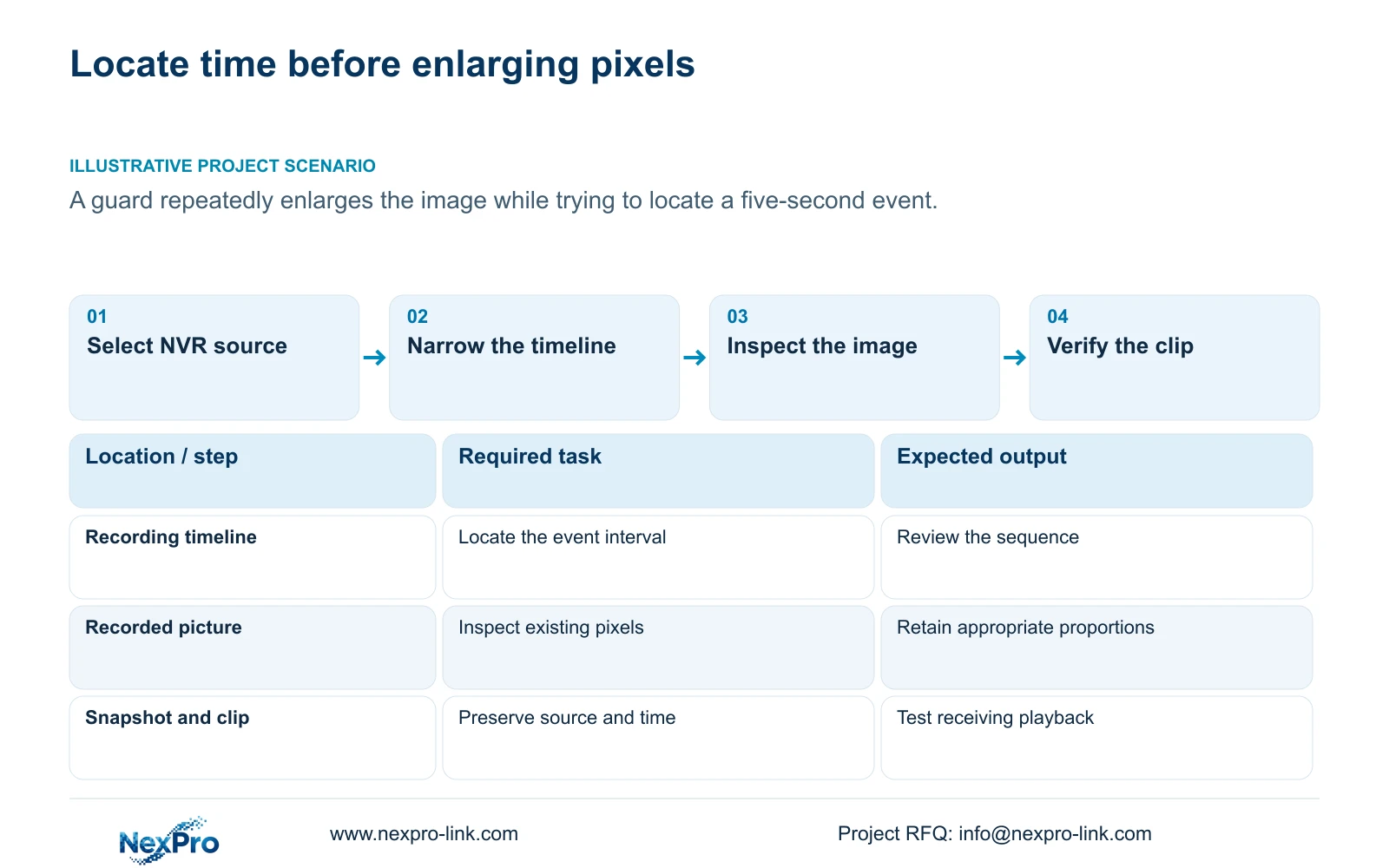
Section 4.11.3 provides thirty-second forward and backward jumps, time positioning and timeline zoom. Use a broad view to locate the probable period, then adjust the timeline scale so the short interval is easier to select.
A jump changes the playback position. It does not establish that the operator has reviewed the intervening footage. After reaching the likely period, play through it continuously at an appropriate speed. If the desired event remains unseen, check whether the selected interval actually includes the reported occurrence.
Illustrative project scenario: A guard enlarges the image repeatedly when the real problem is locating a five-second event within a long timeline. The useful next action is to narrow the time search and inspect the sequence. Picture enlargement becomes relevant only after the event's frames have been found; this scenario does not imply a measured retrieval result.
| Review problem | Control or check | Expected result |
|---|---|---|
| The incident moment is difficult to select | Timeline zoom and time positioning | A more focused time interval |
| The event is visible but a region needs inspection | Electronic picture enlargement | A larger view of existing pixels |
| Objects look stretched | Playback aspect ratio | A proportionally appropriate display |
| An expected still image is missing | Snapshot type, channel and time query | Search the correct recorder-held image set |
Section 03
Evaluate the same recorded target without stretching it
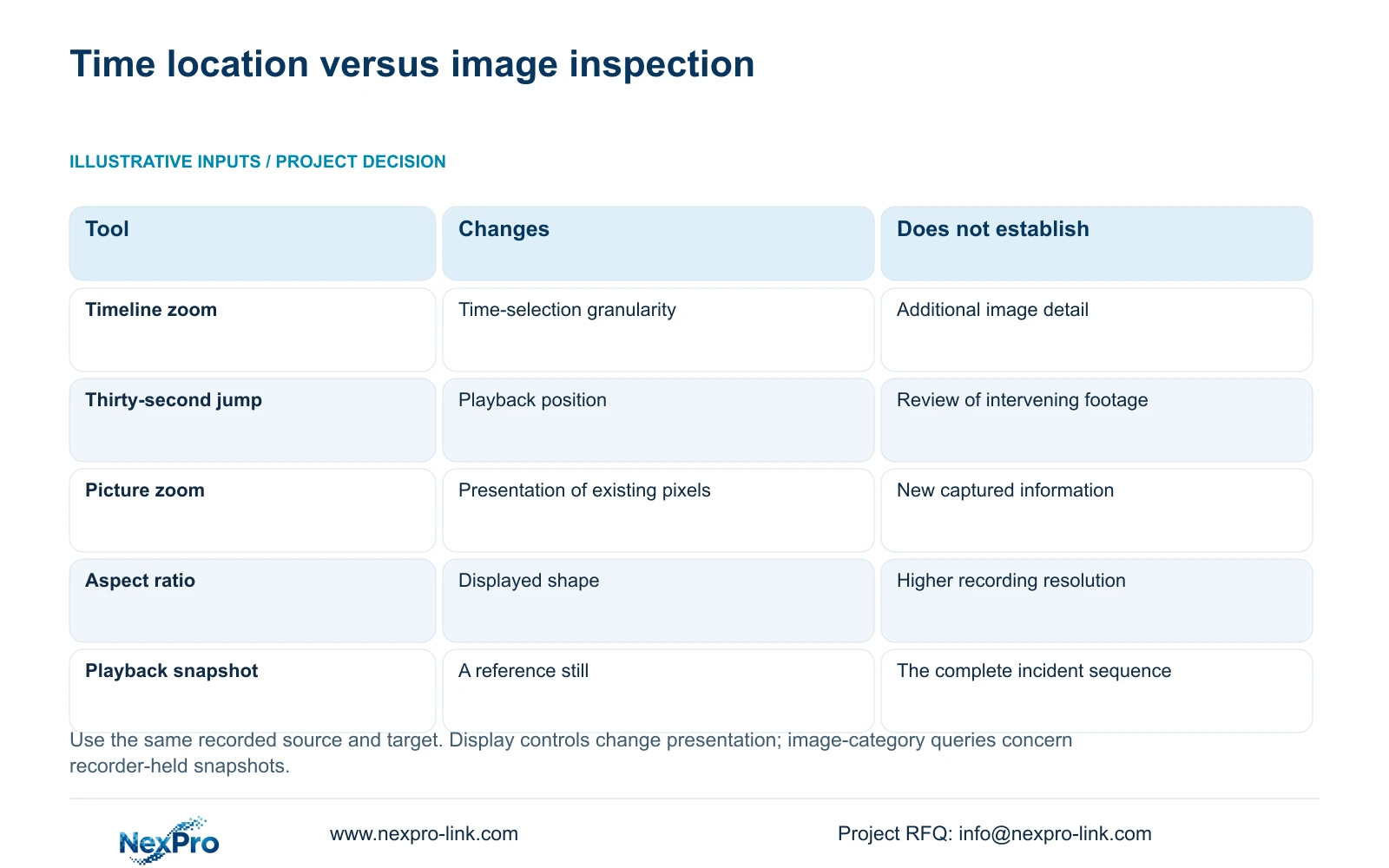
Sections 4.5, 4.7 and 4.11.3 separate layout, picture ratio and electronic enlargement. A split-screen arrangement changes the presentation space. An aspect-ratio choice changes the displayed shape. Digital enlargement lets the operator inspect part of the existing image.
Use the same file and fixed target when comparing an appropriate ratio, a stretched display and a locally enlarged view. This holds the recorded source constant and makes the presentation difference easier to recognize. Return to the full frame to check where the inspected region sits in the scene.
Larger pixels do not establish additional captured detail or recover information absent from the recording. Keep the source recording resolution as a separate input when evaluating image usefulness. If the required target remains unclear, report that limitation without treating a display adjustment as a camera-resolution upgrade.
Section 04
Confirm the camera and date before changing scale
Playback entry defaults to the preview-selected channel in section 4.11.2. Confirm that the image belongs to the incident location. Scaling the timeline of the wrong camera cannot resolve a missing-event query.
Select the incident date and inspect the ordinary, alarm and motion filters. The manual's orange calendar color indicates recordings exist for the date; grey indicates no recordings in that documented workflow. An orange date does not establish complete coverage of the required period.
If a filter excludes the interval, revise the selection and repeat the same time query. If the channel is wrong, correct it before changing zoom. Keep the source-selection result in the review record so another operator can reproduce the search without relying on the current screen layout.
Section 05
Set the incident time independently of the opening position
The initial-play option in section 4.11.3 starts playback ten minutes before the current time when the page opens. That default is useful only when it happens to match the review period. Set the actual incident date and time explicitly.
The opening offset does not establish ten minutes of alarm pre-recording. It also does not define the start of every available recording. An operator reviewing an older event should navigate to that event's period rather than treating the initial picture as the only available source.
After positioning playback, check the displayed time and scene before narrowing the timeline further. If the expected activity does not appear, broaden the relevant time query and verify the source selection. Picture zoom can remain unchanged while this time-location problem is resolved.
Section 06
Retrieve a reference frame from the correct image category
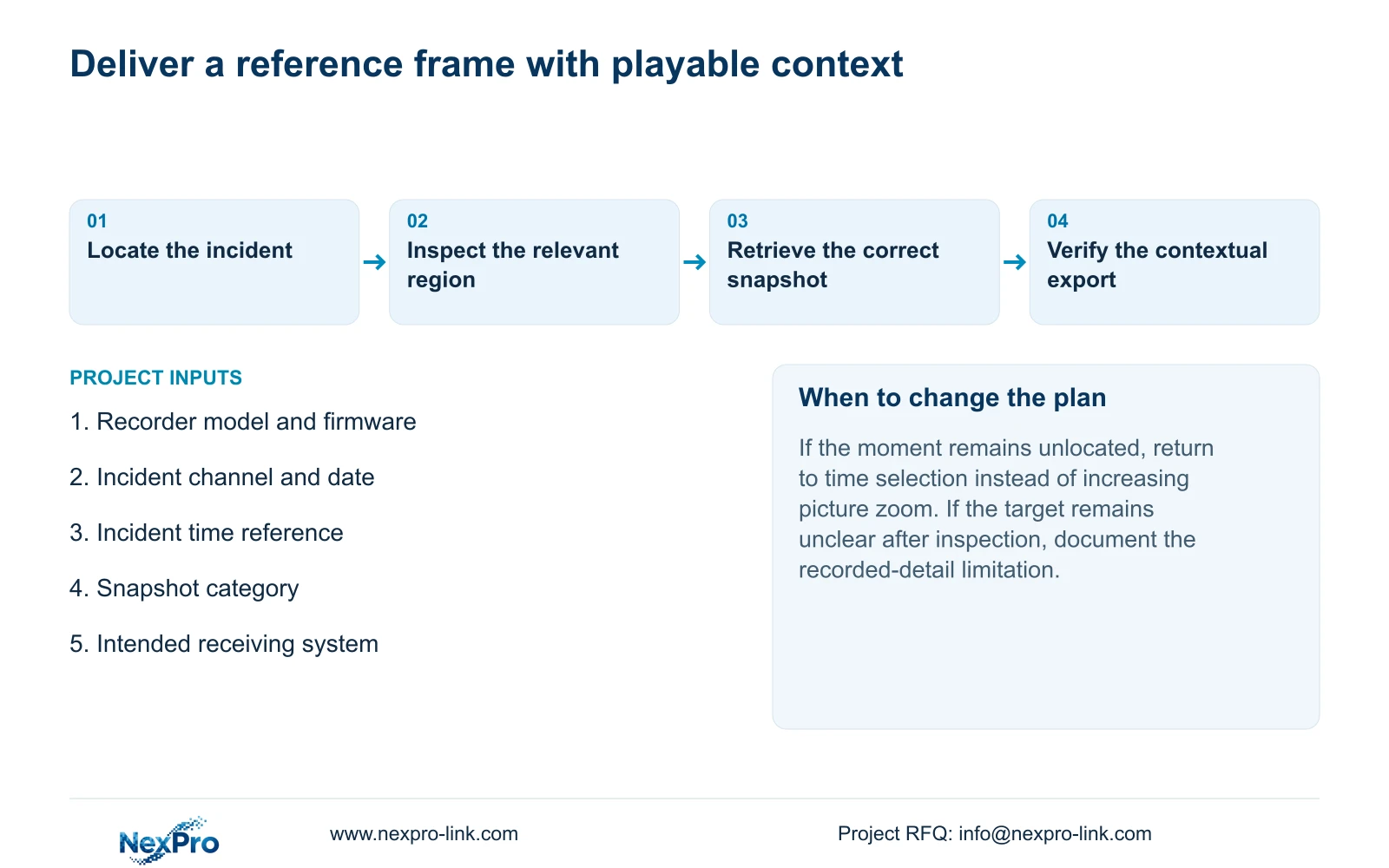
Once the event is located, choose a frame that clearly supports the review question. Keep its camera and time reference with it so a recipient can return to the corresponding sequence. A still can help identify a position or object, but it cannot show the whole movement by itself.
Sections 4.9.1 through 4.9.3 distinguish manual, alarm and playback snapshots. Image Management defaults can point to the first channel and the recorder's current date range. Set the appropriate type, channel and time range before searching for the expected image.
These snapshots reside on the recorder's disk and can be exported. They are not the Seetong PC Picture directory. If an image is absent from the initial search, correct those query conditions before reporting that capture failed or that the image was lost. Do not assume the snapshot necessarily reflects the enlarged display treatment unless the applicable workflow establishes it.
Section 07
Keep a playable sequence alongside the still
Use the original recording to retain what happened before and after the selected frame. Set clip boundaries around the meaningful sequence, including enough context to explain the inspected region. A cropped reference view should not become the sole basis for interpreting the full incident.
Section 4.11.4 describes backup selection and copying. Confirm the format, types, channel and start/end times, update the capacity estimate and detect the external USB storage before starting backup.
Open the resulting clip on the intended receiving system and check source identity, coverage and required audio. The manual mentions VLC without guaranteeing every platform and codec combination. Record the tested viewing path and preserve the original recording until the required copy works. For a project review, list unresolved image-detail or retrieval limitations separately from completed export checks.
Section 08
Can digital zoom make an unreadable target identifiable?
It can enlarge the existing target for inspection, but it does not establish new captured information. Evaluate what the original recording actually shows and state any remaining limitation.
Section 09
Is a snapshot enough for incident handover?
A snapshot can support a particular reference point. When the question concerns movement or sequence, retain and verify the corresponding playable clip as well.
Section 10
Describe the unresolved viewing task
Send NexPro-Link the recorder model and firmware, incident channel and period, and whether the remaining problem is time location or recorded image detail at info@nexpro-link.com.
Engineering references
These sources support the general planning principles. Always use the selected product's current datasheet and applicable project standards for final design.


