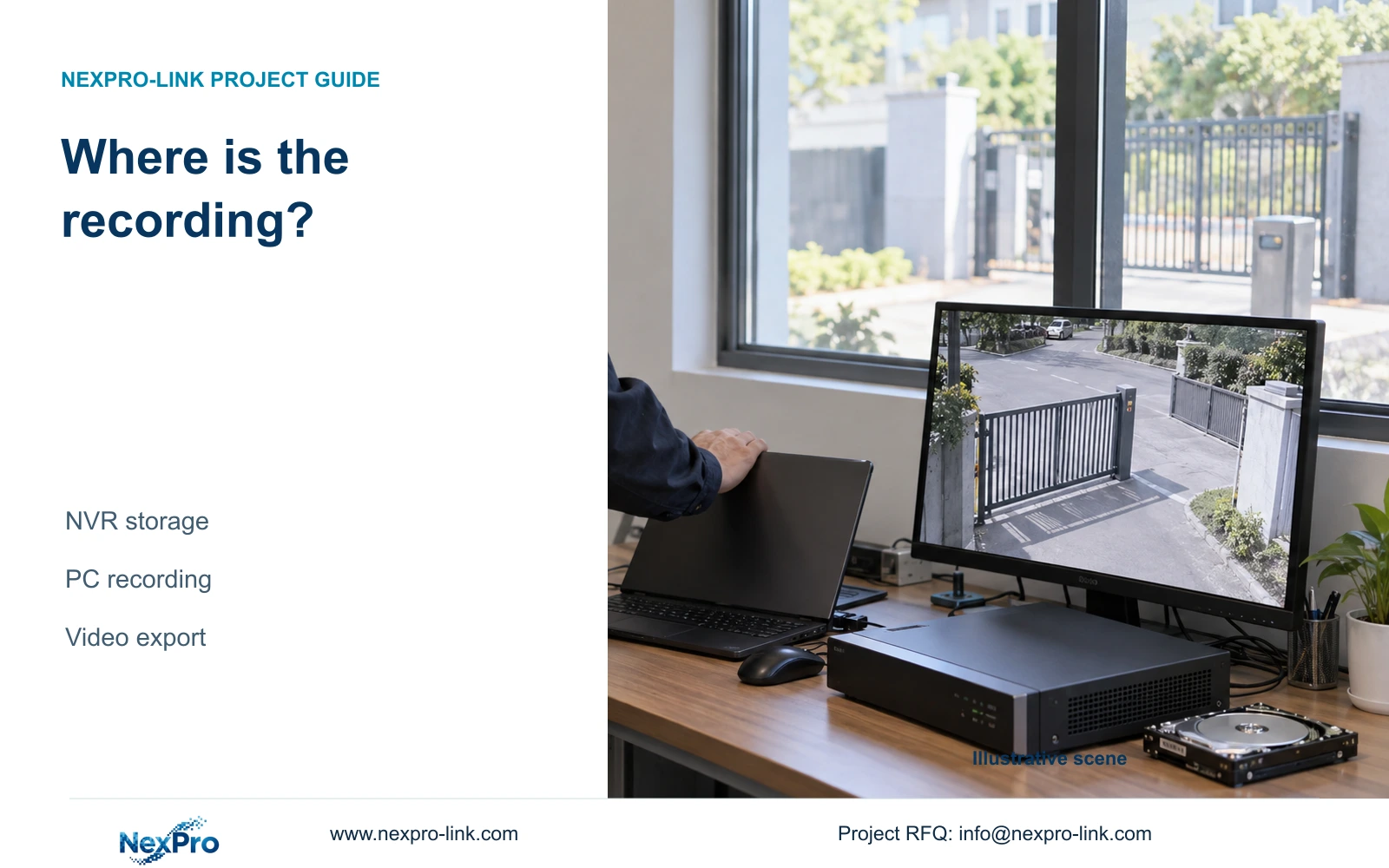
Finishing the startup wizard does not prove that footage is usable. Trace an enrolled camera through storage, its recording plan, playback and a playable export.
Section 01
Find where the recording task stops
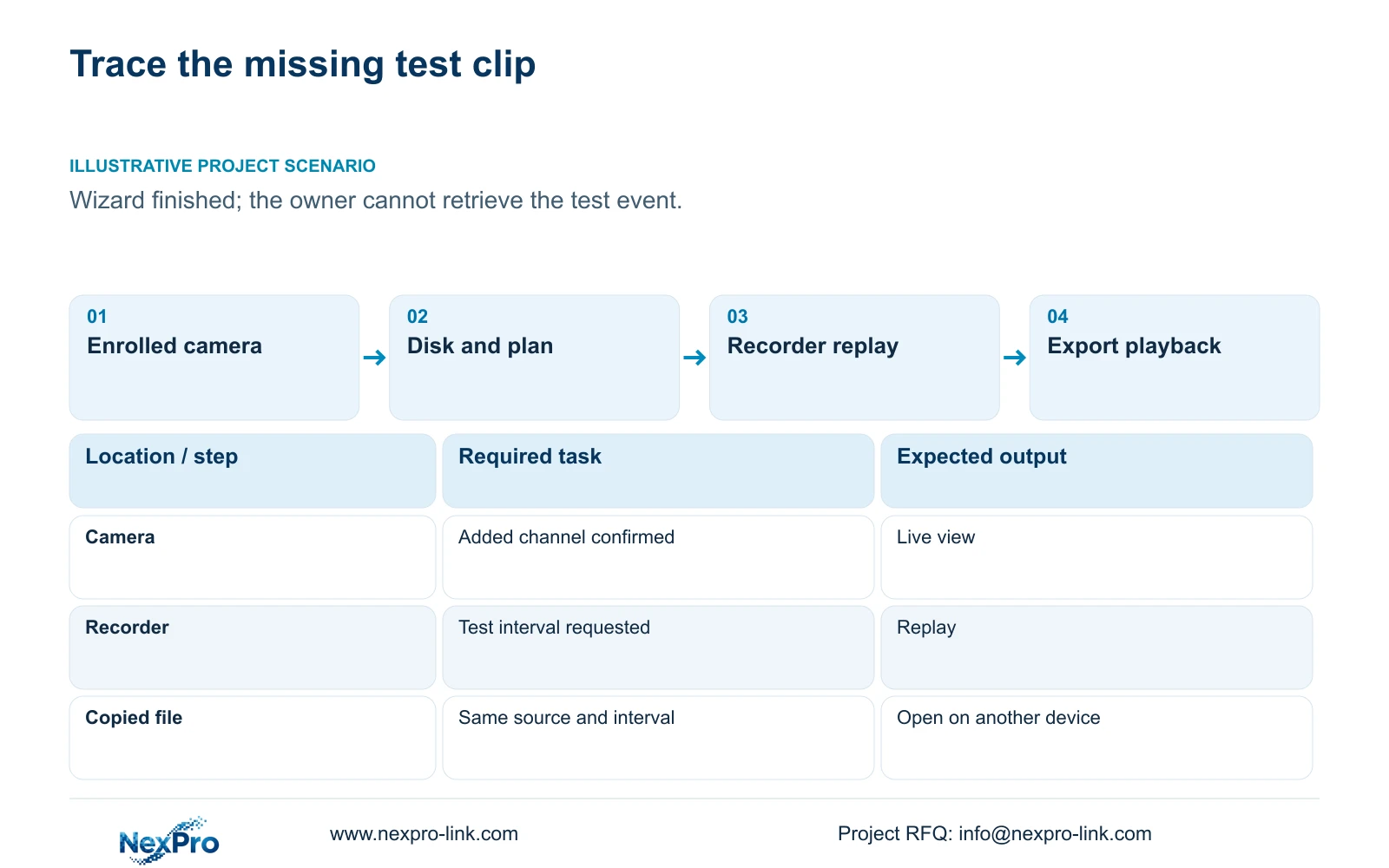
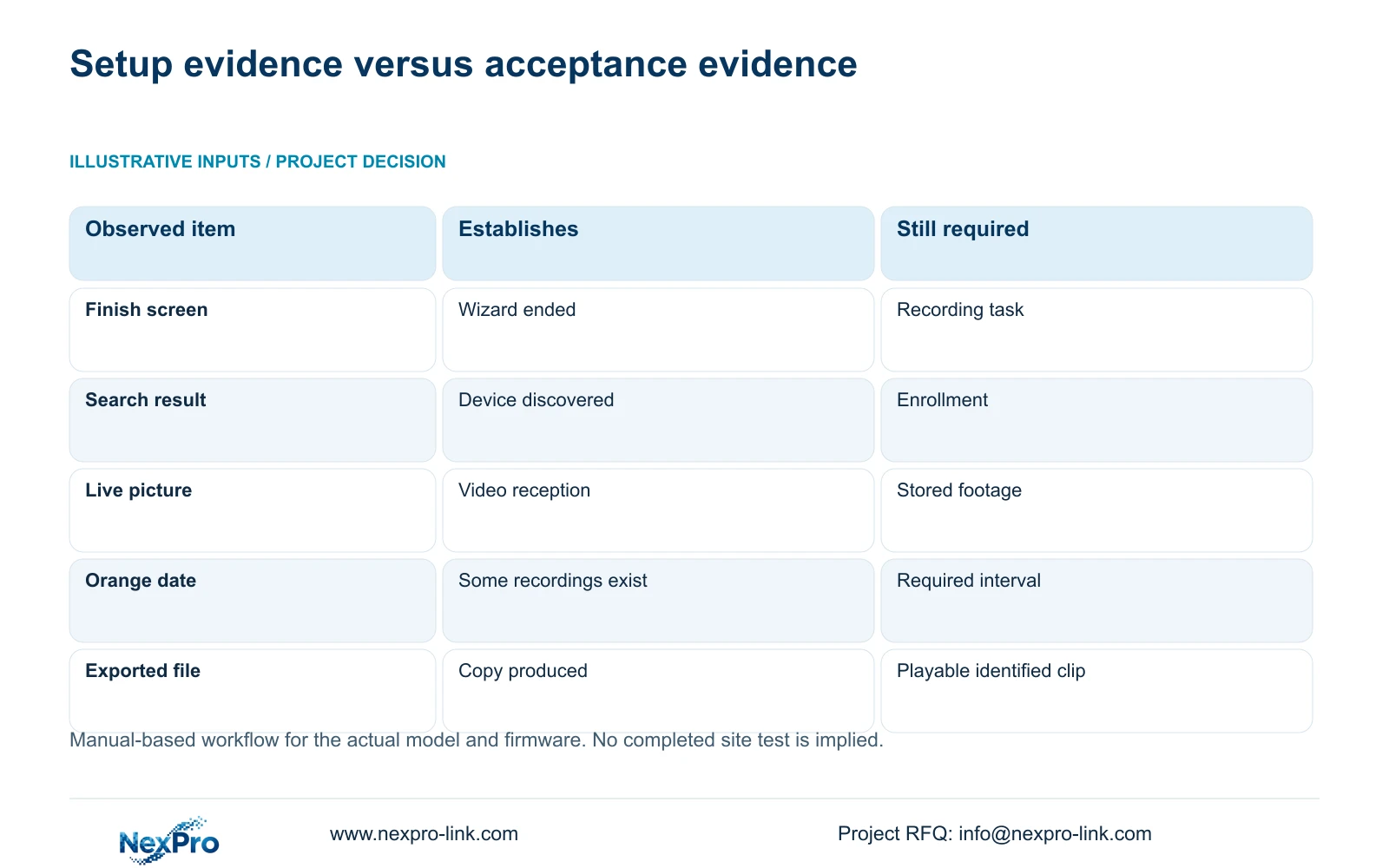
After finishing the startup wizard, follow one identifiable camera through enrollment, recorder storage, the recording plan, playback and export. The final setup screen confirms that the wizard has ended; it does not establish that the owner can retrieve useful footage. Begin with the channel and time interval of the missing test event, then check each stage without changing unrelated settings. A camera in the search list, a live picture and an orange playback date each establish different things. Close the issue only when the intended interval plays and its exported file works on another device through the intended playback method.
The wizard in section 4.2 covers language, the management password, time, network, cloud access, disks and IPC information. Record which settings were completed and which were simply accepted without checking. Compare the recorder clock with the time used to describe the test event. A time mismatch can send an otherwise correct search to the wrong interval.
This guide uses the private supplied NVR4.0 user manual CH_V2.4.doc, whose body identifies V2.2. Sections 4.2, 4.3.1, 4.11 and 4.12.21 support the operating steps. Section references take priority over page numbers. The acceptance sequence is an engineering workflow, not a built-in certification function.
Section 02
Check the camera in the added-device list
Locate the intended camera in Video Management and distinguish its search result from its enrolled channel. Section 4.3.1 describes separate search, add and edit operations. Finding a device does not establish that the recorder has assigned it to the channel the owner is searching.
If the camera appears only in search results, confirm its physical location and approved channel assignment before adding it. If it is already added but has no picture, inspect the connection status, selected protocol and authorized credentials. Correct the affected entry, then test live video again. Repeating the wizard does not replace that channel-level check.
The manual supports private-protocol searches and same-subnet ONVIF discovery. Discovery alone does not prove that events, audio or maintenance functions work through the selected protocol. For this acceptance task, establish usable video first, then verify any additional function required by the agreed recording task.
Section 03
Inspect the storage that owns the footage
Once the enrolled channel has a live picture, inspect the recorder's attached-disk information. Section 4.12.21 describes disk preview, selected-disk formatting, full-disk behavior and the startup no-disk prompt. Review the actual disk information and the selected full-disk policy before assuming the recorder can retain the new test interval.
Seetong PC local recordings are a separate store. A clip found on the monitoring computer does not demonstrate that the NVR disk recorded it. Keep the recorder recording, the PC recording and an exported copy identified by their actual storage owner.
Do not select Format merely because the wizard offers it. Formatting requires authority, identification of the selected disk and preservation of relevant existing data before proceeding. If the disk condition or required preservation is unclear, stop that action and obtain the applicable device guidance. The heading External Storage Devices does not establish NAS, NFS, iSCSI or RAID support.
Section 04
Match the plan to the test interval
Section 4.11.1 lists timed recording, no recording, motion recording and motion-plus-timed recording. Its plan grid has a 30-minute minimum scale. Check the selected channel and the scheduled period containing the test, rather than assuming that finishing setup created continuous recording.
Motion-only requires a motion trigger. If the test contained no trigger, an empty interval may match that plan. Motion-plus-timed continues ordinary timed recording between triggers and records motion-type footage when triggered. It must not be interpreted as event-only recording.
Preserve the existing plan before an authorized correction. Change only the relevant channel or period, then create a new identifiable test interval. Keep the earlier failed interval in the record so the result distinguishes an original setup omission from footage produced after the correction.
| Observation | Meaning | Next action |
|---|---|---|
| Camera appears only in search | Enrollment is unconfirmed | Check and add the approved channel |
| Live picture, no usable disk confirmed | Video reception is established | Inspect attached-disk information |
| Motion-only plan, no trigger | Recording may not have been requested | Run a controlled motion test |
| Orange date, missing interval | Some footage exists for that date | Check channel, time and type filters |
| Recorder replay works, export fails | Retrieval is only partly demonstrated | Check the copy and intended playback method |
Section 05
Replay the same source and time
Playback entry defaults to the channel selected in preview, according to section 4.11.2. Confirm that channel explicitly before selecting the incident date. Check the start and end time and the ordinary, alarm and motion filters against the installed recording mode.
Orange indicates recordings for that date; grey indicates no recordings in the documented calendar workflow. An orange date does not prove full-day coverage or recording on every channel. If the expected clip is absent, correct the search conditions before declaring data loss.
Illustrative project scenario: A team has clicked Finish on all recorders but an owner cannot retrieve a test event. The engineer chooses the affected camera, records its test interval and traces that interval through the plan and playback search. If a corrected plan produces a new clip, the team records that limited result instead of claiming that the earlier event has been recovered.
Section 06
Finish with a usable export
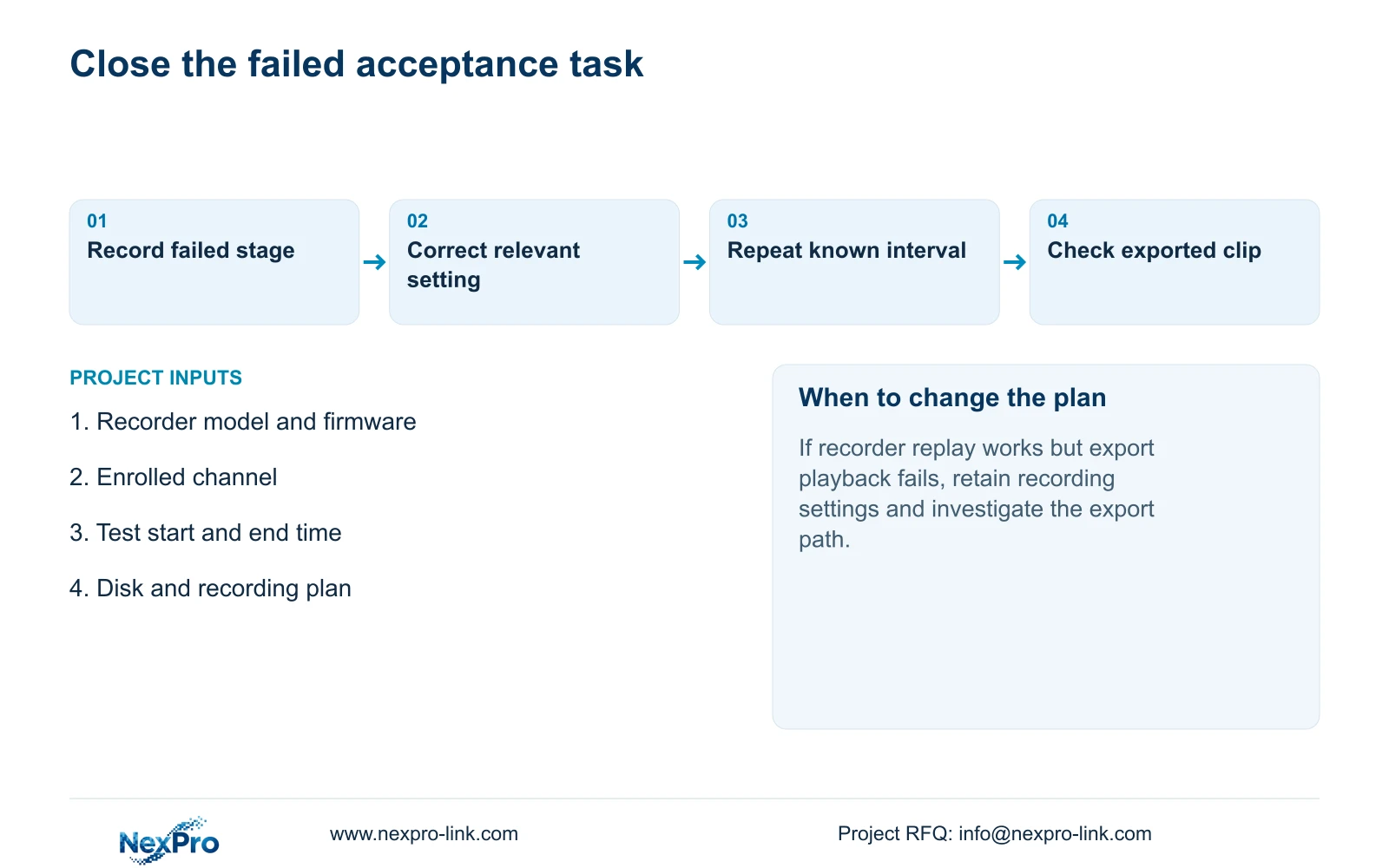
Replay the known interval on the recorder, export it and check the copied file on another device using the intended playback method. Confirm the location and time represented by the file. A completed copy operation is insufficient if the owner cannot open or identify the footage.
Record the expected result and observed result for each stage. If replay succeeds but export does not, retain the successful recording configuration and investigate the export stage. If the owner cannot perform the retrieval task with the intended permissions, acceptance remains open even when an administrator can demonstrate it.
Section 07
Can the wizard completion screen approve the installation?
No. Use it as a setup milestone. Approval needs the agreed recording, retrieval and export task to succeed with the intended operator access.
Section 08
Does an orange date prove continuous recording?
No. It establishes that recordings exist for the date in that playback workflow. Check the required channel and interval for actual coverage.
Section 09
Provide the failed test interval
Send NexPro-Link the recorder model and firmware, affected channel, test interval and the stage that failed at info@nexpro-link.com.
Engineering references
These sources support the general planning principles. Always use the selected product's current datasheet and applicable project standards for final design.