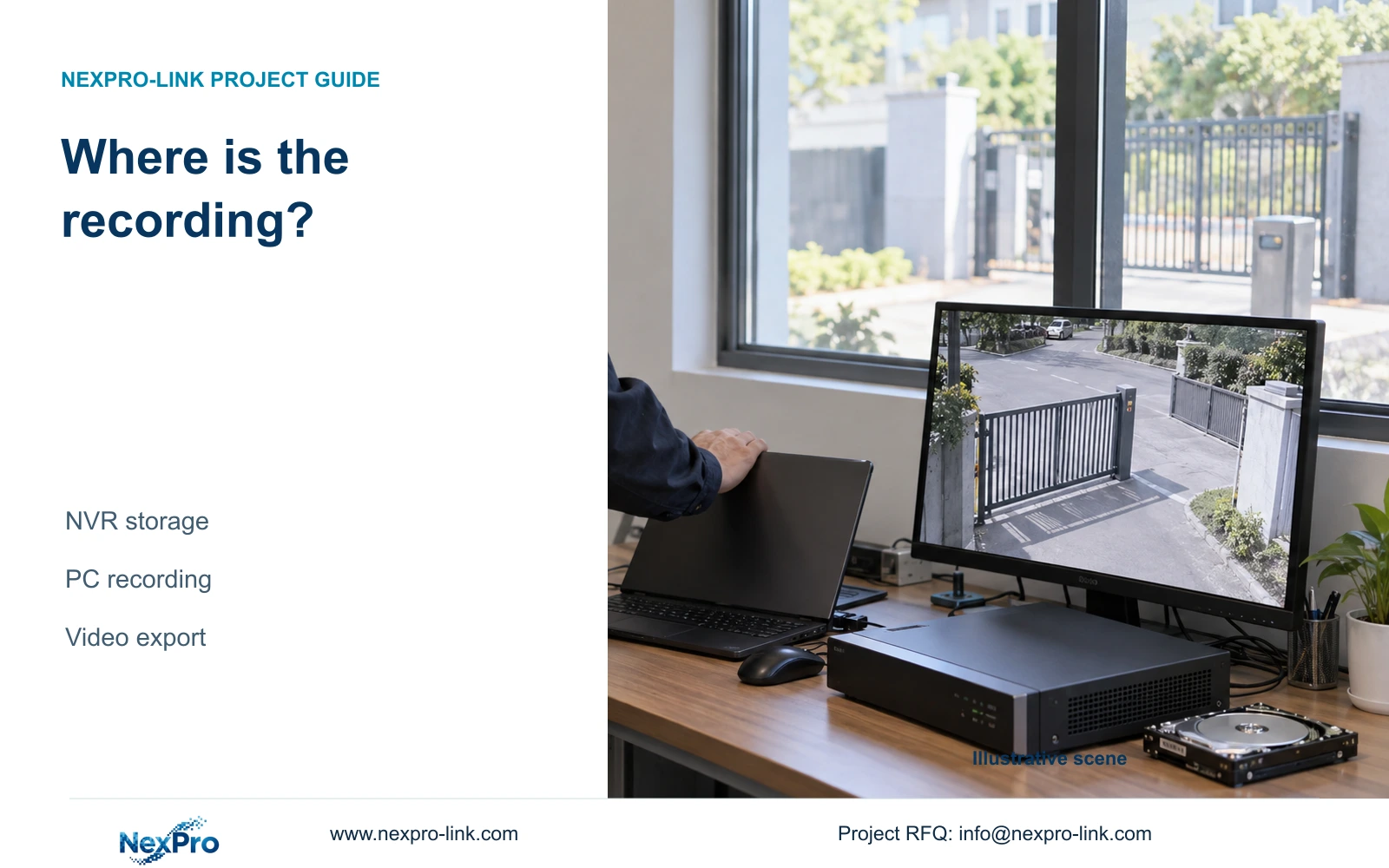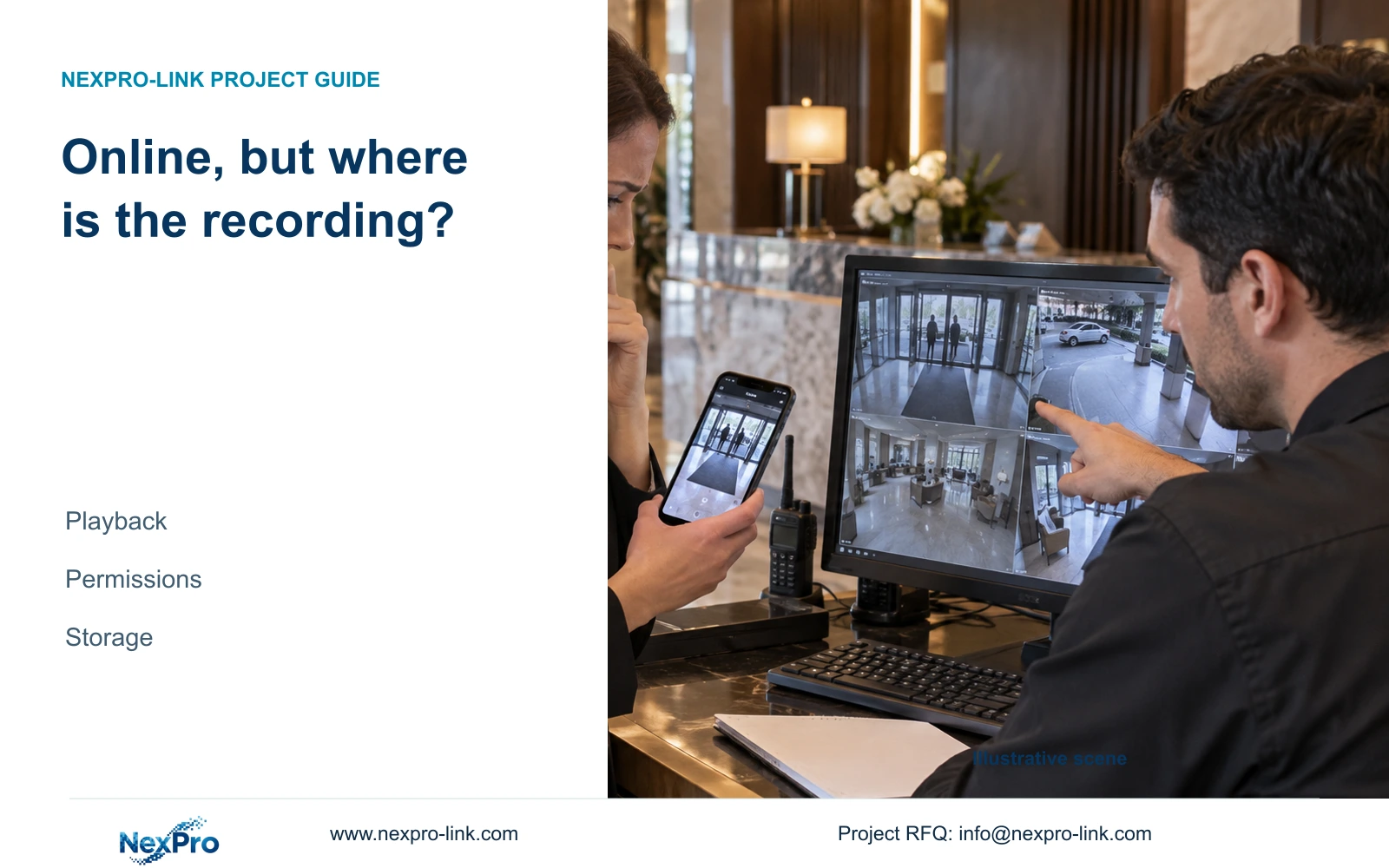
A recording icon describes a current state. Installation acceptance should connect that observation to the correct channel, a defined recording interval and a playable exported file.
Section 01
Connect each status indication to a separate check
A recording icon indicates a current recording state; it cannot prove that the required footage remains available for an earlier period. Read recording, remote preview, motion, I/O alarm and light-intelligence indications separately. Then select the actual channel and interval, inspect playback and verify a sample export on the receiving system. Alarm popups and flashing borders need their own checks because they do not establish that an event was recorded or a notification reached its recipient. For installation acceptance, retain a record of the complete retrieval task alongside any status screenshot. This gives the owner evidence of what was tested and where a failure occurred.
Build the icon reference from the applicable interface and manual, without inventing colors or shapes for symbols that are not shown in the supplied evidence. Record the channel and observation time beside the meaning. A photograph without that context cannot reliably connect the status to the period the owner later wants to retrieve.
Section 02
Use the recorder's own status and storage workflow
The operating source is the supplied private NVR4.0 user manual CH_V2.4.doc, whose filename says V2.4 and body headers say V2.2. Sections 2.3.3 and 2.4.4 describe interface indications. Section headings take priority over old page numbers, and the visible controls must match the installed recorder and firmware.
Keep recorder disk recordings separate from Seetong PC local recordings. Seeing the same camera in a client does not identify which storage owner produced a file. Acceptance of the NVR should retrieve the specified interval from the recorder's workflow, with any copied export identified as a separate deliverable.
Section 03
Verify the required alarm response at its destination
Section 4.12.11 lists buzzer, popup, email, screenshot sending, snapshot capture, preset call, recording, border flashing and app push as distinct actions. Select the actions required by the project and identify where each result can be observed. A successful popup confirms that visual response, while an email requirement needs confirmation at the intended recipient path.
For a recording action, search the relevant channel and event period. For a snapshot requirement, inspect the resulting image. If one action succeeds and another fails, retain those separate results instead of marking the entire event either working or broken. Action duration and recording retention are also different settings; a short visible alarm does not define how long its footage remains stored.
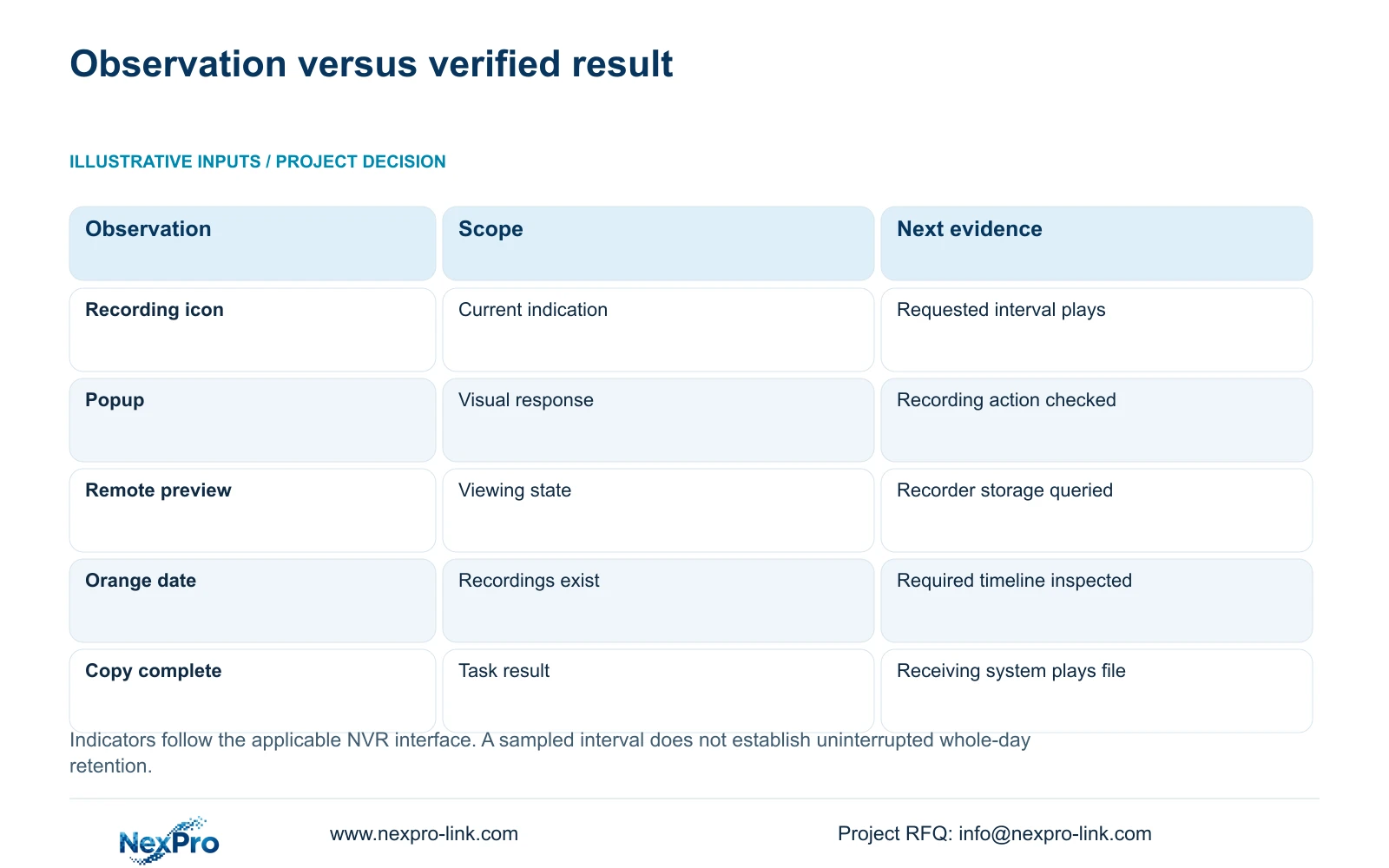
| Observation | What it establishes | Required follow-up |
|---|---|---|
| Recording icon | Current recording indication | Retrieve the required channel and interval. |
| Remote-preview icon | A remote viewing state | Check recording separately on its storage owner. |
| Popup or flashing border | A visible alarm response | Verify the recording or notification action separately. |
| Orange playback date | Recordings exist for the selected date | Inspect the requested time range and type filter. |
| Backup task completed | The copying task reports completion | Open the selected file on the receiving system. |
Section 04
Search an explicit channel and recording interval
Section 4.11.2 says playback entry defaults to the channel selected in preview. Confirm that selection before reading the calendar. The manual uses orange for a date with recordings and grey for a date without recordings in that workflow. Check the date, time and ordinary, alarm or motion filter before deciding that footage is missing.
Choose a known interval for the acceptance task and record its boundaries. An orange date does not establish uninterrupted coverage for every channel throughout the day. If the intended segment is absent, first correct any search mismatch. If the search is correct, inspect the relevant recorder plan and disk state and preserve the failed interval as a separate investigation.
Section 05
Open the exported file on the receiving system
Use §4.11.4 to select the required recording for backup, then check the resulting file independently. Confirm its channel, start and end coverage, actual playback and any required audio. Keep the original footage protected until the required copy has been verified, and deliver it only to the authorized recipient.
The manual mentions players such as VLC for backup video and audio. That is a viewing suggestion, not a guarantee for every operating-system and codec combination. If the file does not play on the intended system, record the viewing method and failure before concluding that the recording itself is unusable. A completed progress indicator alone cannot resolve that distinction.
Section 06
Use connection history to investigate a missing period
Section 4.3.3.1 describes the past week's offline behavior and export of connection statistics. Preserve those records before resetting counters. Compare affected channels and times with the missing recording interval, keeping the connection observation separate from the suspected fault.
A pattern affecting several channels at the same time can guide a test of their shared path. A single-channel pattern leads to a narrower investigation. Neither observation alone proves a defective switch, cable or power supply. Connection history helps explain where to look next; successful playback remains the evidence that the requested footage can be retrieved.
Section 07
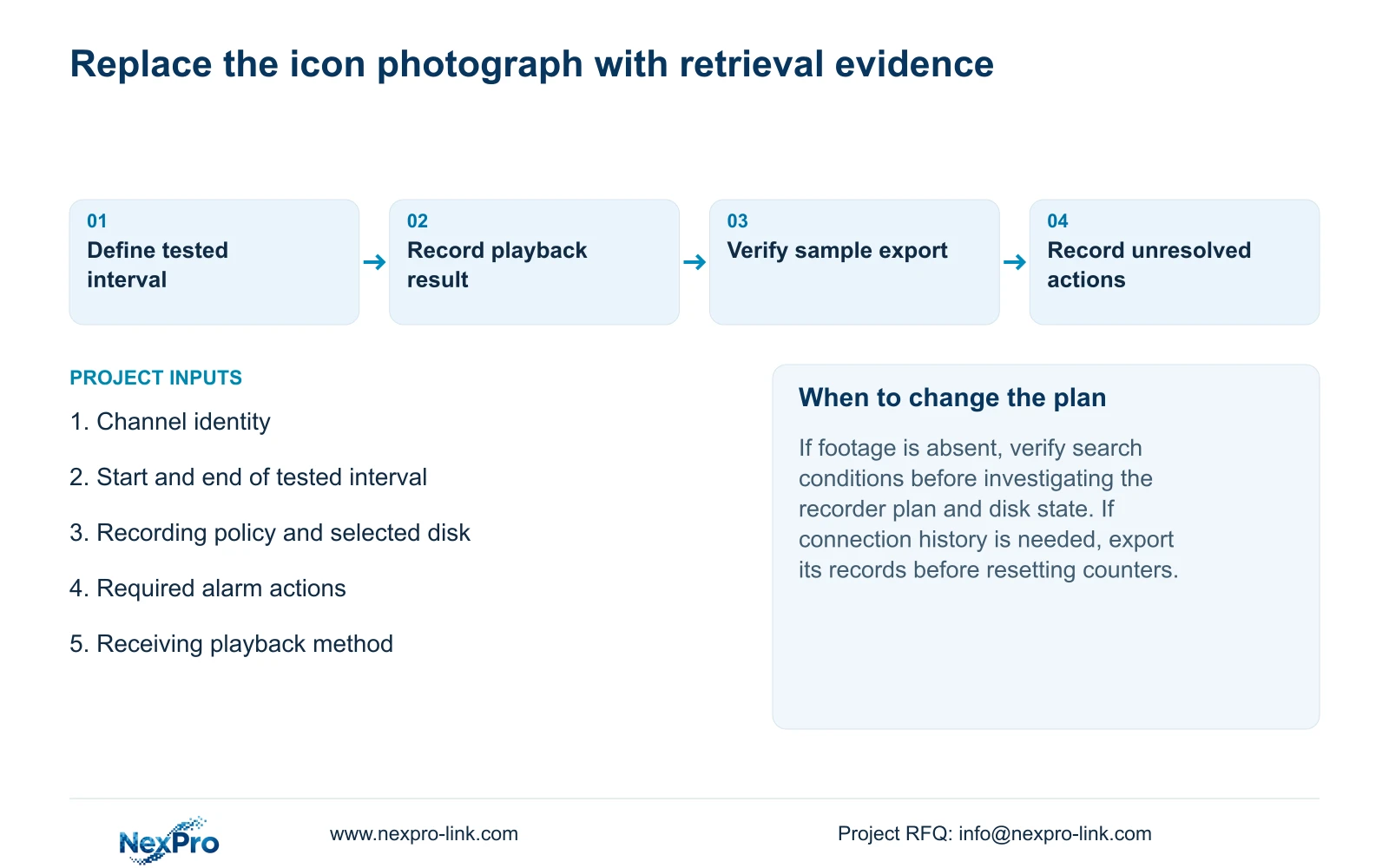
Replace screenshot-only acceptance with a retrieval task
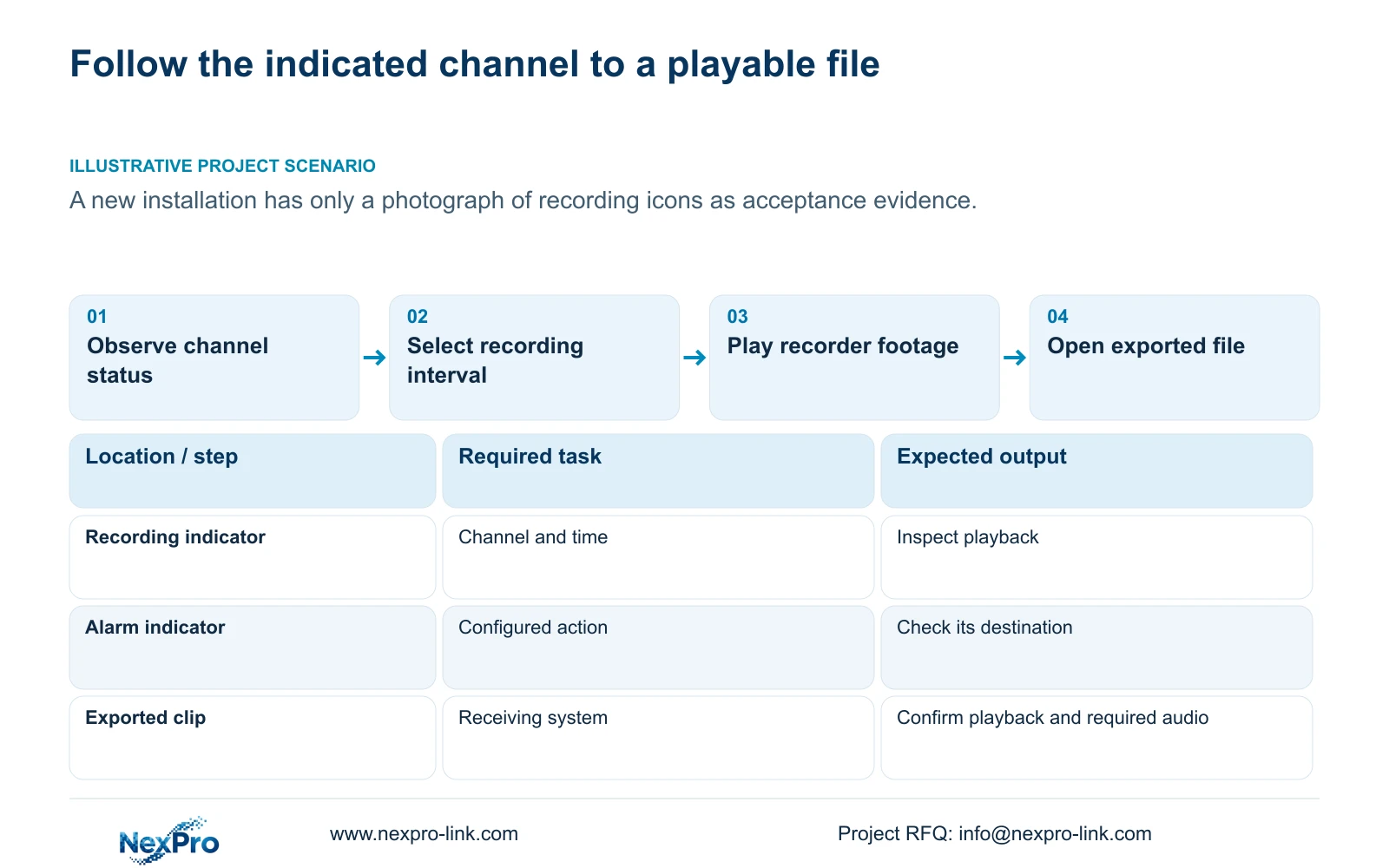
Illustrative project scenario: A site team photographs recording icons as the only acceptance record for a new installation. The proposed acceptance task follows one identifiable channel from live view through a defined recording interval, playback and export. The photograph remains a useful timestamped observation, but the task record adds evidence that the owner can actually obtain the selected footage.
This is an engineering workflow built around §§4.3, 4.11 and 4.12.21, not a built-in recorder certification feature. Record the expected result and observed result for each step, including the selected disk and recording policy. If export works but audio fails, or the wrong channel was selected, leave that requirement unresolved and repeat the affected check after correction.
Section 08
Does an alarm icon disappearing mean the footage was deleted?
No. The icon describes a current state. Search the event's channel and interval to establish whether its recording remains available.
Section 09
Does an orange calendar date prove a complete day?
No. It establishes that recordings exist for the selected date. Check the required timeline and recording type before accepting coverage.
Section 10
Provide the failed acceptance step
Send NexPro-Link the recorder model and firmware, tested channel and interval, and the exact retrieval or alarm-action step that failed at info@nexpro-link.com.
Engineering references
These sources support the general planning principles. Always use the selected product's current datasheet and applicable project standards for final design.