

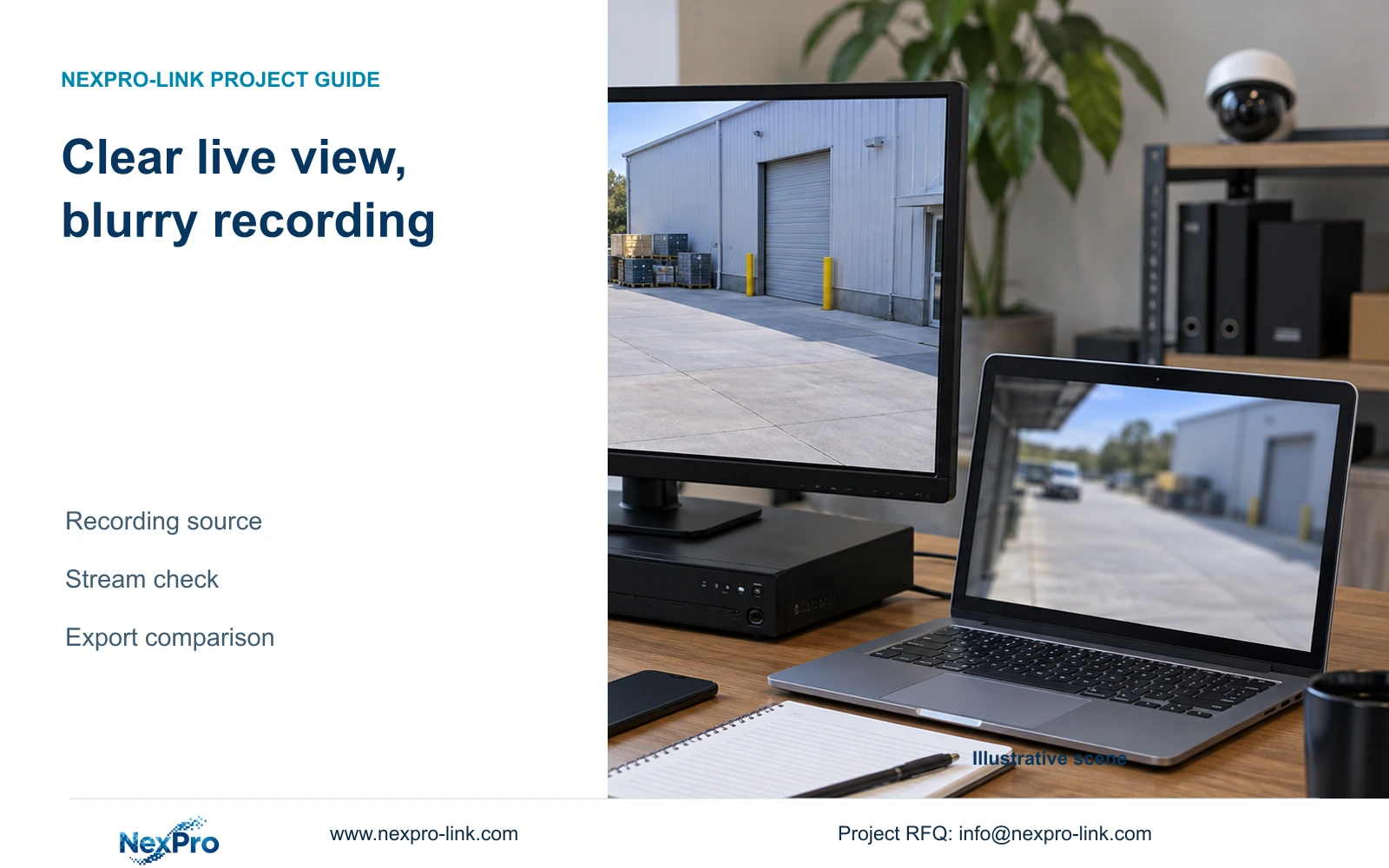
A clear live picture and a blurry playback window may show different recording sources. Match the storage owner, stream, event and viewing scale before changing equipment.
Section 01
Identify the file behind the blurry picture
Compare the same camera, event and viewing scale before changing image settings. A clear live window and a blurry recording can come from different streams or different storage owners, so their appearance alone does not establish recorder compression as the cause. Identify whether playback comes from the NVR disks, Seetong PC schedule recording or an exported file. Then check the recorded stream, retrieve a matching interval and remove display stretching from the comparison. An original recorder export opened on another viewing path helps separate a recording-quality problem from a presentation problem. Preserve that sample before testing any revised encoding profile.
The supplied NVR4.0 user manual CH_V2.4.doc has V2.2 in its body. This guide uses sections 1.2 and 4.11 for recorder footage, sections 4.4.5 and 4.12.7 for streams, and sections 4.5, 4.7 and 4.11.3 for display controls. Seetong Windows client manual V1.0.0, section 7.1, distinguishes PC Local Playback from Remote Playback of NVR recordings.
Write the storage owner beside the sample name. A familiar camera label can appear in several workflows without proving that the same file is being viewed. If the blurry sample is a PC recording, retrieve the corresponding interval from the recorder before drawing a conclusion about the NVR.
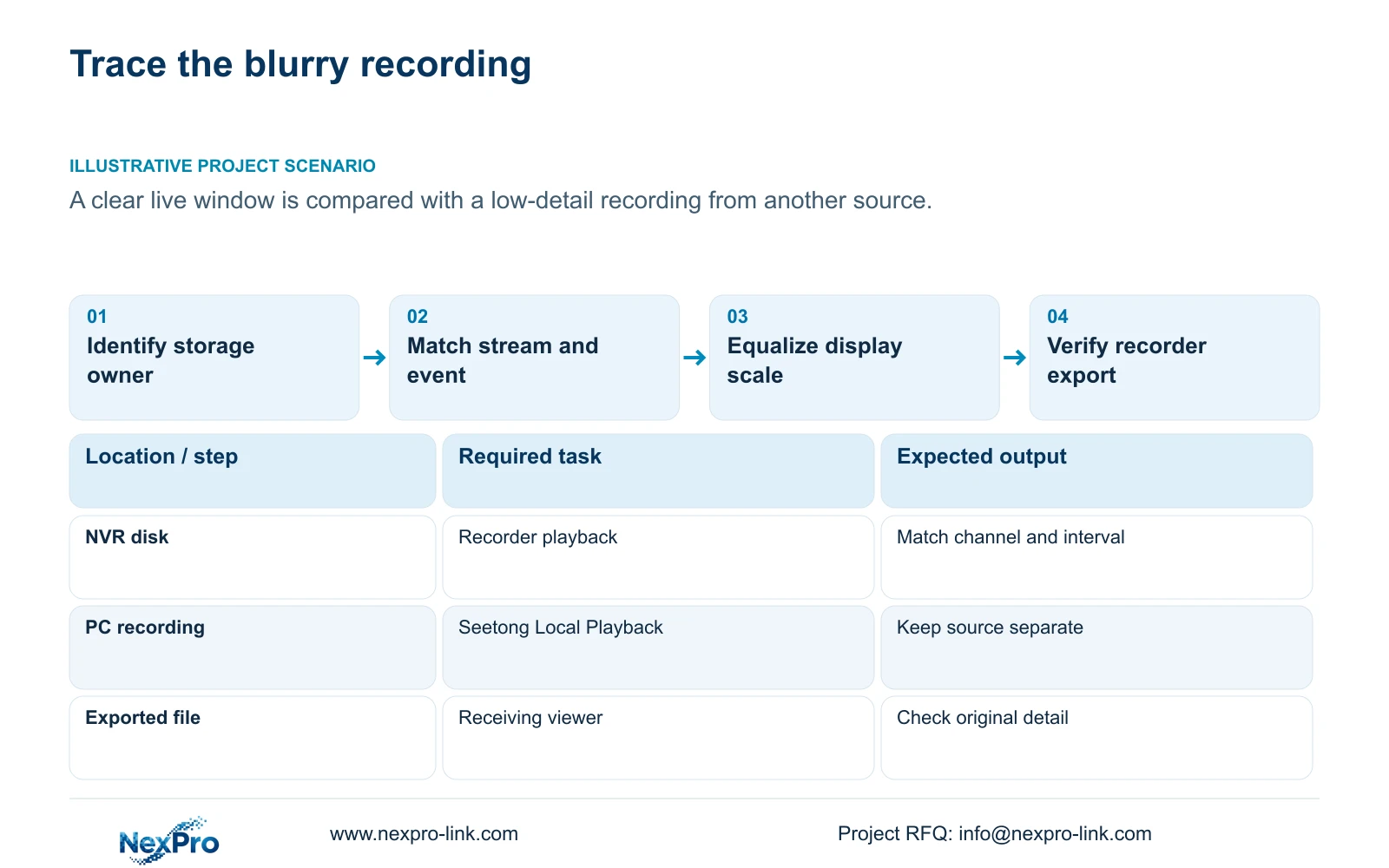
Section 02
Separate the viewing stream from the recorded stream
Record the configured camera profile, the live-view path and the saved recording as separate observations. The manual exposes main- and substream parameters, but selecting a viewing stream does not by itself establish which stream produced the retained footage. A preview change therefore needs a recording check before it becomes a diagnosis.
Use the actual recorder and camera settings to identify the intended recording output. Compare them with a newly retrieved sample from that recording owner. If the saved output differs from the approved profile, investigate the configuration path. If it matches, continue with event selection and display scale instead of repeatedly changing a preview window.
Keep Seetong PC behavior within its own workflow. A client default cannot establish a universal rule for the recorder's local recording source. The useful result is a traceable connection between the selected camera, its output and the file under review.
Section 03
Preserve the actual output profile before adjusting it
Note the camera model and firmware with its resolution, codec and bitrate settings. Sections 4.4.5 and 4.12.7 list H.264, H.265 and H.265+, while available resolutions depend on IPC capability. A codec appearing in a recorder menu does not prove that every connected camera accepts it or that every receiving client plays it.
Keep a comparable recording sample before changing an authorized profile. Test the revised mode through recording, export and the intended client, using the same observation task. If the change produces smaller files but loses required moving detail, it has not resolved the owner's problem. No fixed saving follows from the H.265+ label.
Where a third-party camera is involved, use the selected device and protocol's supported functions. The public ONVIF Profiles reference provides supplementary scope context, not proof of universal control or playback interoperability.
Section 04
Retrieve a comparable event before judging detail
Confirm the physical view, channel, date and time. Section 4.11.2 says playback entry defaults to the preview-selected channel. That shortcut can lead to a convincing comparison of the wrong camera. Check ordinary, alarm and motion filters before concluding that the desired interval is missing.
Orange calendar dates indicate that recordings exist in the documented workflow; gray dates indicate no recordings. An orange date does not prove uninterrupted coverage for every channel. If the expected event is absent, verify the search conditions first and keep that retrieval problem separate from image quality.
A live scene viewed now cannot reproduce every condition of an earlier event. Use the same fixed target and comparable activity where possible, and record any difference in lighting or movement. Treat unmatched scenes as supporting clues rather than a controlled quality comparison.
| Observation | Meaning | Next action |
|---|---|---|
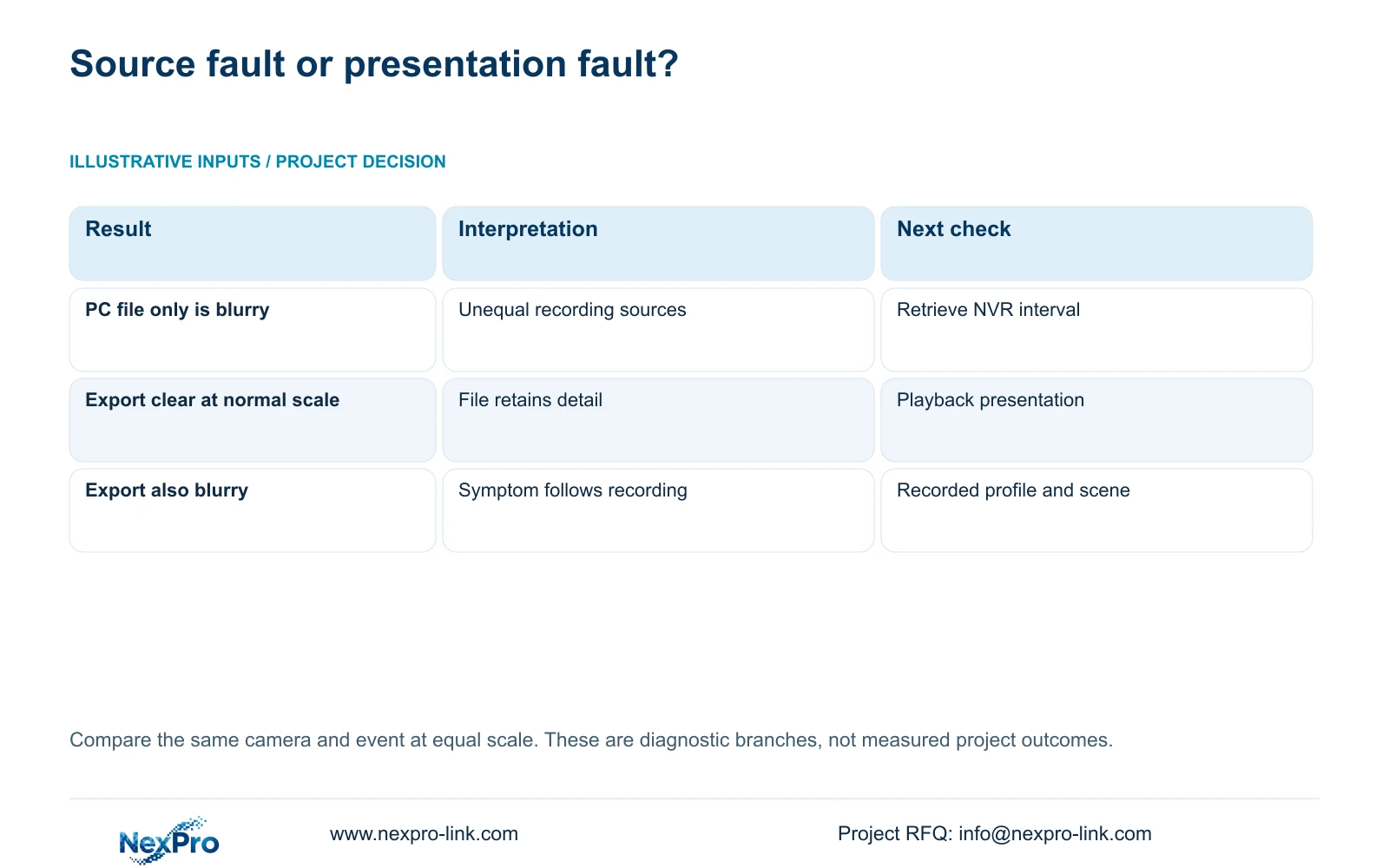
| Blurry sample is from PC Local Playback | The sample does not establish NVR recording quality | Retrieve the same interval from the NVR |
| Correct channel but different recorded output | The source profiles are unequal | Confirm the intended recording stream |
| Original export is clear at normal scale | The tested file retains usable detail | Inspect the playback presentation path |
| Original export is also blurry | The symptom survives the export path | Evaluate the recorded profile and scene |
Section 05
Use equal proportions and target size
Compare the same file at an appropriate aspect ratio before using digital enlargement. The manual separates screen layouts, playback ratio and electronic zoom. Stretching can alter a target's shape, while enlargement displays existing pixels at a larger size. Neither operation establishes additional captured detail.
Choose a fixed target in the image and keep its displayed size comparable between viewing paths. If one window is stretched across a large monitor and the other is a small single-window preview, correct that mismatch first. Preserve an unmodified reference so the reviewer can distinguish source detail from presentation.
If the target remains too small in the original recording, assess the capture requirement separately. That may involve framing or the approved output mode, but this comparison alone does not justify buying a higher-resolution camera.
Section 06
Complete the comparison with a recorder export
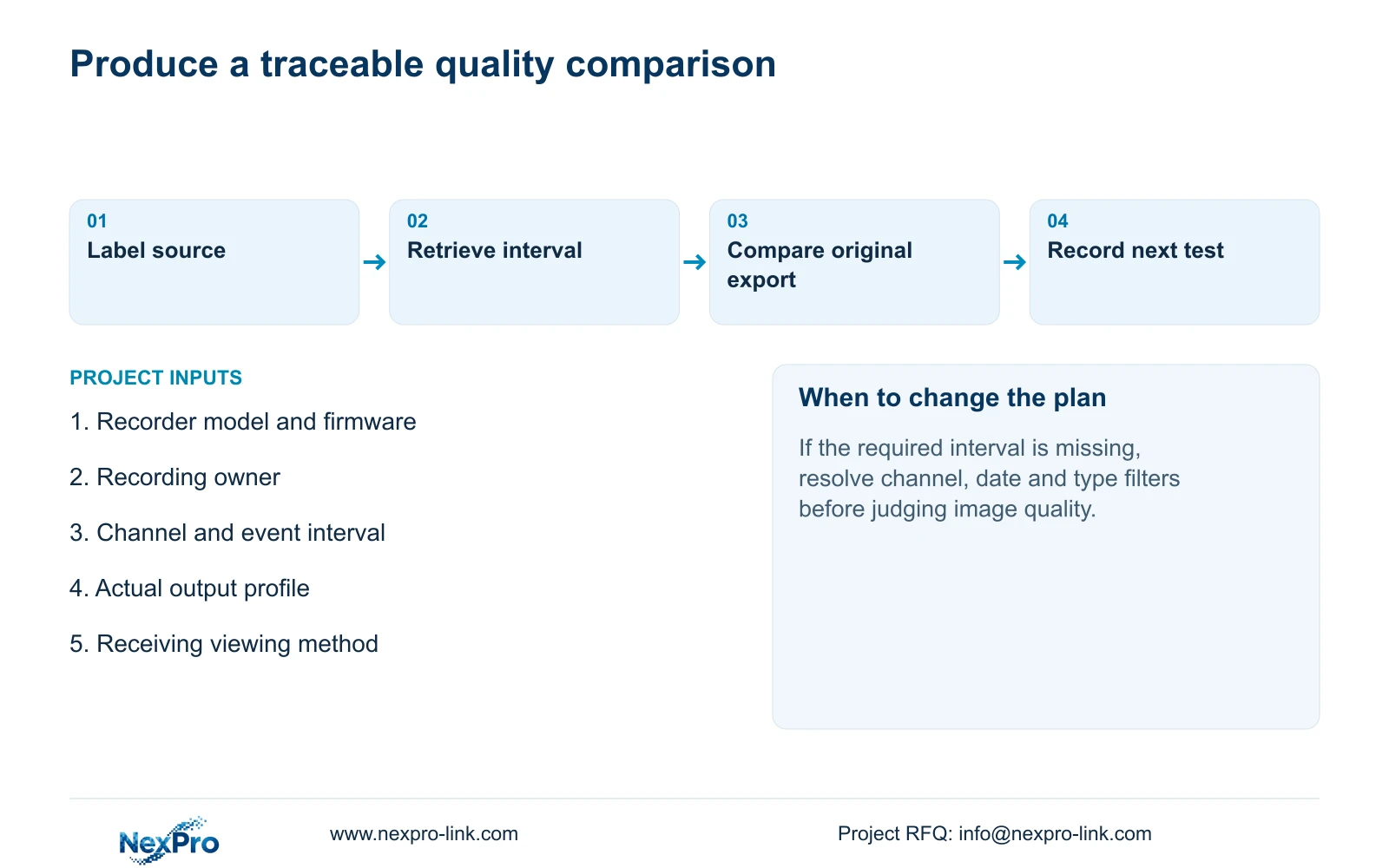
Export the confirmed channel and interval through section 4.11.4, then open a sample on the intended receiving system. Verify source identity, start and end times, actual playback and any required audio. A completed backup indicator establishes copy progress, not a useful viewing result.
The manual mentions players such as VLC for backup video and audio. That recommendation does not guarantee every operating-system and codec combination. Record the viewing method that was tested and retain the original footage until the required copy is verified.
Illustrative project scenario: An owner compares a live single-window view with a low-detail recording opened from another source. The engineer first identifies that source, retrieves the matching recorder interval and equalizes display scale. A clear recorder export directs attention to the alternate recording or viewing path. A similarly blurry export directs the next controlled test toward the actual recorded profile and capture conditions.
Section 07
Will switching live view to the main stream fix old footage?
A viewing selection does not establish a change to retained footage. Check the original recording and its output profile; changing the current preview cannot demonstrate that historical detail has improved.
Section 08
Can electronic zoom recover missing detail?
It enlarges existing imagery. Judge the original recording at an appropriate ratio before deciding whether the capture task needs a different profile or framing.
Section 09
Provide a matched comparison
Send NexPro-Link a redacted comparison identifying the recording owner, affected channel, interval and recorder model and firmware at info@nexpro-link.com.
Engineering references
These sources support the general planning principles. Always use the selected product's current datasheet and applicable project standards for final design.


