

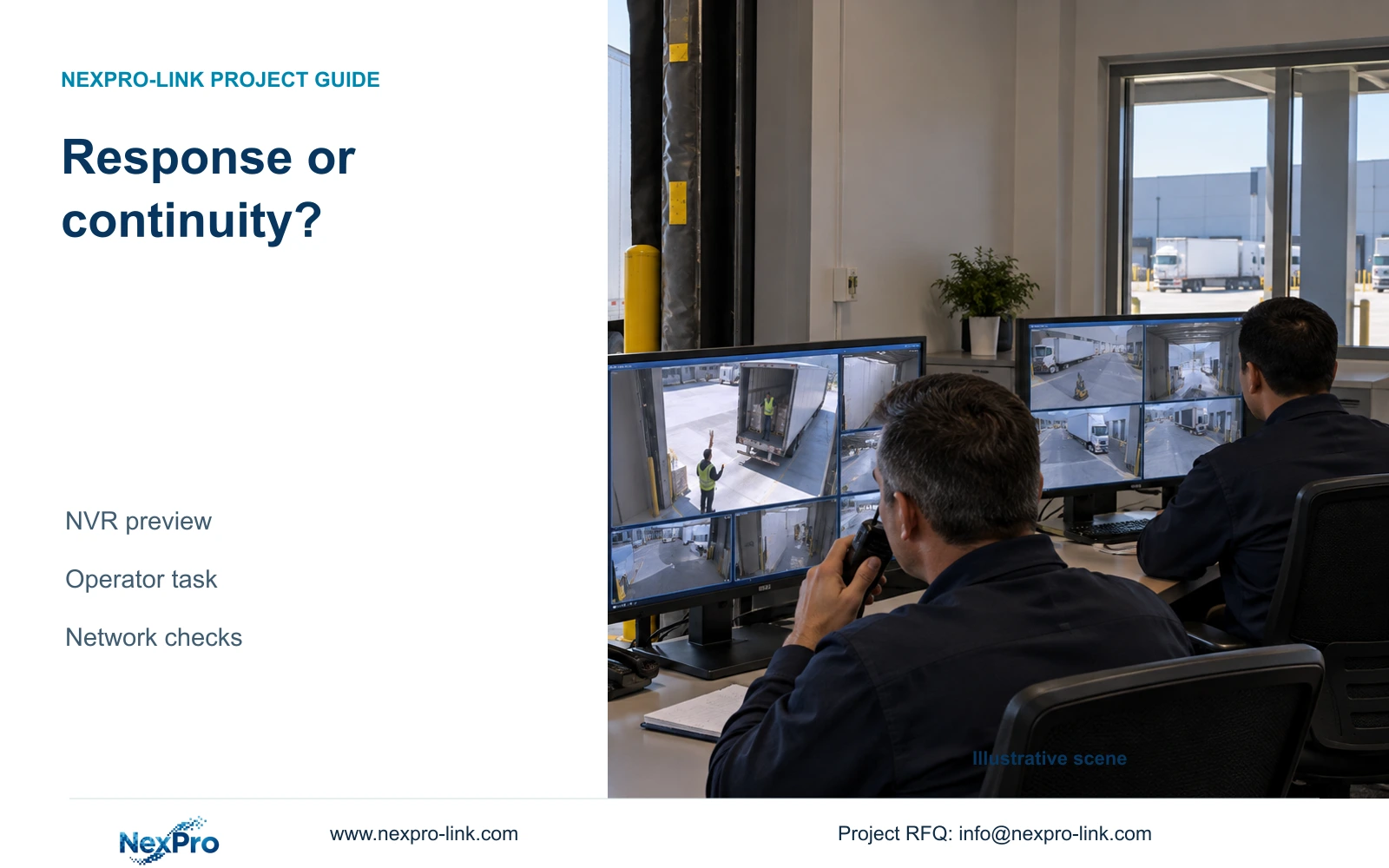
Choose preview mode by the operator's task. Compare visible response and interruptions with the same streams and workload, then investigate network faults separately.
Section 01
Choose the mode around the operator's response task
Choose real-time or smooth preview by comparing how quickly the operator can respond and how consistently the picture remains usable. The supplied manual offers both modes without a universal latency figure. A loading-dock operator communicating with a driver needs to judge whether the displayed movement is timely enough for that exchange. A desk watching general activity may place more weight on continuity. Test both modes with the same camera stream, display arrangement and network workload. Keep a mode only when it supports the agreed task; a smoother picture alone cannot establish that packet loss or another underlying fault has been resolved.
Define the observation before touching the setting. Use an identifiable movement visible to the operator and note its appearance on screen, together with interruptions during the same interval. Ask the operator whether those conditions allow the intended instruction or response. Keep responsiveness and continuity as separate findings. If neither mode supports the task, investigate the affected path instead of repeatedly switching modes.
Section 02
Compare traffic during equivalent operating intervals
Section 4.3.3.3 presents interface transmit and receive information. Incoming camera video and outgoing viewing traffic serve different paths, so their values need not match. Before comparing modes, record which cameras are active, which streams are displayed and whether remote viewers, playback or downloads are running. A comparison made during quiet local viewing cannot explain a result recorded while another user exports footage.
Keep the workload equivalent across the comparison and identify the interface being observed. A stream-bitrate sum describes planned video payload. Interface readings may also include protocol overhead and other activity within the topology. If outgoing traffic changes because another session starts, mark that interval as a changed condition and repeat the comparison. Do not attribute every traffic difference to the preview setting.
Section 03
Investigate the path where the interruption occurs
Separate recorder playback, viewing across the local network and remote access. If a recorded interval plays correctly at the recorder but remote viewing is interrupted, investigate the remote path before altering the recording profile. If the same problem appears in stored footage, preserve that finding and examine the camera-to-recording path as well. Similar symptoms on several screens narrow the investigation without establishing one cause.
The remote-network diagnostic in section 4.3.3.2 examines the recorder's remote-network situation and provides results and suggestions. Its network tools include a packet-loss check. Use these findings for that path, not as certification of every client or service. Where loss is observed, resolve or escalate the network condition before accepting smooth mode as a remedy. Record the diagnostic interval alongside the operator's observation.
| Observed condition | Meaning | Next action |
|---|---|---|
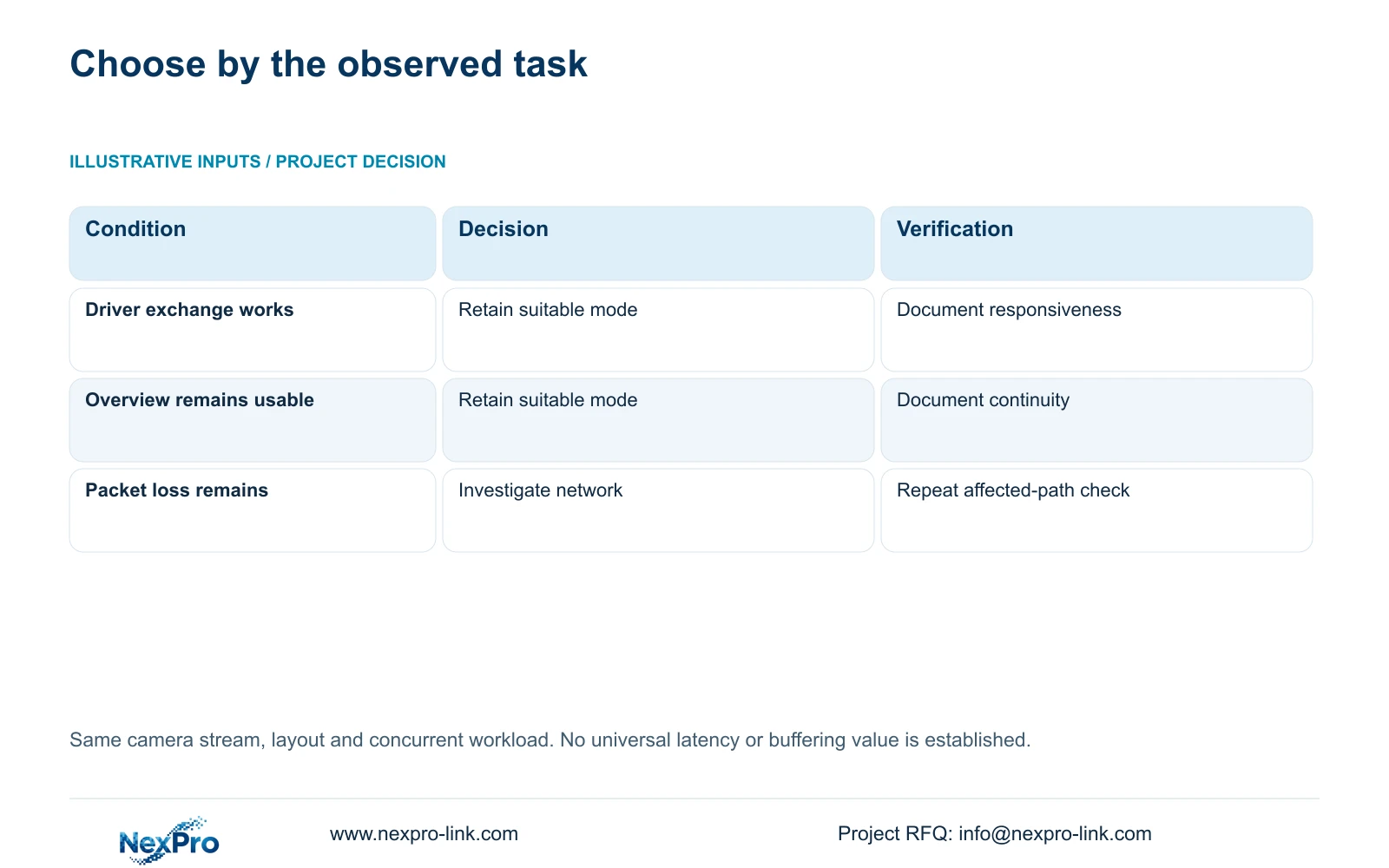
| Real-time mode supports the driver exchange | Responsiveness meets this operating task | Retain it and document any interruptions |
| Smooth mode supports general observation | Continuity is suitable under tested conditions | Retain it without assigning a universal delay |
| Packet loss accompanies interrupted remote viewing | A network condition remains unresolved | Investigate the remote path before mode acceptance |
| Streams or concurrent sessions differ | The comparison has changed more than preview mode | Repeat with equivalent streams and workload |
Section 04
Hold the encoding profile constant
Record the camera's selected resolution, codec, frame rate, bitrate setting and CBR or VBR mode before comparing preview behavior. Section 4.4.5 describes encoding fields; those fields do not establish a constant measured load in every scene. Movement and lighting belong in the observation record because a quiet view and a busy loading period are different conditions.
Change preview mode alone for the initial comparison. Lowering bitrate or changing resolution at the same time makes it impossible to isolate the result. If later investigation justifies an encoding change, preserve a comparable sample and repeat the operating task under the revised profile. Use representative measured averages for retention work and appropriate peaks or limits for network evaluation. Neither CBR nor VBR should be declared more reliable simply from its name.
Section 05
Follow the event through the operator's workflow
Where the desk depends on alarm responses, compare the required action as well as ordinary live movement. Section 4.12.11 lists popup, border flashing, buzzer, email, screenshot sending, snapshot, preset call, recording and app push as distinct actions. Establish which action tells the operator to respond, then observe whether it reaches the intended destination during the preview comparison.
A popup confirms a visible response at that screen. It does not prove that the required recording exists or that another recipient received a notification. Inspect the recording timeline for the recording requirement and check the intended recipient for a notification requirement. Keep action duration separate from footage retention. This prevents a preview preference from being accepted on appearance while the response needed by the loading-dock task remains untested.
Section 06
Record a conditional result the next operator can use
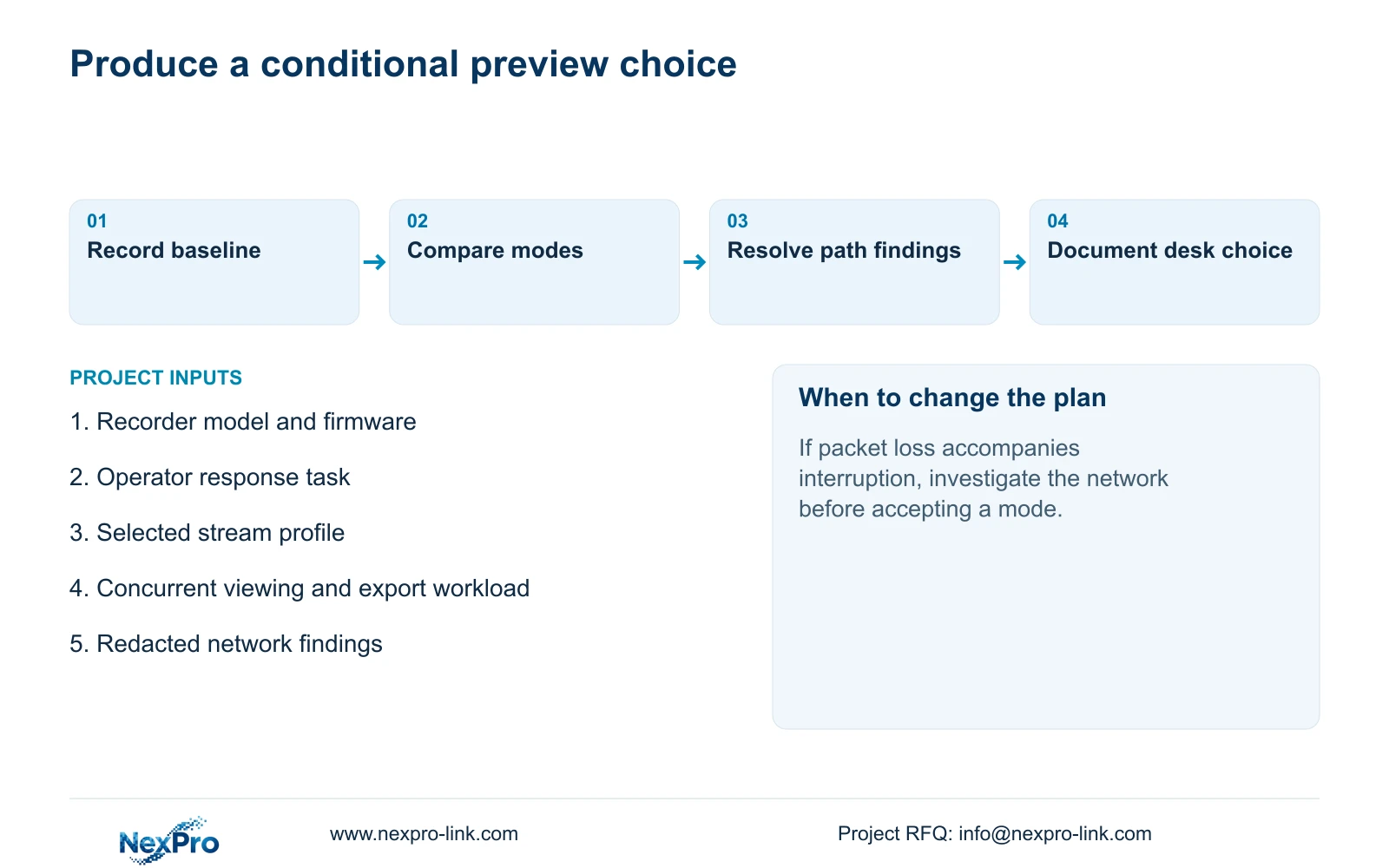
Write the result as an observation with conditions: the selected mode, camera stream, viewing path, concurrent workload and operator task. Separate observed interruptions from suspected causes. If a diagnostic suggests a network issue, record the suggestion and the next controlled check rather than presenting it as a confirmed fault. Stop configuration changes when the device or firmware does not match the applicable instructions.
An accepted result should explain why the mode suits this desk and when another comparison is needed, such as a changed stream or remote workload. If additional equipment or configuration support is required, NexPro-Link's BOQ and tender support scope provides a route for discussing the actual requirement. The comparison itself does not establish that replacement hardware is necessary.
Section 07
Loading-dock comparison
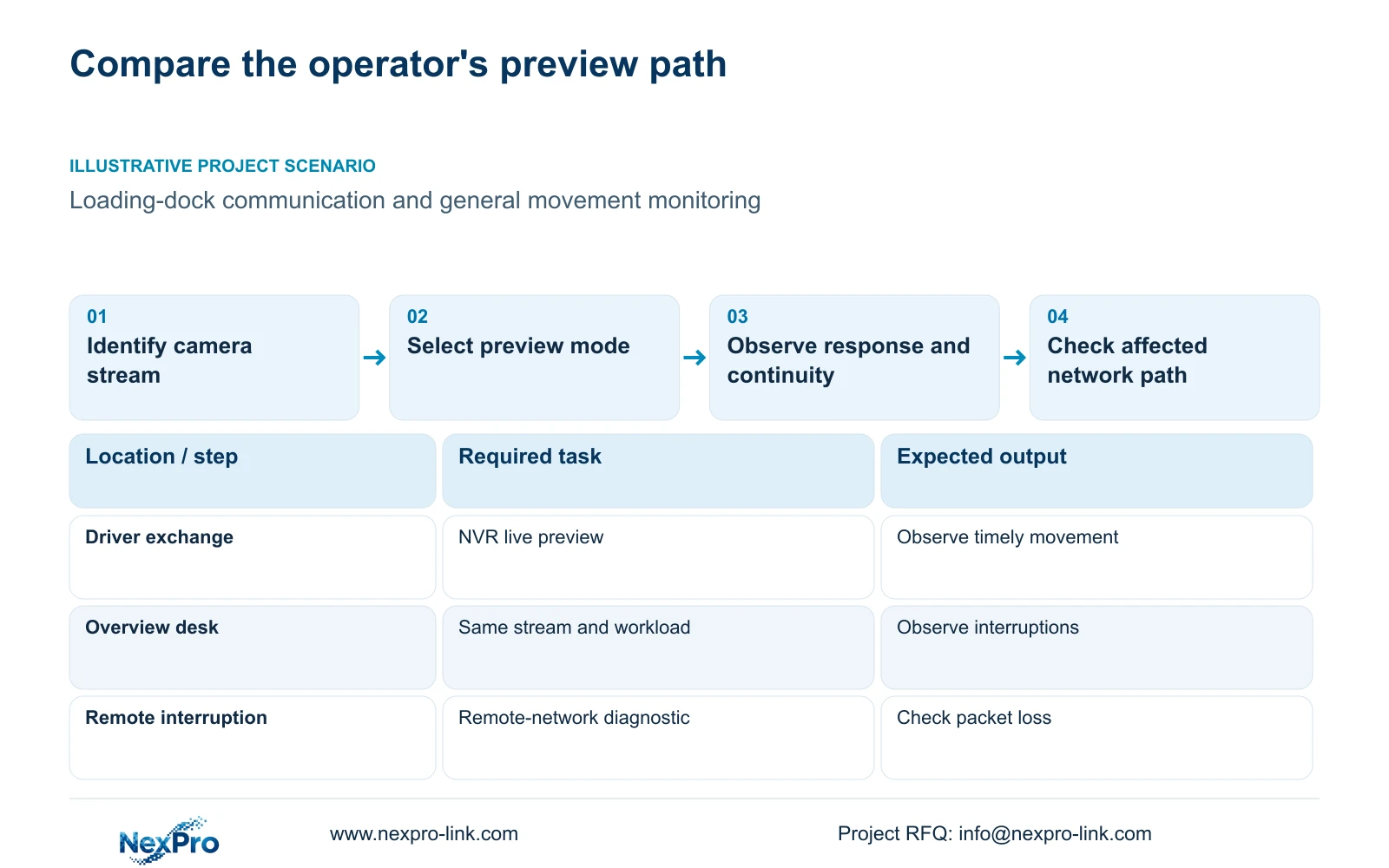
Illustrative project scenario: A loading-dock operator communicates with a driver while another desk only watches general movement. Assess the driver exchange for visible responsiveness and the overview task for continuity. Compare modes under equivalent streams and workload, then retain separate task findings. The scenario supplies a test objective, not measured latency or a delivered project result.
Section 08
Does smooth preview prove the network is healthy?
No. A smoother display is an operating observation. Check the affected network path and any packet-loss findings separately. The manual supplies no fixed latency or buffering figure that can replace the comparison.
Section 09
Source scope and the next comparison input
This guide uses NVR4.0 user manual CH_V2.4.doc, whose body identifies V2.2, sections 4.12.5, 4.3.3.2, 4.3.3.3, 4.4.5, 4.12.11 and 5.3. Section references take priority over page numbers. The operating object is the applicable NVR interface.
Send NexPro-Link the recorder model and firmware plus a redacted, same-condition preview comparison identifying the operator's task at info@nexpro-link.com.
Engineering references
These sources support the general planning principles. Always use the selected product's current datasheet and applicable project standards for final design.


