

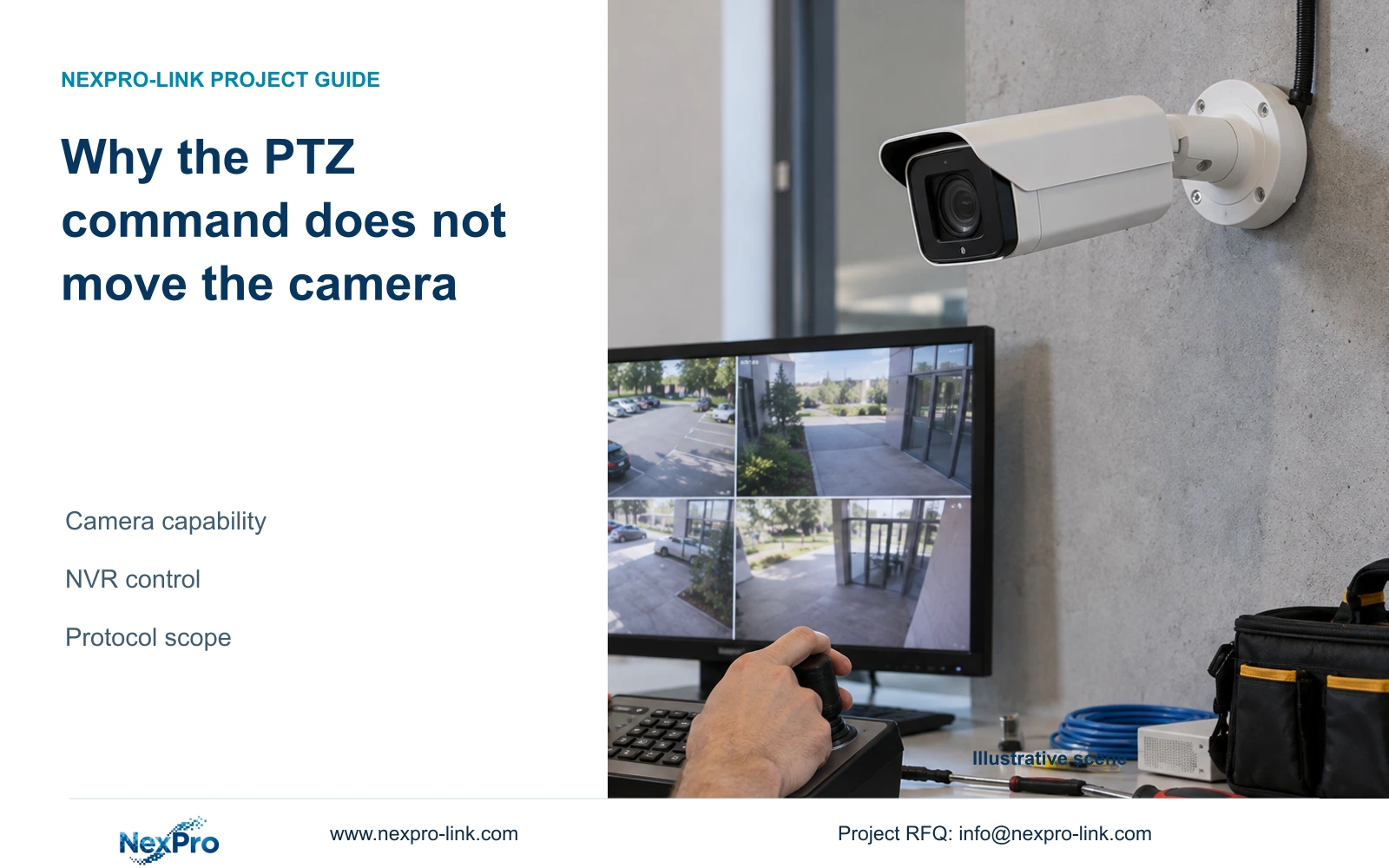
A visible PTZ menu does not establish camera movement capability. Separate physical movement, lens adjustment and protocol support before investigating an unresponsive command.
Section 01
Identify the movement the operator expects
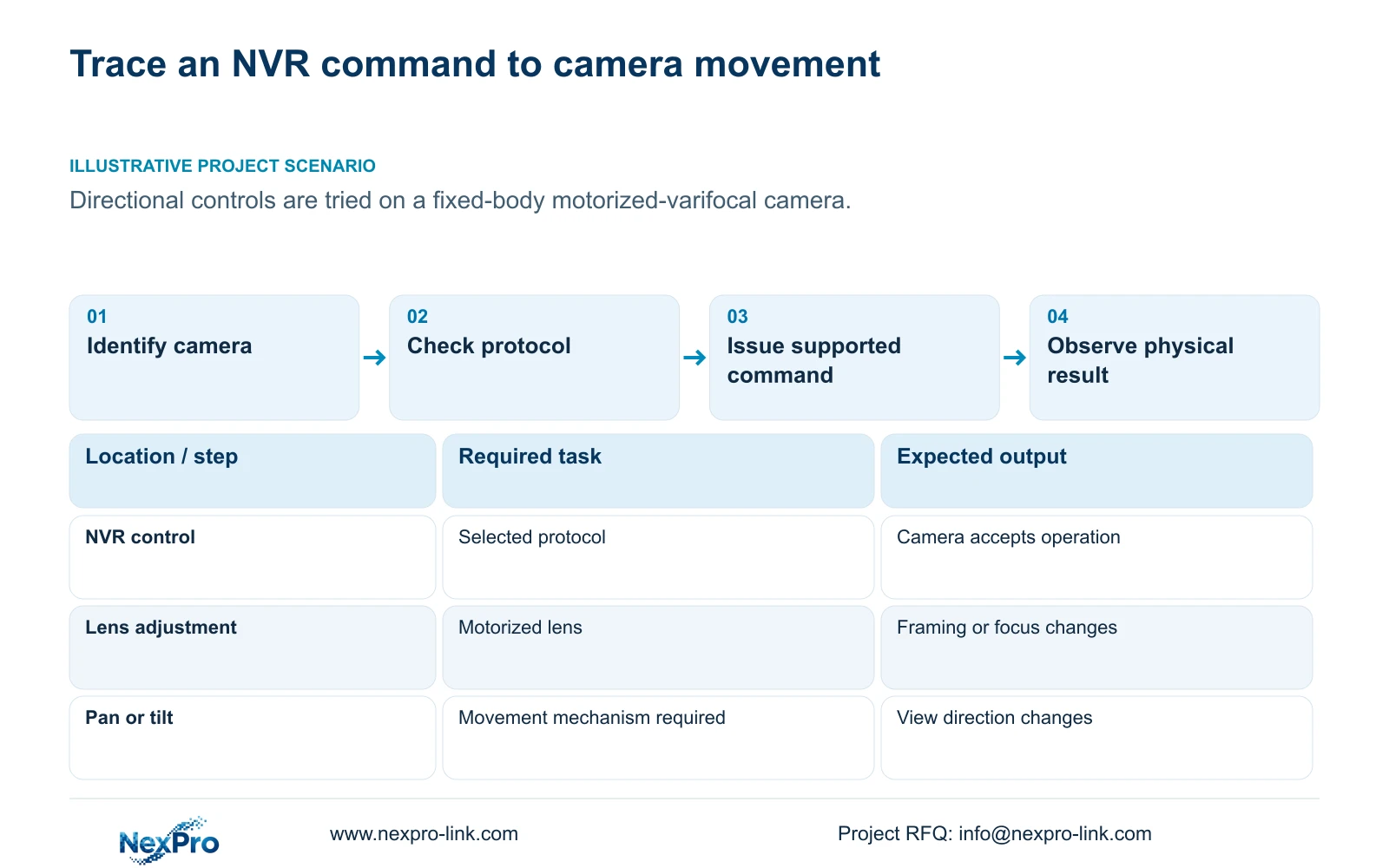
A visible PTZ menu cannot make a fixed camera pan or tilt. The supplied NVR4.0 manual requires the connected IP camera to support PTZ configuration, and each requested operation must also work through the selected connection protocol. When directional controls produce no movement, first distinguish body movement from optical zoom, focus adjustment and electronic enlargement. A fixed-body motorized-varifocal camera may accept lens commands while having no mechanism for horizontal or vertical movement. Check its actual model before investigating a fault. If the required movement exists, continue with a single-camera command test and record which operation succeeds or fails.
Describe the expected result in physical terms. Does the operator need the camera to face another loading position, tighten framing within its existing view, or sharpen that view? Those requests lead to different checks. A larger image on the monitor alone does not establish that the lens moved, and a working zoom command does not establish pan or tilt support.
Keep the starting view identifiable during the test. Compare the scene before and after a supported command, then record the observed change. If the camera has no specified movement mechanism, end the directional-command investigation there and review whether the installed camera meets the viewing task.
Section 02
Record the camera and recorder as a device pair
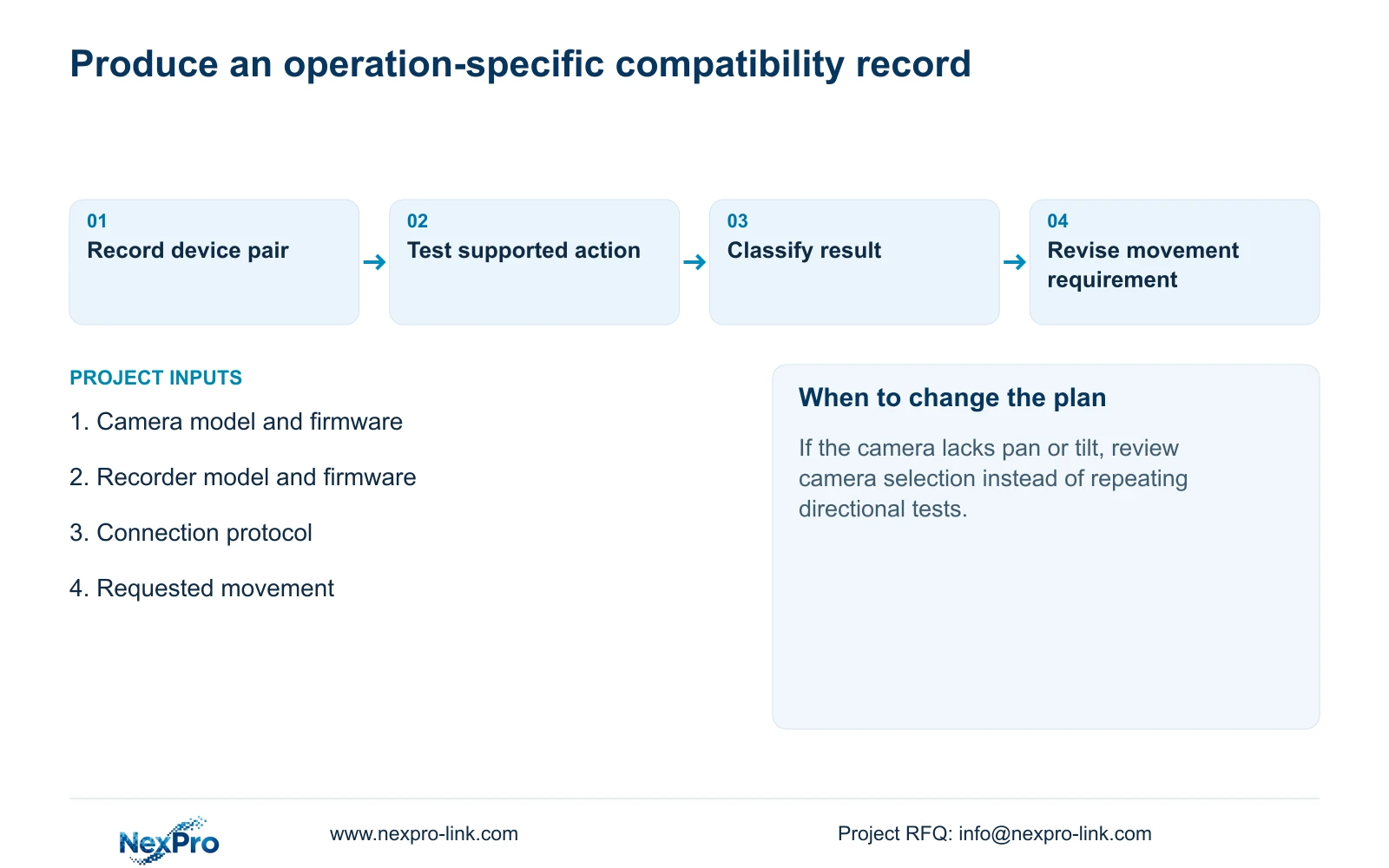
Collect the camera's actual model and firmware alongside its recorder channel and connection method. A housing description such as bullet or dome is insufficient: appearance does not identify the available motors or controls. Use the selected camera's documentation to establish the operation being requested.
For the recorder, the manual's System Information section identifies product model, hardware version, software version and software date. Record those fields with the affected channel and symptom time. This creates a reproducible support description, such as lens adjustment working while directional movement has no effect, instead of the broad label 'PTZ broken'.
Keep serial identities in a controlled service record where needed. Redact cloud identifiers, QR codes and recognizable site content from any screenshot intended for public circulation. Device identity helps select applicable instructions; a recent software date does not establish either compatibility or the cause of the symptom.
Section 03
Check the command path separately from video
A live picture confirms that a video path works. PTZ operation requires the recorder, protocol and camera to expose and accept the particular command. Check the selected connection method and relevant account permissions before classifying an unavailable or ineffective control as hardware damage.
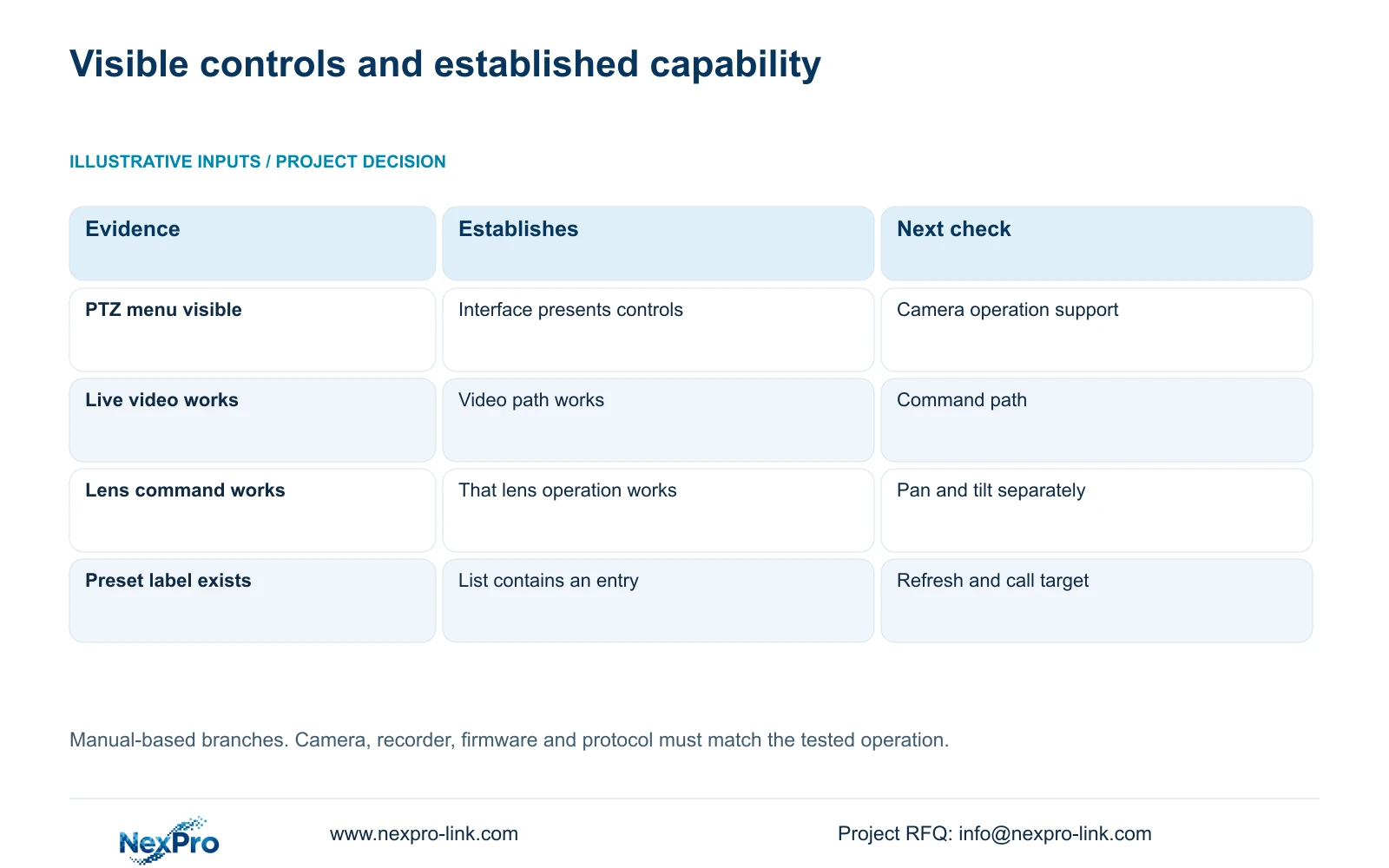
Test one supported operation on one identified camera. If optical zoom works but pan does not, return to the movement specification before changing anything else. If the camera supports pan but the NVR cannot perform it through the selected connection, preserve that difference for compatibility review. Do not invent a third-party menu path or treat an ONVIF label as confirmation of every control.
Use the following branches to keep the investigation tied to an observable result. They are diagnostic decisions, not a record of completed equipment tests.
| Observation | Meaning to check | Next action |
|---|---|---|
| Fixed body; lens adjustment works | Lens motors do not establish pan or tilt | Verify whether movement is required by the brief |
| Live video works; supported command fails | Video and control have separate dependencies | Check protocol, firmware and relevant permissions |
| Control is unavailable | Camera capability or connection scope may limit it | Confirm the device pair before declaring a fault |
| Preset list exists; target is uncertain | A label does not verify the stored position | Refresh and call a supported preset |
Section 04
Apply the manual to the identified recorder
The operating source is 'NVR4.0 user manual CH_V2.4.doc'. Its body carries V2.2, so section references take priority over page numbering or an assumed final version. Sections 4.4 and 4.10 establish the camera-dependent setting and PTZ scope; section 4.12.19 covers recorder identity. Sections 1.2 and 5.2 distinguish the recorder family from model-specific capabilities.
The manual covers TS models and does not establish their mapping to NexPro-Link commercial SKUs. Its shared interface and series overview therefore cannot support a promise that every recorder has every function. Check the applicable model and firmware documentation if the installed unit differs from the described scope.
Keep this review focused on the failed command. Unrelated recording capacity, audio support or display modes do not explain whether a fixed camera can move. Where a recorder-specific limitation affects the requested control, record it explicitly before selecting equipment or defining acceptance.
Section 05
Verify presets only where the camera supports them
Section 4.10.1 provides Refresh to synchronize recorder and camera preset information. The manual describes private-protocol numeric presets from 1 to 255 and ONVIF identifiers that may contain letters and numbers. Preserve the identifier used by the actual camera and connection.
Refresh the correct channel's list, then call an existing supported preset and compare the resulting view with its intended target. Do this before adding or deleting entries. If the list updates but the camera faces the wrong location, investigate the stored position and camera identity separately from list synchronization.
A preset menu on a fixed camera is not evidence of directional movement. If the documented camera lacks the required preset operation, omit that test and retain the confirmed lens or viewing functions in the acceptance record.
Section 06
Turn the result into a selection requirement
Illustrative project scenario: An installer tries directional controls on a fixed-body motorized-varifocal camera. The useful first result is identifying whether the task needs a framing adjustment or physical redirection. If lens adjustment meets the requirement, retain the fixed camera and verify that operation through the NVR. If the owner needs movement between locations, specify a camera with the required mechanical capability and verify its control path.
Write the procurement requirement around the action and target. State the locations the camera must face, the necessary lens controls and any required preset calls. Include acceptance through the selected recorder and protocol. NexPro-Link's BOQ and tender support is relevant when this finding changes the equipment schedule or the responsibilities assigned to commissioning.
Keep confirmed operations and unresolved operations separate in the schedule. A buyer can then distinguish an unsuitable camera from a supported camera whose integration still needs investigation.
Section 07
Questions about selecting and testing PTZ controls
- Does motorized zoom mean the camera can pan? No. A fixed motorized-varifocal camera may adjust its lens without horizontal or vertical movement.
- Does an ONVIF connection prove preset support? No. Verify the requested operation on the identified camera, recorder and connection.
- Should an unavailable control trigger equipment replacement? First check camera capability, applicable firmware, connection method and relevant permissions. Replacement is a selection decision only when the required operation is absent.
Section 08
Resolve the specific control requirement
Send NexPro-Link the camera and recorder models, firmware, connection method and the exact movement that fails at info@nexpro-link.com.
Engineering references
These sources support the general planning principles. Always use the selected product's current datasheet and applicable project standards for final design.


