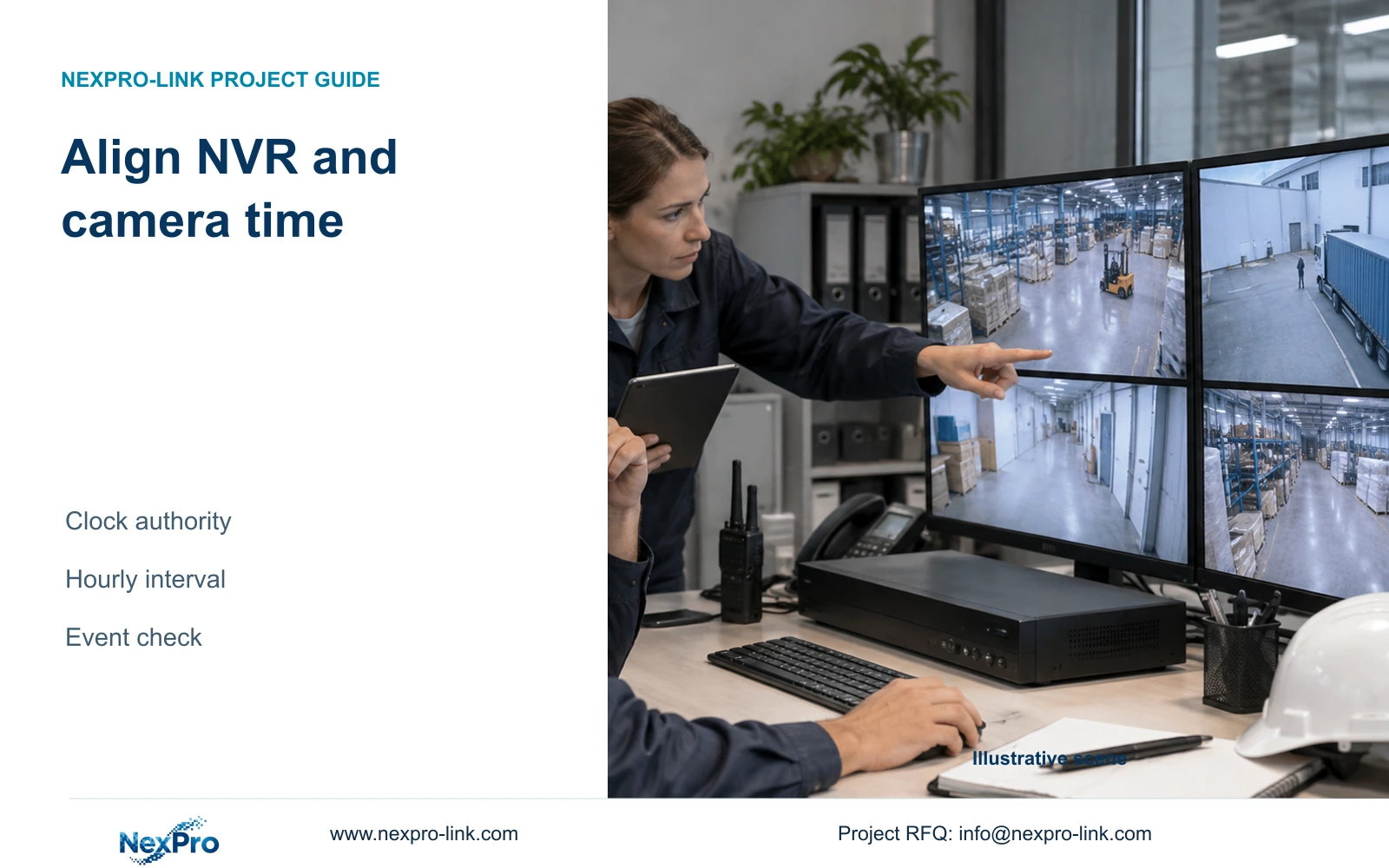
A laptop synchronization action can conflict with the recorder's camera-time policy. Document who sets each clock and verify retrieval after an authorized correction.
Section 01
Identify the clock and interface before synchronizing
Choose an intended time authority for each device and document the direction of synchronization before using a laptop or recorder control. If the NVR already manages camera time, a separate PC synchronization action needs review against that policy. Identify whether the action affects the recorder, an IPC or only the client, then check time-zone and daylight-saving settings before correcting the clock. Preserve the original settings and incident references, record the authorized change, and verify new footage across the required channels. Matching displayed clocks at one moment does not prove that competing mechanisms have been removed or that future retrieval will remain consistent.
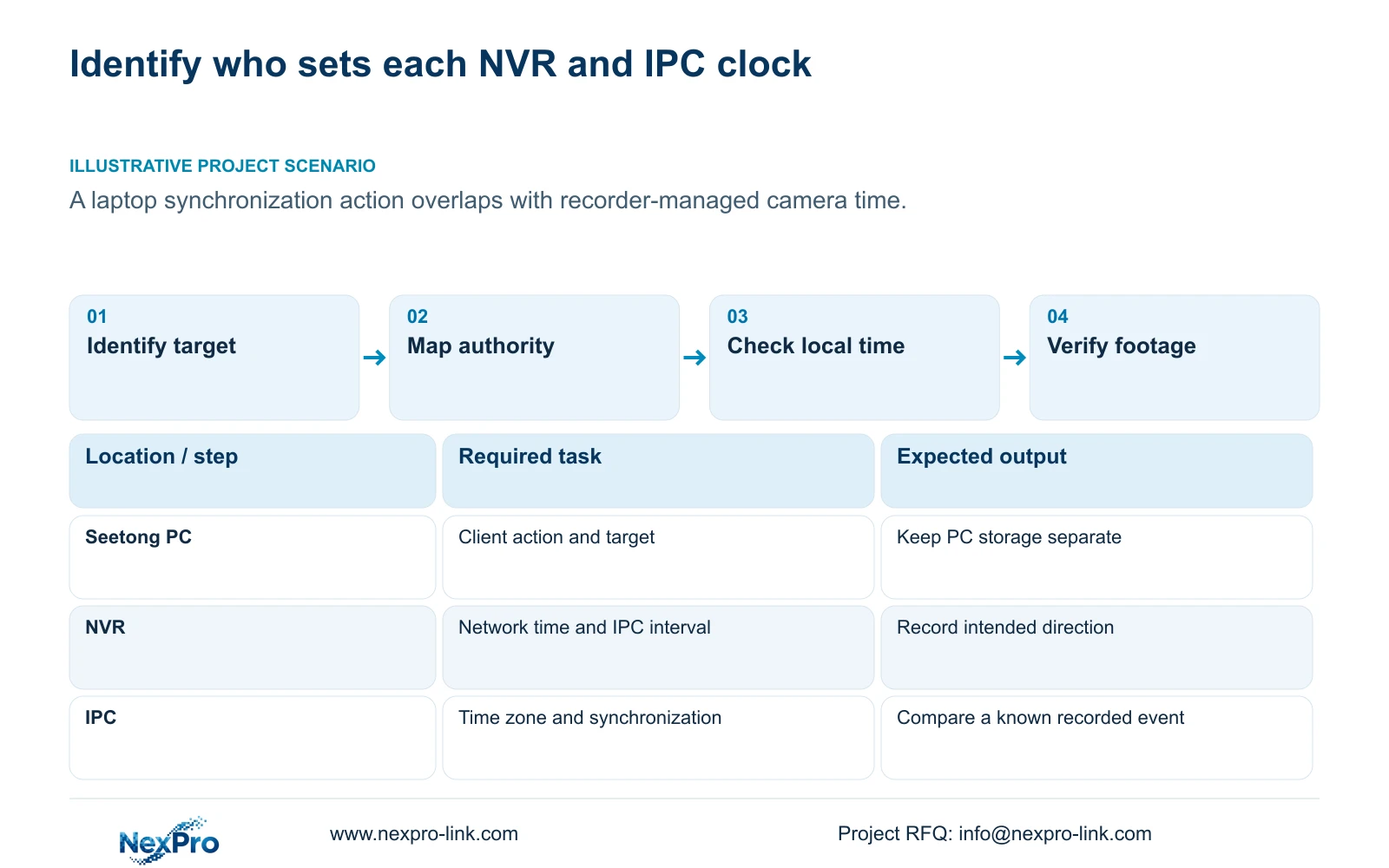
Start by naming the operating surface. A Seetong PC action and an NVR local action can concern the same system while changing different objects. Record the target device and the proposed command's purpose before applying it. Where that target is unclear, inspect the applicable instructions and retain the current state.
Confirm any proposed PC synchronization command against the actual client version and its device-specific instructions before using it. The Seetong source cited here, section 7.1, establishes playback ownership, not a time-synchronization button or its target. If those command details cannot be confirmed, do not execute the laptop action; keep the recorder's approved time policy while obtaining applicable guidance.
Section 02
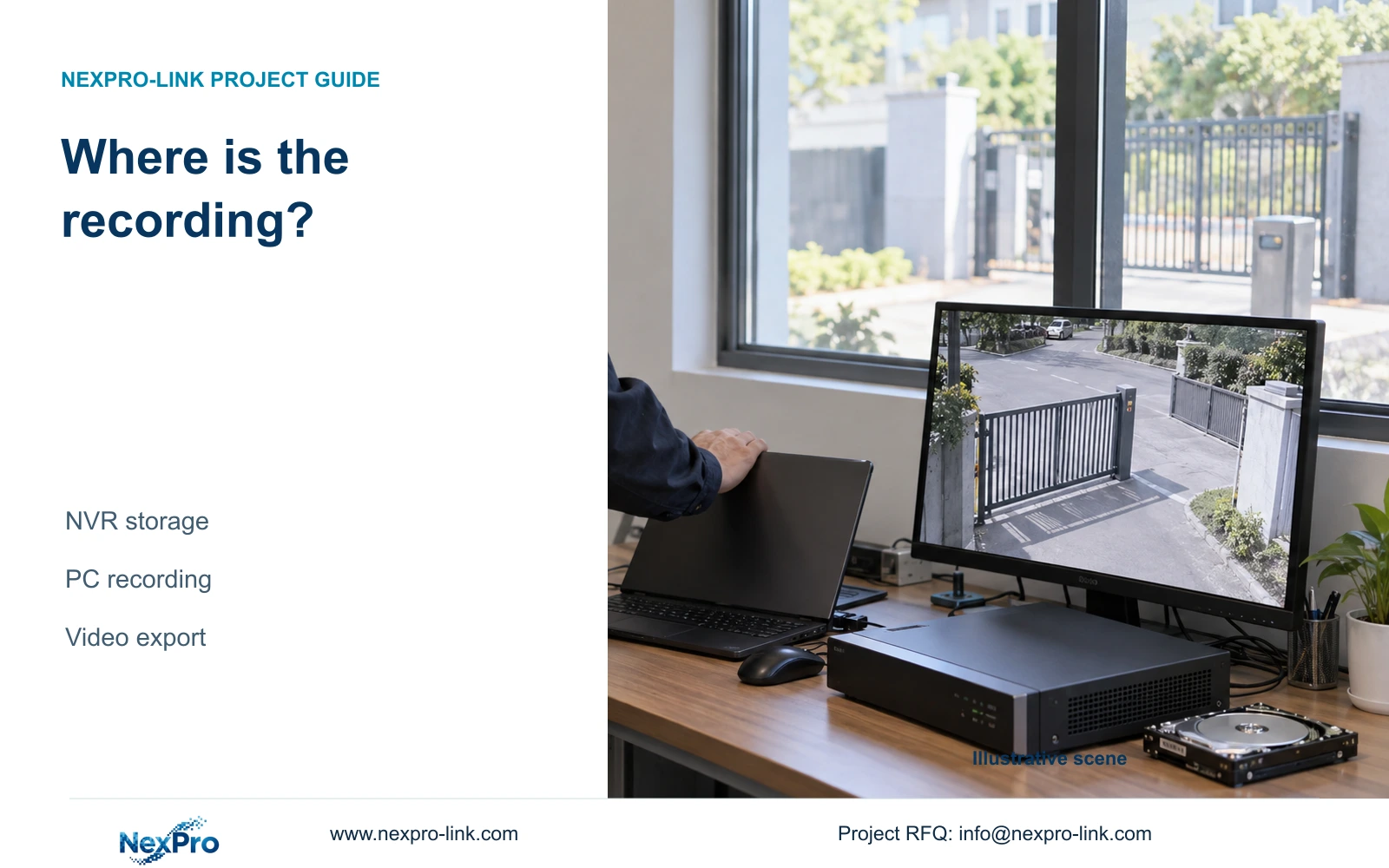
Keep PC recordings and recorder recordings separate
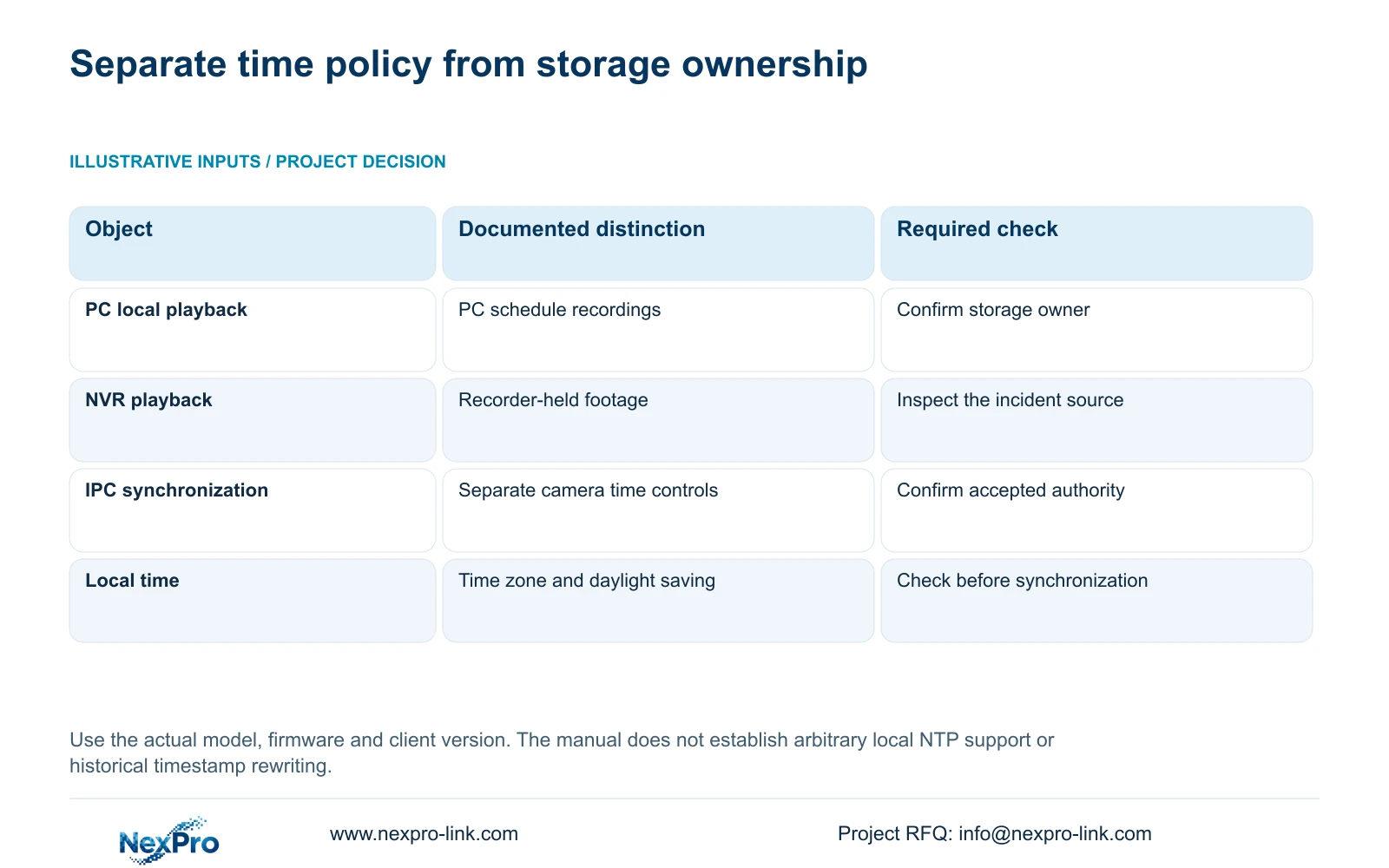
The NVR stores and manages its own disk recordings. Seetong PC schedule recording is a separate client workflow, and an exported file is another deliverable. The supplied Seetong manual directs users to Remote Playback for NVR recordings and Local Playback for PC schedule recordings.
This distinction matters when checking the result of a time change. Inspect footage from the storage owner involved in the incident instead of assuming that the PC's playback folder represents the recorder. Closing a client window does not establish that an independently configured NVR stopped recording. Likewise, a correct PC clock does not demonstrate that every connected camera has adopted that time.
Section 03
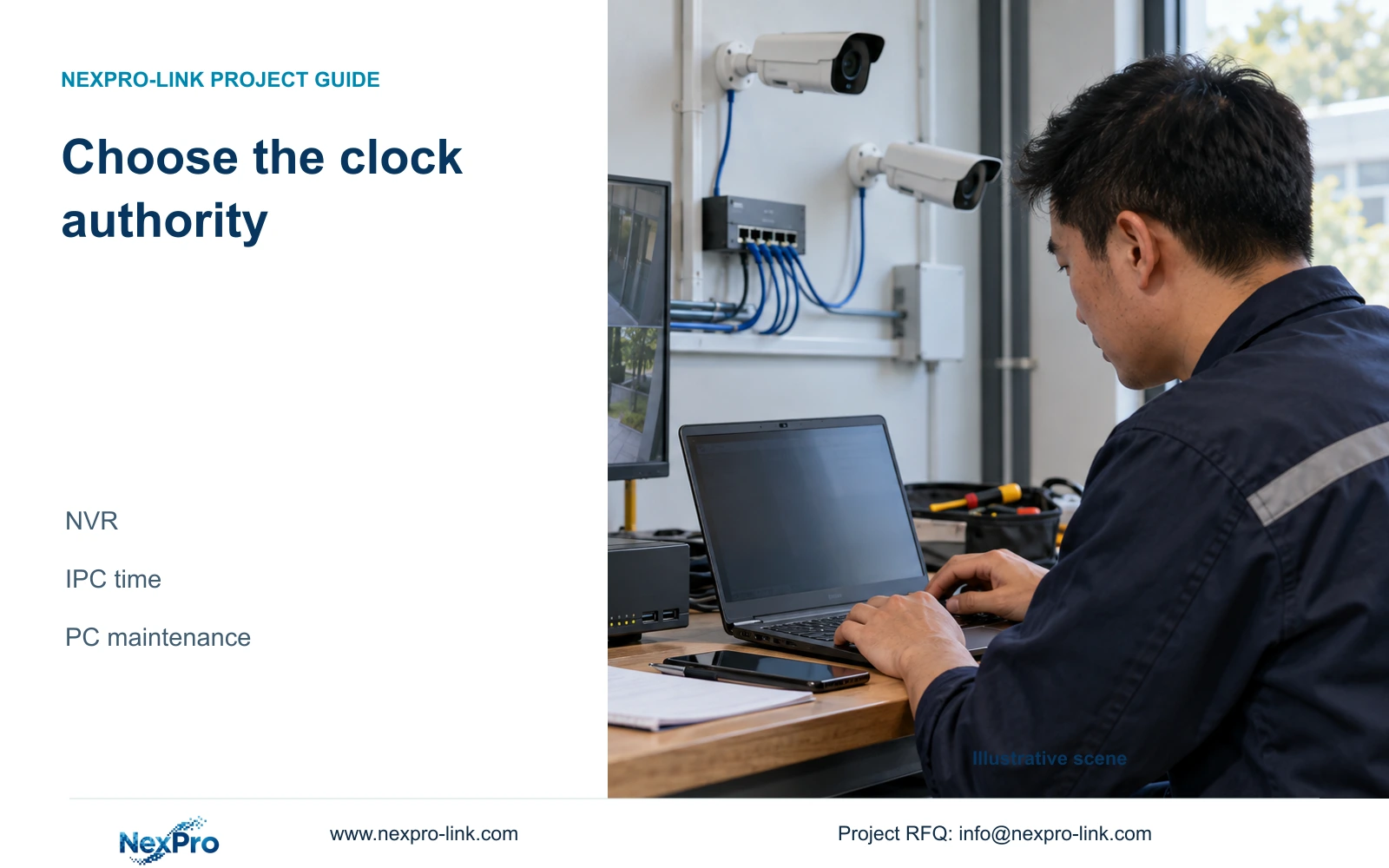
Draw the intended synchronization chain
Sections 4.4.2 and 4.12.2 provide separate IPC and NVR time controls. The IPC page includes manual time, network synchronization, time zone and daylight saving. The NVR page includes network time and an IPC synchronization interval measured in hours.
Write down who sets the recorder's time and who sets each camera's time. Where the approved arrangement uses the recorder to synchronize cameras, treat maintenance from a PC as an exception requiring review. If cameras use another supported authority, document that arrangement instead of adding a recorder synchronization action by habit. The required outcome is one intended policy for each target, with conflicting maintenance actions addressed.
The manual's network-time entry does not establish support for every possible local NTP server deployment. If the project requires a specific time service, confirm the actual device and firmware capability before specifying it. Keep the diagram a statement of the accepted configuration, not an unsupported network feature claim.
| Observed condition | Check | Next action |
|---|---|---|
| Laptop action proposed while NVR manages IPC time | Target and existing synchronization direction | Reconcile with the approved authority policy |
| Clocks agree but local time is wrong | Time zone and daylight-saving configuration | Correct the applicable settings before synchronization |
| Only PC local playback looks different | Storage owner and client workflow | Compare the actual NVR recording separately |
| Specific local NTP service required | Actual model and firmware support | Obtain applicable capability confirmation |
| Offset returns after correction | Active synchronization mechanisms | Stop repeated changes and review the authority chain |
Section 04
Check local-time settings before correcting the clock
The manual calls for selecting the correct time zone before network synchronization. A synchronized device can still display the wrong local time when its time-zone or daylight-saving configuration is unsuitable. Daylight-saving start and end settings require their own review.
Compare the applicable settings at the recorder and cameras with the approved project baseline. Preserve the observed difference and a known event reference before changing them. Then verify current display and footage retrieval separately. Correcting the current clock does not establish that historical recordings have been rewritten or that their earlier timestamps now match the new setting. Retain the earlier context for anyone investigating those periods.
Section 05
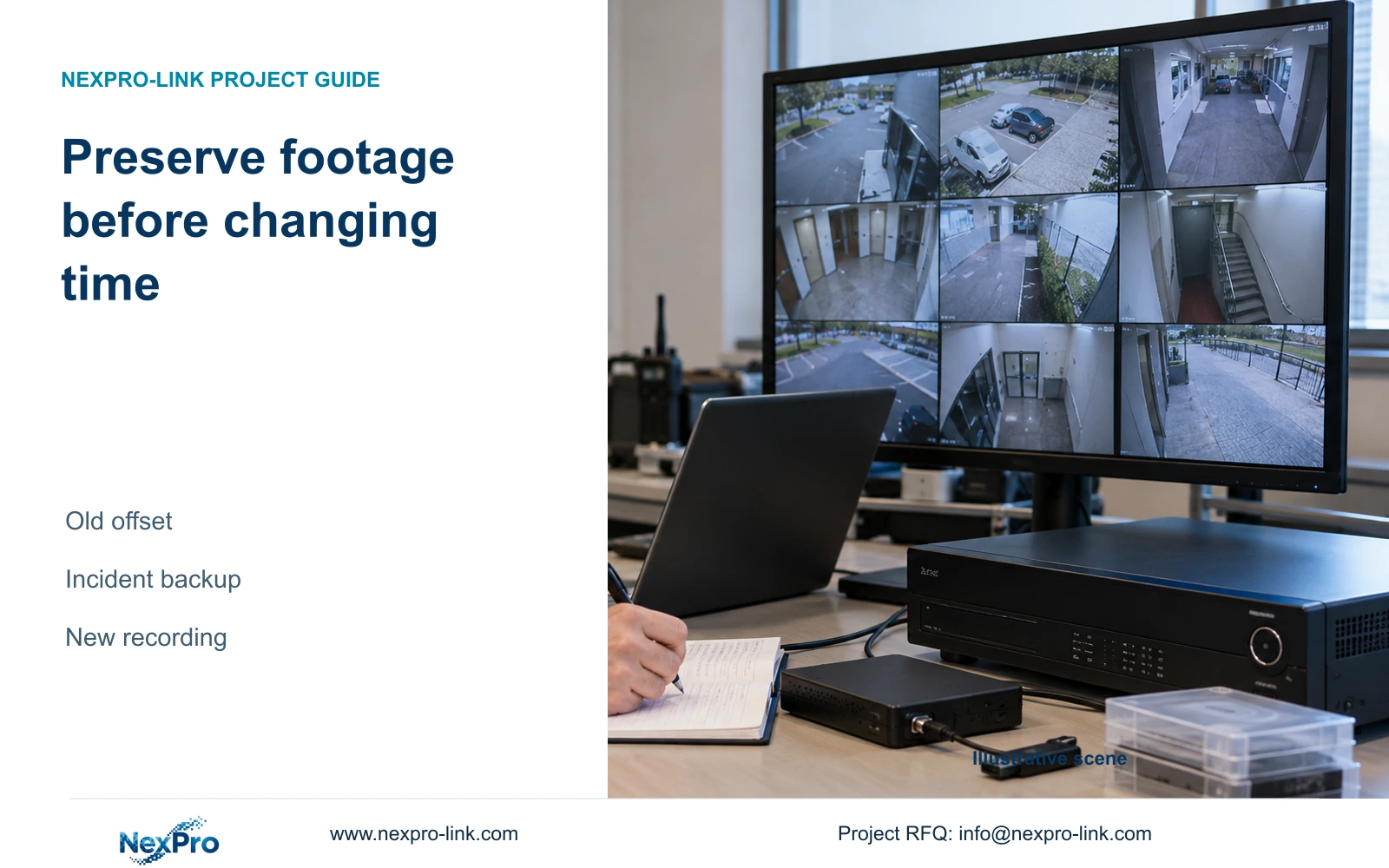
Preserve the original synchronization settings and relevant footage
Configuration export, log export and video backup are separate workflows. Save and name each according to its purpose. A configuration file preserves settings for an applicable recovery process; it is neither a disk image nor a copy of incident footage.
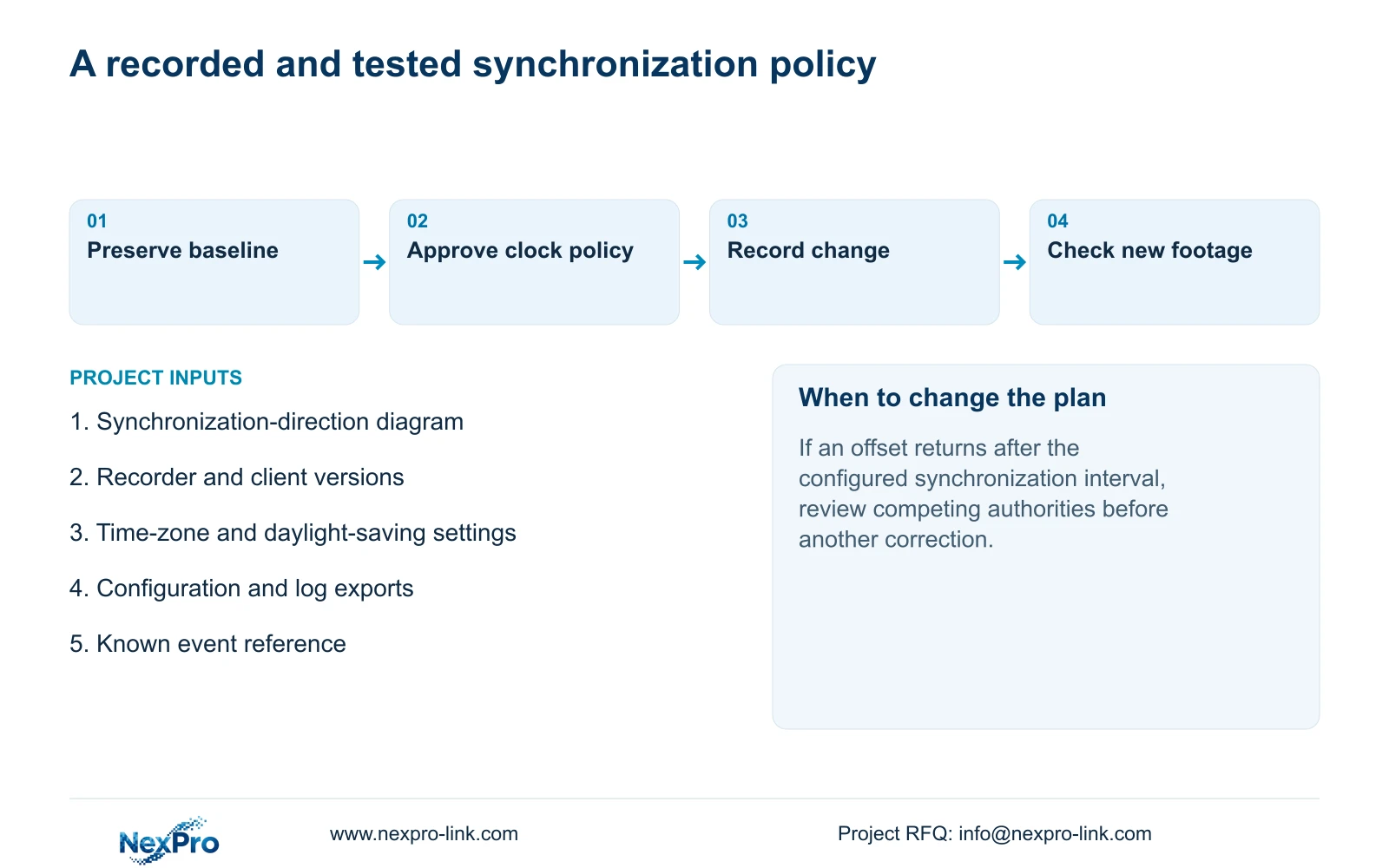
Before the authorized correction, keep a readable record of the existing time configuration and identify the exported configuration's model and version. Preserve any footage needed to interpret the original offset separately. If someone proposes importing settings from another recorder, confirm compatibility first. The manual does not provide a universal cross-model cloning guarantee. An import or restoration requires authority, preservation of relevant data and planning for any operational interruption.
Section 06
Record the change without overstating what logs prove
Section 4.12.17 describes current-day log defaults, type filters, detail viewing and text export. When the date condition is not selected, the documented workflow permits an all-log query. Check those filters before concluding that the expected record is absent.
Export relevant entries and keep a change note naming the affected object, original setting, approved new setting and event reference. If a matching log entry cannot be found, record that result accurately. The log function does not establish unlimited retention, tamper-proof auditing or legal evidence certification. Its useful role here is to support the configuration history and the investigation of a recurring offset.
Section 07
Verify the time relationship through recorded operation
Illustrative project scenario: A technician synchronizes devices from a laptop while the recorder is already managing camera time. The engineer identifies the targeted devices, reviews the recorder's IPC synchronization policy and preserves the original settings before an approved correction. The laptop action is evaluated within that policy instead of becoming an undocumented second authority.
After the change, compare a known event across the required cameras. Check live view, current time, newly generated footage, relevant older footage, export, intended accounts and required events. Repeat the relevant comparison after the configured synchronization interval to check for a returning offset. Record failures and the changed variable. If the discrepancy returns, obtain the next supported action rather than assuming automatic rollback is available.
Section 08
Does configuration export preserve the incident video?
No. Export the relevant footage separately and verify its playback. Keep the configuration file for its supported settings-recovery purpose.
Section 09
Source scope and the next input
This guide uses NVR4.0 user manual CH_V2.4.doc, marked V2.2 in its body, sections 1.2, 4.4.2, 4.11, 4.12.2 and 4.12.17 to 4.12.20. Seetong Windows client manual V1.0.0, section 7.1, supports the PC-versus-recorder playback distinction. The authority diagram and validation sequence are engineering guidance.
Send NexPro-Link the current synchronization-direction diagram, including recorder and client versions, at info@nexpro-link.com.
Engineering references
These sources support the general planning principles. Always use the selected product's current datasheet and applicable project standards for final design.