

When network synchronization leaves the wrong local time, preserve the observed offset and compare recorder, camera and daylight-saving settings before changing the clock.
Section 01
Preserve the offset before correcting local time
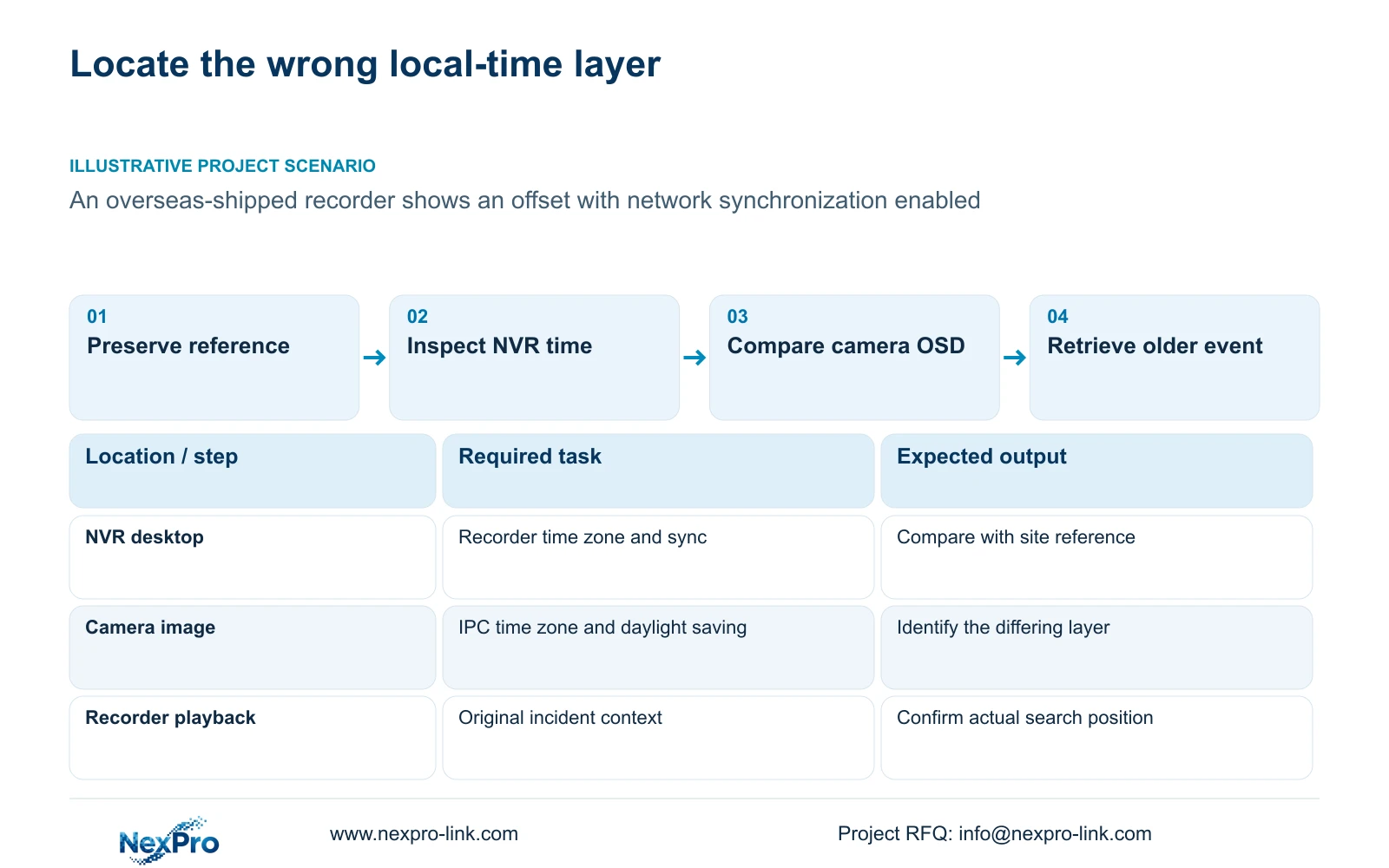
An NVR can use network synchronization and still display the wrong local time because time-zone and daylight-saving settings remain separate decisions. Record the observed difference against a confirmed site reference before changing anything. Compare the recorder desktop clock with the camera overlay, then inspect the settings of the device that is wrong. The supplied manual directs users to select the correct time zone before network synchronization. Preserve relevant logs and the original incident search position so a correction does not remove the context needed to retrieve older footage. Acceptance should include correct new recordings and a repeatable historical search.
Record the date as well as the visible time. An offset can place the recorder's displayed event on a different date from the reported incident. Keep the original observation, the reference source and the affected channel together. Avoid replacing the old values in the fault record once the screen looks correct.
This workflow uses NVR4.0 user manual CH_V2.4.doc, whose body identifies V2.2. Sections 4.4.2 and 4.12.2 cover IPC and recorder time settings. Their applicability depends on the actual device and firmware; the document labels do not establish the installed software version.
Section 02
Check what the synchronization control actually updates
The camera page includes manual time, network synchronization, time zone and daylight-saving controls. The NVR has separate network-time settings and an IPC synchronization interval measured in hours. Inspect both objects before deciding that an enabled recorder setting has corrected every camera.
Write down which mechanism supplies time to the recorder and which supplies time to the affected IPC. If the camera also follows its own network-time mechanism, inspect that setting rather than repeatedly setting the recorder by hand. Record one change at a time so a later observation can be attributed to it.
An enabled synchronization option records configuration intent. It does not, by itself, demonstrate the correct resulting local time. Compare the actual display and a newly recorded event with the site reference. The manual also does not establish compatibility with every proposed local NTP-server arrangement.
Section 03
Compare the camera overlay with the recorder desktop
Identify where each timestamp appears. The camera OSD belongs to the image, while the recorder desktop clock belongs to the interface. Sections 4.4.4 and 4.12.6 describe OSD controls, including enablement, channel name, position, date format, weekday and optional bitrate or resolution information.
If only the image timestamp is wrong, inspect the camera time settings and synchronization direction. If the desktop is wrong while the camera agrees with the reference, inspect the recorder. When both differ, compare their site settings independently before concluding that they share a hardware fault.
Verify any OSD change on the selected camera. A menu field does not establish that all third-party devices accept the command. Changing the text position or hiding a timestamp may alter the screen's appearance, but it leaves the underlying time discrepancy unresolved.
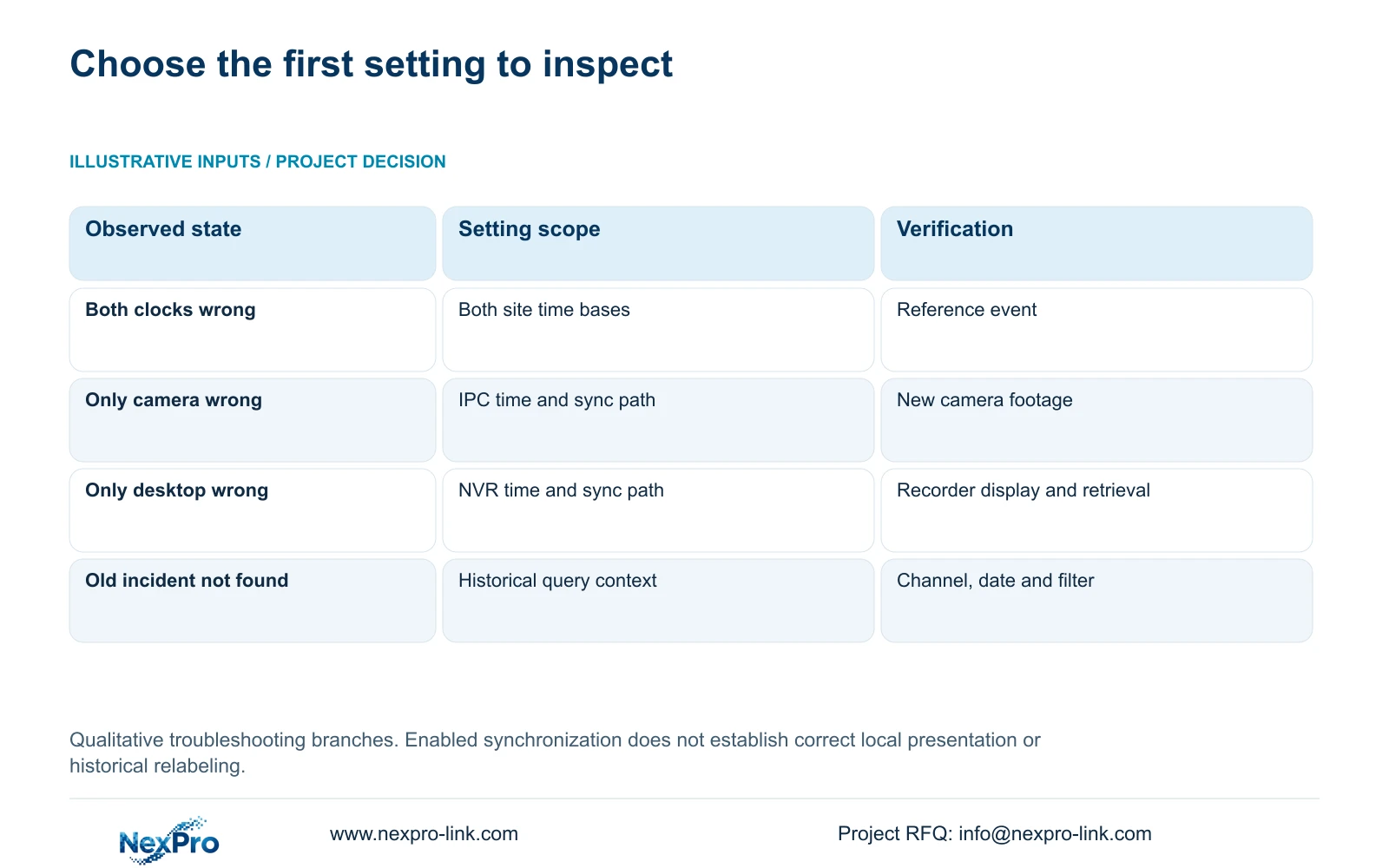
| Observation | First check | Next action |
|---|---|---|
| Desktop and camera show wrong local time | Time zone and daylight-saving settings on both | Preserve original values and correct the applicable setting |
| Desktop correct; camera overlay wrong | IPC time basis and synchronization source | Verify that camera's resulting image and recording |
| Camera overlay correct; desktop wrong | NVR time basis and network-time settings | Test recorder time against the site reference |
| Current display correct; old incident missing | Historical channel, date, offset and type filter | Search using the preserved event context |
Section 04
Save the original incident context and relevant logs
Before correction, retain the reported incident time, its time basis and the device time observed during troubleshooting. These may come from different moments. Label them clearly so the team does not apply a current observation to an earlier incident without supporting evidence.
Section 4.12.17 describes log details and text export. The default query uses the current day and includes type filters. If the incident occurred earlier, adjust the query. The manual describes an all-log query when the date condition is not selected, which can help when the relevant date remains uncertain.
Save the relevant entries with the configuration observation. If no entries appear, inspect the filters before reporting that the recorder has no logs. A text export provides troubleshooting material; it does not establish unlimited retention, tamper-proof auditing or legal evidentiary certification.
Section 05
Confirm where the older footage can actually be found
Use the preserved device-time context to search the incident before and after correction. Section 4.11.2 says playback initially uses the channel selected in preview. Confirm the intended camera explicitly, then check the date, time and ordinary, alarm or motion filter.
An orange calendar date indicates that recordings exist for that date in the documented workflow. It does not establish uninterrupted coverage of the affected camera. A grey date or empty result should prompt a check of the search scope before any conclusion about missing footage.
Inspect neighboring dates when the recorded time basis places the incident near a date boundary. Record the actual successful search settings and recognizable event. Correcting the current time does not establish that older recordings have been relabeled, reconciled or moved to the newly expected position.
Section 06
Deliver the destination time configuration with a retrieval test
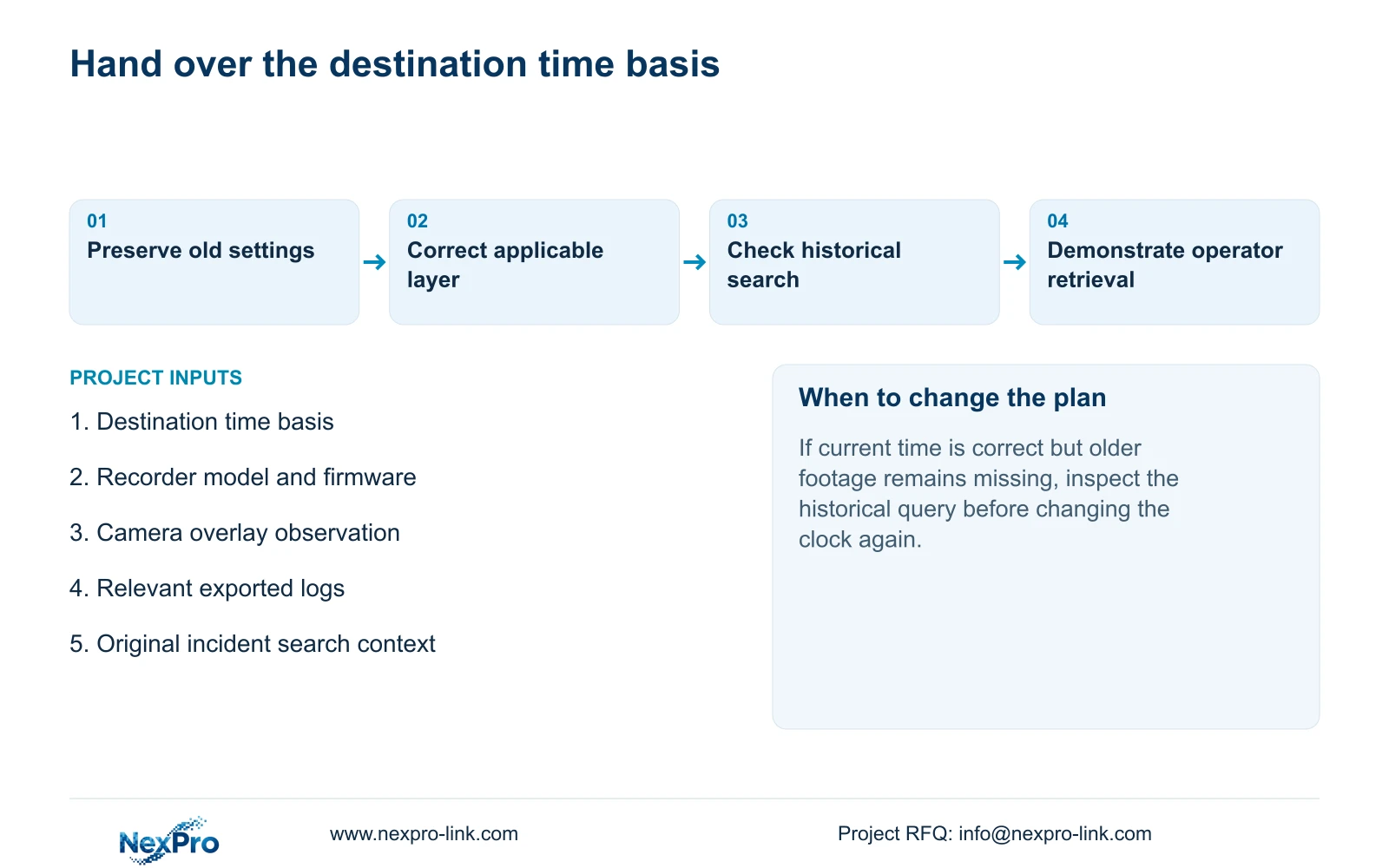
Illustrative project scenario: A recorder shipped overseas shows an offset even though network-time synchronization is enabled. The commissioning engineer records its original settings, checks the destination time zone and daylight-saving arrangement, then compares the camera overlay and recorder desktop. No corrected outcome is assumed until recording and retrieval have been checked.
The handover record should identify the destination time basis, applicable recorder and camera versions, chosen synchronization direction and configuration-backup location. Keep maintenance responsibility and the relevant support contact with those details. Transfer credentials through a controlled route, separately from general project documents.
Ask the intended operator to identify a channel, retrieve the reference period and produce a playable export. Keep the old-offset note with historical footage where it remains relevant. NexPro-Link's project-support scope can address equipment matching and project documentation, while the actual accepted configuration remains specific to the delivered devices.
Section 07
Does wrong local time prove the clock hardware is faulty?
No. Check time zone, daylight-saving settings and the actual synchronization path first. If the discrepancy remains, preserve the device identity and repeatable observation for a supported diagnosis.
Section 08
Can Seetong PC settings replace the recorder check?
No. Seetong PC local recordings and recorder-disk recordings are different objects. Inspect the NVR and IPC settings relevant to the footage being investigated.
Section 09
Provide the local-time discrepancy
Send NexPro-Link the recorder model and firmware, destination time basis and a redacted comparison of the reference, desktop clock and affected camera overlay at info@nexpro-link.com.
Engineering references
These sources support the general planning principles. Always use the selected product's current datasheet and applicable project standards for final design.


