

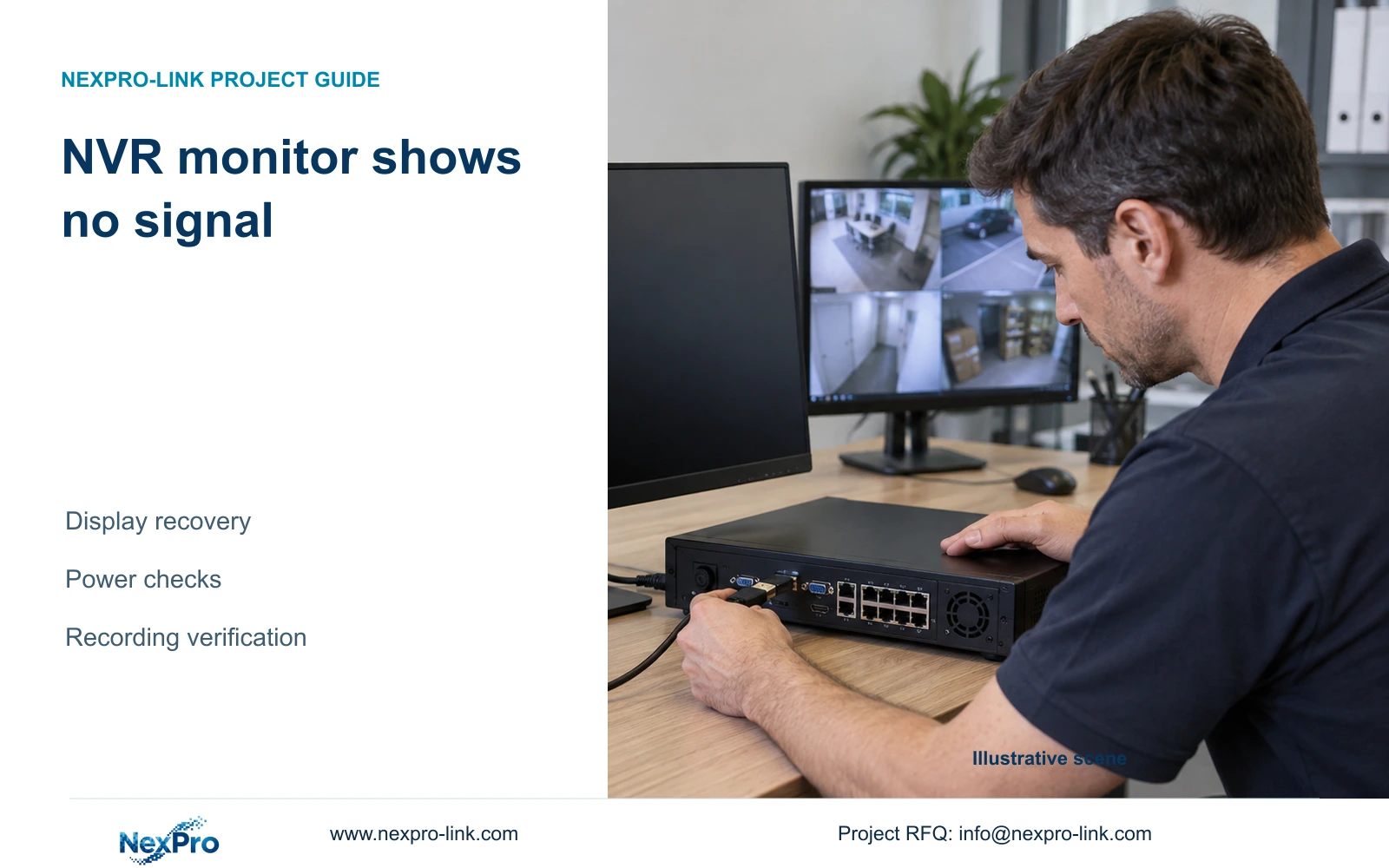
A replacement monitor can lose the NVR picture because of an incompatible output mode. Follow the display branch first, then verify new recordings without treating a factory reset as the starting point.
Section 01
Recover the monitor connection before changing recorder settings
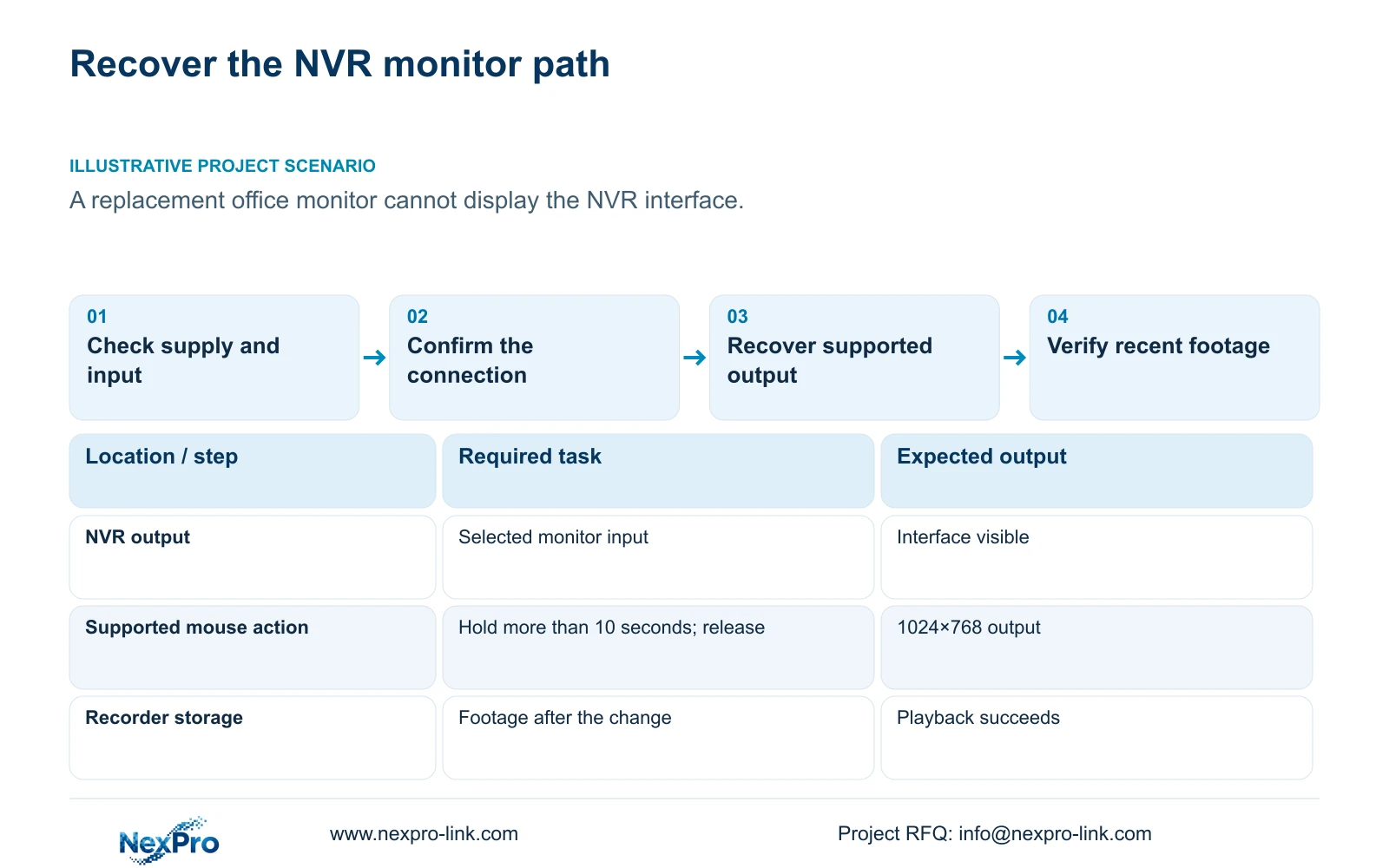
If a replacement monitor reports no signal, check recorder power, the monitor's selected input and the display connection before changing recording settings. An incompatible output mode can hide the interface while the recorder remains powered. For applicable firmware, the supplied NVR4.0 manual describes holding the mouse's right button for more than ten seconds and releasing it to select 1024×768 output. This recovers display resolution; it is not a factory reset. Once the interface returns, choose a mode supported by the connected monitor and confirm that new footage is being recorded. If the recovery fails, preserve the existing configuration and investigate the specific power or display condition.
First distinguish a missing recorder interface from a black camera window. If menus or the desktop remain visible, the monitor is receiving an interface picture and the affected channel needs a separate investigation. If the monitor itself reports no signal and no interface appears, follow the output branch. Record whether the symptom began when the monitor, cable or input selection changed.
Section 02
Check the supply against the recorder labels
A lit mouse or active Ethernet indicator is a clue, not proof that the recorder has completed startup or is recording normally. Read the recorder and adapter labels. Check the required voltage, current capability and polarity against the intended supply. A plug that fits does not establish electrical suitability, and the manual recommends the supplied adapter within the equipment's working range.
If instability appeared after disks or peripherals were added, record that load condition. Compare behavior under the correct supply with the intended equipment connected. Do not choose a replacement adapter from connector shape or an assumed wattage. If the labels are unavailable or inconsistent, obtain the model-specific supply information before substituting hardware.
Section 03
Match the monitor input and supported output mode
Check which recorder output reaches which monitor input, then select that input on the monitor. Confirm the connection before using resolution recovery. On firmware supporting the documented action, hold the mouse's right button for more than ten seconds, release it and observe whether the interface appears at 1024×768. A successful result supports an output-compatibility explanation; it does not diagnose every part of the recorder.
After recovery, select an output mode the replacement monitor can display and verify it before leaving the system unattended. The manual states that VGA and HDMI can output simultaneously, but this does not establish independently managed views. A second connector is therefore neither proof of a separate operator workspace nor a reason to change camera recording profiles.
| Observation | Meaning | Next action |
|---|---|---|
| Menus visible; one camera window black | The interface picture reaches the monitor | Investigate the affected channel separately |
| No interface after replacing the monitor | Input, connection or output mode needs checking | Check the display path, then try supported resolution recovery |
| Interface returns at 1024×768 | The recovery action produced a usable picture | Select a compatible mode and check recording |
| No picture with the correct supply and display path | Resolution recovery has not resolved the symptom | Record the exact setup and seek model-specific diagnosis |
Section 04
Isolate peripherals without interrupting active work
If power and display checks remain inconclusive, the manual's troubleshooting branch considers a minimal setup without external devices. Preserve a wiring record before changing connections and isolate one item at a time. Identify the USB mouse separately from storage media so that removing an accessory does not accidentally interrupt a backup.
Do not disconnect media during export or interrupt an upgrade. If isolation requires stopping a running recorder, obtain authority, preserve required footage and arrange the recording interruption first. Reconnect equipment from the wiring record after the test. The useful observation is whether a specific change alters startup or display behavior, not simply whether fewer accessories are connected.
Section 05
Keep factory restoration outside the initial display branch
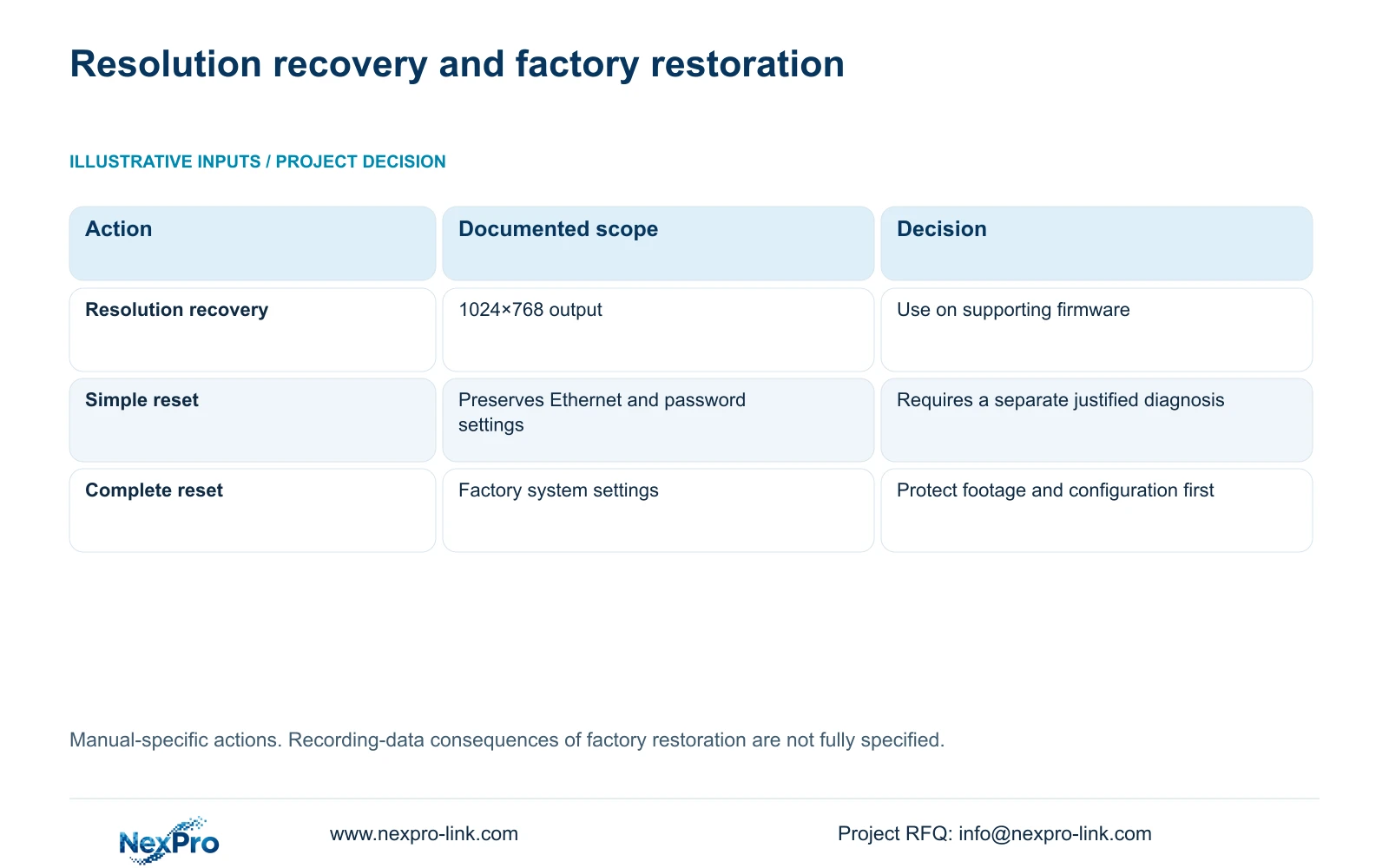
Resolution recovery and factory restoration change different things. Section 4.12.18 says simple reset preserves Ethernet and password-related settings, while complete reset returns system settings to factory values. The manual does not fully establish every consequence for stored recordings. Neither option should be described as guaranteed footage preservation or certified erasure.
If a separate diagnosis justifies restoration, record the current configuration and protect required footage through an authorized export before proceeding. Confirm the selected reset type and the expected interruption. A monitor replacement alone does not justify this wider change, particularly when the interface can be recovered through the documented output action.
Section 06
Verify footage after the interface returns
Check the current camera views and recorder time, then retrieve footage produced after the display change. Play a relevant older sample as well. Where the operating task requires export, verify a sample on the receiving system. Check the intended account and any required event behavior if broader settings were changed.
Record the changed variable and each failed task. A visible desktop or online status does not establish recording continuity. If the picture returns but new footage is missing, keep that result separate from the original monitor symptom and arrange the next supported recording diagnosis. Do not assume the recorder has an automatic rollback mechanism.
Section 07
Apply the replacement-monitor sequence
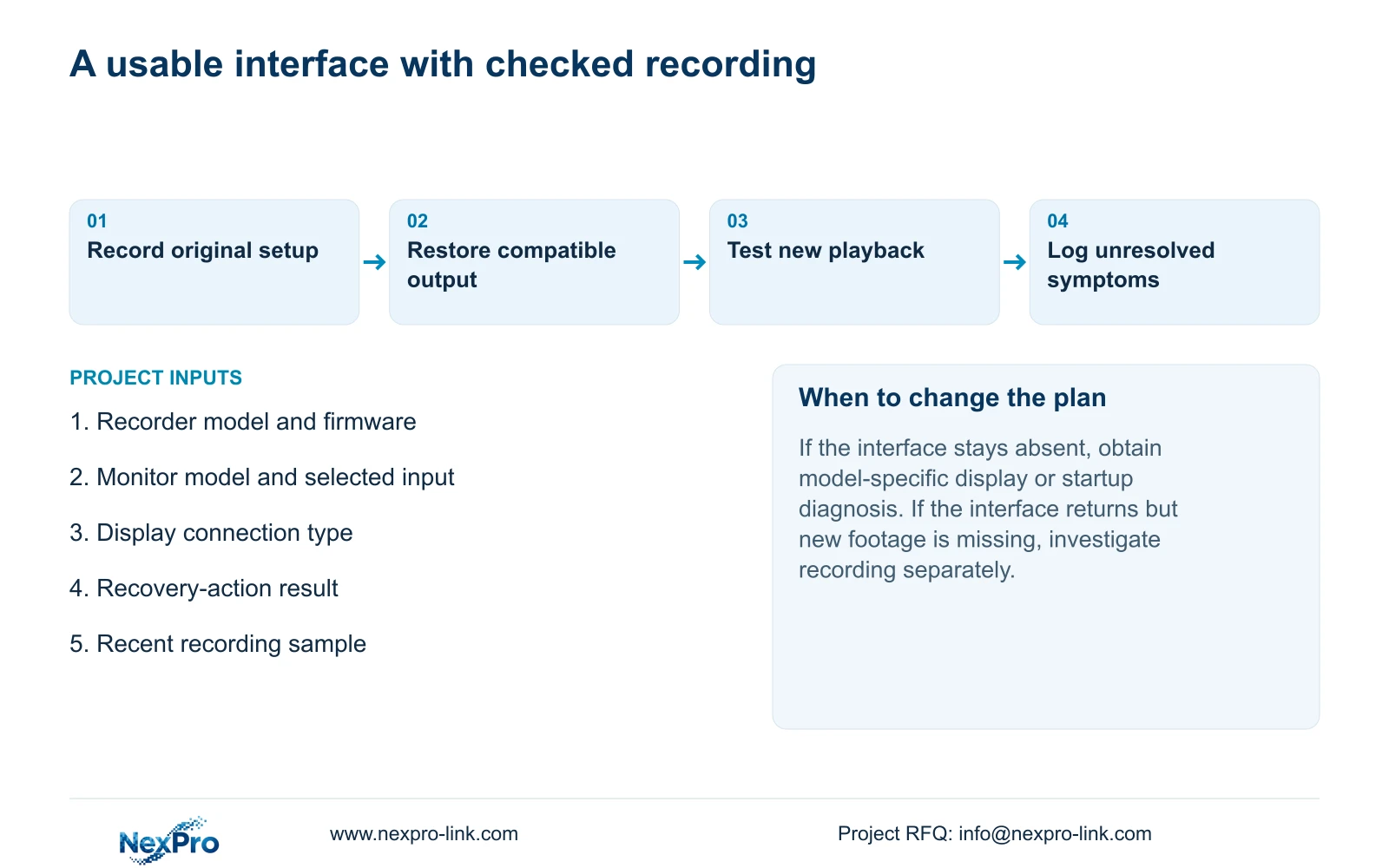
Illustrative project scenario: A replacement office monitor cannot display the NVR interface after the previous monitor was removed. The engineer checks the supply identity and selected input, confirms the connection, then uses supported resolution recovery. If the interface returns, the remaining task is to select a compatible output mode and verify recent footage. If it remains absent, the recorded setup supports a narrower diagnosis without resetting the recording configuration.
The operating source is the private NVR4.0 user manual CH_V2.4.doc, whose body identifies V2.2. Sections 2.1, 3.1, 3.3, 4.8, 4.12.1, 4.12.18 and 5.3 support this sequence; section references take priority over page numbers. Post-change footage checks are engineering verification steps.
Section 08
Does the mouse action reset passwords or network settings?
The documented action selects 1024×768 display output. It is a resolution-recovery function, separate from simple or complete factory restoration. Confirm that the actual firmware supports it.
Section 09
Does no signal mean the recorder needs replacing?
No. First resolve the power, input, connection and output-mode checks. Replacement becomes a separate equipment decision only after the observed fault and applicable support path are established.
Section 10
Provide the unresolved display condition
Send the recorder model and firmware, replacement monitor model, connection type and resolution-recovery result to info@nexpro-link.com for a focused NexPro-Link support discussion.
Engineering references
These sources support the general planning principles. Always use the selected product's current datasheet and applicable project standards for final design.


