

A motorized lens changes optical framing, PTZ moves a supported camera, and digital zoom enlarges existing pixels. Choose the control by the entrance task and verify the actual recording.
Section 01
Choose the control for the entrance task
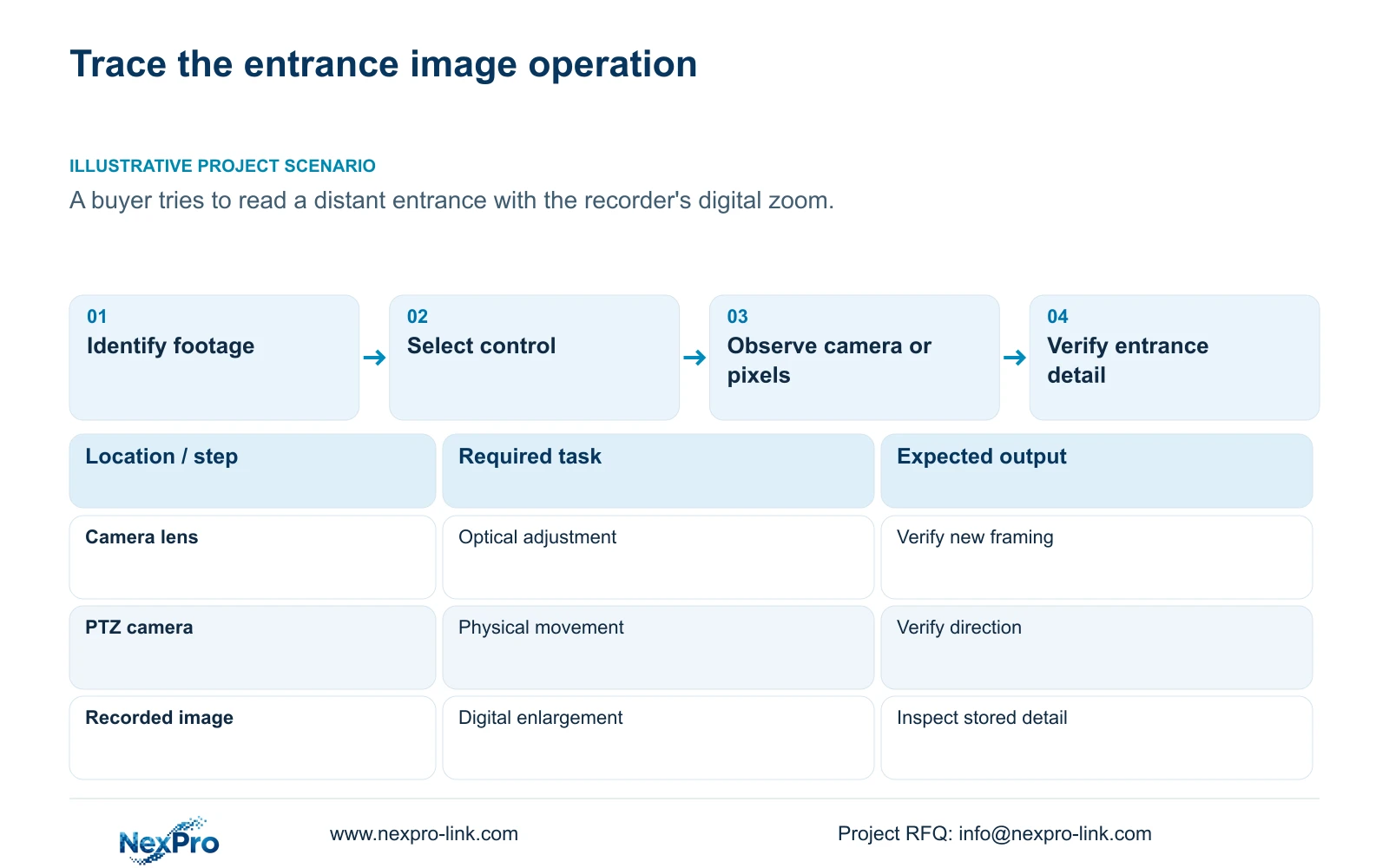
Use motorized optical adjustment when the camera must capture a different framing for future recordings, supported PTZ movement when its viewing direction must change, and digital zoom when examining detail already present in an image. A recorder's digital zoom button cannot recover entrance detail that the camera never captured. First decide whether the problem concerns an existing incident or the view required from now on. Then compare the original recording at an appropriate aspect ratio, identify the camera's actual movement and lens capabilities, and test the requested command through the selected recorder connection. A fixed motorized-varifocal camera can offer lens adjustment without pan or tilt.
For an existing incident, preserve the original segment and inspect a recognizable target within it. For future coverage, define what must be readable and what surrounding area must remain visible. These lead to different actions: enlarging a recorded region helps inspection, while changing optical framing changes the camera's subsequent view.
The operating source is the private supplied NVR4.0 user manual CH_V2.4.doc, whose body identifies V2.2. Relevant sections are 4.4.3, 4.10, 4.5, 4.7, 4.11.3 and 4.12.19. Section references take priority over document page numbers. Its TS model identities have no established mapping to NexPro-Link commercial SKUs.
Section 02
Separate camera direction from lens adjustment
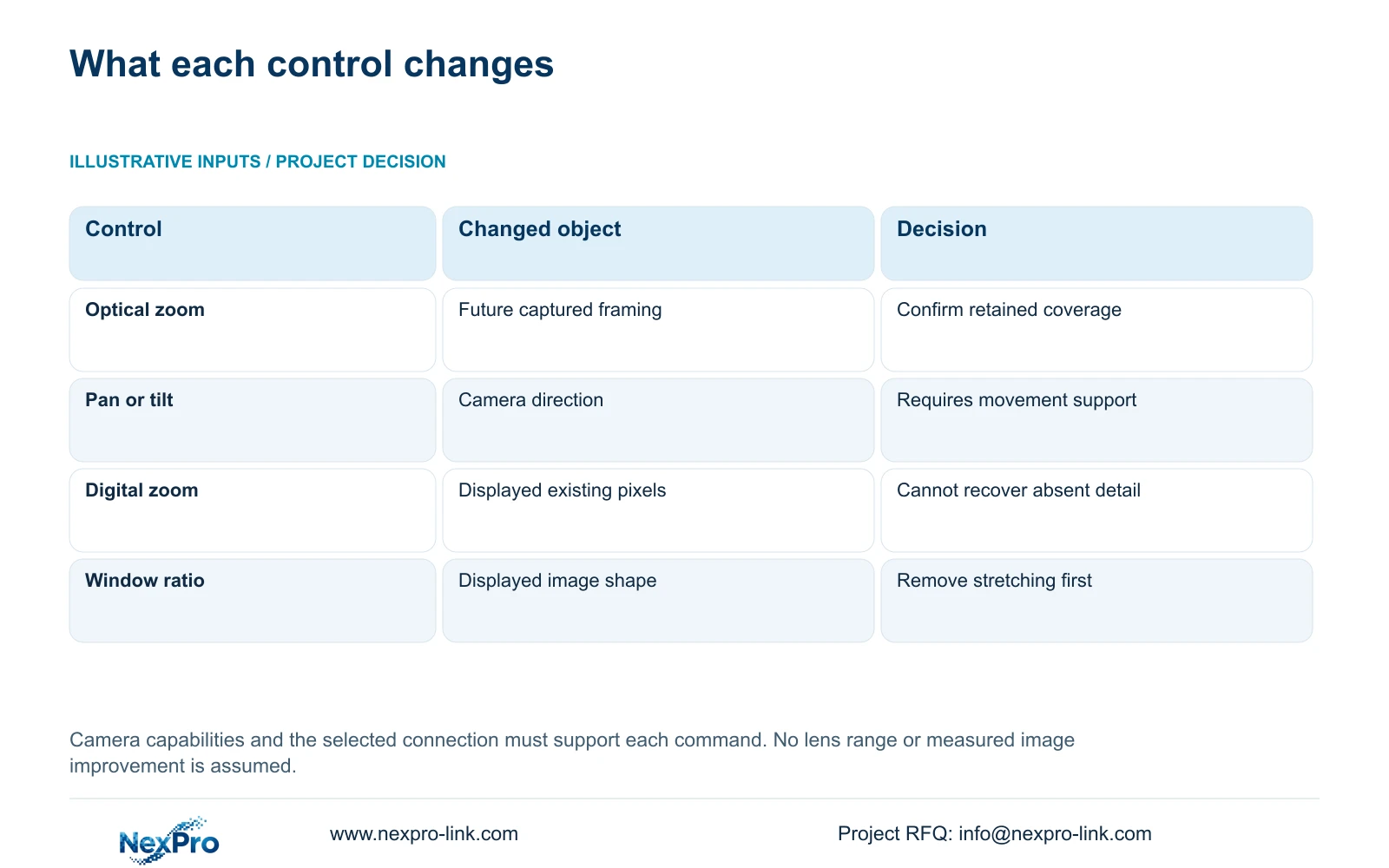
Pan and tilt change where a camera points. Optical zoom changes framing through the lens, and focus controls image sharpness at the selected setting. The manual's PTZ section explicitly requires an IPC that supports the relevant configuration. A shared control panel does not supply movement hardware to a fixed camera.
Identify the proposed operation before pressing a control. If the entrance sits outside the current view, a narrower lens setting will not establish the missing viewing direction. If it is already visible but occupies too little of the frame, supported optical adjustment may be relevant, provided the narrower view preserves the required coverage.
Observe the actual scene after each supported adjustment. Check that the target remains visible, focus is suitable, and nearby areas needed for the task have not disappeared. Evaluate relevant movement and lighting, including day and night conditions, before accepting the new framing.
| Required result | Relevant control | Verification |
|---|---|---|
| Inspect an existing entrance recording | Digital enlargement | Compare the enlarged region with the original file; no new captured detail is created. |
| Change future entrance framing | Supported optical zoom and focus | Check target readability and the coverage retained in new footage. |
| Look in another direction | Supported pan or tilt | Confirm physical movement on the identified camera. |
| Correct a stretched display | Appropriate window ratio | Check the same target without distortion before judging the lens. |
Section 03
Inspect recorded detail without stretching it
The manual describes layout, playback ratio and electronic enlargement separately. Start with an appropriate image ratio and the same recorded segment. Stretching a window changes the shape of displayed objects; it does not establish additional source detail. Digital enlargement presents a smaller region more prominently but remains limited by the pixels already stored.
Compare a fixed target in the original view and enlarged view. Ask whether the feature needed for the incident task is genuinely distinguishable, rather than whether it simply looks larger. If the required detail is absent, record that limitation for future camera planning instead of treating enlargement as an evidence repair.
Camera capture settings form another layer. Section 4.4.3 lists brightness, saturation, sharpness, contrast, image flips and processing modes including digital wide dynamic range, starlight and corridor mode. Change one relevant setting at a time. Their presence in the manual does not prove that every connected camera exposes them or benefits from the same preset.
Section 04
Verify commands on the selected camera connection
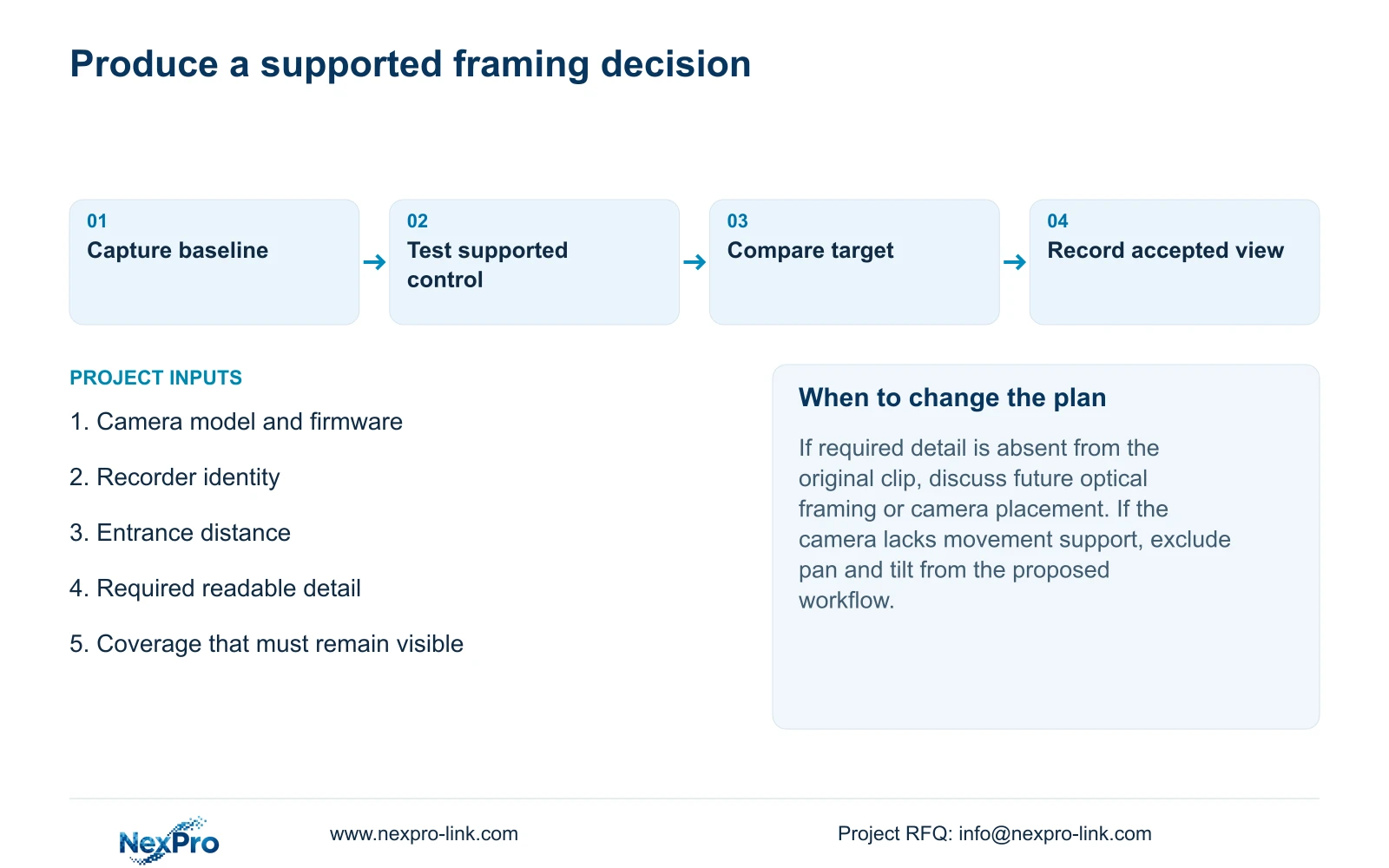
A control must be supported by the camera and exposed through the selected connection before the recorder can use it. Record the camera model and firmware, connection method, relevant account permissions and the menu being used. Test the requested lens or movement operation on that camera separately from basic live video.
If the button is unavailable, check those prerequisites before declaring a hardware failure. If it accepts an action but nothing changes, distinguish a command that the camera does not support from a supported command whose result is unclear. Avoid changing several settings together, because that removes the comparison needed to understand the outcome.
An ONVIF label does not establish universal command interoperability. The public ONVIF Profiles reference provides a framework for discussing function scope; the actual camera, recorder and operation still need matching evidence. Do not invent a third-party menu path when the supplied documentation does not describe one.
Section 05
Record the equipment and scene geometry
Section 4.12.19 describes recorder basic information. Keep the product model, hardware version, software version and software date with the affected channel. Add the camera identity, distance to the entrance, required target detail and area that must remain visible. These connect a control complaint to a useful framing decision.
Keep the original recording profile distinct from the display layout used during inspection. A full-screen view, stretched window and cropped enlargement may look different while using the same source material. Redact cloud identifiers, QR codes and identifiable customer content from screenshots shared publicly; private service records can hold appropriate equipment references.
Illustrative project scenario: A buyer wants to read a distant entrance more clearly using a recorder's digital zoom button. The engineer first examines the original clip. If enlargement reveals usable stored detail, the immediate review can proceed. If it does not, the next design discussion concerns camera position, optical framing and required coverage for future recordings.
Section 06
Turn the viewing result into a camera requirement
Retain the current arrangement when the recorded view meets the agreed task. Where a supported lens adjustment is sufficient, document the accepted framing and control path. Where the entrance needs a different viewing direction or additional continuous coverage, describe that requirement before selecting equipment.
NexPro-Link's project supply discussion can use this scoped requirement for model matching. Keep lens adjustment, movement and digital inspection as separate acceptance items so a substitution cannot satisfy the specification merely by mentioning zoom.
Section 07
Can a fixed motorized camera pan through the NVR?
Only if the actual camera has supported pan capability. A motorized-varifocal lens alone establishes neither pan nor tilt, even when the recorder displays directional controls.
Section 08
Will optical adjustment improve an older recording?
No. It changes subsequent capture. Inspect older footage using its existing pixels and preserve the original segment when assessing whether the required detail is available.
Section 09
Discuss the required entrance view
Send NexPro-Link the camera and recorder identities, entrance distance and required readable detail at info@nexpro-link.com for a focused lens and control discussion.
Engineering references
These sources support the general planning principles. Always use the selected product's current datasheet and applicable project standards for final design.


