Different cameras can expose different controls in the same NVR menu. Identify the operation, capability, account and connection before changing the system.
Section 01
Identify the camera operation behind the unavailable control
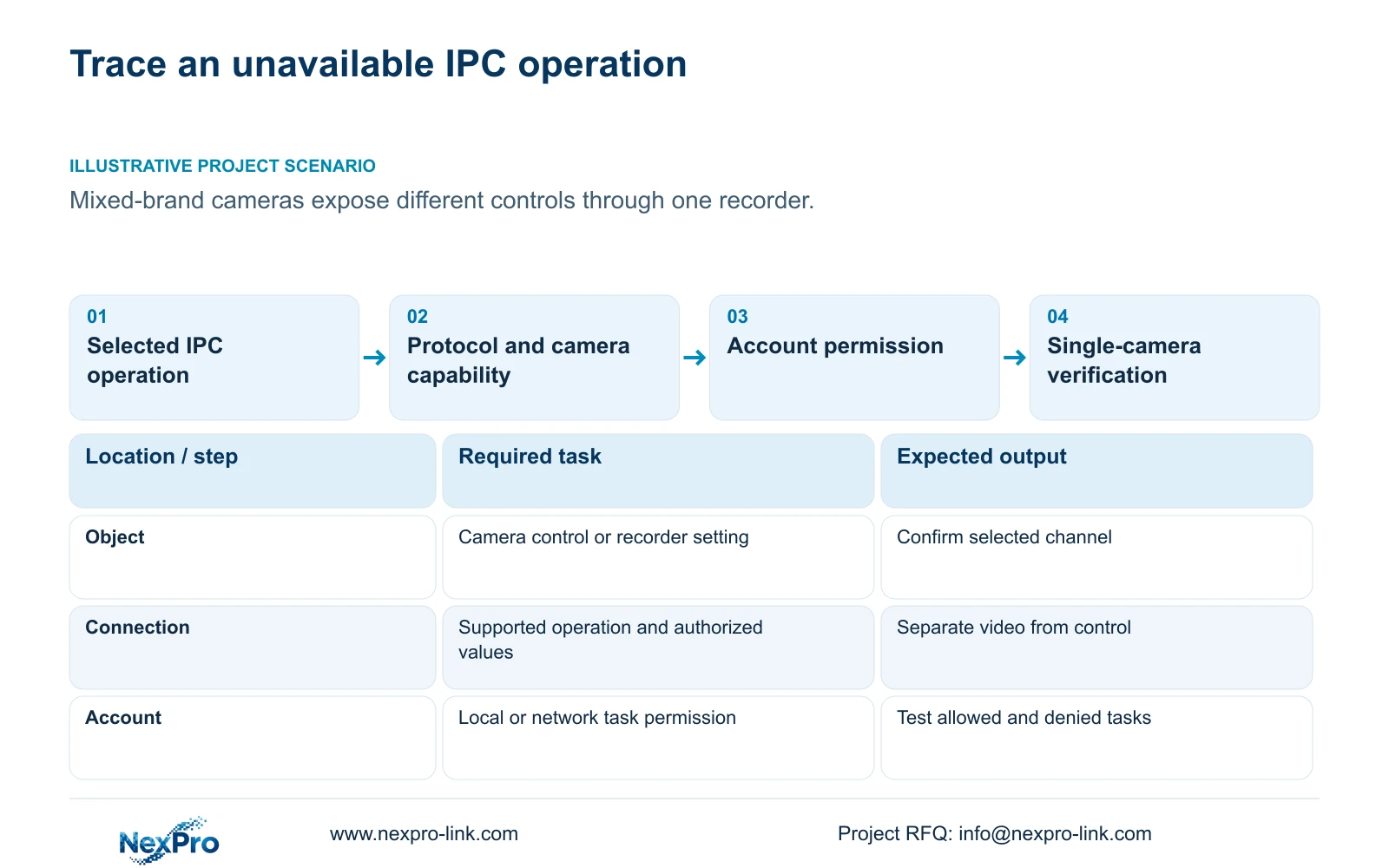
When an IPC setting is greyed out, identify the selected camera, the exact operation and the menu layer before diagnosing hardware or changing firmware. The recorder can perform only an operation that the camera and selected connection expose and accept, subject to relevant permissions. In a mixed-brand installation, different available controls can therefore require different explanations. Check the recorder's model limits, collect both device identities, and test the intended account and connection on one affected channel. If a supported correction restores the operation, verify recording and other required tasks before applying it elsewhere. A live picture alone does not establish full camera-control compatibility.
Determine whether the requested action belongs to the front-end camera or the recorder. IPC capture and PTZ operations depend on camera capabilities; recorder output settings operate at another layer. Confirm the physical camera location and selected channel so a menu selection error does not become an equipment replacement decision.
Sections 4.4 and 4.10 describe capability dependencies, with explicit prerequisites for PTZ. Compare the requested operation with the selected camera's supported scope. If that operation is absent, preserve the working video connection and obtain applicable capability information.
Section 02
Read the model limits before interpreting a shared menu
The manual's family includes TS8104A3, TS8108A3, TS8216A3, TS8232C4, TS8108D7, TS8116D7, TS8836M and TS8436M. Sections 1.2 and 5.2 separate series descriptions from model-specific specifications. A common NVR4.0 interface does not establish identical decoding, audio or playback functions.
Check the requested camera operation against the installed model, firmware and connection method. A decoding or playback limit concerns a different task and cannot establish whether this camera exposes a particular image control.
The manual establishes no mapping from its TS model codes to NexPro-Link commercial SKUs. Obtain operation-specific evidence for the actual device pair rather than transferring a family-level feature into the installation.
Section 03
Capture the recorder and camera identities
Use System Information or the basic information screen described in section 4.12.19 to record the recorder's product model, hardware version, software version and software date or release information. Transcribe the values exactly. The manual's version label is not the installed firmware identity.
Record the affected camera model and firmware alongside its channel, location and symptom time. Add the menu layer and requested action. In a mixed group, compare those details with a working camera only where the comparison helps isolate a meaningful difference.
Keep serial references in an appropriate private service record. Redact cloud identifiers, QR codes, credentials and identifiable site content from public screenshots. A newer software label does not establish that the operation is supported or that the complaint has been resolved.
Section 04
Test the intended account on the intended access path
Section 4.12.3 separates local and network permissions, including preview, playback, system settings and PTZ. Local recording backup is another distinct permission. Identify both the access path and the task being attempted before comparing account behavior.
Ask the authorized administrator to check the applicable role. Test an operation that should be allowed and one that should remain denied. If the requested control works for an appropriately authorized account but not the operator, resolve the role assignment according to the site's access policy.
Do not infer remote playback rights from successful local preview, or widen every permission to make one field available. The manual's remote-upgrade row contains inconsistent descriptive text, apparently repeated from PTZ. Its wording cannot establish actual upgrade permission behavior and should not guide this diagnosis.
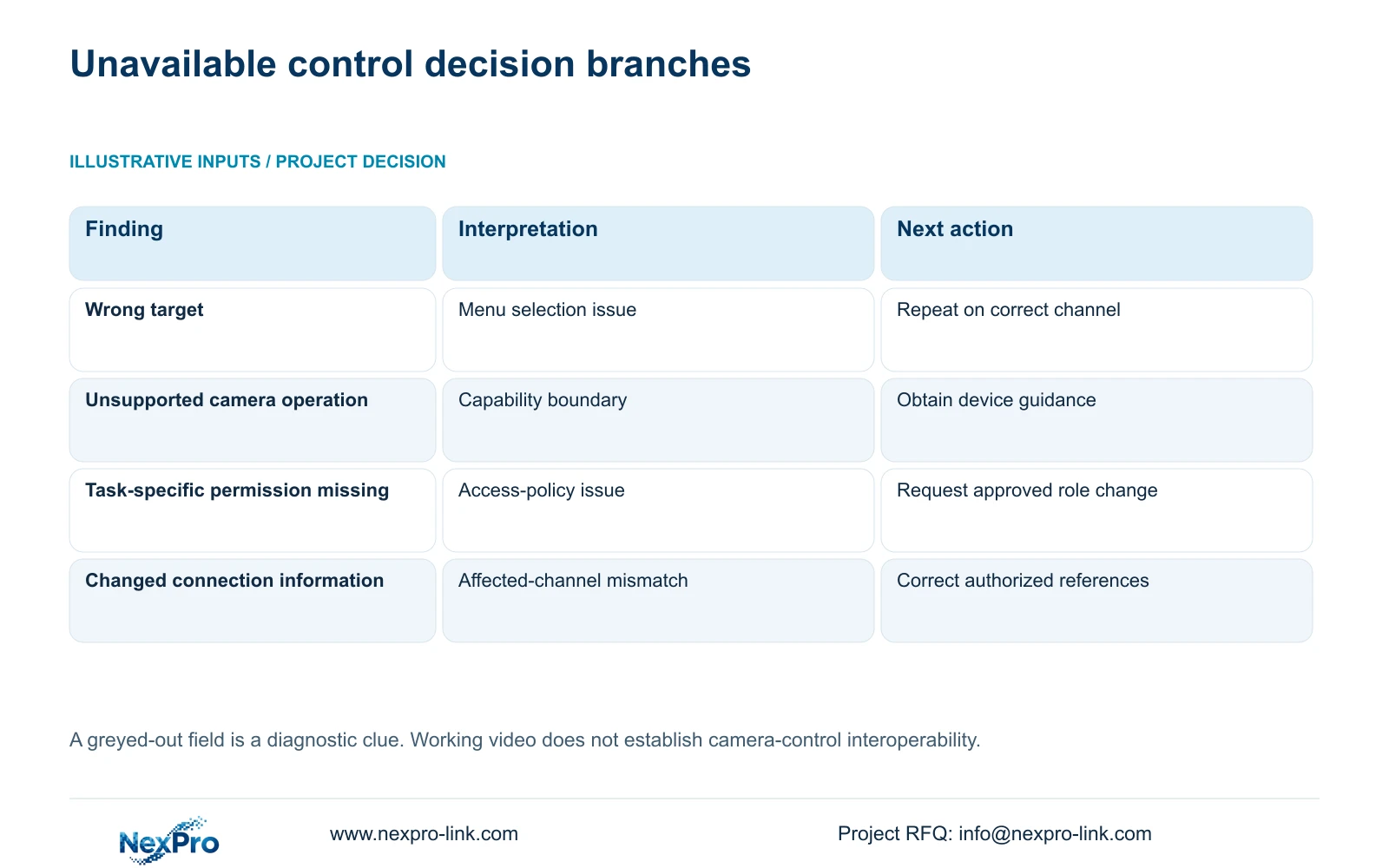
| Observation | Check | Next action |
|---|---|---|
| Wrong channel or menu layer selected | Camera location and operation object | Select the correct target; repeat the task |
| Camera does not expose the operation | Model and connection capability | Obtain applicable instructions; preserve working video |
| Authorized account works; operator does not | Task-specific permission on that path | Request the approved role correction |
| Camera connection details changed | Affected channel's current authorized values | Correct only that channel and retest |
Section 05
Check protocol and authorized connection information
Section 4.3.1 describes editing a device's connection fields, including protocol, username and password. Confirm the selected camera's current authorized address and credentials before correcting the affected channel. Keep sensitive values in a controlled record rather than a public troubleshooting example.
If the camera's address or password changed earlier, synchronize the corresponding recorder connection information while preserving its physical identity and location mapping. Editing a connection reference is different from changing the camera's IP address. Any actual IP change requires authority, preservation of relevant records and planning for interruption.
Do not reset the whole recorder to repair one camera connection. Protocol selection must match supported operation, not merely produce a familiar menu. ONVIF profile information helps frame capability questions, but basic streaming does not prove that every configuration or event function interoperates.
Section 06
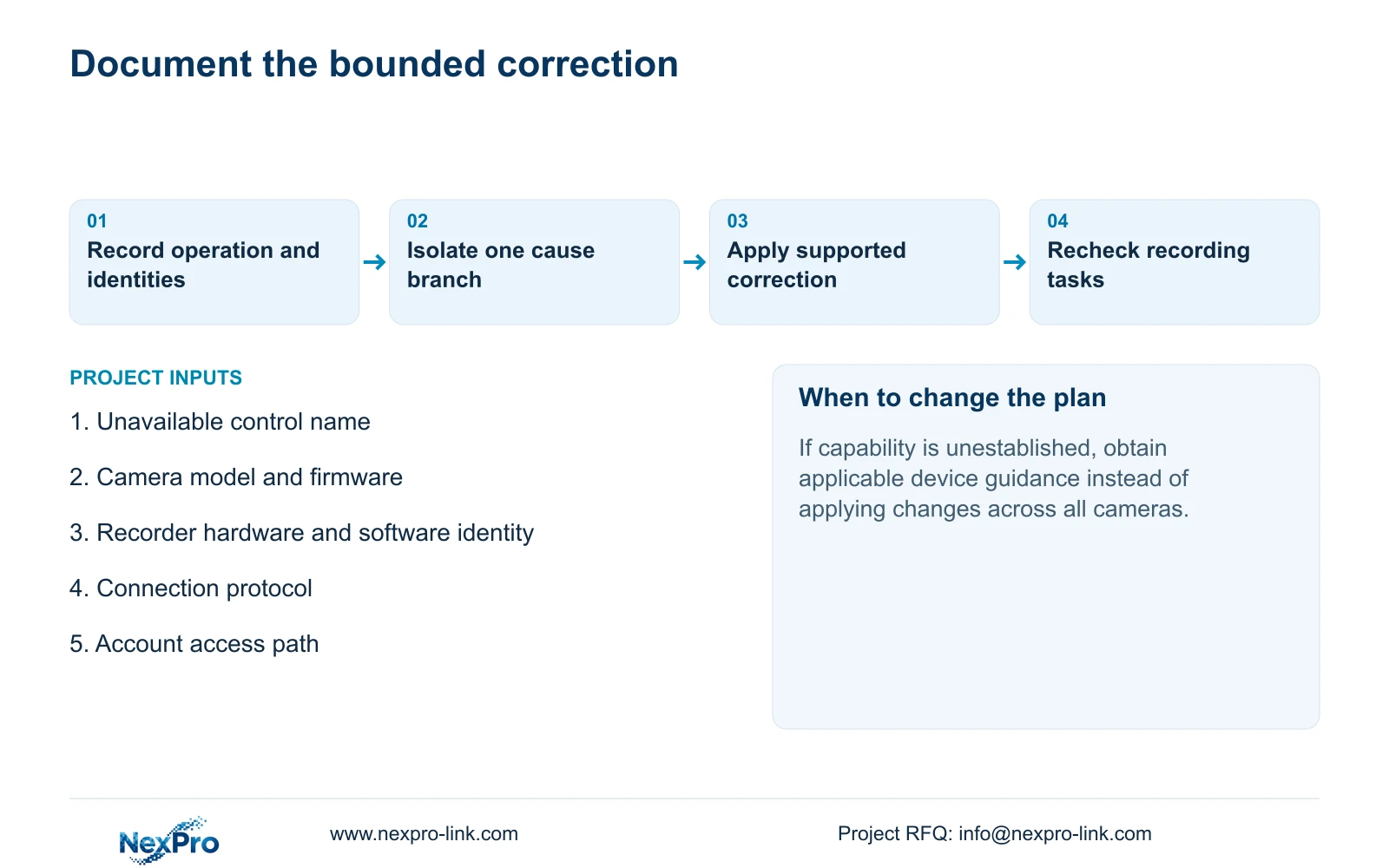
Validate one correction before expanding it
Repeat the original operation on the affected camera and verify its actual effect. Then check live view, correct time, newly produced recording, relevant older footage and export. Test the intended accounts and any required events so a recovered control does not conceal another failed task.
Illustrative project scenario: A mixed-brand camera group shows different available controls in the same recorder menu. The engineer compares operation-specific capability, device identities, permissions and protocol on one affected channel. A correction is extended only to cameras sharing the relevant conditions, without assuming every difference indicates damage.
Record the changed variable and failed checks. If the operation remains unsupported or uncertain, obtain the corresponding device guidance before broader changes. A firmware upgrade is not the default next step; any supported upgrade requires authorization, preservation of relevant data and an interruption plan. Automatic rollback is not established.
Section 07
Manual identity and diagnostic scope
The supplied private source is NVR4.0 user manual CH_V2.4.doc, with V2.2 in its body. This guide uses sections 1.2, 5.2, 4.4, 4.10, 4.12.19, 4.12.3 and 4.3.1, with validation context from 4.11 and 4.12.17 through 4.12.20. Section references take priority over page numbers.
Section 08
Does working video prove the control should work?
No. Streaming and the requested camera operation require separate verification through the selected connection.
Section 09
Should a greyed-out field trigger camera replacement?
Not by itself. First establish the operation object, supported capability, permission and connection state.
Section 10
Identify the unavailable operation
Send NexPro-Link the unavailable control name, camera and recorder identities, connection protocol and access path at info@nexpro-link.com.
Engineering references
These sources support the general planning principles. Always use the selected product's current datasheet and applicable project standards for final design.