

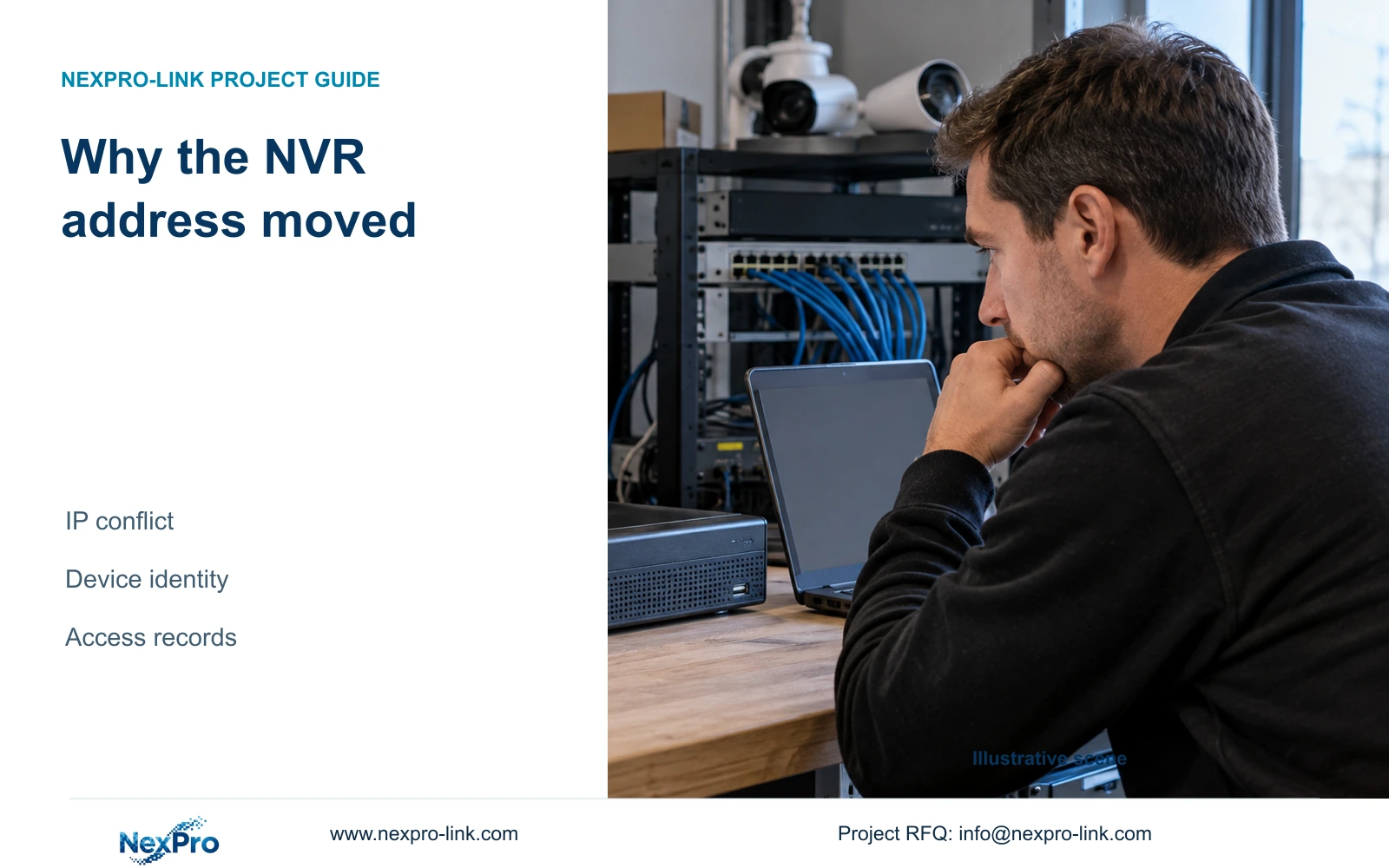
When a recorder disappears from its previous IP, confirm its current address and physical identity before changing cameras or treating lost PC access as lost recording.
Section 01
Confirm whether the recorder itself changed address
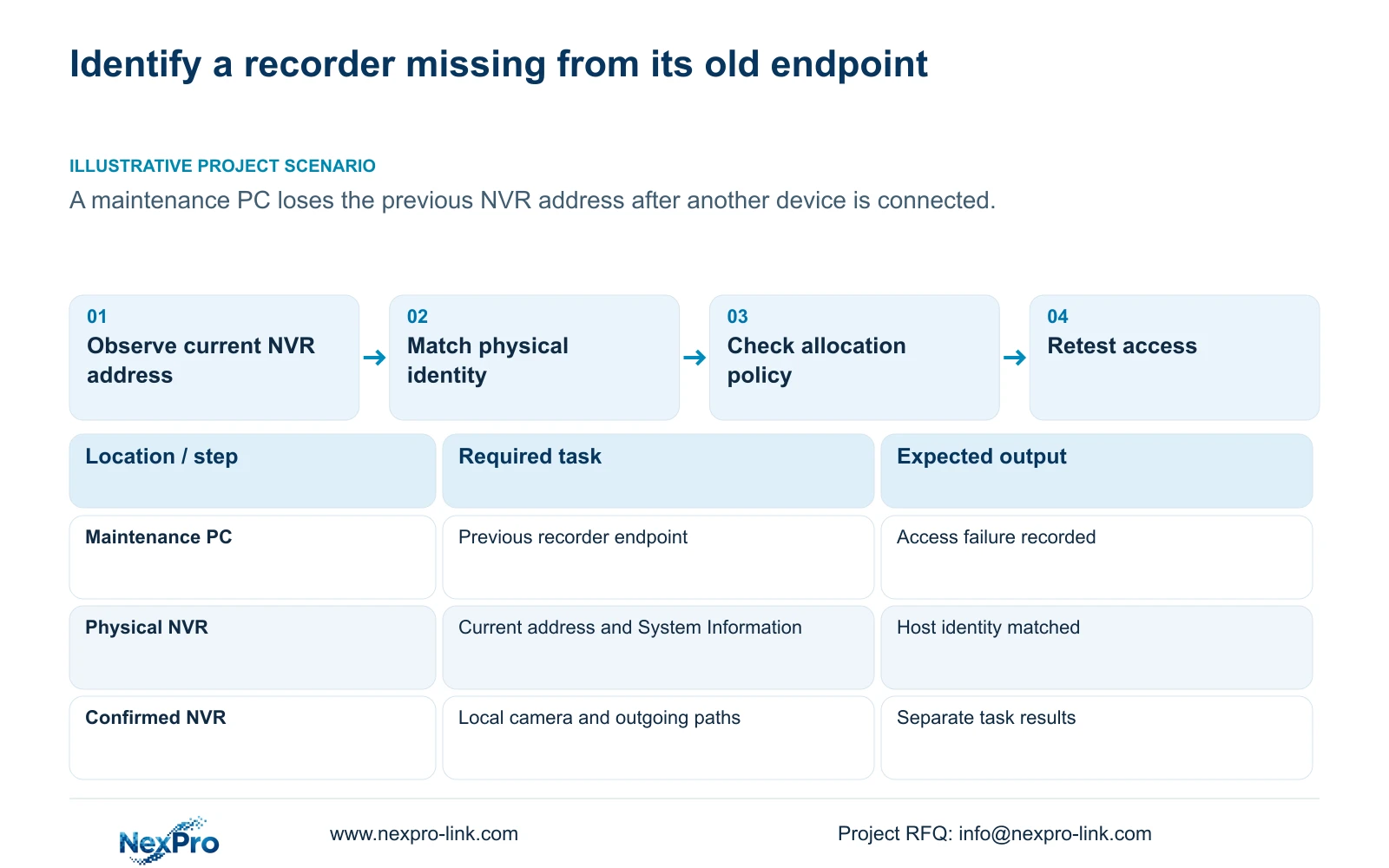
An NVR can move from its previous IP when the supplied manual's conflict adaptation setting is enabled and an address conflict occurs. Confirm the recorder's current address and identity before changing camera settings. A maintenance PC losing access to an old endpoint does not establish that the recorder stopped recording, nor does it prove that conflict adaptation caused the symptom. Check the selected address method and conflict policy, compare the current values with the site record, and ask IT to investigate the competing allocation. Update dependent access records only after identifying the correct recorder, then verify local camera operation and remote access independently.
The source is the private supplied NVR4.0 user manual CH_V2.4.doc, whose body identifies V2.2. Section 4.12.8 describes the recorder's conflict response and addressing options. Match the actual model and firmware and use section references before page numbers.
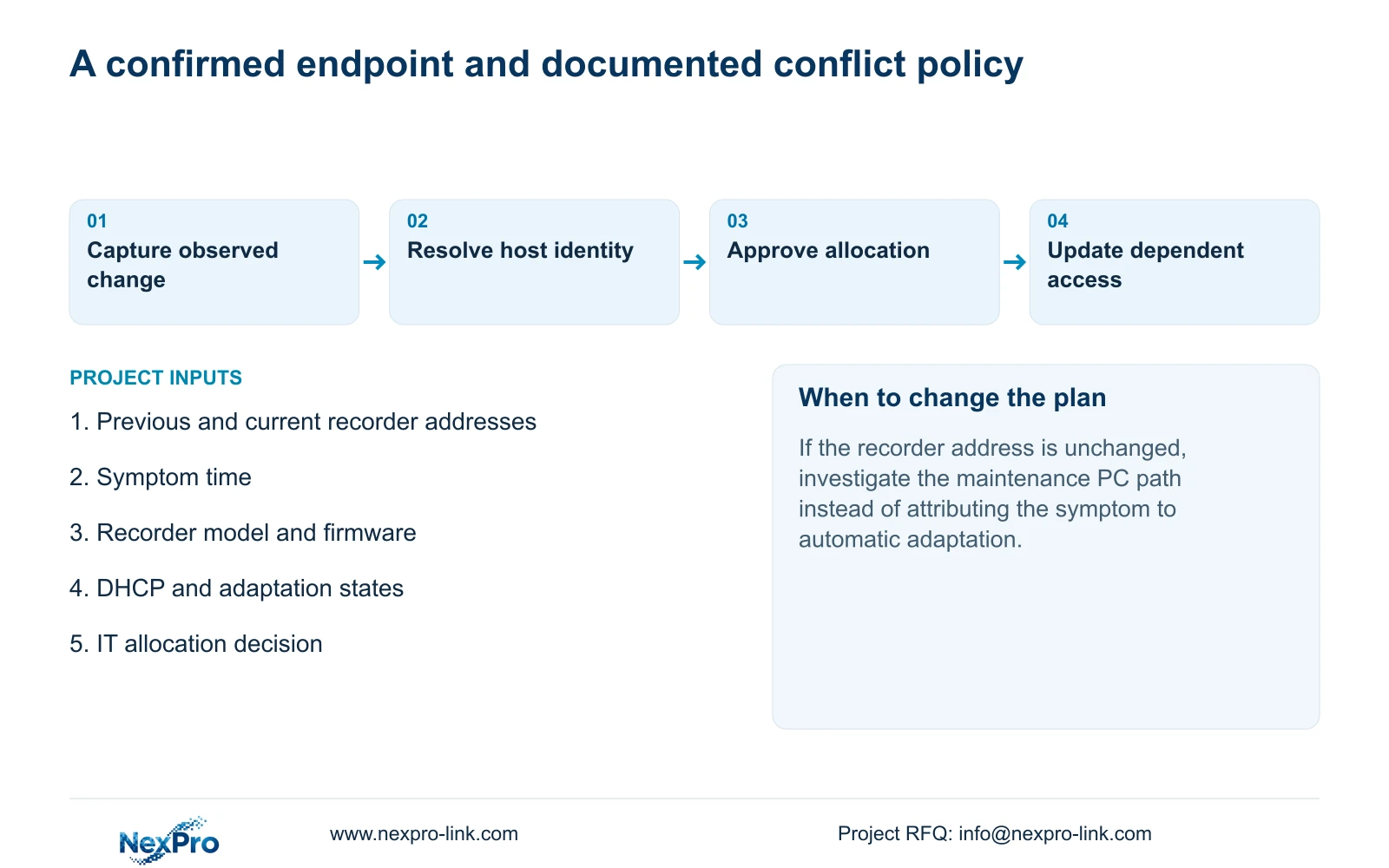
Use authorized local access to compare the actual recorder address with the previous record. If it is unchanged, the address-movement hypothesis is unconfirmed; investigate the PC's intended access path. If it differs, preserve the observation and current settings before applying a new address. Keep the time of the symptom alongside the change record.
Section 02
Establish where the address came from
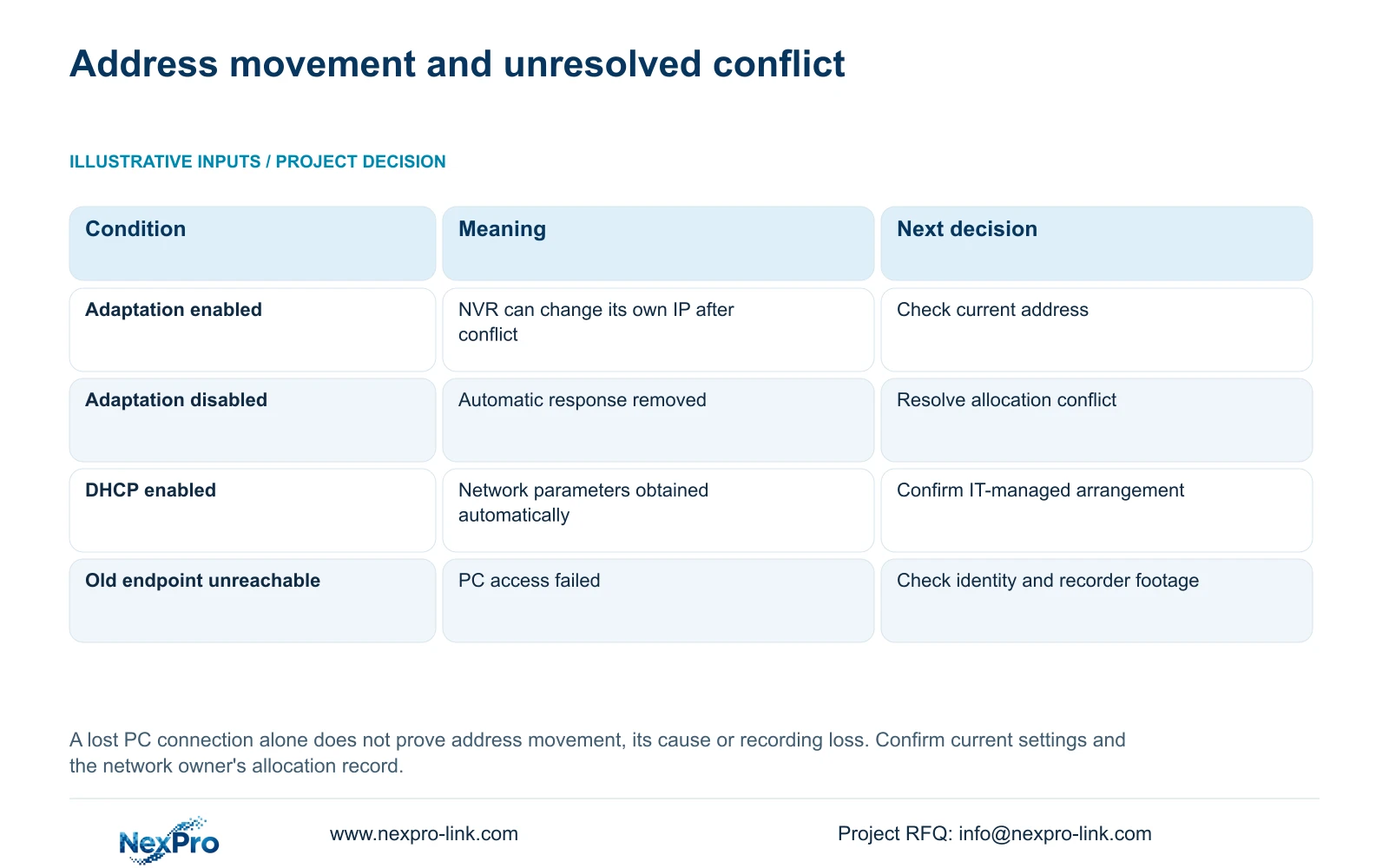
Inspect DHCP and the conflict adaptation state as separate settings. The manual states that DHCP obtains network parameters automatically and prevents manual editing of those fields while enabled. A changed address alone cannot identify which management mechanism was involved. Ask the network owner to compare the approved allocation with the recorder's current configuration.
For a static plan, obtain the approved IP, mask, gateway and DNS from IT. A reservation, if proposed, is a network-side management option; the evidence does not establish a reservation server in the NVR. Record who owns the allocation and who can amend it.
Before changing the recorder address, obtain authorization, preserve the configuration and relevant footage, and arrange any interruption. Do not force the previous address back merely because it appears in an old bookmark. IT needs to resolve whether that address is still available and approved.
| Observation | Interpretation | Next action |
|---|---|---|
| Recorder address is unchanged | Automatic movement is not established | Investigate the maintenance PC's approved path. |
| Recorder address differs; adaptation enabled | Conflict response is a possible explanation | Compare allocation records and investigate the competing device. |
| DHCP enabled; manual fields unavailable | Automatic parameter management applies | Ask IT to confirm the address-management arrangement. |
| Adaptation disabled; conflict remains | Automatic response was removed | Resolve the duplicate allocation through the network owner. |
Section 03
Identify the correct host before updating endpoints
Section 4.12.19 provides System Information, including product model, hardware version, software version and release information. Use those details to match the accessible recorder with the installation record. Where several recorders share a similar interface, a familiar screen is insufficient identification.
Keep serial information in the appropriate private service record. Redact cloud identifiers, QR codes and identifiable site content from screenshots shared publicly. The purpose of collecting version information is to select the applicable instructions, not to declare the fault solved because a version label looks recent.
If the identity cannot be reconciled with the asset register, pause endpoint updates. First establish which physical recorder serves the affected camera group. Otherwise the maintenance PC may be redirected to a different host while the original recorder remains unresolved.
Section 04
Update access records without rewriting the camera map
After confirming the host, update the recorder's current endpoint wherever the approved maintenance workflow uses it. Keep the former address in the change history with the symptom time and responsible person. This preserves the explanation for why an existing access record no longer matches.
Keep camera IP, physical camera identity, drawing location, NVR channel and displayed name separate. Sections 4.3.1, 4.4.4 and 4.12.6 support device and naming controls, while the project must maintain the relationship. A recorder address change does not itself establish that camera addresses or locations changed.
Check each affected channel against the existing map before editing it. If the view and physical identity still agree, preserve that mapping. If a replacement or reordering is found, record it separately so incident footage remains attributable to the correct location.
Section 05
Retest camera operation and outgoing access
Verify current live view and newly produced recorder footage, then test the maintenance PC against the confirmed endpoint. Record these outcomes separately. Recovering PC access alone cannot demonstrate recording continuity across the reported period; inspect relevant footage directly.
Next check the selected default route, gateway and DNS. Local camera traffic can use a different path from the recorder's internet or cloud connection. Section 4.3.3.2 supplies the remote-network diagnostic for that outgoing situation. Check activation and account authorization where required.
If local access passes but remote viewing fails, retain the confirmed local settings while investigating the outgoing dependency. Avoid exposing public ports as a substitute for identifying the failed path. Preserve the observation that remains unresolved and its test time.
Section 06
Choose the future conflict response with its side effects
Disabling conflict adaptation prevents the automatic response described in the manual. It does not remove the duplicate allocation. Choose the future policy with IT according to how the site maintains fixed endpoints and responds to conflicts.
Read section 4.12.5 before using Disable All Intelligent Changes as a broader solution. The option stops video-management automatic addition, turns off IP-conflict adaptation, disables stream-parameter locking and prohibits recorder changes to added camera IP addresses. Those effects reach beyond the recorder's own endpoint. The option is not described as a master switch for intrusion or line-crossing analytics.
Illustrative project scenario: After another device is connected, the maintenance PC can no longer reach the recorder at its previous IP. The next evidence is the recorder's actual address and identity, followed by IT's allocation check. If a move is confirmed, update dependent records and test access. Do not claim a conflict cause or successful recovery solely from the order in which devices were connected.
Section 07
Will turning adaptation off clear the address conflict?
No. It removes the recorder's automatic address response. The network owner must still resolve the competing allocation and approve the address the recorder will use.
Section 08
Does losing the old PC connection mean recordings are missing?
That symptom concerns access to an endpoint. Check recorder footage for the relevant period before making any statement about recording continuity or loss.
Section 09
Document the suspected address movement
Send NexPro-Link a redacted before-and-after recorder address record with the symptom time and model/firmware at info@nexpro-link.com for an address-policy review.
Engineering references
These sources support the general planning principles. Always use the selected product's current datasheet and applicable project standards for final design.


