

An uncomfortable NVR interface does not necessarily mean the camera image needs correction. Identify the affected display layer before changing settings or scheduling a restart.
Section 01
Identify which part of the screen is uncomfortable
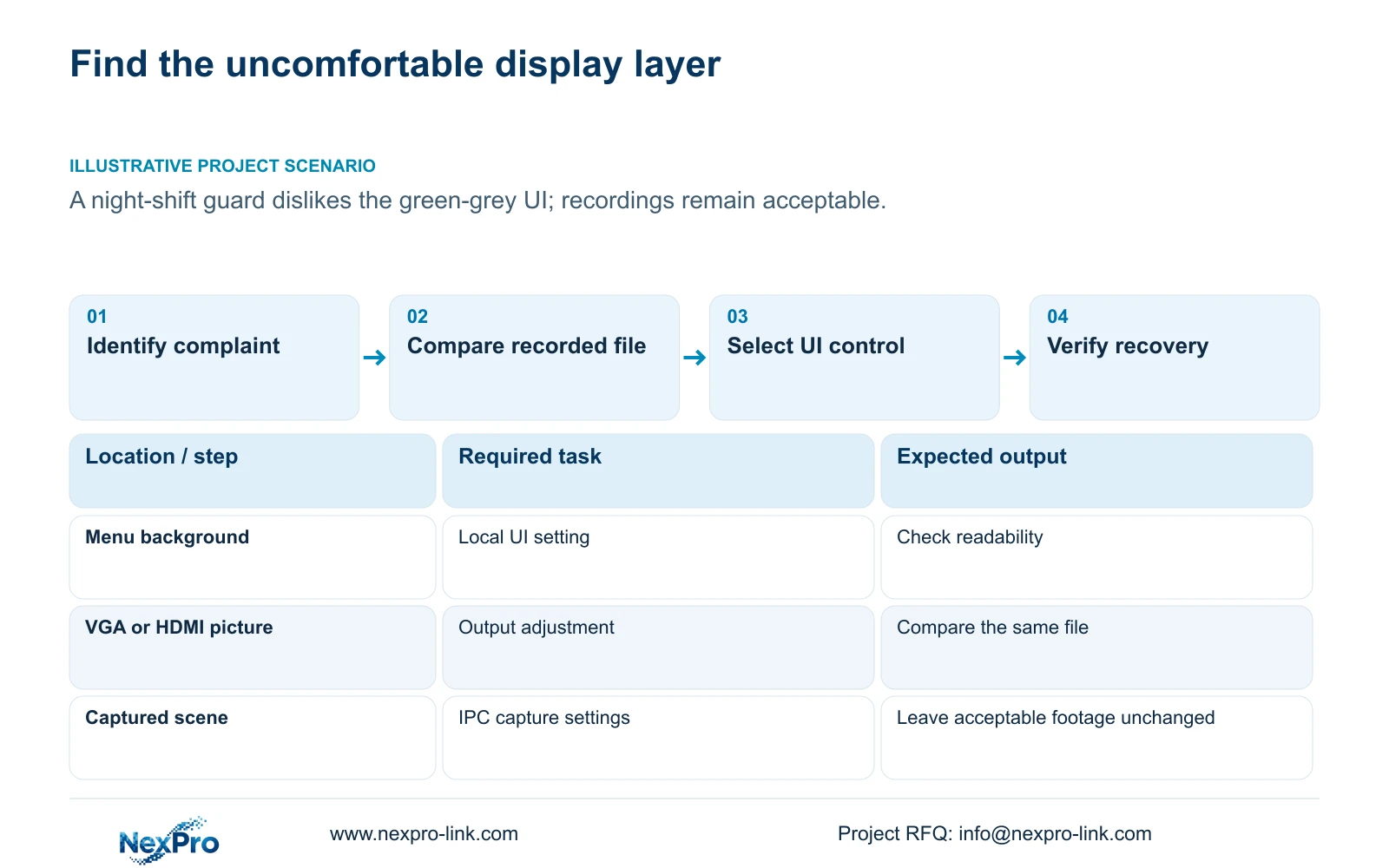
If the NVR menus are too bright or dark while recordings remain acceptable, first identify whether the complaint concerns the interface, VGA or HDMI output, or the camera's recorded scene. Compare a known recording through another suitable viewing path when video brightness is involved. Change only an interface-appearance option documented for the actual model and firmware; do not compensate by altering acceptable camera capture. Preserve the original configuration and restart only if the matching instructions require it. After any interruption, check menu readability and retrieve newly produced footage. A more comfortable screen does not establish that recording has resumed correctly.
Start by asking the operator to point to the problem. Does the background behind the controls cause discomfort, does the entire screen look wrong, or is a particular camera scene difficult to interpret? Keep that observation specific. A complaint described only as 'brightness' can otherwise lead an engineer into the wrong menu.
Section 02
Locate the applicable interface option
Record the recorder model and installed firmware, then locate a documented interface-appearance option in the matching instructions. The topic brief proposes a UI background-color change, but its exact control and restart requirement still need confirmation for the installed device. If that option is absent or cannot be matched to the device documentation, retain the existing setup and request applicable instructions rather than trying nearby controls with unrelated functions.
This guide uses the supplied private file NVR4.0 user manual CH_V2.4.doc. Its filename says V2.4, while the body headers say V2.2. Neither identifies the firmware installed on the recorder. Use section headings, including §4.12.19 for device information, rather than relying on old page numbering. The instructions concern the recorder's local interface, not a Seetong Windows client.
Section 03
Exclude a monitor-output problem
Section 4.8 describes output adjustment, while §4.4.3 describes IPC capture settings. Monitor-facing brightness and color controls affect a different layer from camera-side image processing. If menus and video both look uncomfortable, compare the same recorded segment on another suitable display or receiving system before deciding where to adjust.
Keep the comparison anchored to the same file and scene. Comparing unrelated live pictures under different lighting cannot isolate the display layer. If the recording looks acceptable elsewhere, investigate the local viewing path. If the same image problem remains across viewing paths, move to a separate camera-image investigation and leave the interface change out of that diagnosis.
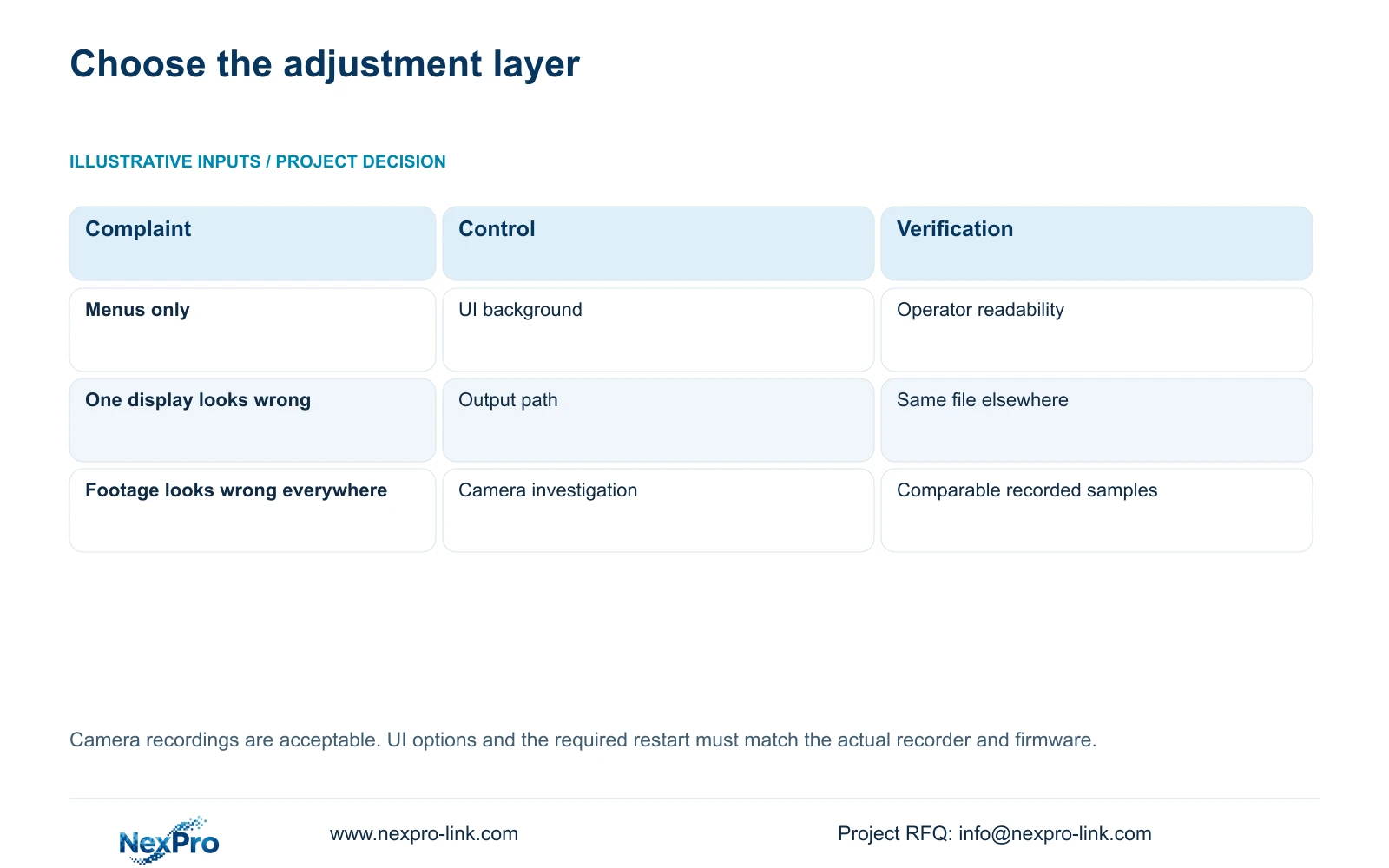
| Observation | Relevant layer | Next action |
|---|---|---|
| Menus are uncomfortable; recordings are acceptable | Local UI appearance | Check whether the matching instructions provide an appearance control; if not, stop and request guidance. |
| Menus and footage look wrong on one display | Monitor or recorder output | Compare the same file through another suitable viewing path. |
| The recorded scene looks wrong on different displays | Camera capture | Open a separate image investigation before changing capture settings. |
Section 04
Leave acceptable camera capture settings unchanged
The IPC capture menu lists brightness, saturation, sharpness, contrast, image flips, digital wide dynamic range, starlight and corridor modes. These controls are outside the scope of a menu-background complaint. Their presence in the manual also does not establish that every connected camera supports every option.
Avoid compensating for an uncomfortable interface by changing all cameras. That would introduce new variables into recordings which were already acceptable. If a genuine camera-image problem emerges, document the affected scene and evaluate one supported change against comparable day or night samples, including relevant movement. Keep that work separate from the operator's interface preference.
Section 05
Save the original state before changing appearance
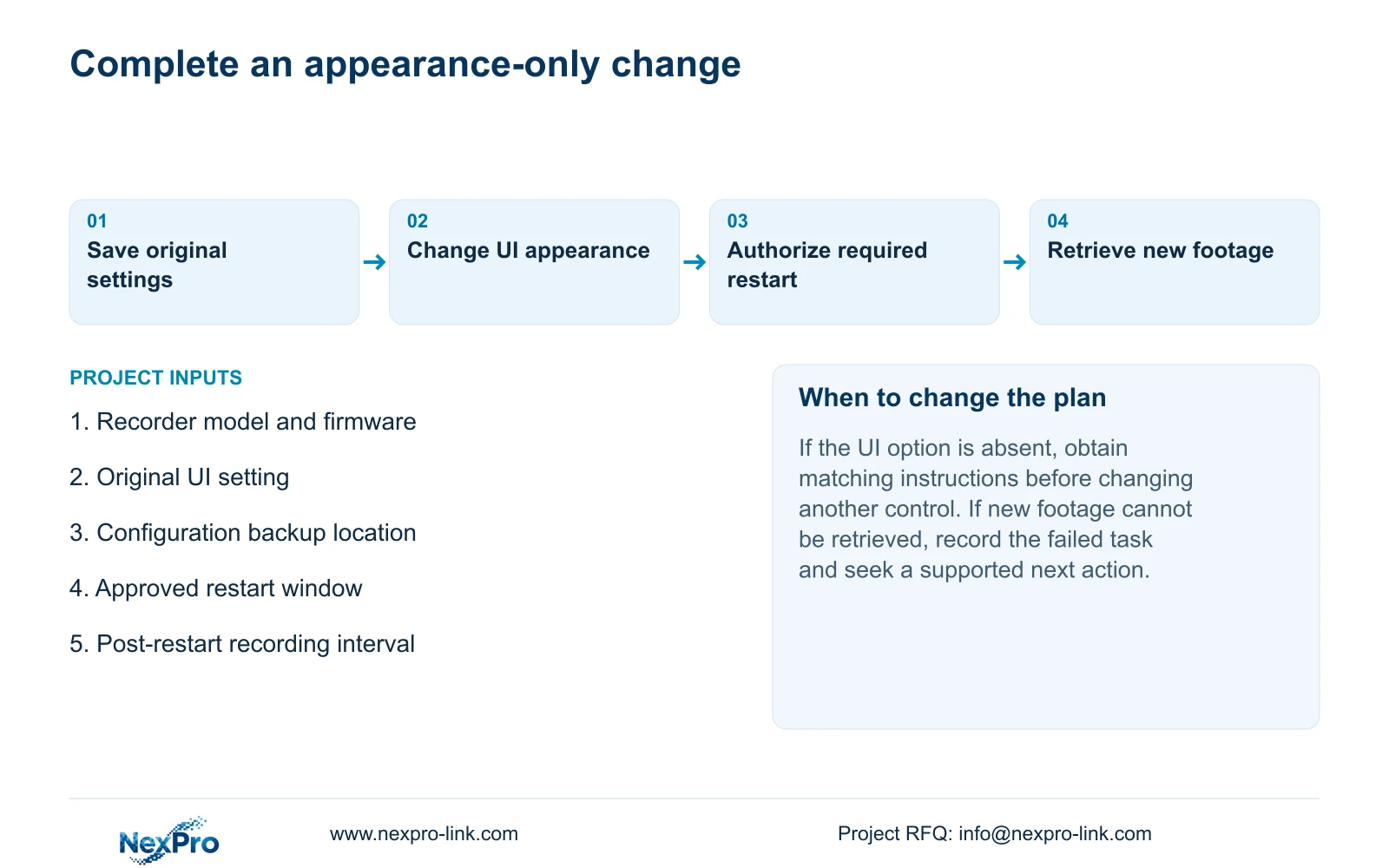
Use the configuration-export workflow in §4.12.18 to preserve the settings baseline. Name the file so its recorder and firmware context can be identified, and record the original UI choice separately. Confirm that the saved file is recognizable before relying on it for future maintenance.
Configuration export, log export and video backup are separate objects. A configuration file does not preserve incident footage or create a disk image. Where relevant footage needs protection before the planned interruption, use the video-backup workflow in §4.11.4 and verify the copy. Do not assume the settings file can be imported across different recorder models.
Section 06
Arrange the required restart and verify recovery
If the matching device instructions require a restart to apply the chosen appearance setting, obtain authority for interrupting the recorder, preserve relevant data and agree a maintenance window. Check that no active export or upgrade needs to finish first. Do not restart merely because the topic brief mentions a background-color change.
The weekly scheduled-restart option in §4.12.18 is off by default. A restart needed for this change does not justify enabling recurring reboots. Leave that maintenance choice unchanged unless there is a separate approved reason, particularly when unexplained disconnections still need investigation.
After recovery, have the guard assess the menus under the intended working conditions. Then check live view, time, newly generated footage, a relevant historical sample and an export. Verify the intended operator account and any required event task. Record the changed variable and failed checks; do not assume an automatic rollback exists if recovery is incomplete.
Section 07
Apply the change to the night-shift task
Illustrative project scenario: A night-shift guard finds the green-grey interface uncomfortable but the camera recordings are acceptable. The engineer keeps camera capture unchanged, preserves the UI baseline and first confirms that the installed recorder supports a documented appearance adjustment. Any required restart is authorized separately. Acceptance requires both a readable interface and retrievable post-interruption footage. The handover identifies the final setting and unresolved viewing complaints so the next operator does not repeat unrelated image adjustments.
Section 08
Will a UI change improve dark recorded footage?
No. Interface appearance and camera capture are separate. Compare the recording through another suitable viewing path before opening a camera-image investigation.
Section 09
Should automatic weekly restart be enabled afterward?
The manual does not require that. Keep the existing maintenance policy unless an authorized decision establishes a separate need for scheduled restart.
Section 10
Provide the affected interface layer
Send NexPro-Link the recorder model, firmware and a redacted view identifying the uncomfortable menu area at info@nexpro-link.com.
Engineering references
These sources support the general planning principles. Always use the selected product's current datasheet and applicable project standards for final design.


