

A missing Front-end Settings control can reflect the camera, connection or supported function scope. Compare the actual device combination before making recorder-wide changes.
Section 01
Compare the devices behind the two channels
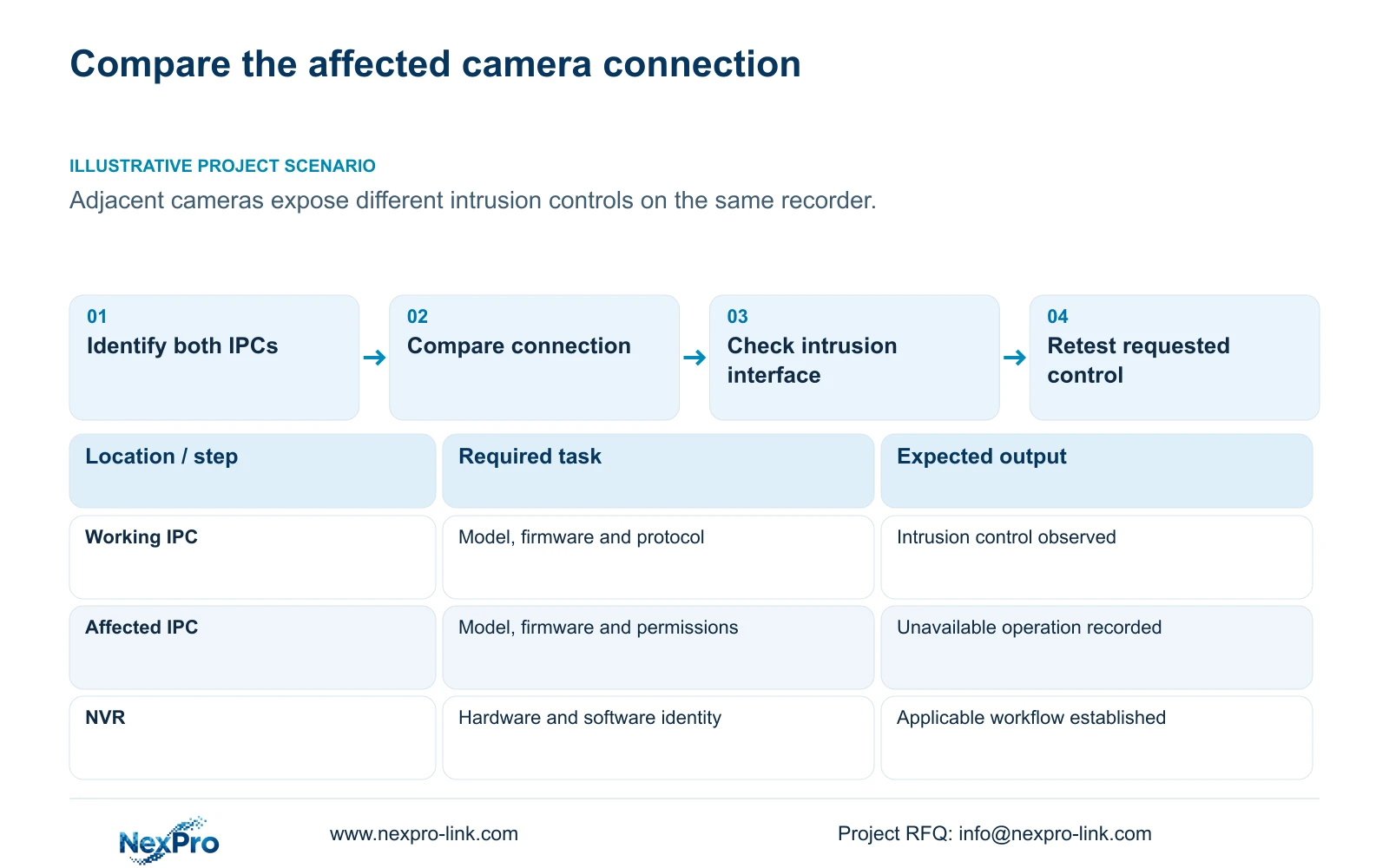
An unavailable Front-end Settings control is a reason to check the selected camera, connection mode and supported function before declaring a hardware fault. The NVR can configure only operations that the camera and connection workflow expose and accept. When one channel permits intrusion configuration and another does not, record both camera identities and firmware versions, then compare protocol and relevant permissions. Establish whether the missing operation is supported, unverified or unavailable in that configuration. Keep working video and recordings intact while investigating the specific control. A neighboring channel's menu cannot prove that the affected camera should expose the same operation.
Begin with the requested function, such as editing an intrusion region, and the exact observation: button absent, control greyed out, or a change that does not take effect. These symptoms lead to different questions. Avoid describing all three as a failed camera.
Section 02
Record the recorder and connection baseline
Section 4.12.19 identifies System Information as the source for product model, hardware version, software version and release information. Record those details with the affected channel and symptom time. Camera identity and firmware need their own entries; the NVR software version does not describe the front-end device.
Compare the working and affected channels' connection protocols and authorized account roles. Separate basic connection status from permission to change a camera setting. If live video works, record that as a successful video observation while leaving intrusion configuration unresolved. Keep identifiers and actual credentials in controlled support records. Public screenshots should omit cloud identifiers, QR codes and recognizable site material, and support notes should describe authentication status without including passwords.
Section 03
Check only the interface needed for the task
Sections 4.4 and 4.10 describe dependencies on camera capability, with PTZ providing an explicit example. Apply that distinction to the requested intrusion control: the camera must support the operation and the chosen connection must expose it. Basic video compatibility leaves this additional operation to verify.
If authorized camera connection details changed, section 4.3.1 provides the edit-device workflow for fields including protocol, username and password. Correct only the affected channel after confirming its current authorized values. Preserve the location and physical-camera mapping, then test live video, recording and relevant events again. Editing connection details is not proof that an unsupported analytics interface will appear. Do not change a working protocol merely because another camera uses it; first establish the applicable workflow and expected effect.
Section 04
Confirm the intrusion workflow's camera prerequisite
The manual's section 4.12.15 describes enabling the NVR-side function and then entering Front-end Settings to configure the IPC region or line and associated parameters. This workflow requires suitable camera event capability as well as recorder support. A checkbox on the recorder cannot make an ordinary unsupported camera perform that analysis.
Check whether the actual camera documentation and supported connection describe the requested intrusion operation. If they do, test that operation on the affected camera under the appropriate permissions and record the result. If support remains unclear, stop making speculative configuration changes and obtain the matching device guidance. ONVIF profile information can help frame the compatibility question, but a general ONVIF label does not guarantee every analytics control or third-party event path.
Section 05
Separate unknown support from confirmed limits
A shared NVR4.0 interface describes a recorder family rather than a single hardware configuration. Sections 1.2 and 5.2 provide the model scope and distinguish preview, playback, buzzer and talkback capabilities. Use the actual model and firmware when deciding whether a missing control is expected.
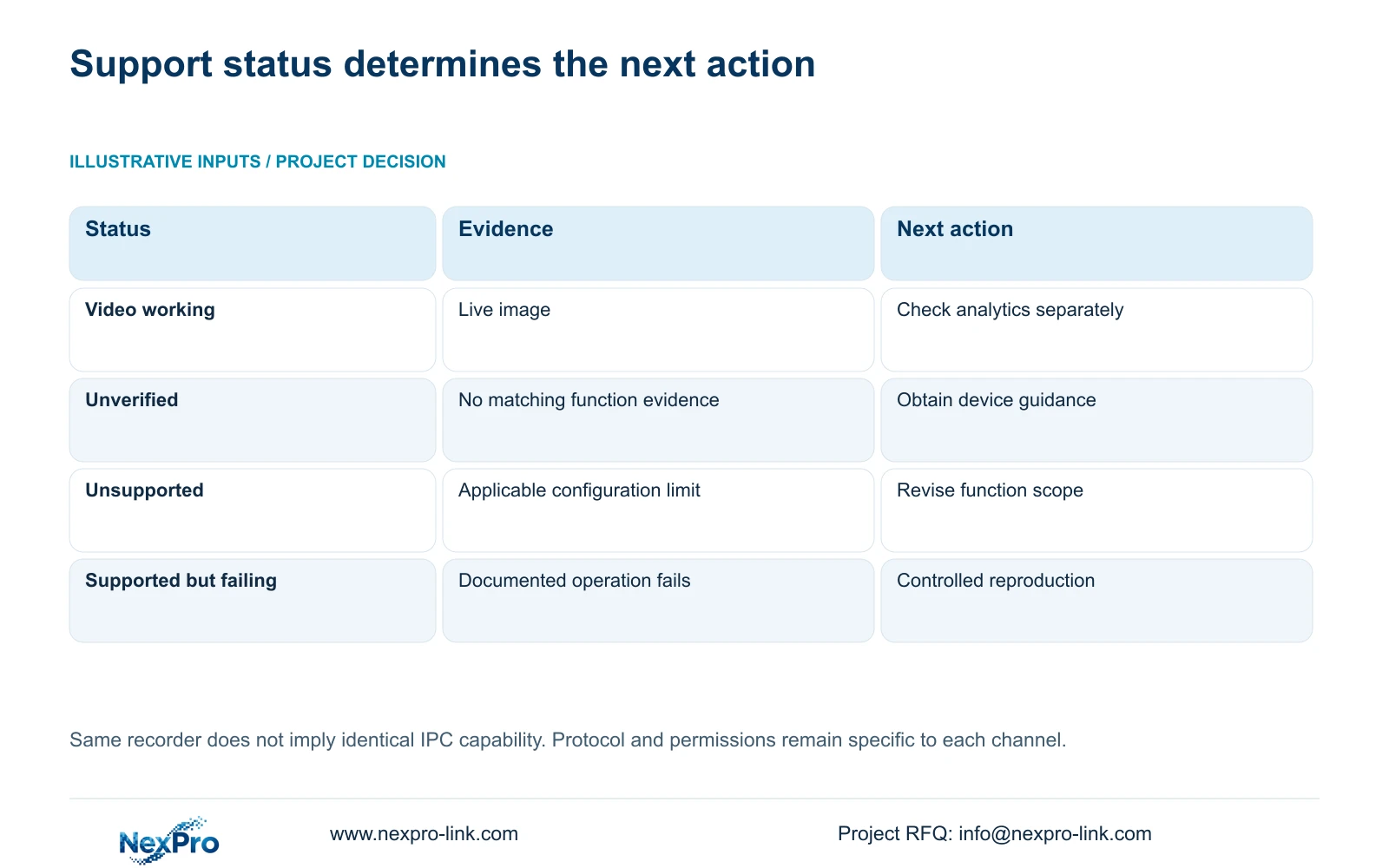
Keep a support-status column in the investigation record. 'Not yet verified' means evidence is missing. 'Unsupported in this configuration' needs an applicable limit or a resolved compatibility finding. 'Supported but unsuccessful' means the next task is a controlled fault investigation. These labels prevent an absent control from becoming an unsupported claim about the whole camera or recorder.
| Finding | Interpretation | Next action |
|---|---|---|
| Video works; intrusion control unavailable | Video path works; configuration support is unresolved | Check the specific event interface |
| Authorized connection details changed | The affected channel may have outdated fields | Update that channel and retest its tasks |
| Applicable documentation excludes the function | A configuration limit is established | Retain useful functions and revise the requirement |
| Function documented; operation still fails | A specific supported task needs diagnosis | Record a controlled reproduction for support |
Section 06
Submit the exact combination and unresolved operation
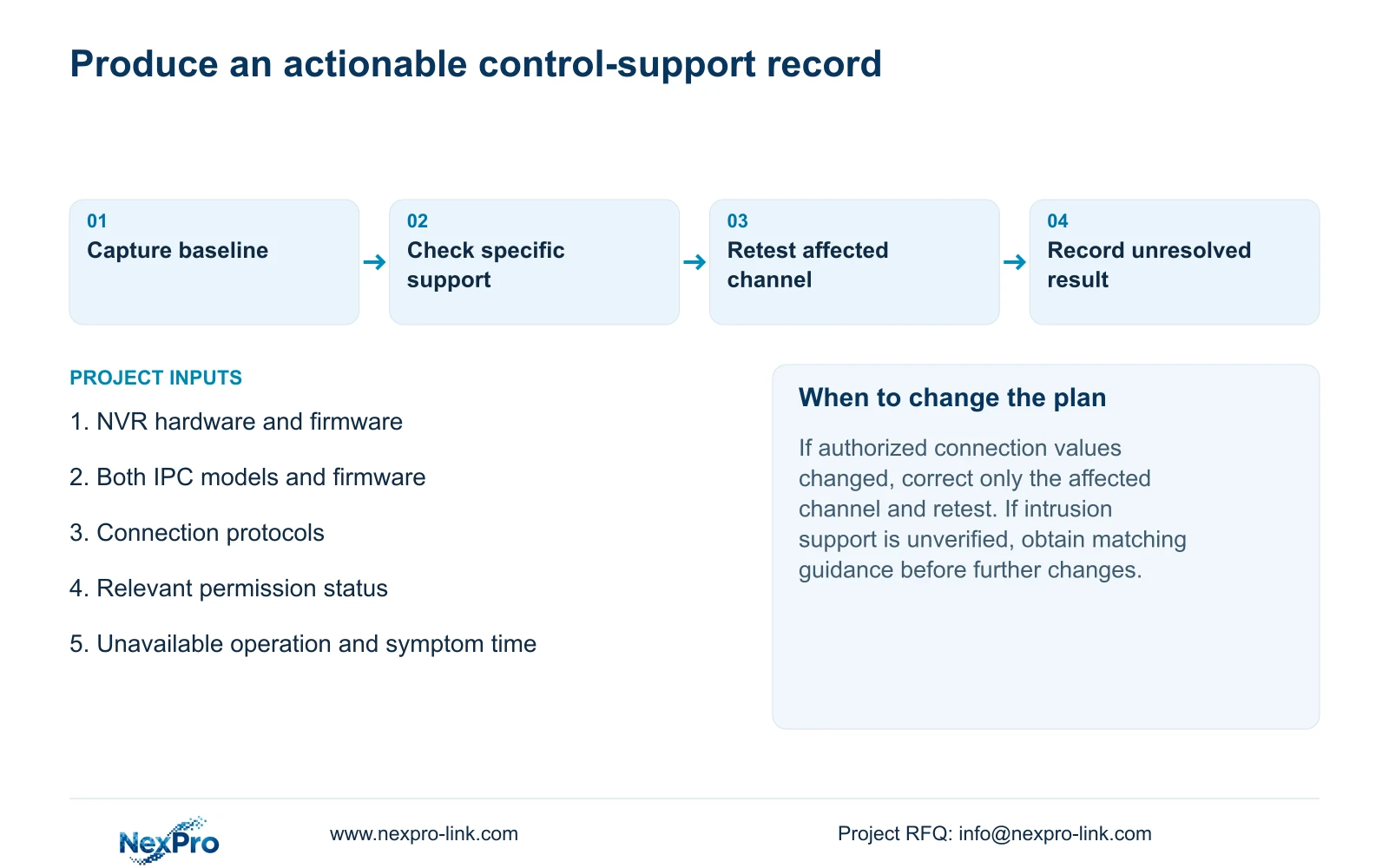
The useful support record is a comparison of the two device combinations, not a screenshot of a grey button alone. Include recorder identity and firmware, both camera identities and firmware, selected protocols, relevant permission status and the requested operation. State whether video, recording and event reception were tested separately.
Attach a redacted view only when it clarifies the observation. Record the last controlled change and its result so the next investigation does not repeat it blindly. NexPro-Link can use this focused record for configuration or equipment-scope discussion. The manual establishes no one-to-one mapping between its TS models and NexPro-Link commercial SKUs, so include the actual installed identity instead of substituting a similar-looking product name.
Section 07
Investigate different controls on adjacent cameras
Illustrative project scenario: One camera exposes intrusion configuration while an adjacent third-party camera does not. The engineer records both identities, compares connection and permission conditions, and checks only intrusion configuration support. Working video remains a separate successful task. If the third-party event interface is unverified, the result stays unresolved pending matching documentation; it is not reported as a failed camera.
This guide follows the private NVR4.0 user manual CH_V2.4.doc, with V2.2 in its body, sections 4.4, 4.10, 4.12.19, 4.3.1, 4.12.15, 1.2 and 5.2. Section references govern the operating scope. Seetong PC controls do not replace these recorder and IPC instructions.
Section 08
Does a missing control justify replacement?
Only after the required function and configuration limit are established. A camera may remain suitable for video recording while failing a separate analytics-configuration requirement.
Section 09
Provide the channel comparison
Send NexPro-Link the NVR and camera model/firmware comparison, connection protocols and exact unavailable operation at info@nexpro-link.com.
Engineering references
These sources support the general planning principles. Always use the selected product's current datasheet and applicable project standards for final design.


