

When source playback contains authorized audio, compare the same exported file on the recipient's supported player and output arrangement. Record whether silence follows the file or that receiving path without converting or overwriting the only original.
Section 01
Compare the recording with the silent export
When source playback contains authorized audio, compare the same exported file on the recipient's supported player and output arrangement. Record whether silence follows the file or that receiving path without converting or overwriting the only original. If the export behavior is undocumented, request model/version guidance; do not assume an MP4 extension guarantees an audio track.
When an NVR export shows video without sound, first play the same channel and interval on the recorder with its playback audio control checked. Live listening and an MP4 filename do not establish that the earlier recording contains audio. Confirm that audio capture was authorized and enabled for the relevant camera, distinguish any talkback session from recorded sound, then compare recorder playback with the receiving player's output. If sound is absent at the source, repeated exports cannot recreate it. If source playback has sound, preserve that recording and investigate the export and receiving path using the same interval.
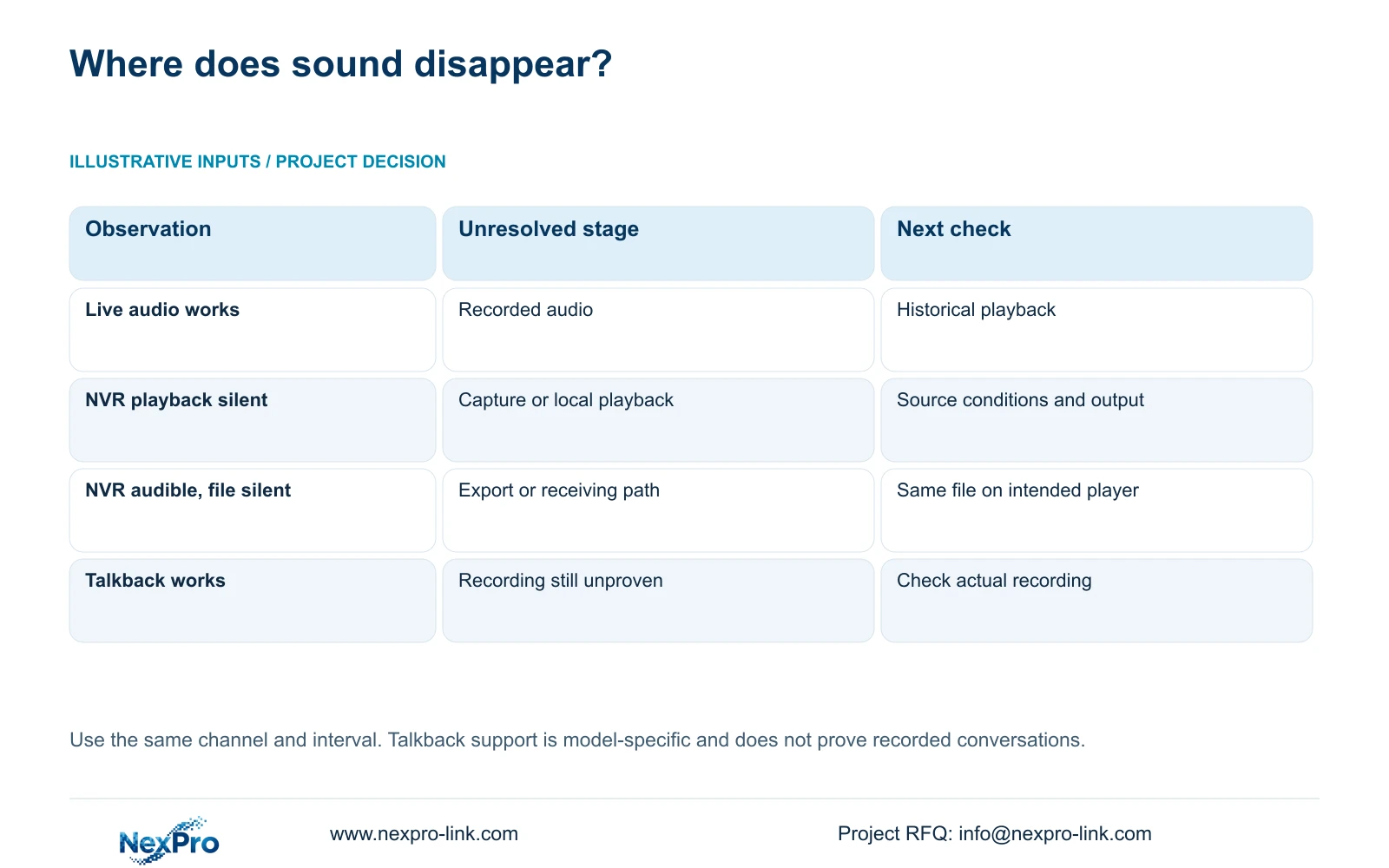
Record what works and where it works. Hearing live camera audio now, hearing a talkback session, and hearing historical playback are separate observations. The useful diagnostic comparison follows one known recording through the recorder and the recipient's system.
This guide uses the private NVR4.0 user manual CH_V2.4.doc, whose body identifies V2.2. Sections 4.4.6, 4.11.3 and 4.11.4 cover the relevant audio, playback and backup functions. The actual recorder, IPC and firmware determine the applicable path.
Section 02
Establish whether audio should have been recorded
Confirm the site's approved audio requirement before enabling capture or arranging a test. A video surveillance task does not automatically authorize recording conversations. Work within the owner's defined purpose and the operator's permitted access.
Inspect the camera audio encoding settings and the recording source associated with the affected channel. Establish what was enabled during the incident period, using the available configuration history or operating record. Current settings alone cannot establish the earlier state.
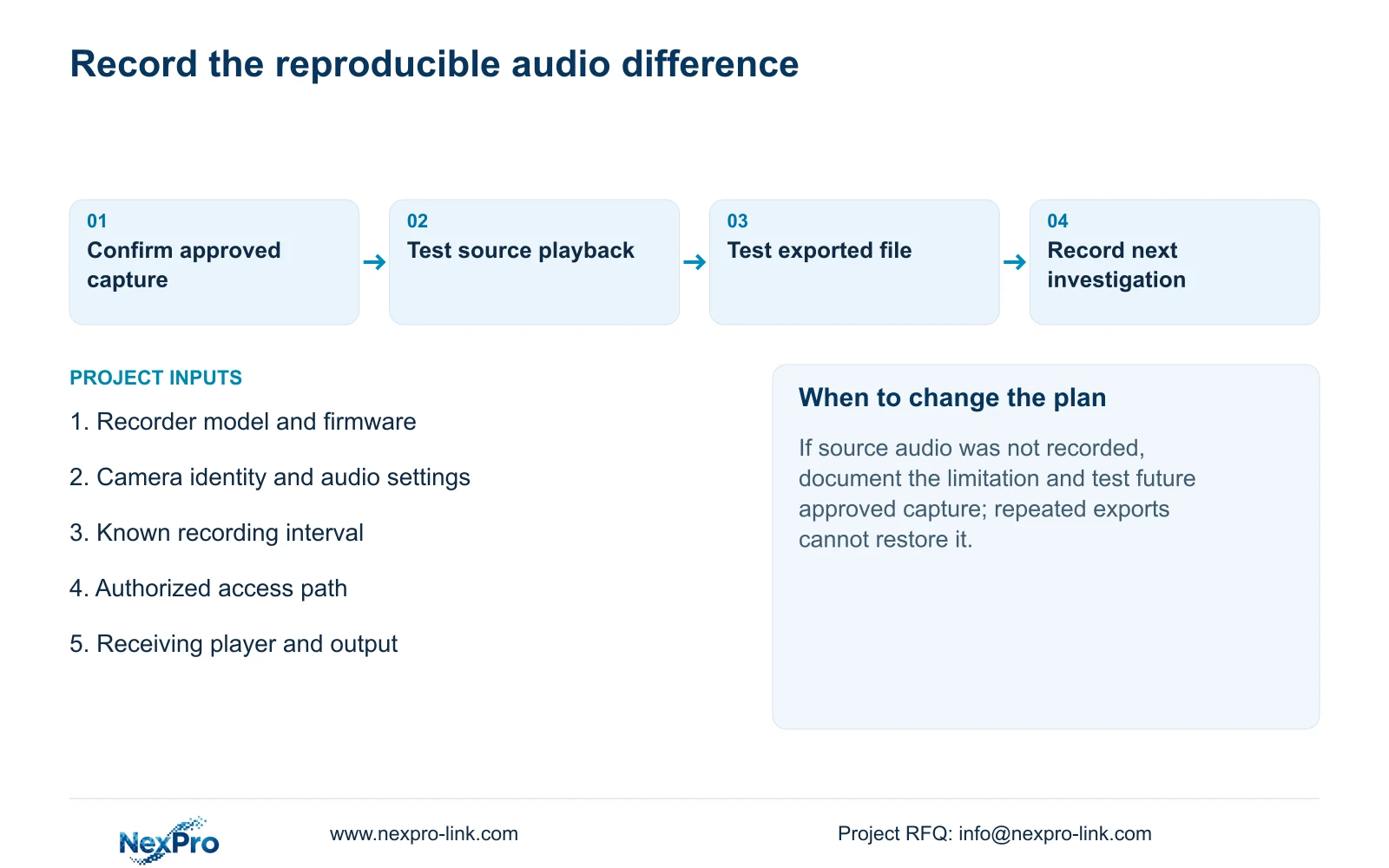
If audio was enabled only after the incident, document that boundary. The new setting can be checked on a later authorized recording; it cannot add sound to old footage. If the historical condition is unknown, report it as unresolved rather than treating current live sound as proof.
Section 03
Separate conversation functions from recorded audio
Ask what the manager heard at the desk. Listening to camera audio and using a talkback or broadcast function involve different operations. A successful conversation does not prove that its sound was included in the selected incident recording.
Sections 1.2, 2.3.3, 2.4.4 and 5.2 place model limits on talkback and broadcast. Several descriptions restrict these functions to 32- or 36-channel models. The appendix lists no talkback support for TS8108D7 and TS8116D7, while TS8232C4 and TS8836M/TS8436M are listed with support.
These TS identities have no established mapping to NexPro-Link commercial SKUs. Check the exact recorder, IPC, audio connection and operating path. The documented status descriptions distinguish input waiting and output states, so a two-way-audio camera cannot establish full-duplex operation through every recorder.
Section 04
Select a period with known audio conditions
Use the incident interval when its expected sound is known. If the capture conditions are uncertain, a later authorized test period can establish whether the current path records sound. Keep that test separate from conclusions about the historical incident.
Choose one identifiable channel and retain its start and end times throughout the comparison. Section 4.11.4 requires format, recording types, channels and time range, followed by an updated capacity estimate. Detect the inserted USB device before starting the copy. MP4 is the documented default, and multiple channels can be selected.
A controlled single-channel comparison makes the result easier to interpret. If a different period or camera is exported, a sound difference could come from the changed source rather than the receiving player.
Section 05
Listen through the relevant interval on the recorder
Position playback near the known sound event and check the playback audio control. Inspect the relevant interval continuously. Section 4.11.3 provides thirty-second jumps, time positioning and timeline zoom; coarse jumps can pass over a short occurrence.
If the recorder is silent, check the selected channel, period and playback output before concluding that capture failed. If those checks still provide no sound, preserve the observation and investigate the camera encoding and original recording conditions. The exported file cannot settle a source-path uncertainty by itself.
If recorder playback is audible, note the exact interval and operating path. Export that same material and move the investigation to the destination. Keep unrelated settings unchanged while making this comparison.
| Observed result | Meaning | Next action |
|---|---|---|
| Live sound only | Historical audio remains unconfirmed | Play the selected recording |
| Recorder playback silent | Source recording or local playback path needs investigation | Check capture conditions and playback output |
| Recorder audible, export silent | The difference appears after source playback | Check the same export and receiving player |
| Export audible on another intended path | Recipient output or playback conditions differ | Document and correct that receiving path |
Section 06
Check the player and its actual sound output
Open the export on the intended receiving system and check the player's audio control and destination output. Confirm that the file is the same channel and period heard on the recorder. Do not use a similarly named clip as the comparison.
The manual mentions VLC and other software for playing backed-up video and audio. That recommendation does not guarantee every platform, player version or codec combination. Use an appropriate viewing method for the file and record the tested conditions.
If another intended viewing path plays the file with sound, investigate the original recipient path before repeating the export. If the source is audible but the export remains silent across the tested paths, preserve the source and report the reproducible difference. Avoid promising that changing player software will fix every silent file.
| Situation | Required record | Decision boundary |
|---|---|---|
| Source playback has authorized sound | Known source interval and audio path | Retain this reference before export diagnosis |
| Same export works on one recipient path | Unchanged file, player and output records | Isolate the receiving arrangement |
| Export silent on supported paths | Applicable export/audio instructions | Request model guidance; preserve the original |
Section 07
Reproduce the difference within the permitted access path
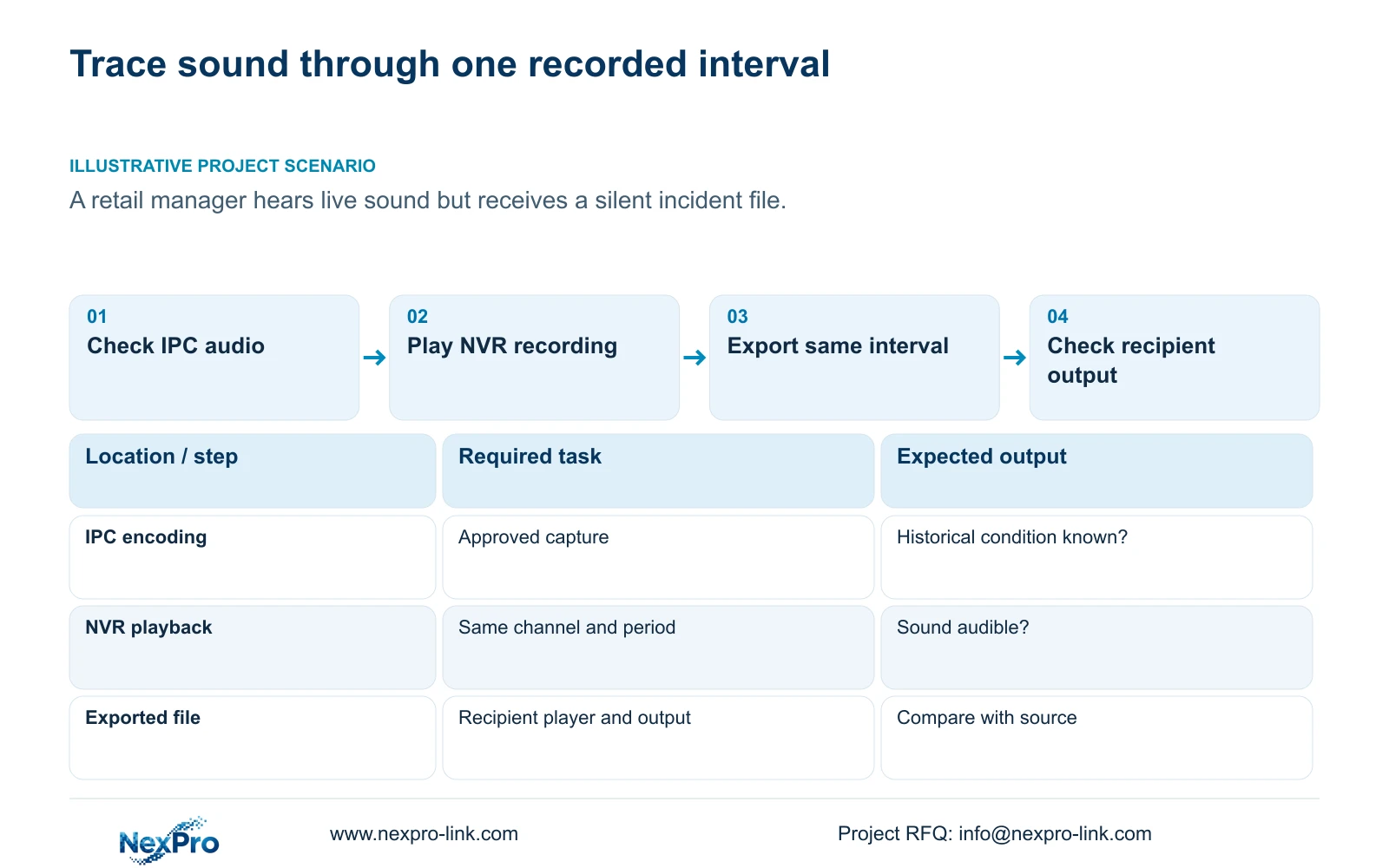
Illustrative project scenario: A retail manager hears live audio at the desk but receives a silent incident export. The next comparison uses the same incident channel and period in recorder playback and on the receiving system. It does not assume that the earlier recording contains sound.
Section 4.12.3 separates local and network permissions, including preview and playback, with local backup as a separate task. Local preview success does not establish remote playback or export rights. Have the authorized administrator check the intended account and access path, including an allowed and a prohibited operation.
An access denial should be recorded separately from silence in a playable recording. Keep credentials, customer footage and identifiers out of public diagnostic material. The permission table's inconsistent remote-upgrade description cannot establish actual upgrade behaviour.
Section 08
Can enabling camera audio recover sound from an old clip?
No. A later setting cannot recreate audio that was not stored during the earlier recording. Verify new capture on a separate authorized interval.
Section 09
Report the same-interval comparison
Send NexPro-Link the recorder and camera model versions, the tested interval, and whether sound was heard in recorder playback and the receiving player at info@nexpro-link.com.
Engineering references
These sources support the general planning principles. Always use the selected product's current datasheet and applicable project standards for final design.


