A camera in search results can still fail at enrollment, authentication or decoding. Record each state and test the affected channel before reducing image quality.
Section 01
Locate the failed stage on the blank channel
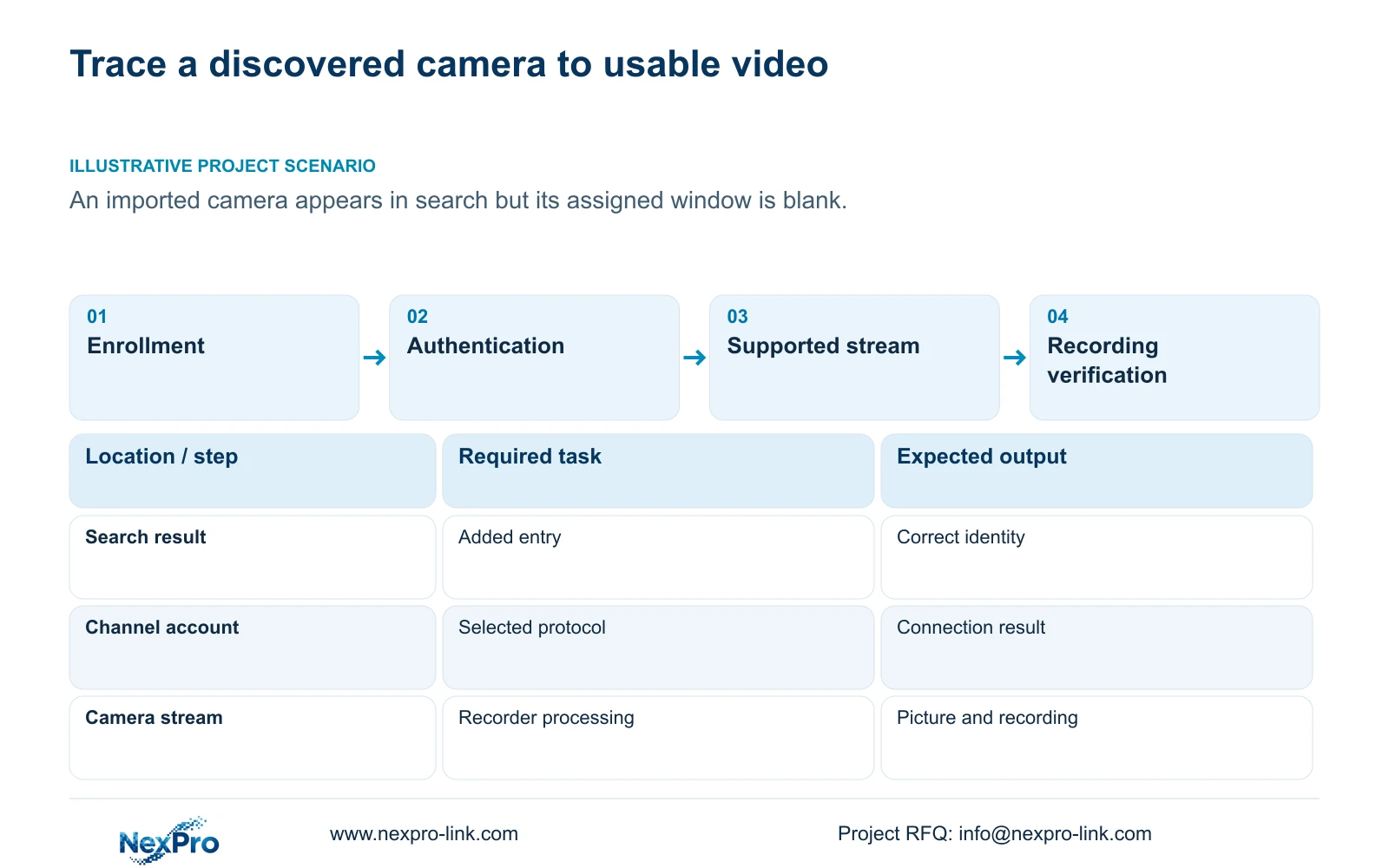
A camera found by the NVR can still have no video because discovery, enrollment, authentication and usable stream processing are separate stages. Confirm that the found device is assigned to the intended channel, then inspect its connection status and authorized credentials. If those checks succeed, compare the selected protocol, codec and resolution with the actual camera and recorder capabilities. Keep local decoding limits separate from incoming recording bandwidth. Record discovery, authentication, picture and recording outcomes independently, and change one relevant setting at a time. Repeatedly deleting every camera obscures which stage failed and can disturb channels that already work.
In section 4.3.1, the search list and added-device list are different objects. Check the camera identity against the assigned entry before investigating a blank window. A found camera that has never been enrolled needs the approved addition step; an existing entry needs its own connection diagnosis.
The source is the supplied private NVR4.0 user manual CH_V2.4.doc, with V2.2 in its body. Sections 4.3.1, 4.4, 4.10, 4.4.5, 4.12.7, 5.2 and 5.3 support this guide. Use the actual recorder and firmware, with section references taking priority over page numbers.
Section 02
Correct the affected connection entry
Confirm the camera's current authorized account information for the selected connection method. A device can appear in discovery while the recorder's stored credentials are outdated. Section 4.3.1 describes editing the protocol, username and password in the device entry.
Keep the camera's physical identity and location mapping while updating the relevant fields. If maintenance changed one camera's account, edit that channel and observe the resulting connection status. Do not reset the whole recorder to repair a single entry. This keeps the next test attributable to the actual correction.
If credentials cannot be confirmed through the authorized project process, stop that branch and obtain the correct account information. Do not substitute default passwords or bypass procedures. Record whether authentication remains unresolved without exposing the account secret in a diagnostic screenshot.
Section 03
Test video separately from camera controls
The recorder can perform only the operations that the connected camera and selected protocol expose and accept. Sections 4.4 and 4.10 make camera capability relevant, with explicit prerequisites for PTZ. A visible menu does not establish that every third-party camera accepts its commands.
Check the camera model, firmware, protocol and relevant account permissions before interpreting a grey control as hardware failure. Start with basic video. Then test event, audio or PTZ functions required by the project as separate results.
If a requested control fails while video works, retain the working stream and investigate that function. If the picture remains blank, continue with encoding and resource checks. Changing protocols without recording the before-and-after result makes it harder to distinguish authentication success from actual stream compatibility.
| Observation | Investigate | Controlled next action |
|---|---|---|
| Found in search, absent from added list | Enrollment | Add the identified approved camera |
| Added entry with unresolved authentication | Connection account | Confirm and edit affected credentials |
| Video works, camera control fails | Function exposure and permission | Test the requested function separately |
| Blank video after connection checks | Codec and resolution | Compare actual supported stream modes |
| Resource warning with multiple streams | Input bandwidth or decoding | Record stream mix and compare model limits |
Section 04
Check the camera's actual stream choices
Sections 4.4.5 and 4.12.7 list H.264, H.265 and H.265+ choices, while available resolutions depend on IPC capability. Read the affected camera's actual mode and the applicable recorder support. The menu list is insufficient evidence that every combination works.
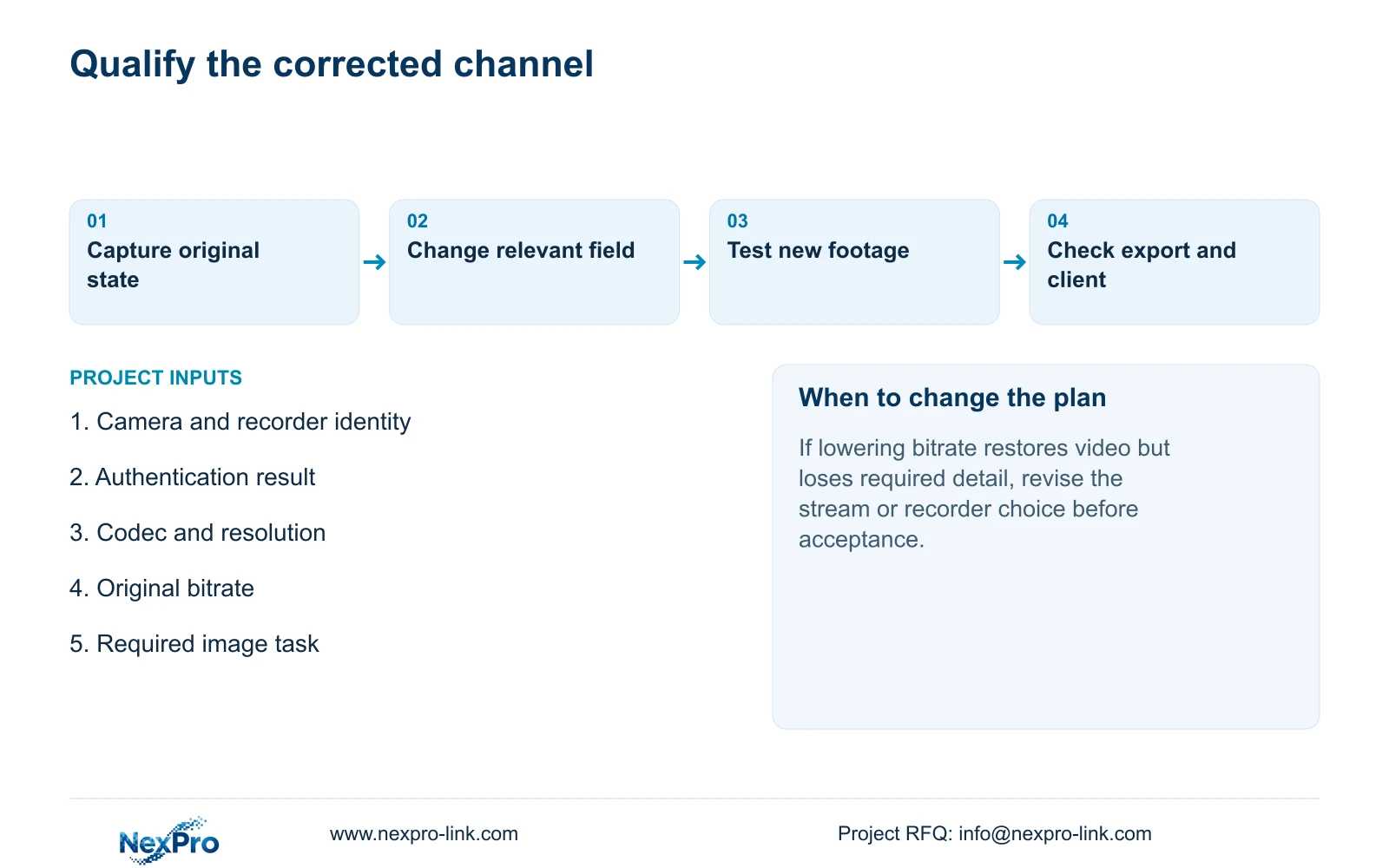
Before changing encoding, preserve the original settings and a comparable sample where available. Test one supported adjustment, then verify live video, new recorder footage, export and the intended client. A picture restored in one window does not qualify the full playback path.
Do not assign a fixed storage-saving percentage to H.265+. This diagnosis concerns an accepted stream and usable footage. If a codec change produces video but prevents the owner from opening exported footage through the intended method, keep that failure visible in the acceptance result.
Section 05
Separate input capacity from local playback
Section 5.2 distinguishes recording-channel count, incoming bandwidth, preview decoding, local playback combinations and monitor output. Compare the blank-window symptom with the relevant limit. A recorder accepting camera streams does not necessarily display or replay every channel at full resolution simultaneously.
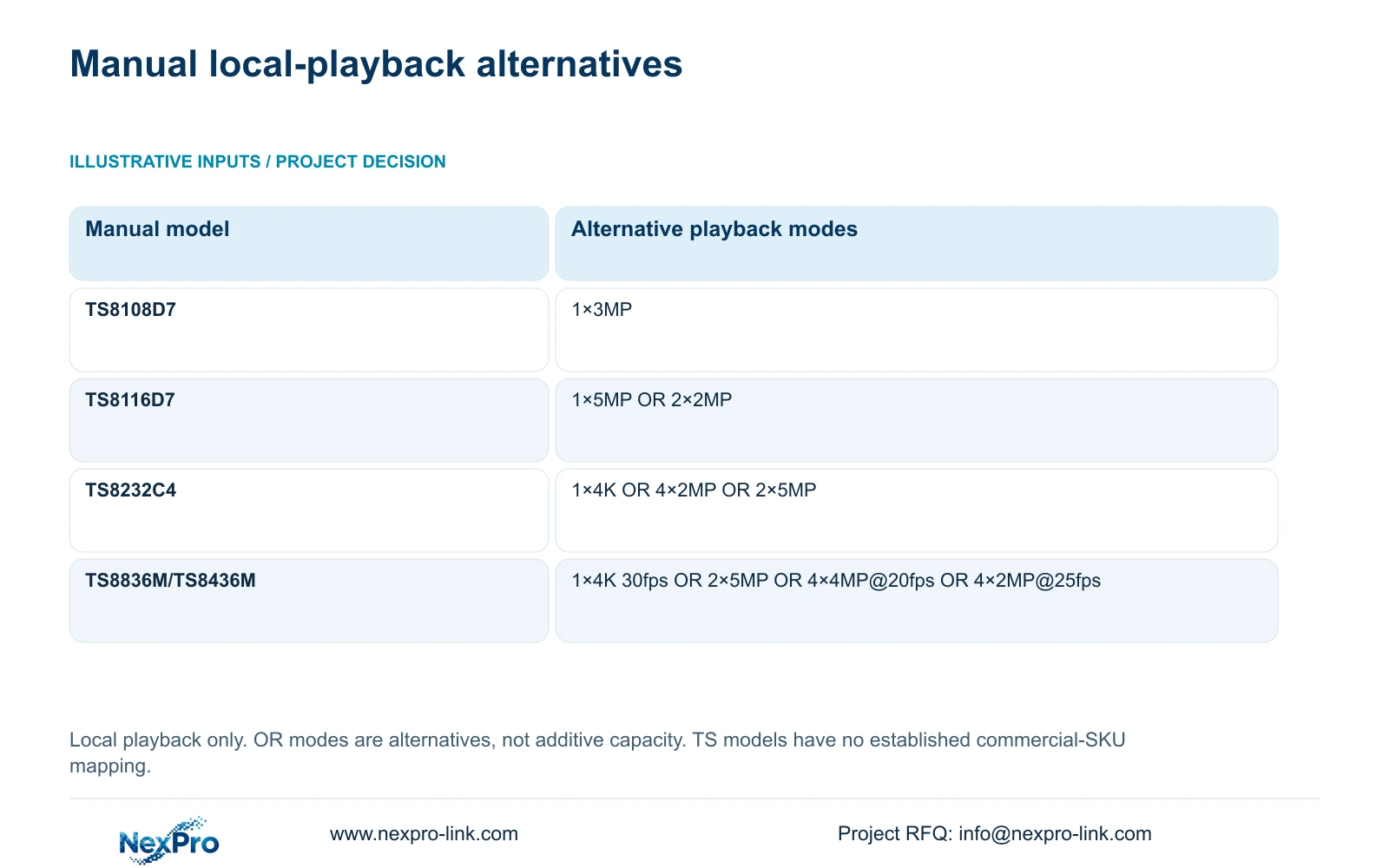
For TS8232C4, the supplied local-playback alternatives are 1×4K OR 4×2MP OR 2×5MP. TS8116D7 lists 1×5MP OR 2×2MP, and TS8108D7 lists 1×3MP. These modes cannot be added together.
TS8836M/TS8436M lists 1×4K 30fps OR 2×5MP OR 4×4MP@20fps OR 4×2MP@25fps. Preserve the stated frame-rate qualifications. These are manual-specific playback modes, not universal preview specifications, and no established mapping connects the TS models to NexPro-Link commercial SKUs.
Compare the operator's required playback combination with the correct model row. A result that works with fewer simultaneously decoded streams can help isolate the local workload, but it does not prove that the camera's recording stream must be reduced.
Section 06
Identify the constrained resource before lowering quality
Section 5.3, question 7, associates insufficient channel resources with total incoming IPC bandwidth and suggests reducing the affected bitrate. Record the original stream count, bitrates and operating state first. Obtain the actual input information and compare it with the applicable recorder limit separately from local decoding.
Where the evidence supports an input constraint, make a controlled bitrate revision and repeat the image task. If required detail is lost, a restored picture is not an acceptable repair. The project must qualify a suitable stream mix or select equipment that supports the required task.
Illustrative project scenario: An imported camera appears in search results but its assigned NVR window stays blank. The installer first confirms enrollment and credentials, then checks the supported encoding mode. Only after those stages are documented does the installer compare input and local decoding resources. No specific cause or successful repair is assumed.
Section 07
Should every camera be deleted and added again?
No. Diagnose the affected entry first. Preserve working channels and use the observed enrollment, authentication or stream failure to choose the next action.
Section 08
Is lowering resolution always the correct fix?
No. Authentication, protocol, codec, incoming bandwidth and local decoding need different checks. Any revised stream must still satisfy the required image task.
Section 09
Provide the blank channel's stream and status
Send NexPro-Link the camera and recorder models and firmware, affected channel status, codec, resolution and original bitrate at info@nexpro-link.com.
Engineering references
These sources support the general planning principles. Always use the selected product's current datasheet and applicable project standards for final design.