

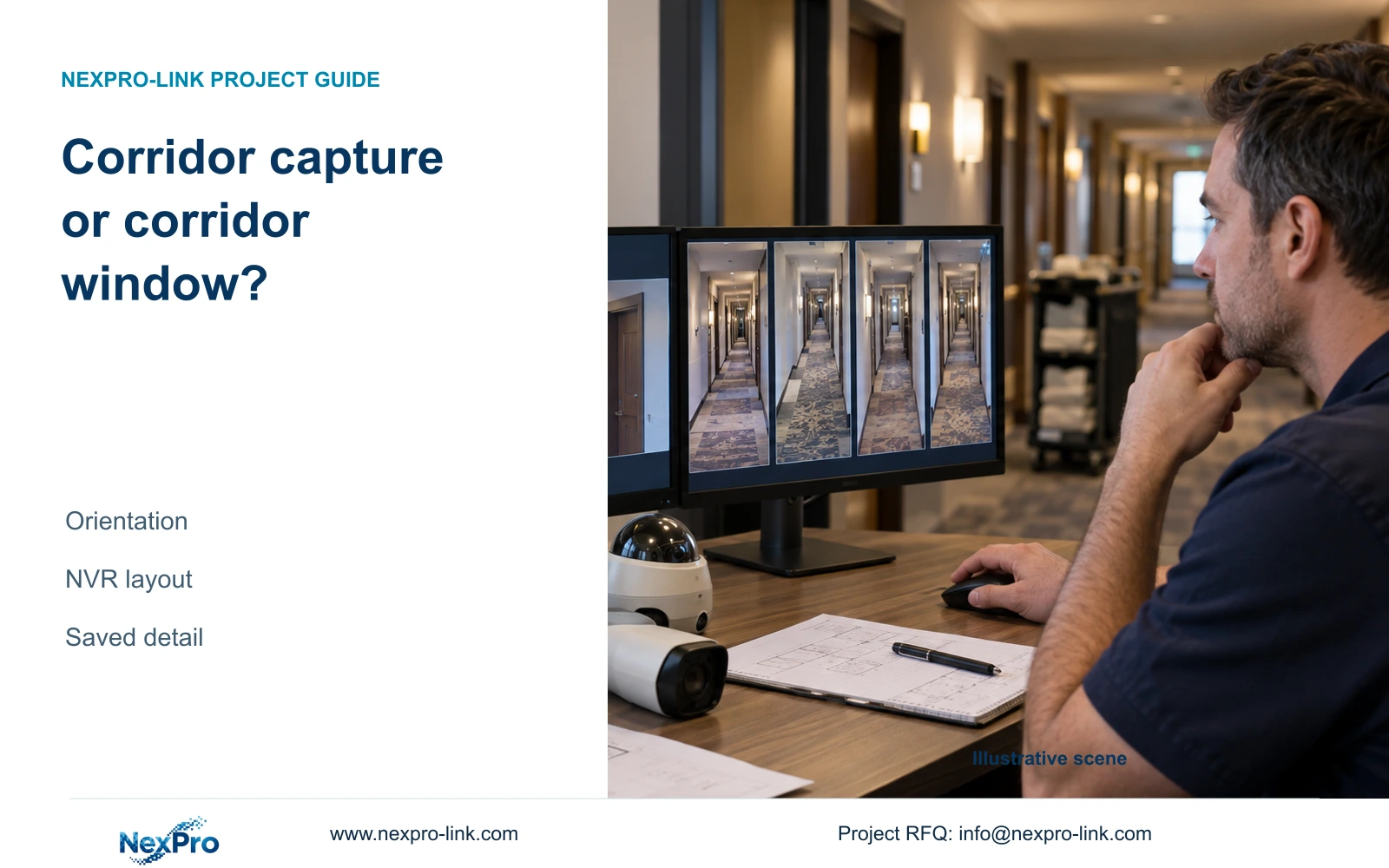
Narrow recorder windows do not establish portrait camera capture. Check the source orientation, supported stream and saved corridor detail before changing the layout.
Section 01
Check the source image before selecting narrow windows
A corridor-shaped recorder window does not establish that the camera captures a portrait-oriented corridor image. Check the actual IPC output first, then choose a recorder layout that presents that image appropriately. Compare the required near and distant corridor detail in saved footage, preserving the output mode and viewing ratio. If the original remains a landscape view, changing the display grid has not completed a capture change. The manual lists IPC corridor mode and a separate NVR corridor layout, but supplies no universal coverage multiplier or unchanged-storage guarantee. Accept the arrangement only when the camera supports it and the recorded view meets the assigned task.
Start with the observation requirement for the corridor. Identify the route and far-end area that must remain visible, then inspect the source image outside the narrow multi-window presentation. Note whether the useful corridor occupies the captured view appropriately and whether its orientation matches the intended task.
If corridor capture is supported, compare its actual result with the existing arrangement. Keep required surrounding coverage in the assessment. A taller-looking presentation is useful only when the saved image contains the information the operator needs.
Section 02
Choose the local layout without inferring decoding capacity
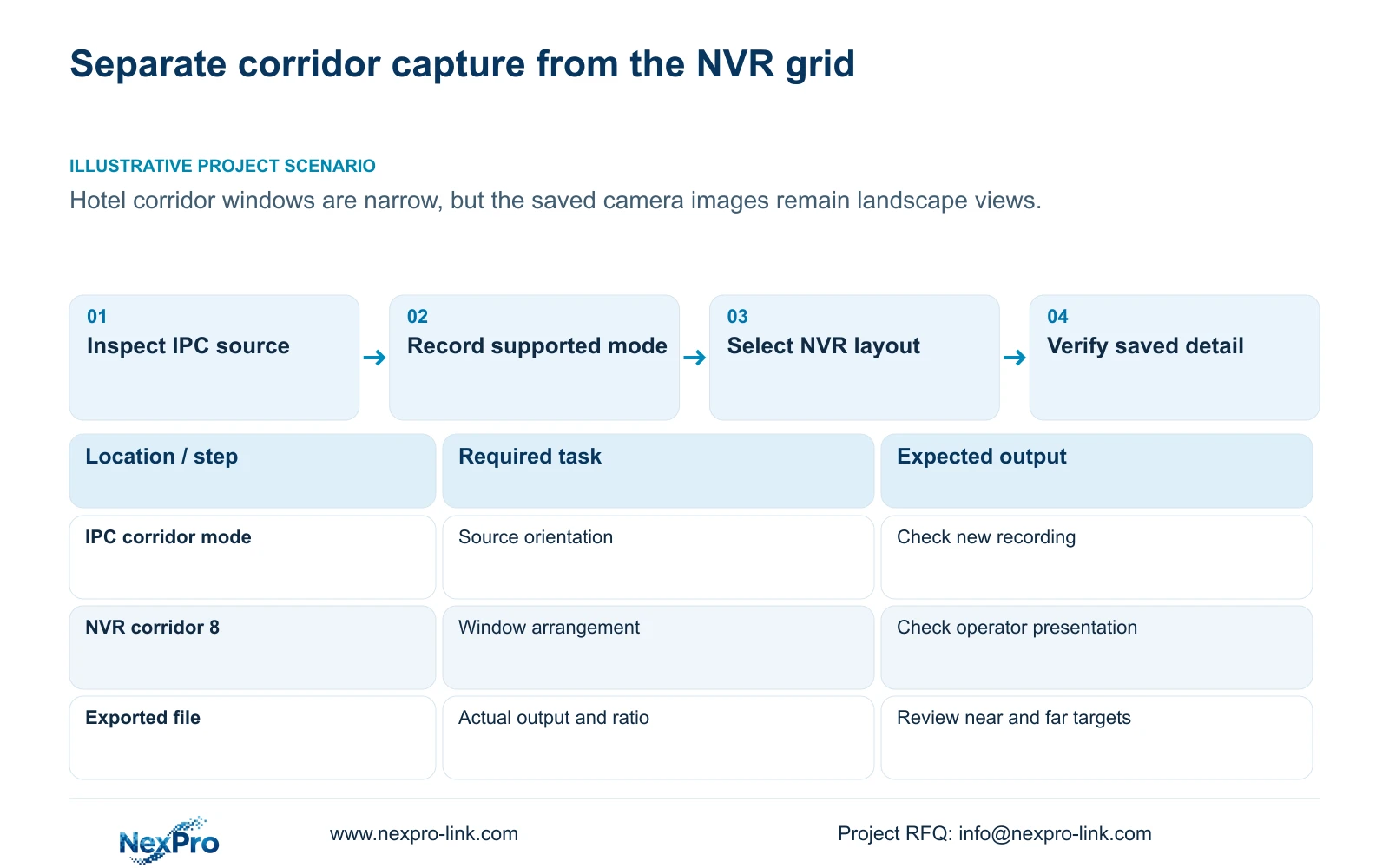
Section 4.5 lists layouts with 1, 2, 4, 6, 8, corridor 8, 9, 10, 16, 24, 25 and 36 windows. These are display arrangements. Select the arrangement around the views the operator must watch, then confirm the stream resolution and rate used in each window.
The model appendix lists operating combinations separately. A selectable grid does not prove that every window can process the full-resolution stream simultaneously. Keep live-display capability and local-playback capability as separate checks.
For example, the supplied local-playback entries give TS8108D7 as 1×3MP; TS8116D7 as 1×5MP OR 2×2MP; and TS8232C4 as 1×4K OR 4×2MP OR 2×5MP. TS8836M/TS8436M lists 1×4K 30fps OR 2×5MP OR 4×4MP@20fps OR 4×2MP@25fps. These alternatives cannot be added together, used as live-decoding figures, or mapped to NexPro commercial SKUs.
Section 03
Test the actual camera-side orientation control
Section 4.4.3 places corridor mode and image flips within IPC capture settings. Preserve the original view and settings before changing the relevant supported control on the selected camera. Do not combine the orientation test with unrelated brightness, sharpness or processing changes.
Confirm camera support through the applicable model, firmware and connection method. A shared menu is not proof that every IPC accepts the command. If support is missing, obtain the device-specific instructions and keep the existing view until a suitable arrangement is established.
After the change, inspect a new recording as well as live view. Check a familiar corridor feature and a representative passage at the required locations. If the saved output still has the original orientation, the narrow display window has not demonstrated a source correction.
Section 04
Separate rotation from stretching and digital enlargement
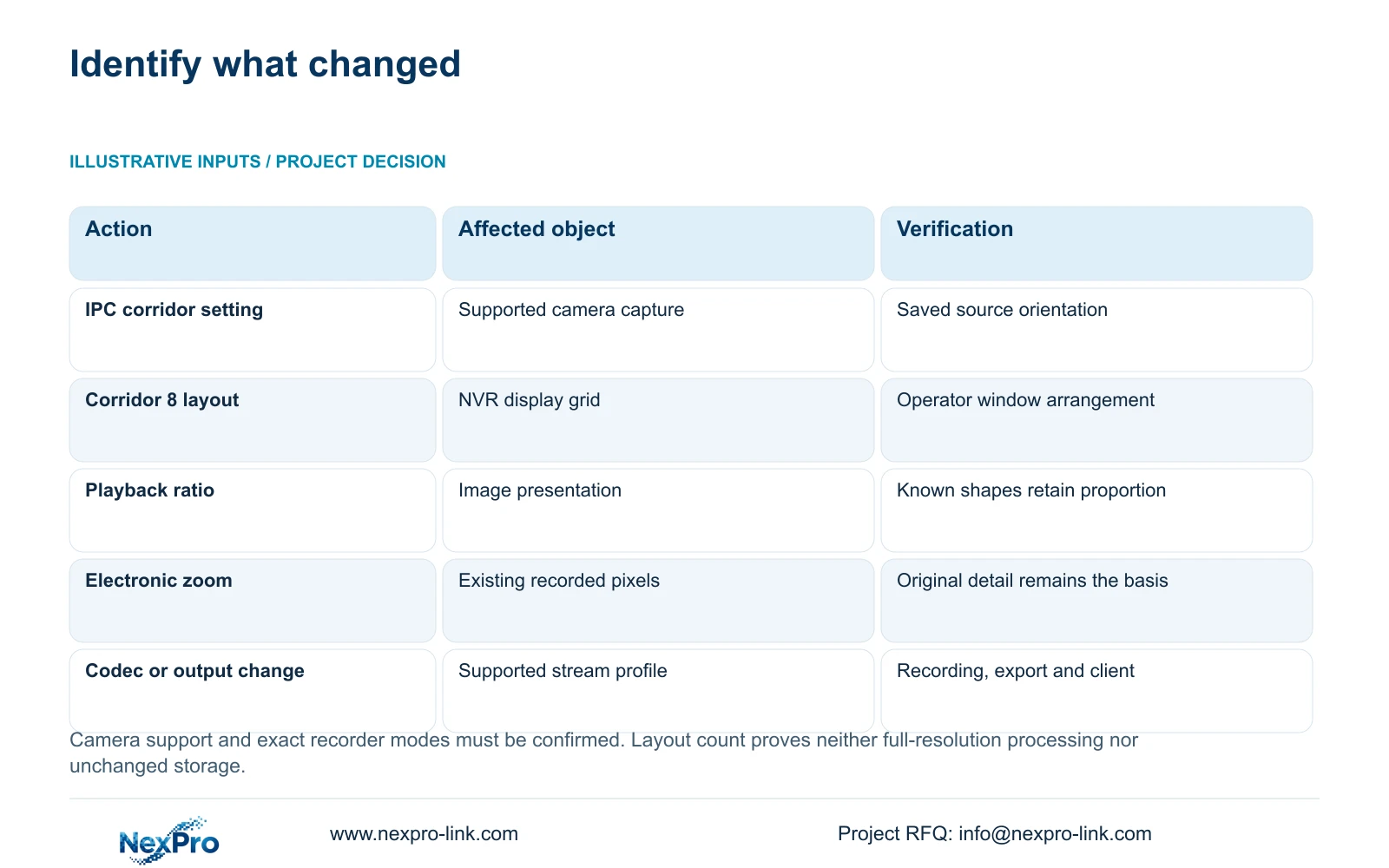
The manual provides layout, playback-ratio and electronic-zoom controls in different sections. Use the same recorded file and a known geometric feature to compare an appropriate ratio with a stretched presentation. Record which viewing setting produced any apparent change.
Stretching can alter how a doorway or person appears without changing the recorded source. Digital enlargement presents existing pixels at a larger size; it cannot establish newly captured detail. Neither action substitutes for a supported source-orientation change.
If the far-end task remains unclear at the correct ratio, inspect the captured view and required detail budget. Do not approve it because enlargement makes the target occupy more screen space.
| Observation | Distinction | Next action |
|---|---|---|
| Landscape file inside a narrow window | Layout changed; source orientation is unconfirmed | Inspect supported IPC corridor capture |
| Recorded source has the intended orientation | Capture change is visible in saved footage | Check near and distant task detail |
| Known shapes look stretched | Viewing ratio affects presentation | Compare the same file at an appropriate ratio |
| Target is larger only after digital zoom | Existing pixels are enlarged | Assess original captured detail |
| Chosen grid exceeds a confirmed operating mode | Layout choice and processing capacity differ | Review exact model and stream combination |
Section 05
Record the supported output and playback profile
Document the camera's actual output orientation, resolution, frame rate, codec and bitrate profile after the capture test. Section 4.4.5 lists H.264, H.265 and H.265+, while available resolutions depend on the IPC. A codec name does not establish support across the entire recording and playback path.
Keep the initial orientation comparison under the same encoding conditions where supported. If the camera requires another output mode, record that difference and verify recording, export and the intended client before accepting it. Do not assume storage is unchanged or claim a fixed H.265+ saving.
A Seetong PC local recording is a different storage object from footage held on the NVR. Confirm which source produced the comparison file so that a client-only presentation change is not attributed to recorder capture.
Section 06
Use saved footage to approve the useful corridor range
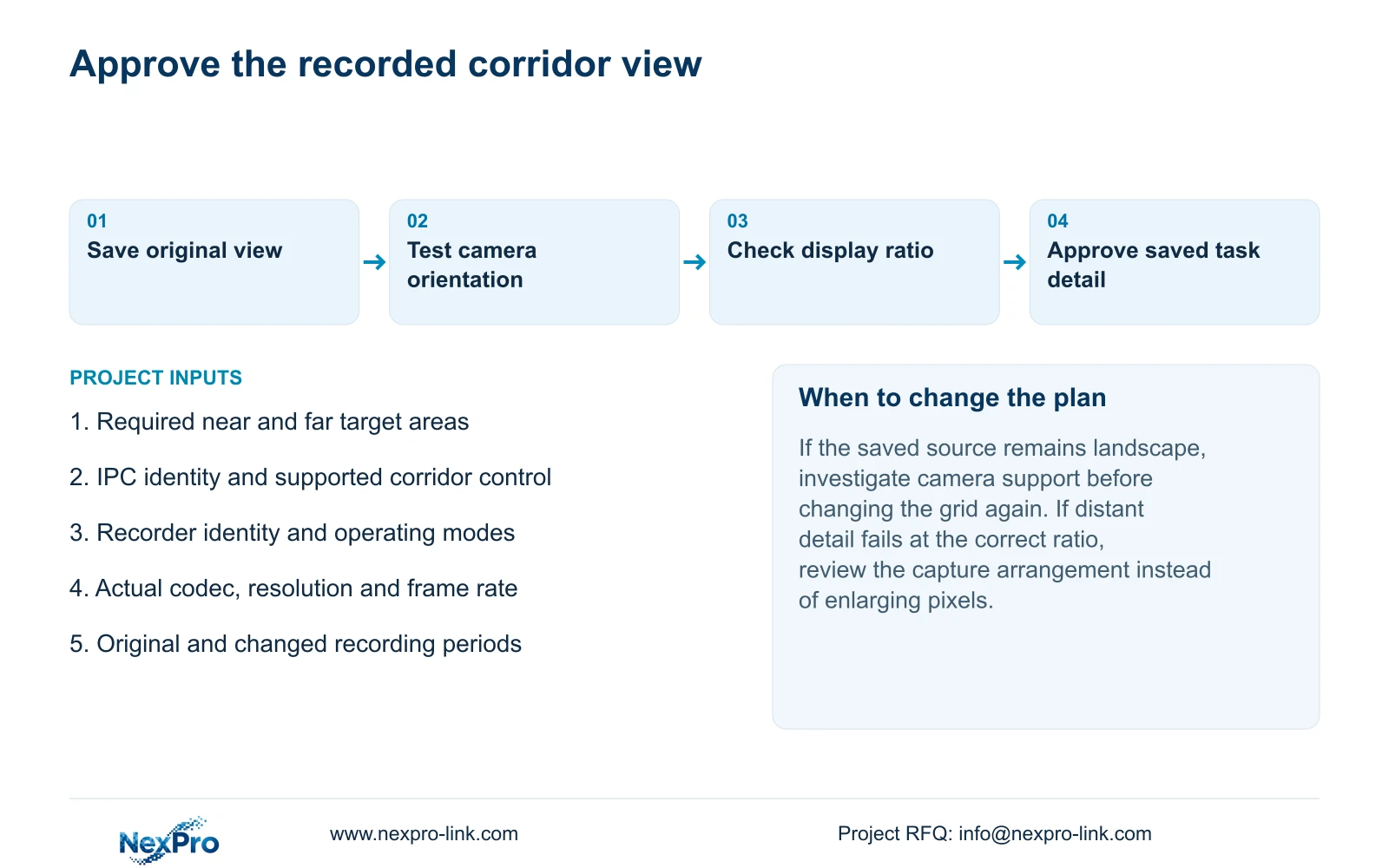
Retrieve a recording containing the required corridor passage and verify its channel and period. Review both the near task and the far-end task at an appropriate ratio. The result should explain what the accepted arrangement shows, including any area that remains inadequate.
Export a sample and open it on the receiving system. Section 4.11.4 mentions players such as VLC without guaranteeing all codec and platform combinations. Confirm playback and any required audio, preserving the original until the copy is usable.
If the source view passes but the operator layout is awkward, adjust presentation and recheck it. If the recorded task fails, revisit the camera arrangement; another window shape cannot repair missing captured information.
Section 07
Resolve a hotel corridor-layout assumption
Illustrative project scenario: A hotel uses narrow corridor windows on the recorder but the original images remain landscape views. Inspect the original recording before changing more display settings. Confirm whether each IPC supports corridor capture, test the relevant camera-side change and then select a suitable local layout. Approval depends on the saved corridor detail, not the shape of the security-room grid.
Section 08
Does corridor mode automatically double coverage?
No universal doubling is documented here. Compare the actual orientation and required distant detail on a supporting camera against the approved corridor task.
Section 09
Does corridor 8 mean eight full-resolution playback streams?
No. It identifies a layout option. Check local playback and live decoding separately against the exact model's supported operating combinations.
Section 10
Source and model scope
The supplied NVR4.0 user manual CH_V2.4.doc has V2.2 in its body. Relevant sections are 4.4.3, 4.5, 4.7, 4.11.3, 4.4.5, 4.12.7, 4.11.4 and 5.2. Section identity takes priority over page numbering; TS appendix entries remain source-specific.
Section 11
Provide the corridor capture requirement
Send NexPro-Link the required near and far corridor tasks, IPC and recorder identities, and actual saved output mode at info@nexpro-link.com.
Engineering references
These sources support the general planning principles. Always use the selected product's current datasheet and applicable project standards for final design.


