

A full schedule grid does not prove continuous recording. Follow the selected channels through disk recognition, full-disk behavior, playback and a playable export.
Section 01
Establish coverage from stored footage
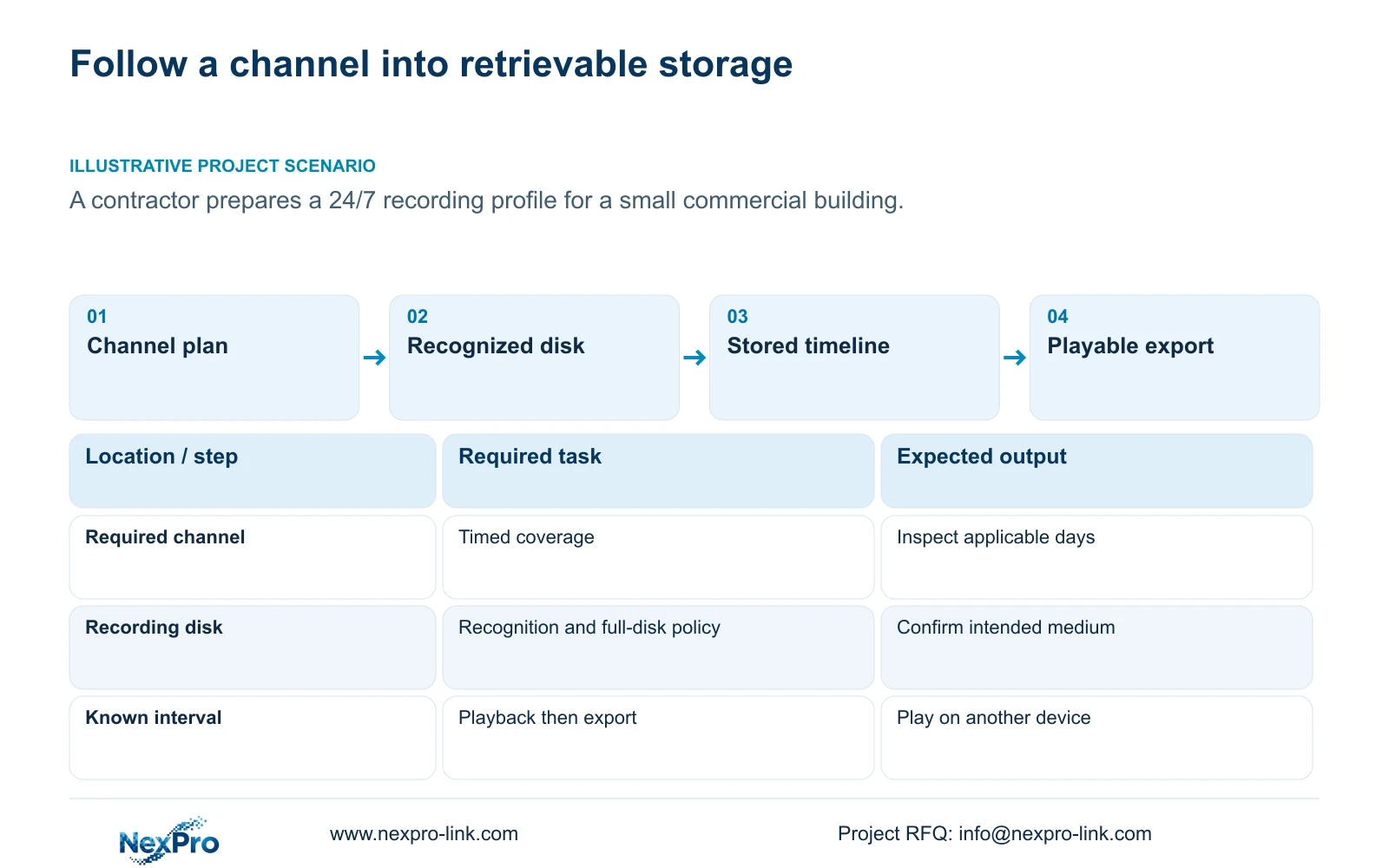
To verify continuous recording, check the recorder's plan for each required channel, confirm that its recording disk is recognized, and retrieve footage across a known interval. A fully colored schedule establishes the intended configuration; it does not establish that video reached storage. Include the configured full-disk behavior in the check because a recorder set to stop at capacity can lose future coverage despite an unchanged plan. Finish by exporting the selected interval and playing the file on another device. This gives the owner evidence of a retrievable recording task, while a short commissioning sample still leaves long-term retention to be checked separately.
This guide follows NVR4.0 user manual CH_V2.4.doc, whose body identifies V2.2. Sections 4.11.1, 4.11.2 and 4.12.21 provide the principal operating references. Match them to the actual recorder and firmware. Seetong PC local recordings are a separate storage object.
Section 02
Read the recording type before accepting an all-day plan
Section 4.11.1 describes timed recording, no recording, motion recording and motion-plus-timed recording. For an ordinary continuous requirement, inspect timed coverage throughout the required days. Check the selected channel and every applicable period, including days that operators seldom review. Treat a default all-day appearance as a starting configuration to inspect.
Motion-only records when motion detection triggers, so it cannot establish quiet-period coverage. Motion-plus-timed continues ordinary timed footage without a trigger and records motion-type footage when triggered. That mixed option can meet a continuing coverage task within its configured periods, but should not be budgeted as event-only storage. The documented grid has a 30-minute minimum scale; do not assume finer schedule controls.
Section 03
Apply the profile to a defined channel group
Once the source channel's plan matches the requirement, identify the destinations that genuinely share it. A gate and an office camera may use the same camera model while serving different operating hours. Record the source channel and destination list before using Copy to Other Channels. Exclude areas with approved exceptions.
After copying, open destination plans and compare their actual values with the approved requirement. Then inspect resulting footage from those destinations. A save confirmation proves that a configuration action completed, not that every chosen camera now provides the intended coverage. If one destination differs, investigate that channel before applying another broad copy that could overwrite correct exceptions.
Section 04
Confirm the recording medium without inferring an architecture
Read the attached-disk information in section 4.12.21 and compare it with the intended recording storage. Its External Storage Devices heading covers disk information, selected formatting, full-disk behavior and the startup no-disk prompt. It does not establish NAS, NFS, iSCSI, RAID or shared-storage support.
If the intended disk is absent, move to a recognition-path investigation before considering preparation. If media is recognized but needs formatting, obtain authority and preserve required accessible footage before proceeding. Verify the selected disk identity carefully. Formatting is not a general test for whether an absent disk exists, and hiding the startup warning does not supply recording storage.
Section 05
Choose what happens when capacity is exhausted
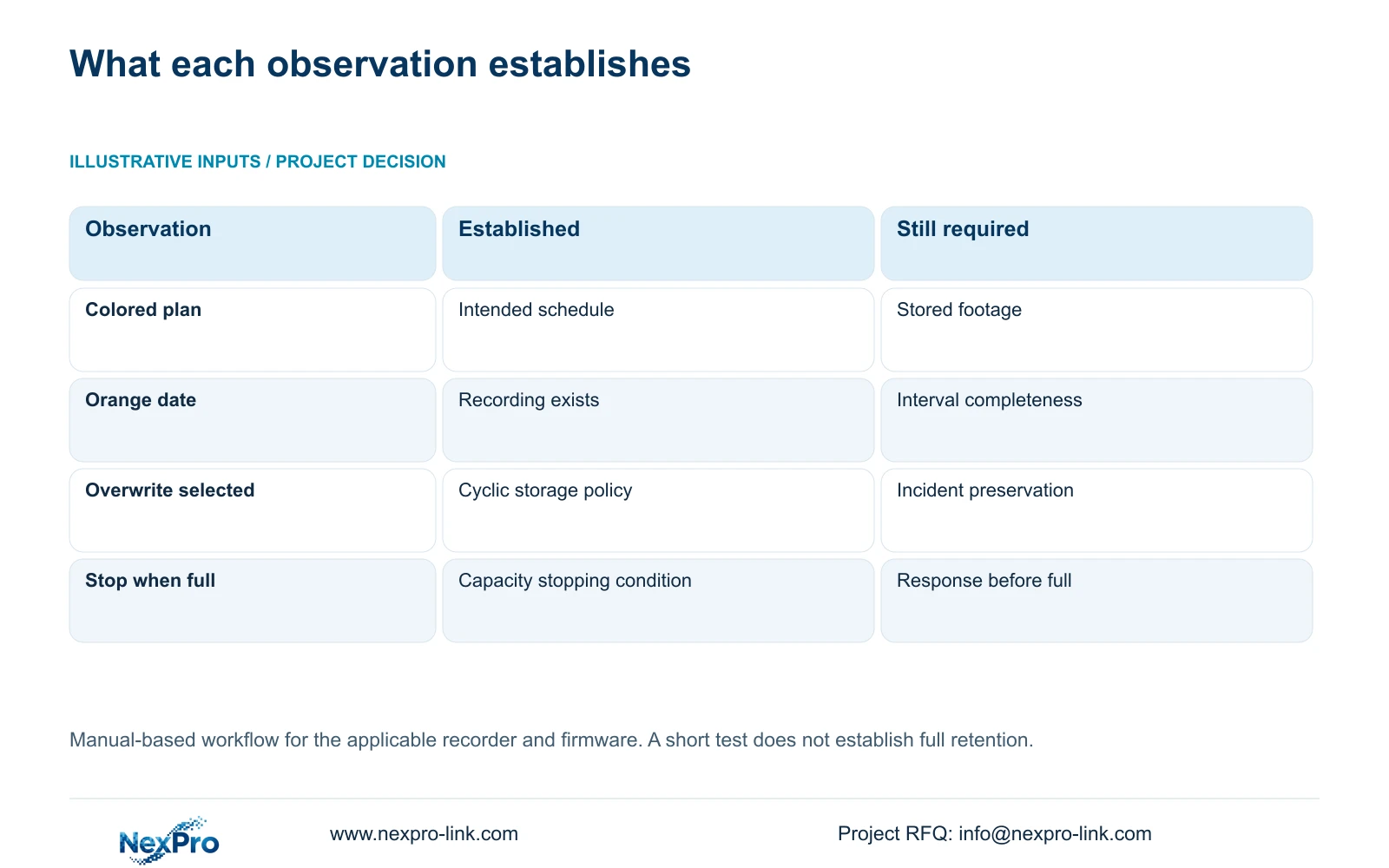
Overwrite permits cyclic use of storage to retain newer recordings. Stop-recording mode makes full capacity a condition that can halt further recording. The owner should choose between those consequences with the retention requirement and incident-export process in view. Neither setting eliminates the need to check which periods remain available.
For a continuous service, stop-recording mode needs an operational response before capacity is exhausted. Overwrite needs a process for preserving incidents before their footage leaves the retained window. Do not select either option solely because its name sounds safer. Record the chosen behavior alongside the schedule so future operators understand how a correct plan can still stop producing new footage.
| Observation | Meaning | Next action |
|---|---|---|
| All-day plan; intended disk absent | Configured coverage lacks confirmed media | Investigate disk recognition |
| Recognized disk; stop at full capacity | Future recording can halt when full | Define capacity monitoring and response |
| Orange playback date | Some recordings exist for that date | Inspect the required channel and interval |
| Playback works; exported file fails | Retrieval task remains incomplete | Check the export and playback result |
Section 06
Search across the interval that needs protection
Section 4.11.2 says playback entry defaults to the preview-selected channel. Confirm its identity before searching. Select the required date and time, then inspect ordinary, alarm and motion filters as appropriate. Orange means recordings exist for the date; gray means no recordings in the documented workflow. Neither color alone proves a complete day.
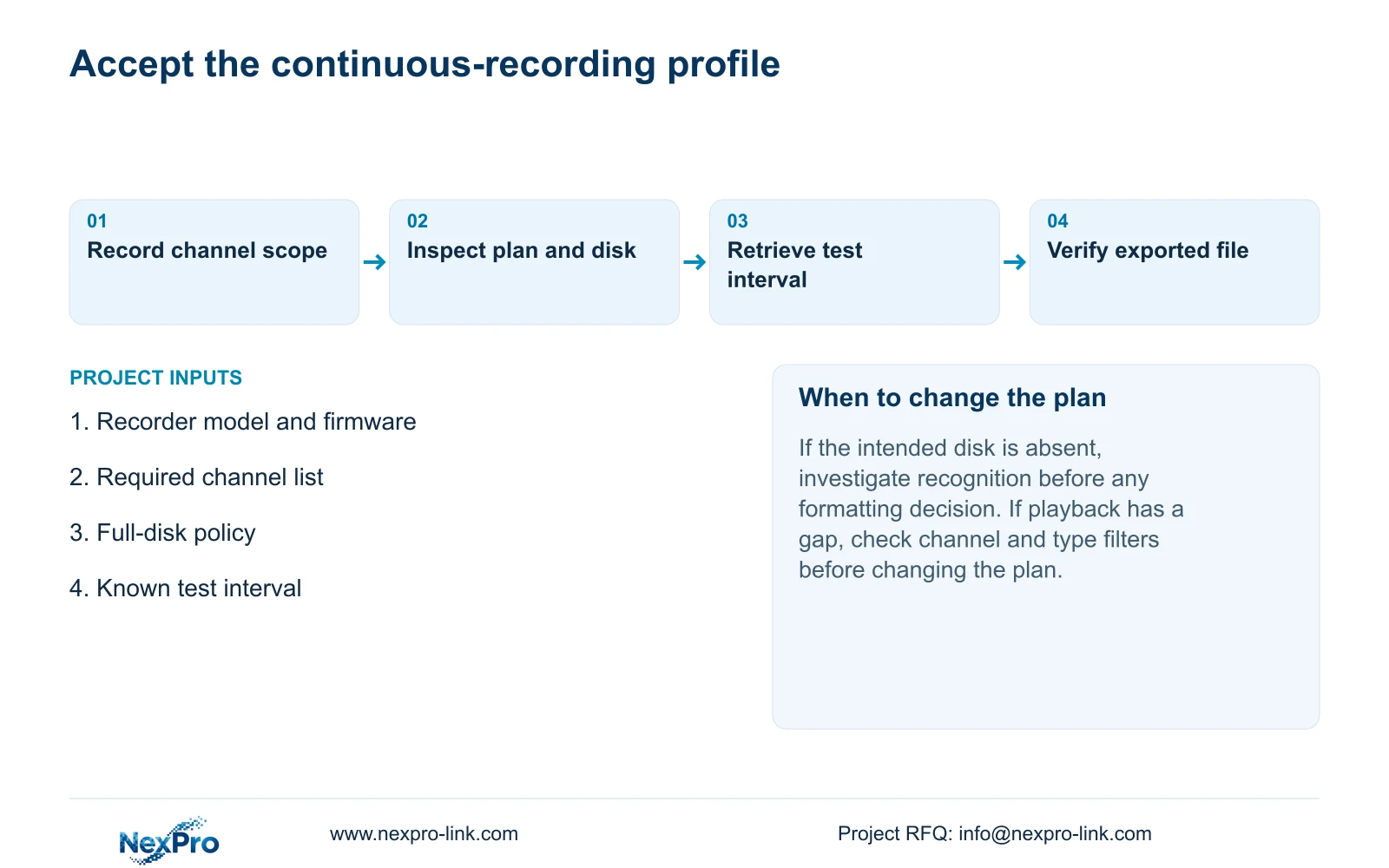
Choose a known test interval that crosses a relevant schedule boundary or day transition. Compare its beginning and end with the stored timeline and play through the transition. If footage appears missing, correct the search conditions first. If the gap remains, return to that channel's plan and disk state with the exact missing interval recorded.
Section 07
Apply the check to the building profile
Illustrative project scenario: A contractor prepares a 24/7 recording profile for a small commercial building. The contractor groups the channels requiring all-day coverage, preserves any exceptions, and checks the recognized disk and full-disk policy. A known recording interval is then retrieved across a relevant boundary. The acceptance record identifies the camera, expected coverage and observed playback result. This is a proposed commissioning workflow, not a delivered project or a measured reliability claim.
Section 08
Complete the task with an independently playable export
Follow an identifiable channel from live view through a known recording period, playback and export. Play the exported file on another device and check that its camera identity and time interval match the selection. Keep the result with the plan and storage observations. This engineering workflow uses sections 4.3, 4.11 and 4.12.21; it is not a built-in automatic acceptance feature.
Separate a successful short test from proof of the owner's full retention period. Record any untested days or channels, and assign follow-up checks. The owner should be able to repeat retrieval without relying on the contractor's familiarity with the display layout.
Section 09
Can identical cameras always share one schedule?
Only when their required hours, recording type and supported options agree. Camera model alone does not justify copying an office plan to a continuously monitored gate.
Section 10
Is an orange date enough for continuous-recording acceptance?
No. It establishes recording existence for that date. Acceptance still needs the correct channel, relevant type filters and playback across the required interval.
Section 11
Resolve an incomplete continuous-recording check
Send NexPro-Link the recorder model and firmware, affected channel and exact failed test interval at info@nexpro-link.com.
Engineering references
These sources support the general planning principles. Always use the selected product's current datasheet and applicable project standards for final design.


