

Two visible timestamps can belong to the camera image and recorder interface. Identify each layer, verify the exported file and retain the camera-to-channel identity in the incident record.
Section 01
Identify the owner of each visible timestamp
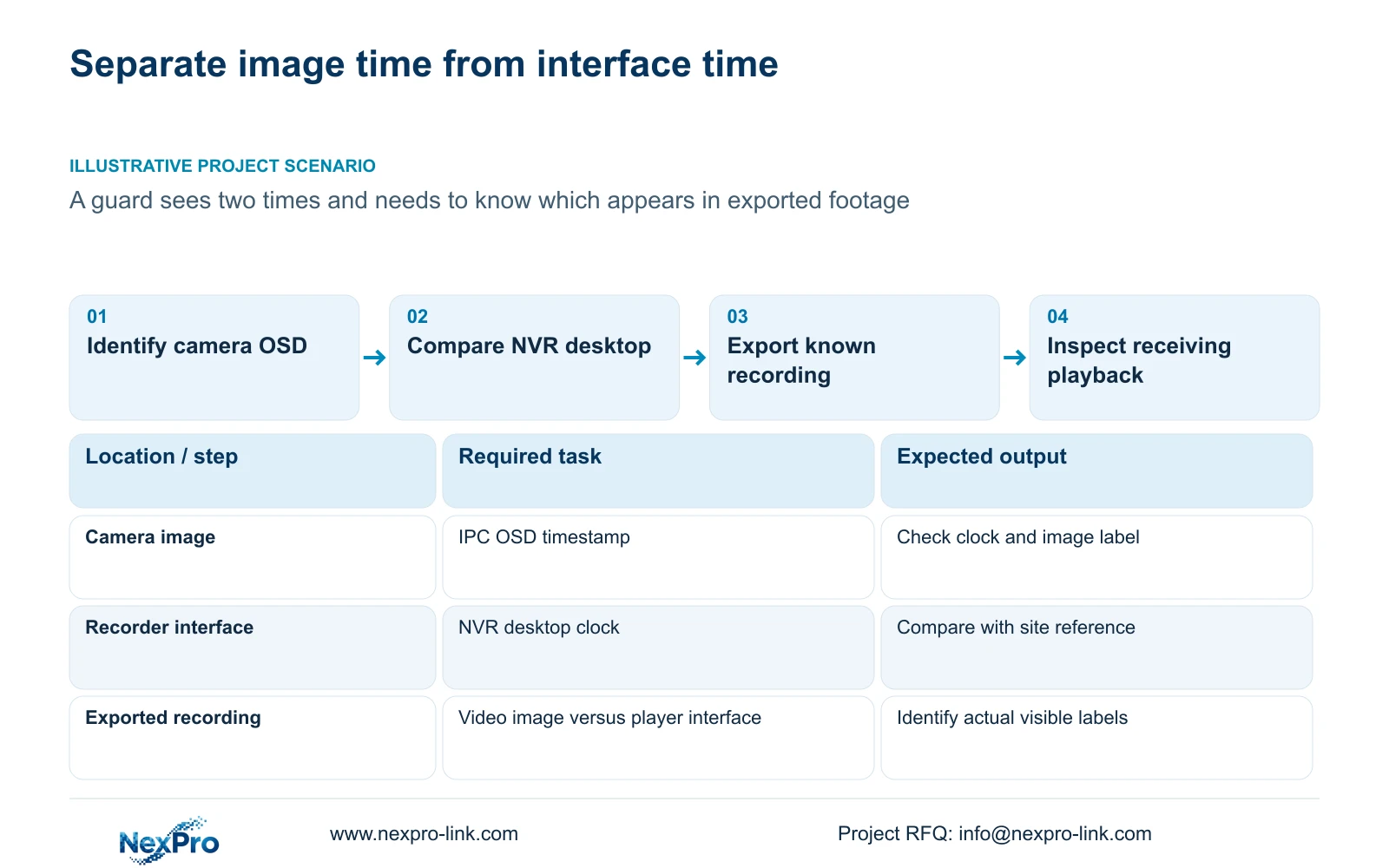
When two times appear on an NVR live screen, identify the camera-image overlay and recorder desktop clock separately before editing either device. Compare both with a confirmed site reference, inspect their synchronization paths and check each time-zone setting. Then export a known recording and open it through the intended receiving system to establish which visible labels appear in that deliverable. A screen photograph alone cannot answer that question. Keep the observed timestamp source with the channel and physical camera identity so an incident report does not attribute the recorder interface time to the wrong camera or recording.
Mark the timestamp within the camera image separately from the clock in the recorder interface. Record their positions and the same observation moment. Where ownership remains uncertain, carry the uncertainty into the comparison rather than assigning a source solely because one label looks familiar.
The source is NVR4.0 user manual CH_V2.4.doc, whose body identifies V2.2. Sections 4.4.4 and 4.12.6 describe OSD enablement, channel names, title and time positions, date format, weekday and optional resolution or bitrate information. Verify supported controls on the actual camera and firmware.
Section 02
Trace how the recorder and camera obtain their time
Sections 4.4.2 and 4.12.2 provide separate time controls for IPCs and the NVR. The IPC page includes manual time and network synchronization. The recorder page includes network time and an IPC synchronization interval measured in hours. Inspect the actual arrangement before assuming the camera follows the desktop clock.
Document which authority updates the recorder and which updates the affected camera. If the camera uses an independent mechanism, record it alongside any recorder-to-IPC synchronization setting. The objective is to explain the discrepancy without changing unrelated devices.
Compare both timestamps with the confirmed reference after any authorized adjustment. If one camera remains different while the recorder agrees, investigate that camera's supported settings and firmware. The presence of a network-time control does not establish compatibility with every local NTP server or identical behavior across a mixed camera group.
Section 03
Check each device's local-time presentation
A synchronized device can still display the wrong local time when its time zone or daylight-saving settings differ from the site's intended basis. Inspect those settings on the recorder and affected IPC separately. The manual calls for correct time-zone selection before network synchronization and provides independent daylight-saving start and end settings.
Preserve the original discrepancy and a reference event before correction. Record whether the mismatch belongs to the recorder desktop, camera overlay or both. That information remains useful when searching footage made before the change.
Use the OSD controls to keep the timestamp readable and away from important image content. A different date format or text position may explain a confusing label, but it does not correct an underlying clock difference. If a third-party camera does not accept the setting, obtain its applicable instructions instead of repeatedly copying the same command.
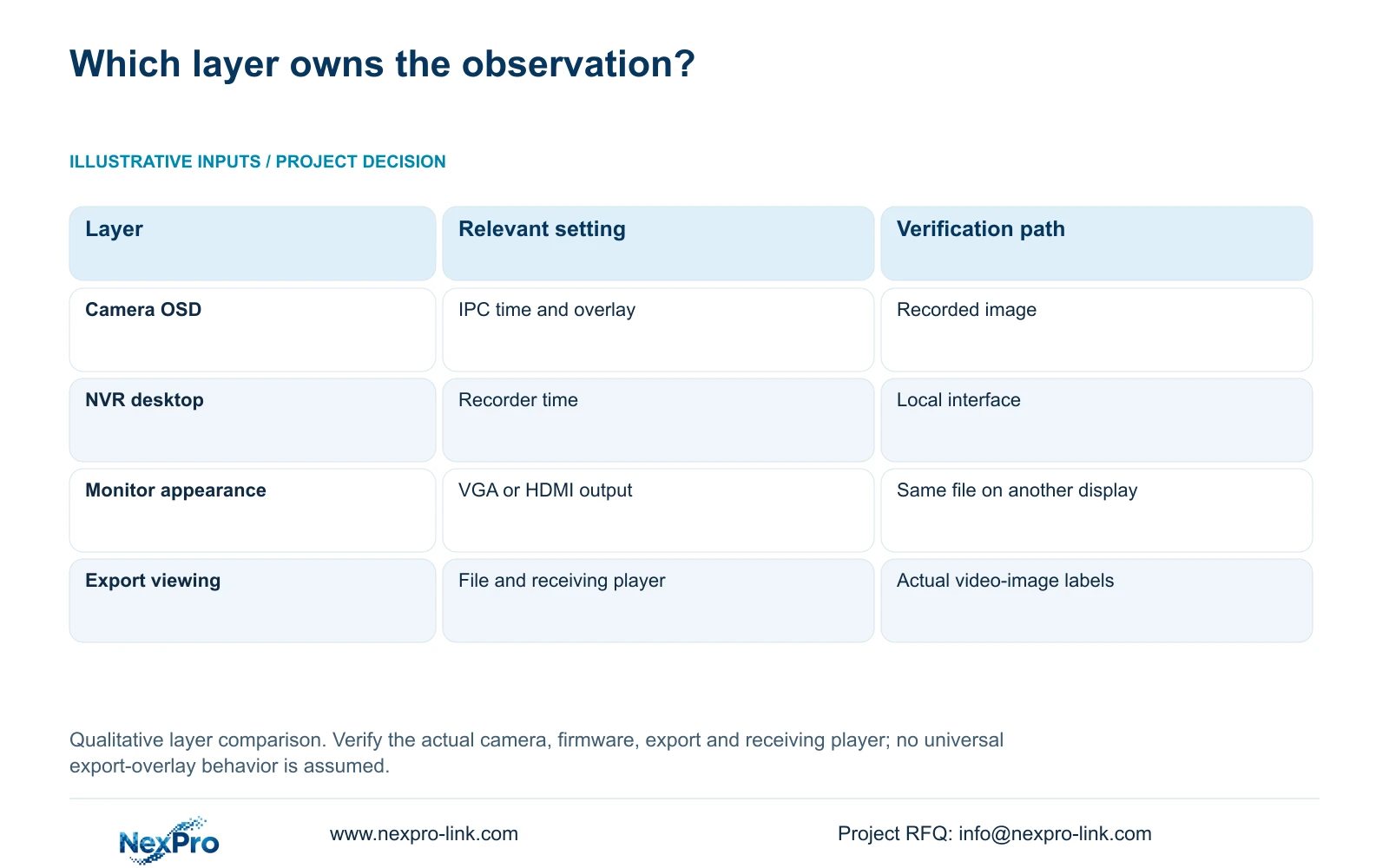
| Object | Control or observation | Verification |
|---|---|---|
| Camera-image timestamp | IPC clock, time zone and OSD settings | Inspect the recorded image and sample export |
| Recorder desktop clock | NVR clock and local-time settings | Compare the interface with the site reference |
| Monitor appearance | VGA or HDMI output adjustment | Compare the same recording on another viewing path |
| Exported file | Selected recording and receiving player | Identify labels visible in the actual video image |
Section 04
Keep monitor adjustment separate from the recorded image
Section 4.8 describes output adjustment for the VGA or HDMI display, while section 4.4.3 describes IPC image-capture controls such as brightness. Changing monitor-facing brightness or color does not establish that the camera's recorded image has improved, and it cannot reconcile two different clock values.
If the timestamp is difficult to read, compare the same recorded segment on another suitable viewing path before changing camera processing. Keep the file and segment consistent so the comparison addresses the display layer. Record which control was adjusted and whether the original discrepancy remains visible.
When the issue belongs to OSD position or format, use the applicable OSD control and verify the result on that camera. When it belongs to time, return to the clock and time-zone checks. Avoid hiding a wrong timestamp as a substitute for resolving its source.
Section 05
Inspect the timestamp inside the actual exported footage
Select a known camera and recording period, then use the backup workflow in section 4.11.4. Open the resulting file on the receiving system. Inspect the video image separately from any clock, counter or label supplied by the playback application.
Record which of the live-screen timestamps appears in the exported image and compare it with the known action. This establishes the behavior of that tested recording and viewing path. Do not generalize the result to every export format, camera or player without an applicable check.
Verify the channel, start and end coverage, playback and any required audio. The manual mentions players such as VLC, without guaranteeing every operating-system and codec combination. If the file cannot be played, retain the original footage and resolve the export or viewing path before drawing conclusions about its visible time labels. A completed backup indicator alone does not answer the guard's question.
Section 06
Attach timestamp ownership to the incident's camera identity
Illustrative project scenario: A guard sees two different times on one live view and cannot tell which one appears in exported footage. The engineer identifies the image and desktop layers, compares their time settings and verifies a sample export. The scenario requires an observed file result; it does not assume which labels every recorder includes.
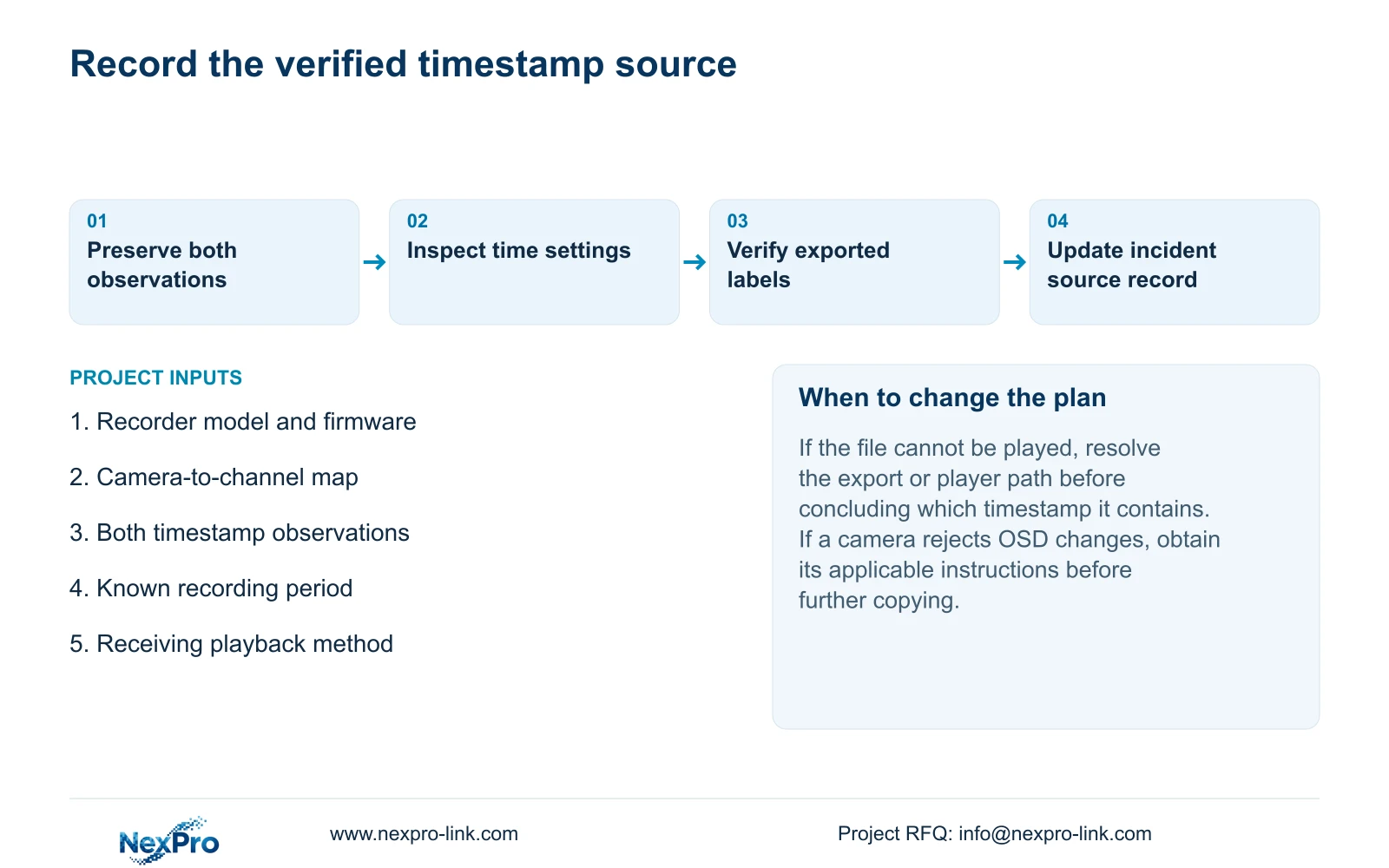
Maintain separate fields for the drawing location, physical camera identity, IP address, recorder channel and displayed OSD name. Sections 4.3.1, 4.4.4 and 4.12.6 supply relevant channel and naming controls, while the project maintains the mapping between those fields.
Record a changed alias separately from a physical camera replacement. Update the map after replacement or channel reordering. For the incident record, identify the footage's source from that map and the actual recording, not merely its familiar preview-window position. Add the observed timestamp source, reference comparison and tested export method so the recipient can interpret the file.
Section 07
Do two different times prove the recording clock is wrong?
No. Identify the two layers and compare them with the site reference. The camera overlay and recorder desktop require separate checks before the recording result can be interpreted.
Section 08
Can a live-screen screenshot prove what the export contains?
No. Verify the actual exported video on the intended receiving system and distinguish image labels from the player's own interface.
Section 09
Provide the two timestamp observations
Send NexPro-Link the recorder model and firmware, a redacted description of both timestamp positions and the labels observed in a tested export at info@nexpro-link.com.
Engineering references
These sources support the general planning principles. Always use the selected product's current datasheet and applicable project standards for final design.


