Correct the intended camera's source orientation, preserve its channel mapping, and verify labels, analytic geometry and newly recorded footage after the change.
Section 01
Identify the affected camera and required orientation change
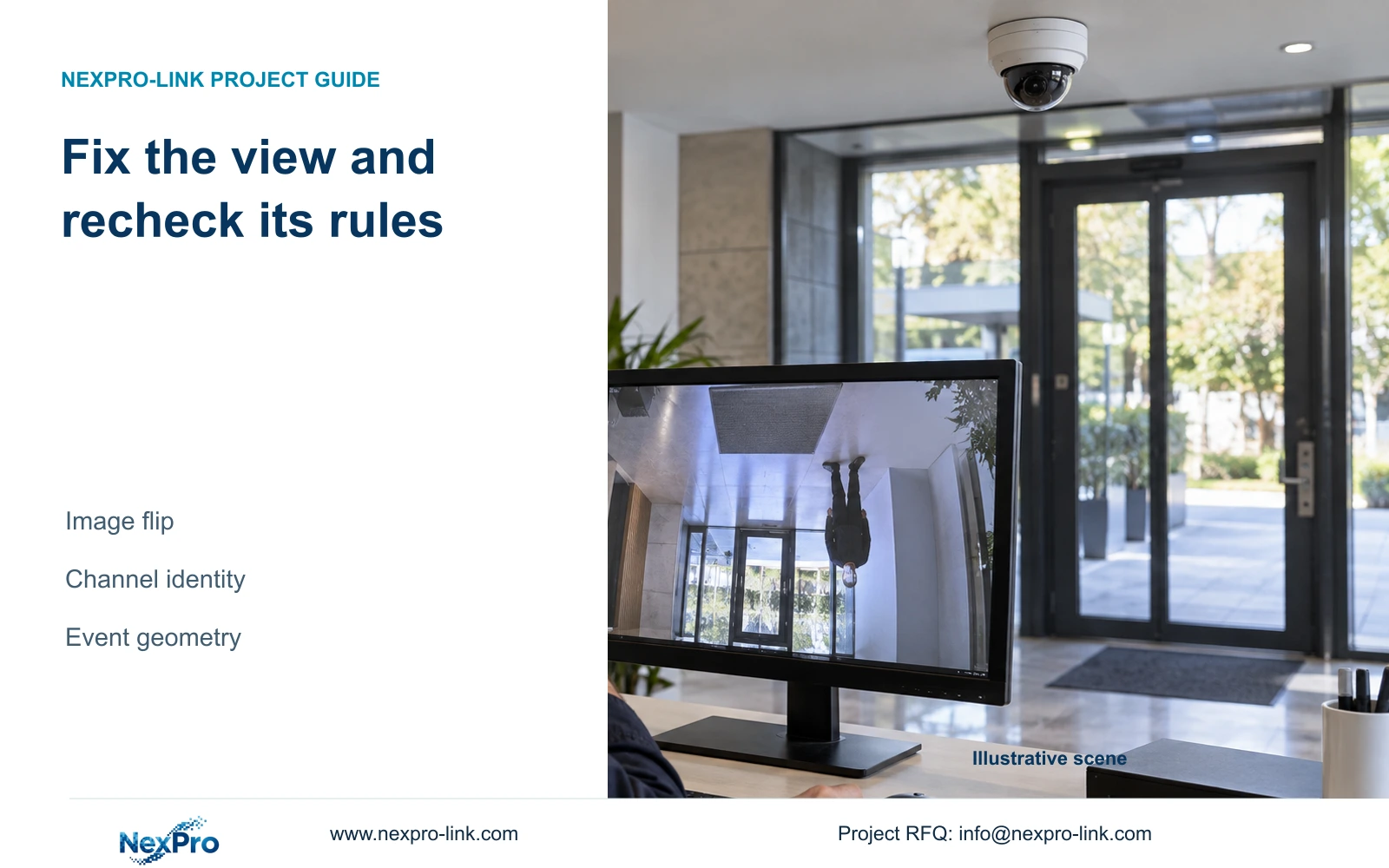
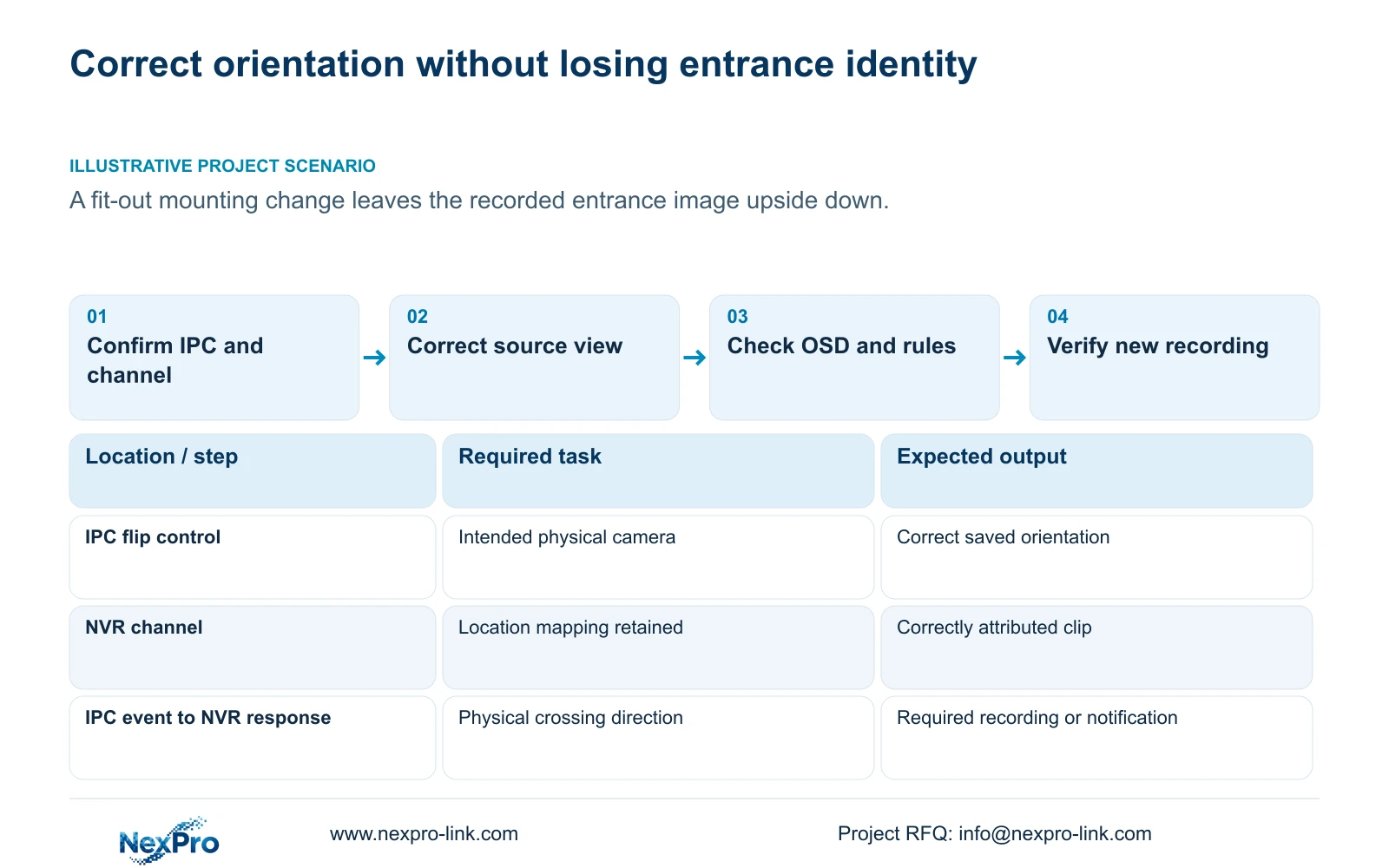
An upside-down recorded entrance image should be investigated as a camera-source orientation problem before changing channel order or display labels. Confirm the physical camera and recorder channel, preserve the original state, and use the supported IPC flip control that produces the required view. Then recheck the camera's text overlays and any detection regions or crossing rules associated with that image. Retrieve newly generated footage to confirm the correction reaches recording. A visually upright live window is only part of completion: the location identity, event direction and operator's playback task must remain correct after the source change.
Compare the recorded image with familiar entrance features to determine whether the problem is an upside-down view, a horizontal mirror or another orientation mismatch. Keep the distinction explicit. Section 4.4.3 lists image flips among IPC capture controls, separate from recorder output adjustment.
Record the current setting and retain a baseline sample. Apply one relevant supported change to the intended IPC, then inspect the result before making another adjustment. If the available control cannot produce the required view, obtain the device-specific instructions rather than inventing a menu sequence.
Section 02
Preserve the camera-to-channel mapping
Keep drawing location, physical IPC identity, IP address, NVR channel and displayed name in separate fields in the controlled project record. Confirm these relationships before touching the orientation setting. A familiar position in the multi-window grid is not sufficient proof of camera identity.
Correcting orientation does not require assigning the entrance footage to another channel. Distinguish a display-name change from a physical camera replacement, and record either separately if it is actually part of the work. Update the mapping after any replacement or reordering.
When checking a historical or exported event, verify its recording identity against the location record. This prevents an upright image from being accepted under the wrong entrance name merely because the operator recognizes its screen position. Keep device identifiers and sensitive site records out of public examples.
Section 03
Recheck text overlays on the corrected view
The manual lists OSD enablement, channel name, title and time positions, date format, weekday display and optional resolution or bitrate information. After correcting the image, inspect the actual overlay result. Do not assume that every device transforms or positions text in the same way.
Keep IPC overlays separate from the recorder desktop clock. Check the camera's name and time within the new recording, then position supported text so it does not cover the required entrance detail. A correct desktop time alone cannot establish that the recorded camera overlay is correct.
If an OSD command is unavailable or does not take effect, check the camera, firmware and connection support. Avoid copying the same text position across different views without reviewing the useful image area of each camera.
Section 04
Inspect existing IPC regions and recorder responses
Where the entrance uses supported analytics, inspect the existing detection geometry after the orientation change. Do not assume that a region or line has automatically retained its intended relationship with the physical doorway. Compare the displayed geometry with the real target area.
Section 4.12.15 describes enabling the recorder-side function and opening Front-end Settings to configure the IPC region or line, direction and related parameters. The IPC generates the event; the recorder receives it and performs the selected response. Both parts must remain suitable.
Check the relevant enablement, timing and response before testing. If the camera lacks the required analytic capability, a recorder checkbox cannot add it. For a third-party device, confirm reception of the specific event independently from basic video. ONVIF profile information is a scope reference, not a guarantee of this event path.
Section 05
Test the warning line against real movement
Recognition frames and warning-line display are separate controls from event enablement, direction, timing and actions. Use the drawing to inspect geometry, then conduct an approved passage through the required entrance route. Define the intended crossing direction using the physical entrance, not an ambiguous screen-left or screen-right description.
Check event reception and the required recording or notification result. If the opposite direction behaves differently from the requirement, review the supported direction configuration and repeat the test. If the line is visible but no event arrives, investigate the event path before redrawing unrelated regions.
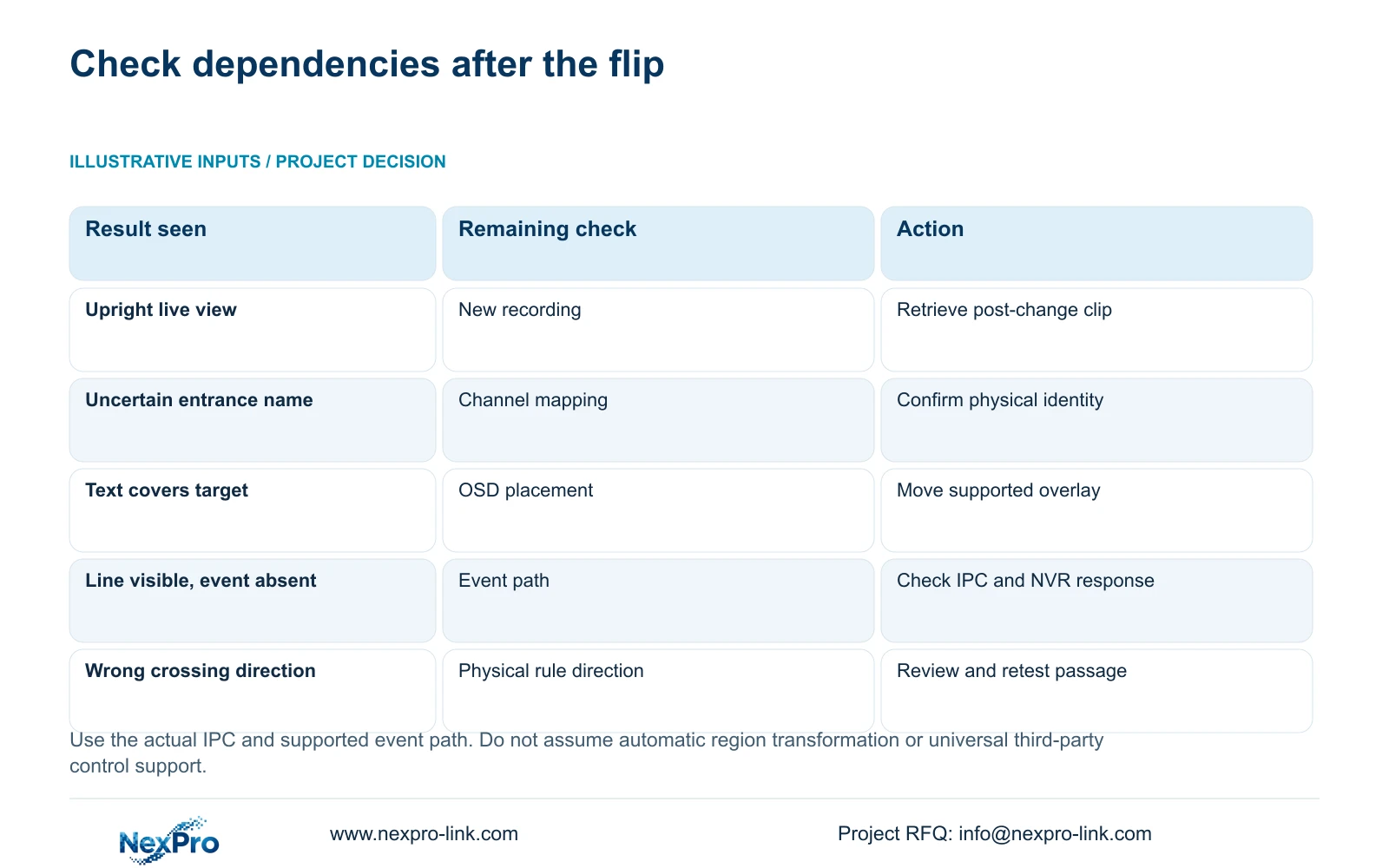
The branches below identify what remains to be checked after the picture becomes upright.
| Observed state | Unresolved task | Next action |
|---|---|---|
| Live image upright; new footage unchecked | Recording-path verification | Retrieve a newly generated entrance clip |
| Image upright; location label uncertain | Camera-to-channel identity | Check the controlled mapping record |
| OSD covers required entrance detail | Overlay placement | Adjust supported text position and record again |
| Warning line visible; event absent | Event generation or reception | Check IPC enablement and NVR response |
| Crossing response follows the wrong physical direction | Direction configuration | Review the rule and repeat an approved passage |
Section 06
Validate new footage and retain the historical reference
Retrieve footage created after the orientation correction and confirm the channel, period, upright source view and required detail. Recheck live view, correct time and the intended operator's ability to find the recording. Keep an earlier sample available to document the original condition.
Open a sample export on the intended receiving system and check actual playback and any required audio. The manual's player examples do not guarantee every platform and codec combination. Preserve the original footage until the required copy has been verified.
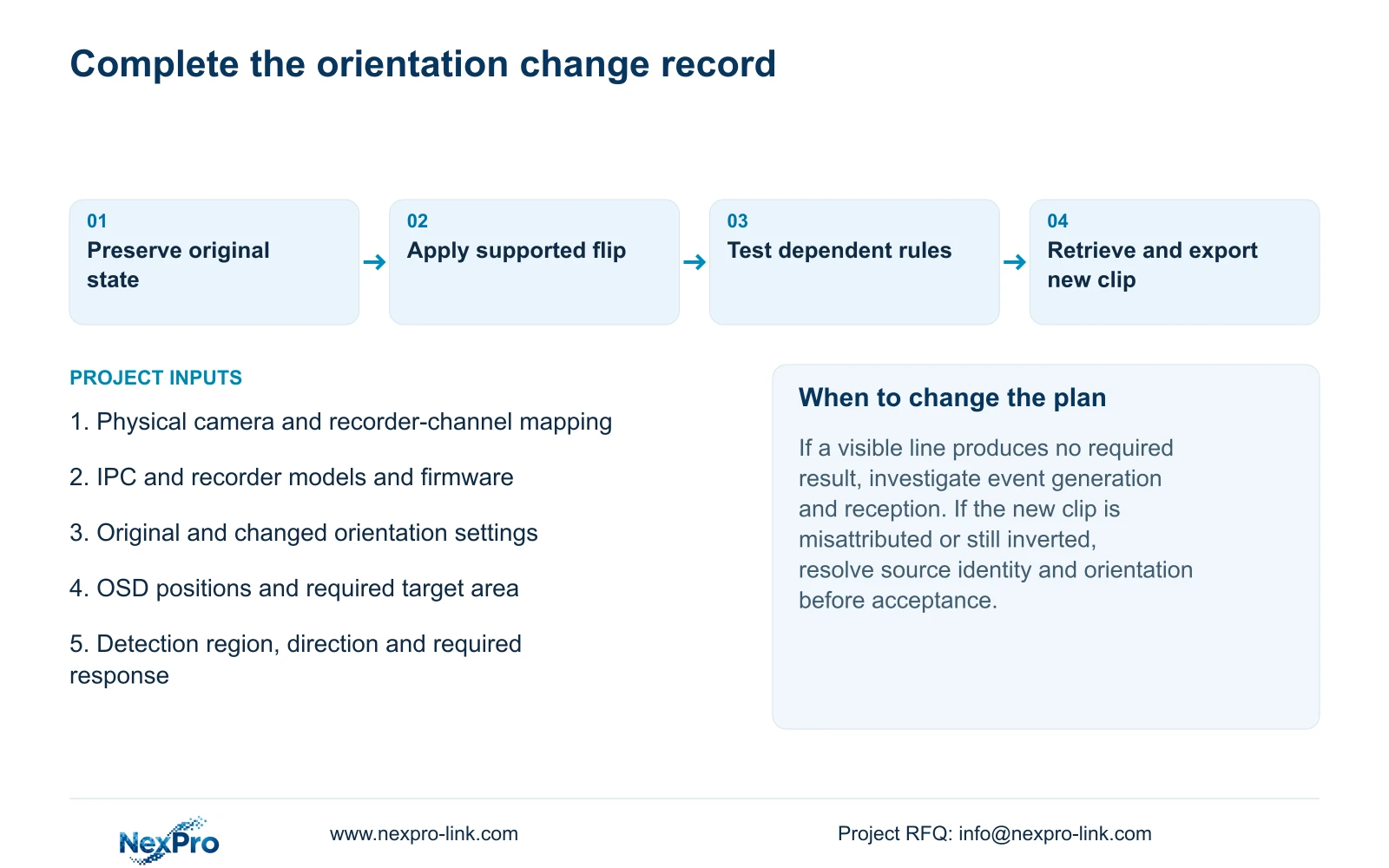
Record the orientation parameter changed, any related OSD or analytic correction, and each remaining failed task. If the event or recording check remains unresolved, arrange the next supported action using that record. Do not assume the device provides automatic configuration rollback.
Section 07
Correct a fit-out mounting change
Illustrative project scenario: A camera is mounted differently during fit-out and the recorded entrance image is upside down. Confirm that the affected channel still represents the same physical entrance camera. Test its supported orientation control, inspect the new OSD placement and review any existing detection rules against the changed view. Completion requires a correctly attributed new recording and the intended event response where analytics are required; no delivered result is assumed.
Section 08
Should the channel be renamed to fix an upside-down image?
Renaming does not correct source orientation. Preserve the location mapping and change the supported IPC image setting; update a name only when the project identity record requires it.
Section 09
Must every detection region be redrawn after a flip?
The source does not establish one universal transformation behavior. Inspect the actual region and direction, change them where required, and confirm the event result with an approved passage.
Section 10
Source and device scope
This guide follows NVR4.0 user manual CH_V2.4.doc, whose body identifies V2.2, sections 4.4.3, 4.3.1, 4.4.4, 4.12.6, 4.12.15 and 4.11. Post-change verification is an engineering extension of the documented operating tasks and maintenance sections 4.12.17 through 4.12.20.
Section 11
Provide the orientation and rule-check result
Send the affected IPC and recorder identities, orientation change, and any remaining OSD, crossing-direction or new-recording failure to info@nexpro-link.com.
Engineering references
These sources support the general planning principles. Always use the selected product's current datasheet and applicable project standards for final design.