

Separate online version detection, permission to update and post-change acceptance so an automatic recorder restart does not interrupt critical work.
Section 01
Set the permitted interruption before enabling the schedule
The NVR automatic-upgrade schedule should follow an authorized maintenance window that includes interruption and post-change checking. Section 4.12.20 describes online version checking, requires internet access and makes the scheduled time effective when automatic upgrade is enabled. Before enabling it, identify who approves updates, when the recorder may restart, what information must be preserved and who verifies operation afterward. A server response that no newer version exists does not establish security or project suitability. For a site with busy events or active incident review, keep update permission tied to those operating constraints instead of treating a saved time as complete maintenance approval.
Separate version detection from permission to apply a change. Detection provides information about a corresponding model version. Approval decides whether the identified installation may be interrupted under the current conditions. Acceptance then checks the required tasks after the change.
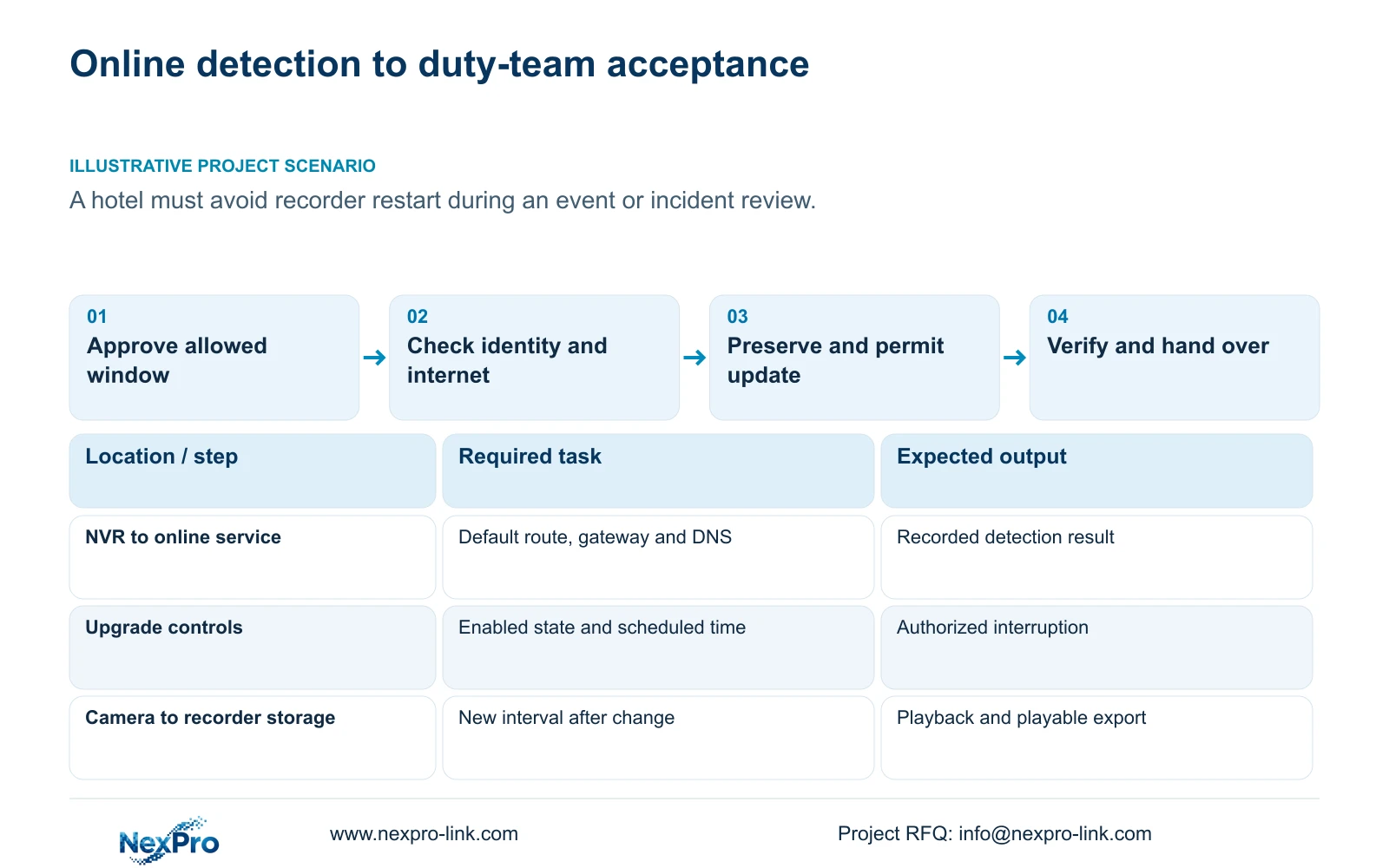
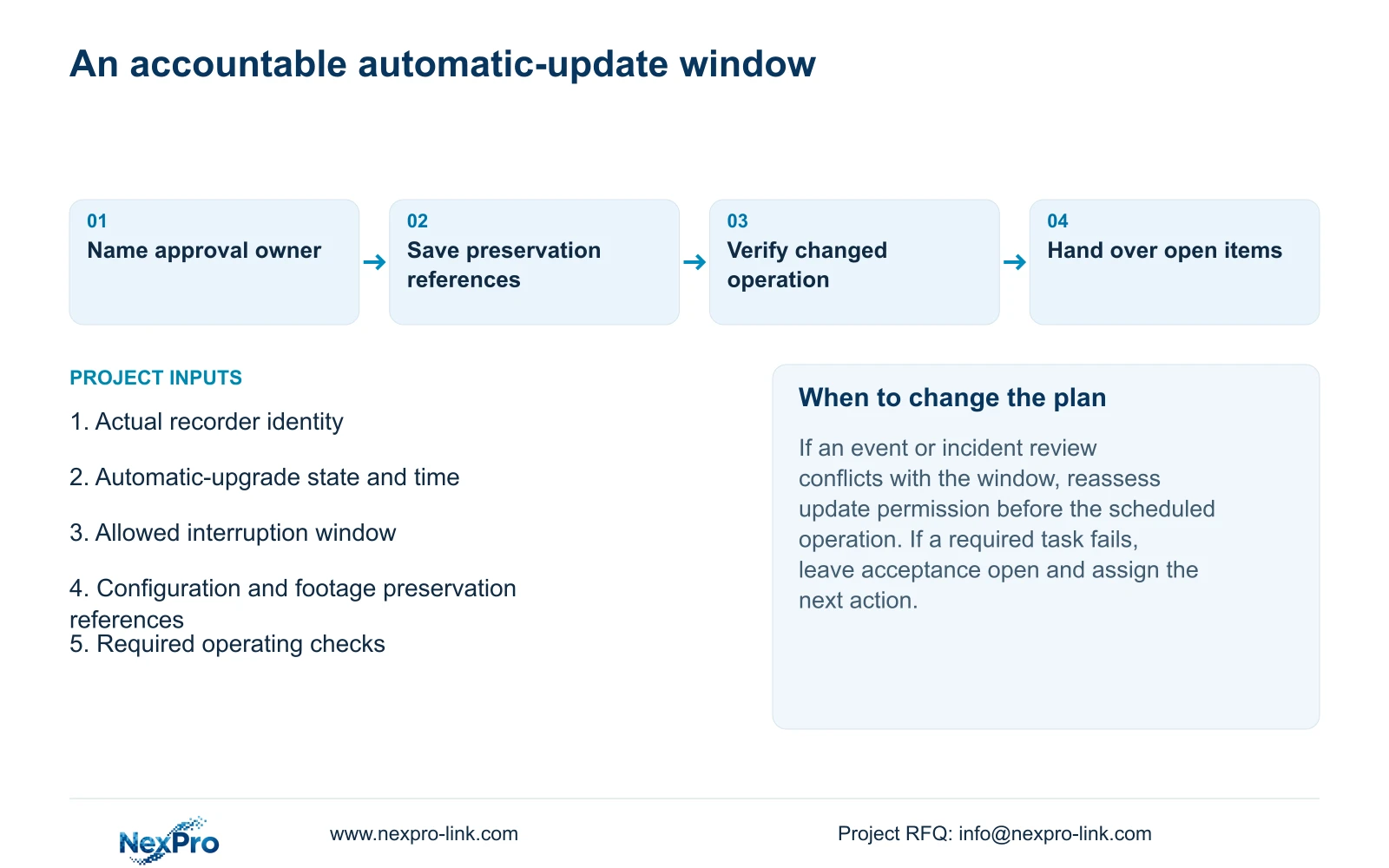
Record the responsible person and the allowed window in the maintenance record. Include protected power and preservation of required data in that approval. If operating commitments change, reassess the scheduled permission before the window arrives; the manual does not establish an automatic event-aware veto.
Section 02
Connect the update decision to the installed recorder
Use System Information in section 4.12.19 to record the product model, hardware version, software version and software date or release information. Keep those values with the update record so the person checking completion knows which installation was intended to change.
This guide follows the supplied private NVR4.0 user manual CH_V2.4.doc. The body headers identify V2.2. Neither document label identifies the installed firmware. Use section headings to locate the controls and compare them with the actual recorder.
If the online result or visible menu does not fit the recorded identity, obtain applicable guidance before proceeding. A shared NVR4.0 interface does not prove a common hardware specification, and the manual establishes no TS-to-NexPro-Link commercial SKU mapping. Keep device identifiers and credentials out of public screenshots.
Section 03
Check the recorder's internet path independently of camera video
A recorder can display local cameras while its internet route is unavailable. Sections 4.3.3.2 and 4.12.8 distinguish the local camera path from the recorder's external-network path. Inspect the selected default route, gateway and DNS before treating live video as proof that online checking can work.
Use the applicable remote-network diagnostic view and record its result. Where cloud access is also required, check cloud state and relevant authorization separately. A successful cloud session does not replace checking the update result, and an update detection result does not prove every remote-access task.
If online checking fails, preserve the specific observation and investigate the corresponding route or DNS condition. Blanket public port exposure and indiscriminate firewall changes are not substitutes for this diagnosis. A proposed network change requires authorization, preservation of the existing configuration and consideration of its access impact.
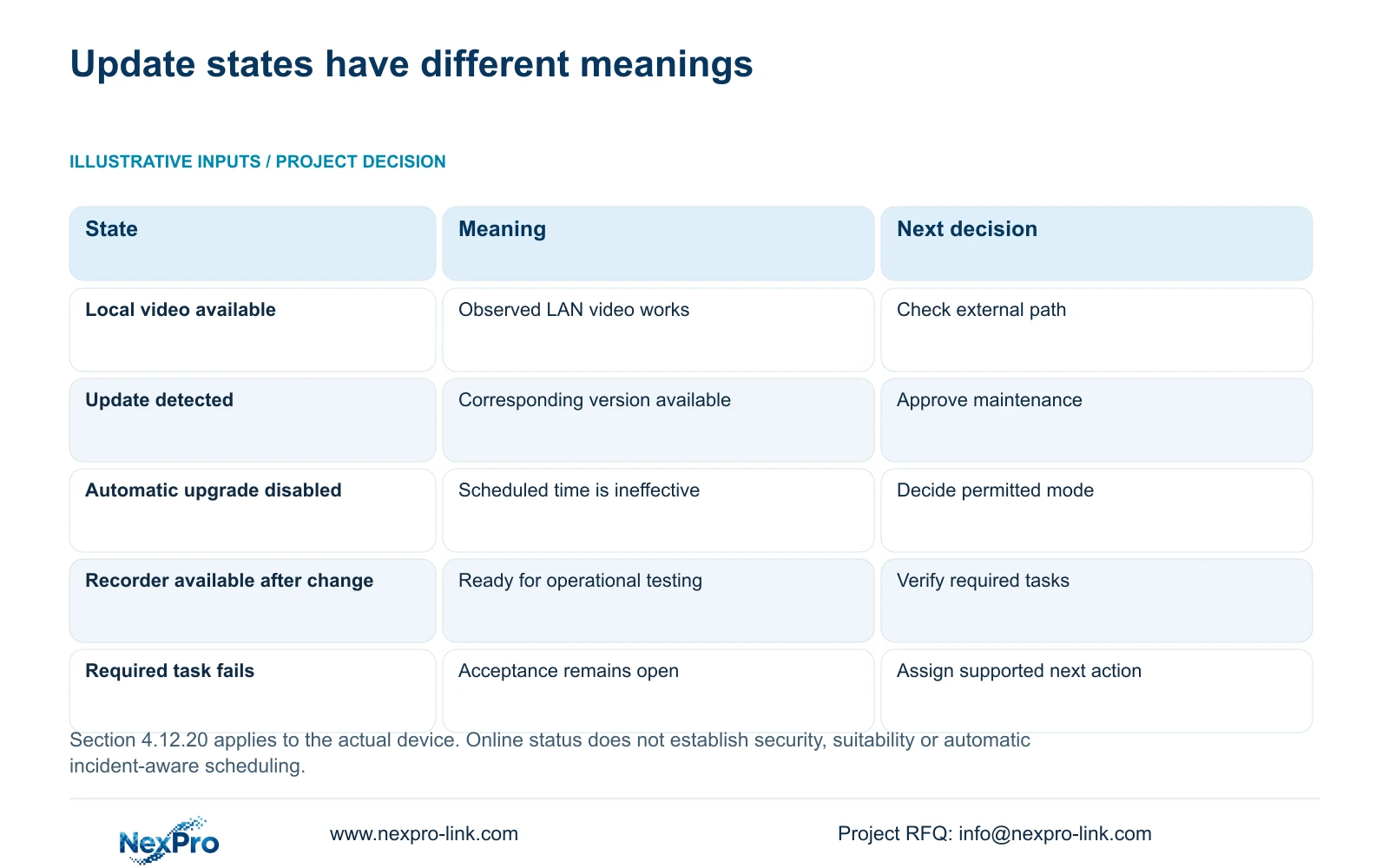
| Observed state | What it establishes | Next action |
|---|---|---|
| Local camera video works | The observed local video path operates | Check the recorder's external route and DNS |
| No newer version is reported | The online service reports no corresponding update | Retain the installed baseline and review required tasks |
| A corresponding update is detected | An update is available through the described workflow | Confirm approval, preservation and maintenance conditions |
| Automatic upgrade is disabled | The scheduled time is not effective | Decide whether an authorized automatic window is appropriate |
| The recorder returns after the change | The device is available for checking | Verify recording, retrieval, export and required access |
Section 04
Keep recovery information ready before the window
Export applicable settings and record their source identity and location. Configuration export in section 4.12.18 is separate from video backup in section 4.11.4 and log export in section 4.12.17. Identify each object by its purpose so the duty team can locate the required information.
Preserve selected incident footage before the authorized update when the site needs continued access to that material. Verify the exported files independently. A settings file cannot establish that the recordings have been copied, and the manual does not promise universal configuration import or automatic firmware rollback.
If essential preservation remains incomplete, the person responsible for the window should resolve that condition before allowing the change. Record the pending task explicitly. A schedule that is technically enabled can still be operationally unready.
Section 05
Check the operating task when the recorder returns
Read and record the post-change software identity, then check live view, time, newly produced footage and relevant older footage. Test export with a file that the intended recipient can play. Check the intended operator accounts and access paths rather than using an administrator login as the sole acceptance result.
Where the site relies on events, include those specific functions in the check. The required set should follow the installation's actual duties. Do not infer analytics or camera-specific controls from the existence of a shared menu.
A useful recording check follows an identifiable channel through a known interval, playback of that interval and a verified export. If any task fails, record the channel, time and observed outcome. Keep the update identifiable as the changed variable and arrange the next supported action instead of assuming a downgrade will restore everything.
Section 06
Give the duty team the changed state and open items
Illustrative project scenario: A hotel does not want an automatic recorder restart during a busy event or incident review. The maintenance owner chooses an allowed interruption period, confirms preservation and assigns the post-change check. If incident review is still active, the update permission needs reassessment before the scheduled operation.
After checking, hand over the installed version, applicable configuration reference, backup location and task results. Name any failed or untested function and the person responsible for its next action. This avoids a duty operator interpreting 'updated' as 'all required functions accepted.'
The operator should be able to identify the needed channel, retrieve a period, export a playable file and reach the responsible support contact. Transfer credentials through a controlled route. NexPro-Link's project support scope can organize equipment and technical-document requirements, while update permission and site acceptance responsibilities should remain explicit.
Section 07
Automatic update questions
Does entering a time activate automatic upgrading? The manual says the time setting becomes effective when automatic upgrade is enabled. Check both the enabled state and the saved time.
Does 'no newer version' mean the installation is secure? No. That response does not establish security or suitability for every project task.
Can a functioning local camera prove online checking is available? No. Inspect the recorder's external route, gateway and DNS separately.
Section 08
Define the allowed update window
Send NexPro-Link the recorder model and installed firmware with the permitted interruption window and tasks requiring post-update verification at info@nexpro-link.com.
Engineering references
These sources support the general planning principles. Always use the selected product's current datasheet and applicable project standards for final design.


